
A frequently asked question is how to get Excel charts to automatically update when new data is added outside the original selected ranges. The most frequent recommendation (such as here) is to convert the data to a table, then insert a new chart linked to the table. Adding new data immediately below the table will then automatically extend the table range, and the chart will automatically update.
This post looks at an alternative approach using range names defined with a formula, plotting data defined in a dynamic array. The process is described in detail at Engineer v Sheep, including some catches in the set-up process, and how to avoid them. This post looks at an engineering related example, including a modification to deal with data outside the dynamic array.
The requirement is to plot two graphs showing bending moments and shear forces, for multiple load cases, plotted against axial load, around a reinforced concrete arch, together with the bending and shear capacity (click image for full size view):


The data in the first three columns is imported from an external FEA program with VBA code. The other columns divide the moments and shear forces into three groups, depending on the sign and the reinforcement at the section. This data is returned by a user defined function, as a dynamic array.

To define the ranges for plotting, each column must be given a range name defined with an index function:
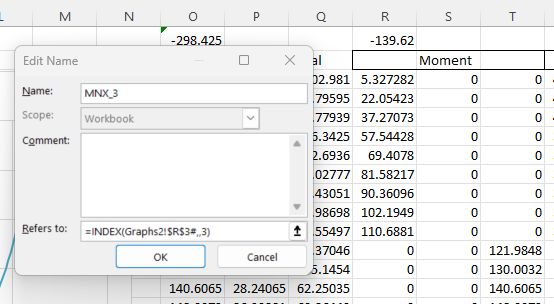
Note that the row number argument is left blank, so the function returns the whole column.
The index function can be used for all six columns returned by the UDF, but the axial loads are to the left of the UDF, and cannot be accessed using Index. For this column the Offset function must be used, with a negative row offset:

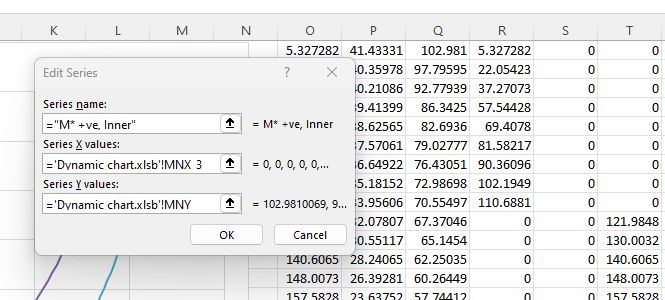
The named ranges can then be used to define the graph ranges:


 Newton Excel Bach, not (just) an Excel Blog