Dealing with dates 3: opening and saving csv files without data corruption

This post makes use of a spreadsheet for reading data from text files, including comma separated value (csv) files.  The latest version includes a routine for saving the imported data in csv format.  It can be downloaded (including full open-source code) from Text-in2.zip.

Excel allows csv files to be opened and saved directly from the File menu, without going through the File-Import process.  Unfortunately the data is treated in the same way as text entered into a spreadsheet cell formatted as General, so any text that looks like a number will be stored as a numerical value, and displayed in the format that Excel deems appropriate.  If the file is saved with the original name the data will be changed, which in some cases result in dates being changed, or numeric codes being converted into dates.

This is illustrated with the short csv file below, consisting of four columns:
– Numbers
– Text that looks like numbers
– Dates
– Text that looks like dates

Dates-3-1

The screenshot below shows the results of opening this file in Excel with default language set to Australian English, then saving it as csv, without making any changes.

Dates-3-2

It can be seen that changes have occurred in all the columns:

  • Fractions are treated as dates; 3/4 becomes 3-Apr
  • Leading zeros in numerical text strings are deleted
  • Numerical text with a single E is treated as scientific notation.
  • “” around a text string is deleted and ignored
  • Any separator in a text string is converted to /.
  • Four digit years are sometimes converted to two, and vice versa
  • All the entries under “Look like dates” have been converted into dates, except for those with numbers separated by spaces.

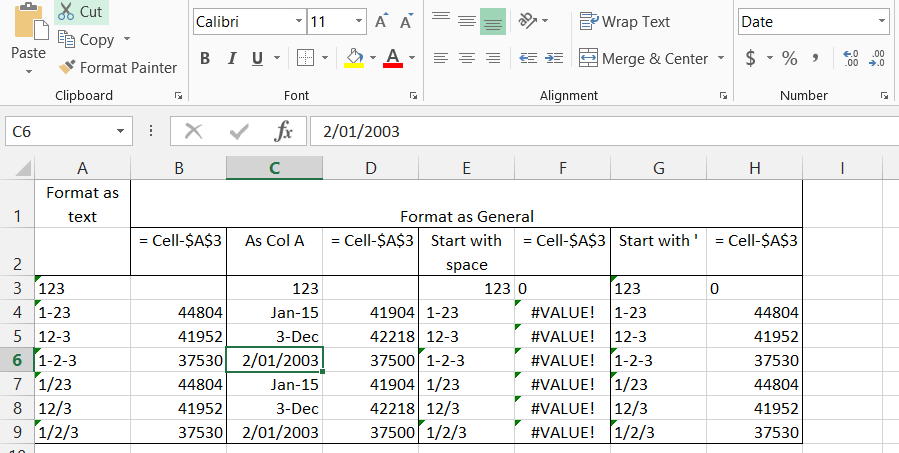
Changing the default language to US English results in significantly different results for the dates, and strings interpreted as dates:

Dates-3-3

  • The fractions (3/4) are converted to 4-Mar, rather than 3-Apr
  • Date strings with two numbers are treated as mm/dd, rather than dd/mm, except when the first number is greater than 12.
  • Numeric date strings with three numbers display with the day and month numbers unchanged, but are treated in Excel as being mm/dd, rather than dd/mm.
  • Unambiguous date strings, are left with the day/month order unchanged.

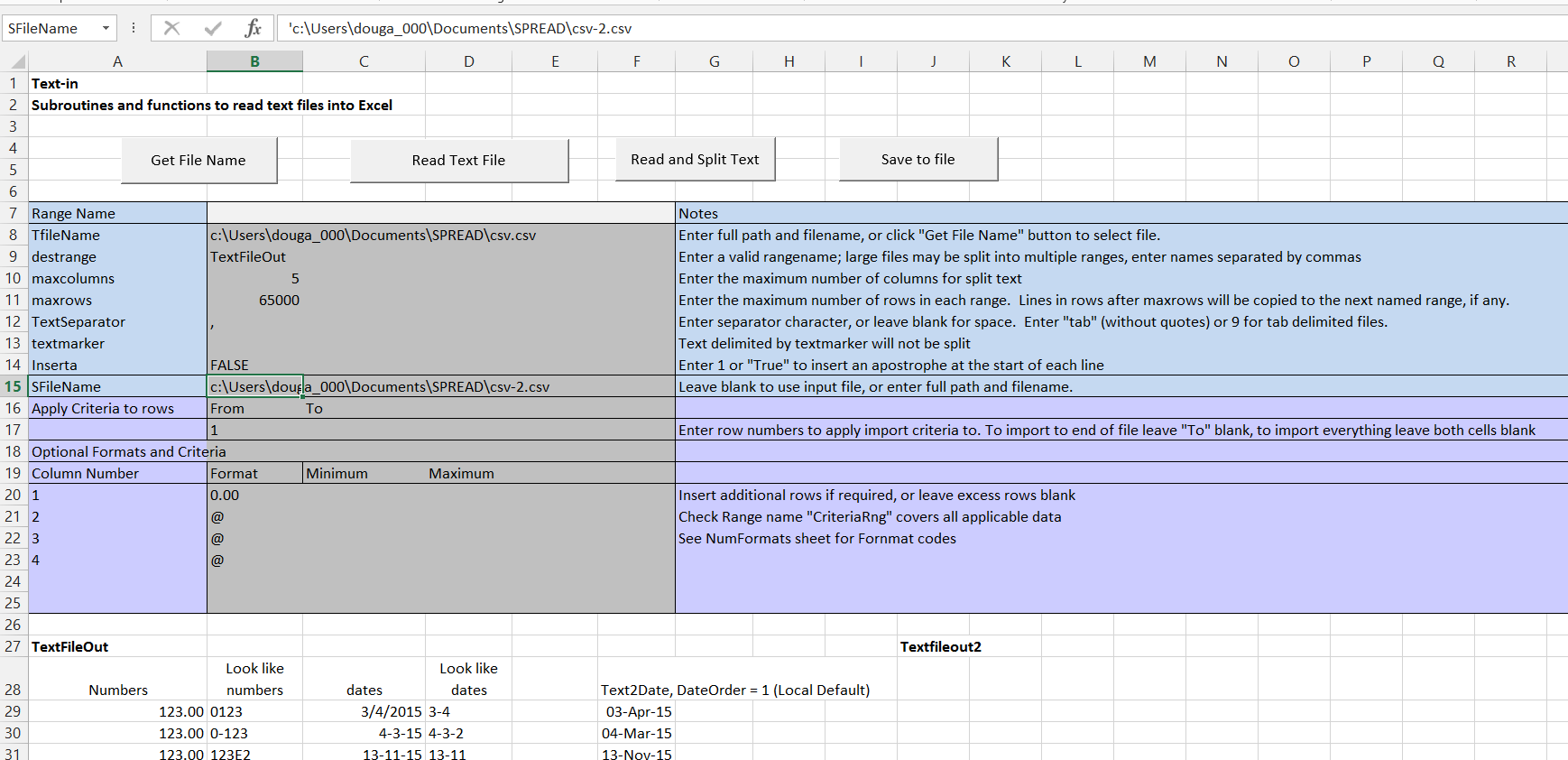
CSV files can now be opened and saved without any unintended changes using the Spreadsheet Text-in2 (download link at the top of this post), which has three new features:

  • Optional formatting of each column
  • Text2Date() function to convert any date string into an Excel date value, optionally with a specified day/month/year sequence.
  • Save imported data to a csv file.

If each column of a csv file is imported as text (format code = @), the data is all imported with no changes:

Dates-3-4

For simple applications numbers imported as text will be treated as numbers by Excel, but for many purposes they must be converted to numbers for everything to work as expected; for instance the Sum function treats all text as having value zer0.  Any column containing numeric data can be imported as numbers by entering the appropriate format code; for example enter 0.00 to import as numbers and display to 2 decimal points.  See the Text-in2 NumFormats sheet for more examples of number format codes.

The dates are imported as text, but can be converted to Excel date values using the Text2Date function.

When the imported data is saved to a csv file all text remains exactly as in the original file:

Dates-3-5

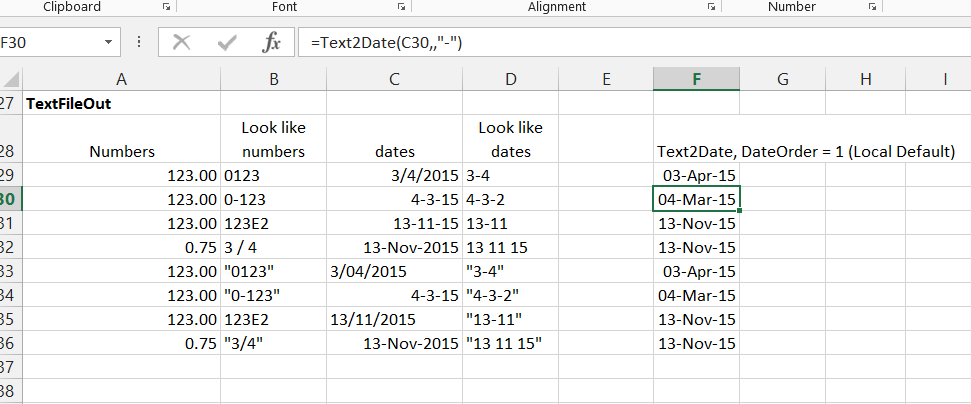
Text2Date optionally allows the date order to be specified, with the System local default being used when not specified.  Date order options are:

0: mm/dd/yyyy  (default for US English)
1: dd/mm/yyyy (default for non-US English)
2: yyyy/mm/dd
Dates-3-6

The function also has an optional Separator argument, which should be specified for any separator other than /.

The screenshot below illustrates use of Text2Date with DateOrder set to zero.  Note that in this case the function returns an error message (“Not a valid date string”) if the first number is greater than twelve, or the second position has a month name, rather than a number:

Dates-3-7

Also note that in this case the format for column 1 was set to 0.00 (rather than @), so this column has been imported as numbers, rather than text.  The fractions in rows 32 and 36 have been converted to decimal values, but the text in column 2 remains unchanged.

More details of the Text-in2 spreadsheet (plus other text functions) can be found at:
Daily Download 32: Text functions

Also see: Extracting numbers with regular expressions
Dates-3-8

Click for full size view

Posted in Excel, UDFs, VBA | Tagged , , , , , | 4 Comments

Dealing with dates 2: Getting cell data type and format code

When working with imported data, or data from an opened csv file, it is often important to know the data type that has been used to store the data.  This may not be obvious, for instance in the previous post we saw that a date imported into a cell formatted as text displays as text, but is converted into a date value when used in a simple formula.  However if the cell is included as part of a range it will be treated as text, with a value of zero, even for a single cell range.  For instance, if we format cell A1 as text and enter 8-jun the cell will display as entered (including the lower case j), but in another cell:

  • =A1 will display 8-jun
  • =A1+0 will (in 2015) display  42163 (the date number for 8 Jun 2015)
  • =Sum(A1) will display 0 (because all text is treated as having a value of 0 when used in the Sum function, even if it looks like a date).

If we now format the cell as General, and re-enter 8-jun, the cell will display 8-Jun and =Sum(A1) will display 42163 (if it is formatted as a number), or 8-Jun (if it is formatted as a date).

The User Defined Function (UDF) below will return information about the data type for the values in a selected single column range:

Function GetDType(DRange As Range) As Variant
Dim DTypeA() As Variant, DVal As Variant, NumRows As Long, i As Long

DVal = DRange.Value
NumRows = UBound(DVal)
ReDim DTypeA(1 To NumRows, 1 To 2)

For i = 1 To NumRows
    DTypeA(i, 1) = DVal(i, 1)
    DTypeA(i, 2) = TypeName(DVal(i, 1))
Next i

GetDType = DTypeA
End Function

The function must be entered as an array function (using Ctrl-Shift-Enter), and returns two columns.  The first shows the actual value stored by Excel (as opposed to the value displayed), and the second the data-type:

Dates-2-1

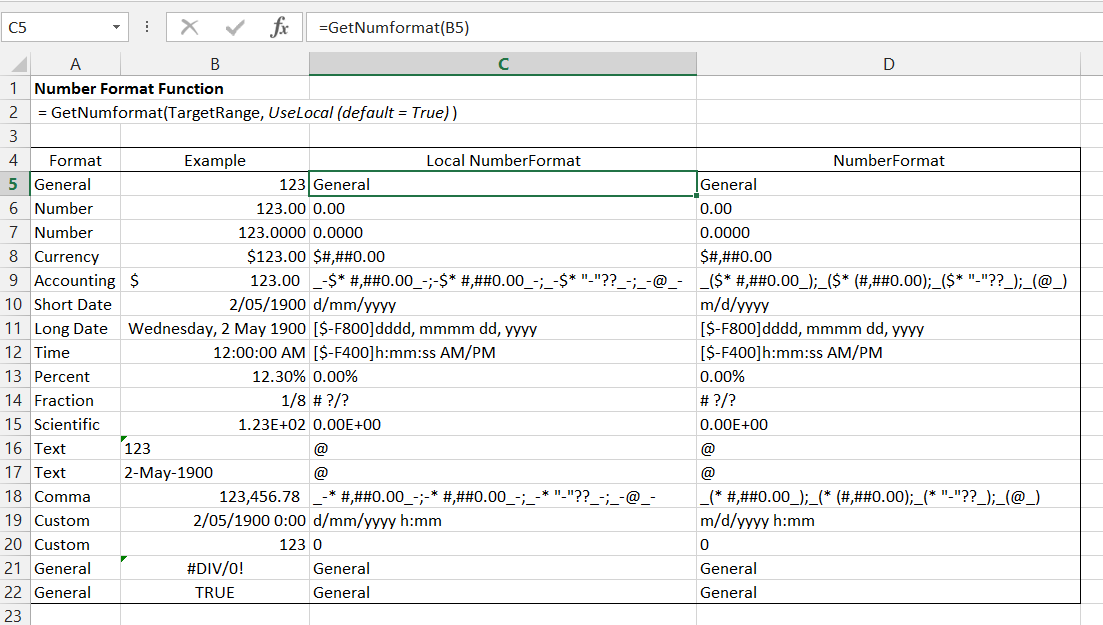
To work with number formats in VBA (which we need to use to open csv files without changing the data) we need to use Excel’s format codes, but there is no built-in way to show the correct format code for any selected cell format.  An excellent and (almost) comprehensive  guide to Excel number formats can be found at: A comprehensive guide to Number Formats in Excel, but for a quick way to find the correct number format, the UDF below will return the format code for any selected cell:

Function GetNumformat(Target As Range, Optional UseLocal As Boolean = True)

If UseLocal Then
    GetNumformat = Target(1, 1).NumberFormatLocal
Else
    GetNumformat = Target(1, 1).NumberFormat
End If

End Function

Examples of some format codes are shown below:

Dates-2-2

Click for full size view


Each format comes in a standard and local version; the local version is returned by default.

Full details of how to generate these sometimes lengthy codes are given in the article linked above, other than for the start of the codes associated with Long Date and Time ([$-F800] and [$-F400]).  A search on these codes suggests that the answer to the question of what they mean is, no-one knows (my lord), but a bit of experimentation shows that if the code between the square brackets is applied as a custom format (including the brackets) a date displays in date format on the spreadsheet, but in date number format in the edit bar, whereas applying the full code the date format displays in both the worksheet and the edit bar.

These functions plus routines to allow data from csv files to be quickly imported and saved without corruption will be available for download in the next post in this series.


Posted in Excel, UDFs, VBA | Tagged , , , , , , , | 6 Comments

Dealing with dates -1, date values and formats

Following a discussion at Eng-Tips, I have been having a closer look at how Excel handles the entry and display of dates.  The Eng-Tips discussion concerned changes to data when csv files are opened in Excel.  I will deal with that (together with a way to open and save csv files in Excel without changing anything) in a later posts, but for today I want to look at the basics of how Excel stores and formats dates.

Excel stores dates as a day number, starting from 1st January 1900.  If you enter a sequence of numbers: 1, 2, 3, … in different cells, then format the cells as dates, it will display as below:

Dates-1-2

Note that day 60 displays as 29th Feb 1900, which does not actually exist, since century years not divisible by 400 are not leap years.  The extra day was introduced to maintain compatibility with the earlier spreadsheet Lotus 123, who had probably done it by mistake.

There is also an option (under Options-Advanced-When Calculating This Workbook) to set day 1 to 1st January 1904, which is the standard for Apple Mac versions of Excel.  Everything that follows uses the Windows default.

In addition to the Apple/Windows differences the date formats must also cope with different conventions for writing dates, especially when the month is shown as a number, and must deal with text that may or may not be a date.

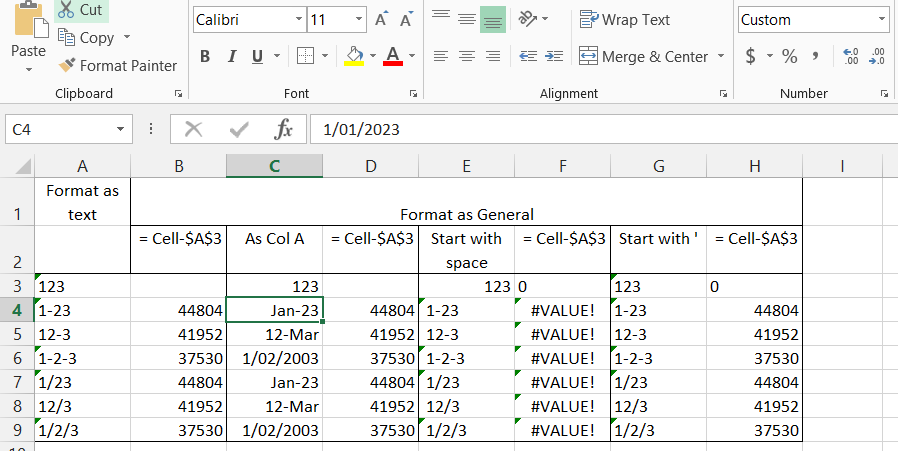
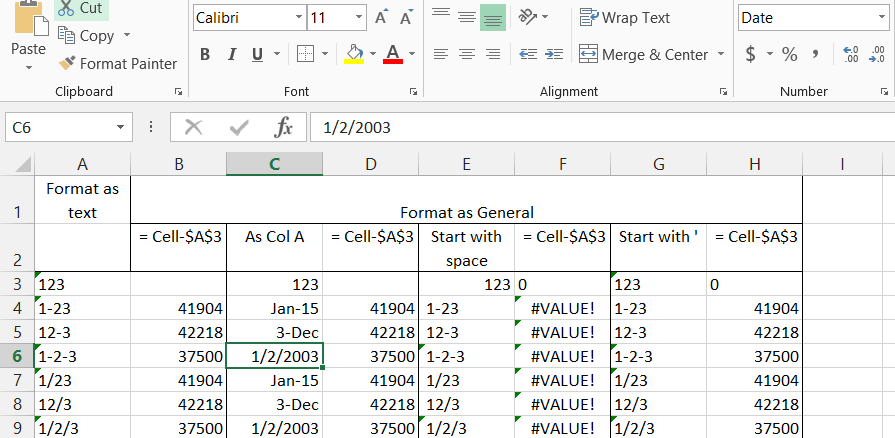
The screenshot below illustrates different behaviour depending on format settings, and the first character of the entered text.  Column A was pre-formatted to “Text” (to display the values as entered).  The remaining columns were left in the default format (“General”).

In Columns A and C the text was entered as shown in Column A.  In Columns D and G the same text was entered, except preceded by a space for Column D and an ‘ for Column G.

Columns B, D, F, and H contain a formula subtracting the value in Cell A3 (123) from the value in the adjacent cell.

The default Windows date display for my location (Australian English) was used, i.e. day-month-year.

Dates-1-1

Note that:

  • The values with a non-numeric character (all except Row 3) are displayed as text in Column A, as entered, but are stored by Excel as a date value, as can be seen in Column B.
  • The  values separated by “-” and “/” are treated in exactly the same way in all cases.
  • The values in Rows 4 and 5 (and 7 and 8) are ambiguous.  In Row 4, 23 is treated as being a year (2023), because it cannot be a month, but in Row 5 the 12 is treated as a day, and the 3 as a month (March).
  • Three separated values are treated as day, month, year, in accordance with the Windows language setting.
  • In Column C the entered text is automatically re-formatted to a date format, but the format depends on the text entered.  Note that 1-23 has been converted to 1-Jan-2023, maintaining the day-month-year format, but 12-3 is converted to 12-Mar-2015, i.e. day-month for the current year.
  • In Column E, where the first character entered is a space,  123 is converted to a number, but all the other entries remain as text, and hence return the #VALUE! error if used in a formula.
  • In Column G, where the first character entered is an apostrophe, all the entries display as text (without the ‘), but as for Column A, they are stored as a date value.

The screenshot below shows details of the format automatically applied to the dates in Column C entered as day-month-year.  This is the standard short date format, and the * indicates that the displayed date will be re-formatted, depending on the language setting.

Dates-1-3

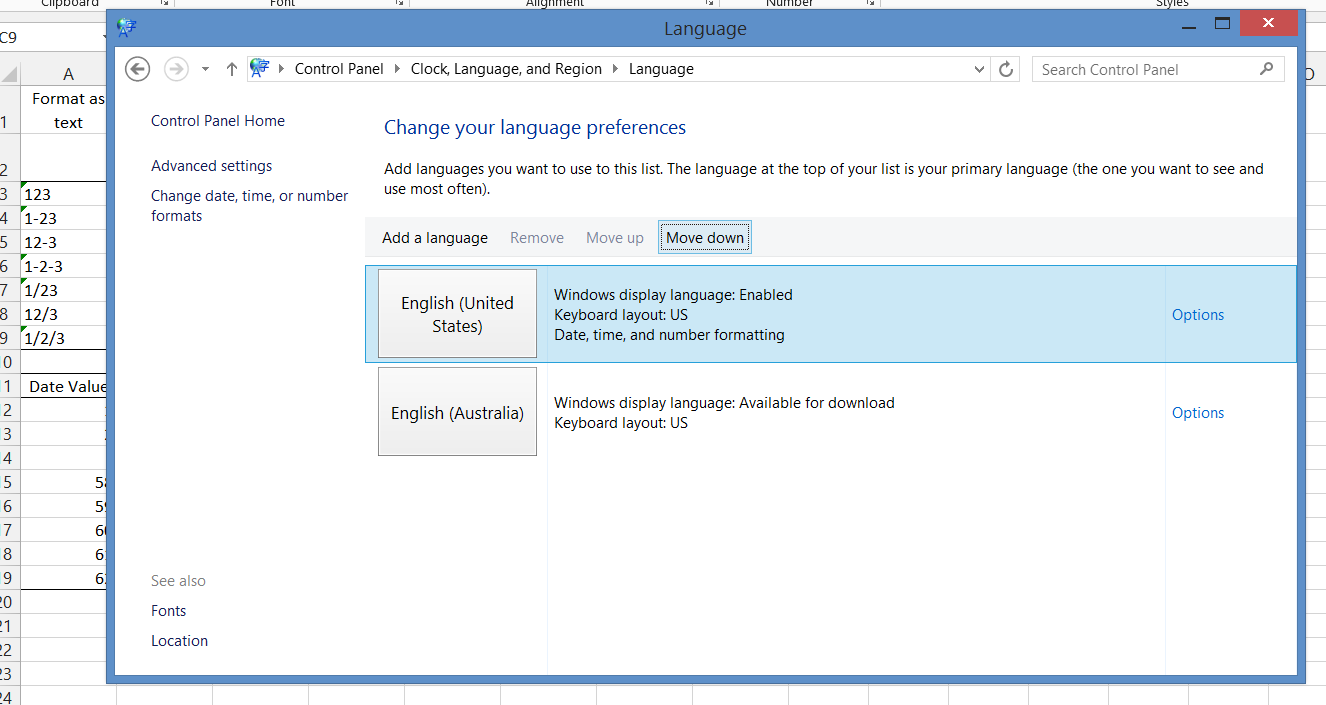
The note above says that the starred date formats will change in response to regional date and time settings, but the default setting (at least in Windows 8) is that the regional date and time settings are tied to the selected language, so to change the date display the Windows language should be changed, as shown below.

Dates-1-4

To change to United States English in Windows 8.1 I had first to add US English to the list in the Control Panel – Language dialog, then move it into top position:

Dates-1-5

After changing to US English the display is immediately updated:

  • The date values in Column D all remain unchanged.
  • The date display in Column C rows 6 and 9 changes to the month-day-year format.
  • The other dates in Column C are unchanged.
  • The text displayed in Columns A and G is unchanged in all cases, but all the date values have changed.
  • The text displayed in Column E is also unchanged, but in this case there is no corresponding date value.

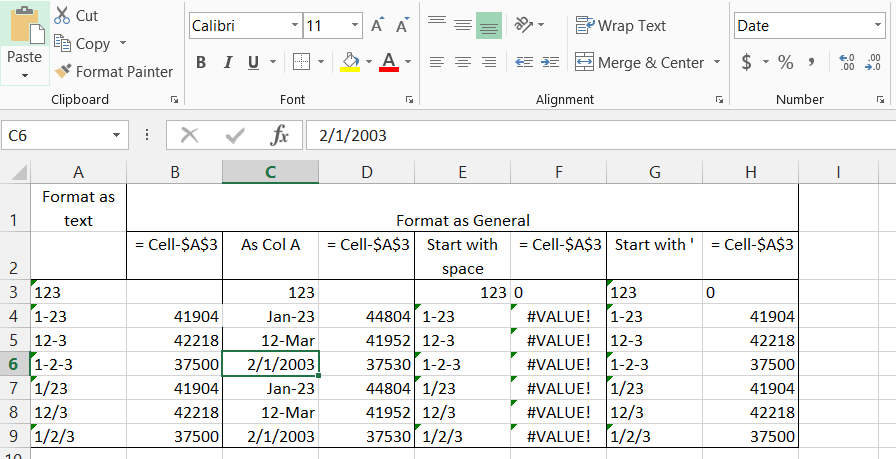
After changing the language re-entering the same values in Column C will result in a new date value:

Dates-1-6

Note that the date values in Column D now match those in Columns B and H.  The dates in Rows 4 and 7 are all the same, but in Columns A and G it is displayed as month-day (i.e. Jan-23rd), whereas in Column C it is displayed as month-year (i.e. Jan-2015).

Returning Australian English to top position in the Control Panel table reverses the process, with the dates in Column C maintaining their date value, but changing format in rows 6 and 9, and text in Columns A and G remaining unchanged, but all the associated date values change:

Dates-1-7

In summary, when everyone using a worksheet with dates uses the same language settings, and the same date format, the automatic formatting features of Excel should present no problem, although it is still necessary to take care when entering dates in day-month (or month-day) format that the correct year is entered.

For situations where worksheets may be shared between countries with different formats however great care should be taken, especially when calculations involving date differences are involved.  Further recommendations can be found in an excellent article at Excel Semi-Pro Regional Date Formats in Excel.

Posted in Excel | Tagged , , , , , | 4 Comments

Reversing Bob

Following our look at Weird Al Jankovic’s palindromic song, Bob, I have written two short VBA User Defined Functions (UDFs) to help writing palindromes (and possibly with other tasks as well).

Reverse() will, as the name suggests, reverse any text entered as the argument, for instance:
” I, man, am regal – a German am I” becomes:
” I ma namreG a – lager ma ,nam ,I”

Reverse also has two optional arguments to start and stop at specified characters, counting from the start and end of the original string, so:
=reverse(“abcdefgh”,2,3) returns:
“fedcb”

Palin() returns a palindrome consisting of the argument string followed by the string reversed, so:
=Palin(“Never od”) returns:
“Never oddo reveN”

Palin has two optional arguments:
“Rev” = False (default) will start with the input string, followed by the reversed string, whereas Rev = True will put the reversed string first.
“RepeatCen” = False (default) will not repeat the last character of the input string, whereas True will repeat the character.

The code for these two functions is quite short:

Function Reverse(Base As String, Optional FirstChar As Long = 1, Optional LastChar As Long = 1) As String
Dim Rtn As String, i As Long

For i = Len(Base) - LastChar + 1 To FirstChar Step -1
    Rtn = Rtn & Mid(Base, i, 1)
Next i
Reverse = Rtn

End Function

Function Palin(Base As String, Optional Rev As Boolean = False, Optional RepeatCen As Boolean = False) As String
Dim Rtn As String, i As Long, LastChar As Long

If RepeatCen = True Then LastChar = 1 Else LastChar = 2

If Rev = True Then
    Rtn = Reverse(Base, LastChar, 1)
    Palin = Rtn & Base
Else
    Rtn = Reverse(Base, 1, LastChar)
    Palin = Base & Rtn
End If

End Function

But since one of the functions is named Palin, we really should do it in Python, which is even shorter:

def palin(pstring, rev, repeatcen):

    lastchar = 1
    if repeatcen == True: lastchar = 0
    strlen = len(pstring)
    if rev == True:
        return pstring[::-1] + pstring[lastchar:strlen]
    else:
        return pstring + pstring[strlen-1-lastchar::-1] 

def reverse(pstring, firstchar, lastchar):
    strlen = len(pstring)
    if firstchar > 1:
        return pstring[strlen-(lastchar):firstchar-2:-1]
    else:
        return pstring[strlen-(lastchar)::-1]

Both versions of the functions can be downloaded from Palin.zip.

The Python version includes all the necessary ExcelPython files, but will need an installed copy of Python.

The files also include the full lyrics of Bob, both forwards and backwards:

Palin1

Posted in Excel, Link to Python, UDFs, VBA | Tagged , , , , , | Leave a comment

Two exceptional musicians

On Saturday night we were treated to fine performances from two exceptional young musicians.  The first was Stefan Jackiw, performing with The Australian Chamber Orchestra at Angel Place.  Here he is playing a Beethoven piece in 2009:

Then after the concert, walking down a traffic free and pedestrian packed George Street, on the way to see the Circular Quay illuminations the guitarist Tom Ward was busking to a large crowd.  Most of the Youtube clips of his outside performances have terrible sound quality, but it’s not too bad on this one:

(the battered guitar is still going!)

It seems that Tom Ward has not yet been deemed Wiki-worthy, but you can read more about him at last.fm.

He also plays inside sometimes:


Posted in Bach | Tagged , , , | Leave a comment