SelectAv Function

Suppose you have a spreadsheet range containing numerical data, and would like to find the average for a number of the most recent values, ignoring the highest (and/or lowest) values from the selected set.

If you like using long array formulas on the spreadsheet, or just want to avoid using VBA, then the solution can be found at: Daily Dose of Excel.

On the other hand, if you would prefer a User Defined Function (UDF) to do the job, here is one that will do it:

Function SelectAv(DataRange As Variant, Optional SelectFrom As Long, _
Optional DiscardHigh As Long, Optional DiscardLow As Long) As Variant

Dim NumRows As Long, NumCols As Long, ResA() As Double, MaxVal As Variant
Dim MinVal As Variant, Val As Variant, ValA() As Variant, Total As Double, Count As Long
Dim i As Long, j As Long, k As Long, Discardk As Long
Const MaxFloat As Double = 1.79769313486231E+308, MinFloat As Double = -1.79769313486231E+308

    If TypeName(DataRange) = "Range" Then DataRange = DataRange.Value2
    NumRows = UBound(DataRange)
    NumCols = UBound(DataRange, 2)
    If SelectFrom = 0 Then SelectFrom = NumCols

    ReDim ResA(1 To NumRows, 1 To 1)
    
    For i = 1 To NumRows
        ReDim ValA(1 To SelectFrom)
        MaxVal = ""
        MinVal = ""
        Total = 0
        Count = 1

        ' Extract Selectfrom values, starting from right hand end
        For j = NumCols To 1 Step -1
            Val = DataRange(i, j)
            If Val <> "" Then
                ValA(Count) = Val
                  Count = Count + 1
                If Count > SelectFrom Then Exit For
            End If
        Next j
        Count = Count - 1
        ' Discard highest and/or lowest value(s) if required
        If Count > SelectFrom - DiscardLow - DiscardHigh Then
            If DiscardHigh > 0 Then
                For j = 1 To DiscardHigh
                    MaxVal = MinFloat
                    Discardk = 1
                    For k = 1 To SelectFrom
                        If ValA(k) <> "" And ValA(k) > MaxVal Then
                            MaxVal = ValA(k)
                            Discardk = k
                        End If
                    Next k
                    ValA(Discardk) = ""
                Next j
            End If
            If DiscardLow > 0 Then

                For j = 1 To DiscardLow
                    MinVal = MaxFloat
                    Discardk = 1
                    For k = 1 To SelectFrom
                        If ValA(k) <> "" And ValA(k) < MinVal Then
                            MinVal = ValA(k)
                            Discardk = k
                        End If
                    Next k
                    ValA(Discardk) = ""
                Next j
            End If
        End If
        ResA(i, 1) = WorksheetFunction.Average(ValA)

    Next i
    SelectAv = ResA
End Function

Results (using the same data as the DDofE example) are shown in the screenshot below:
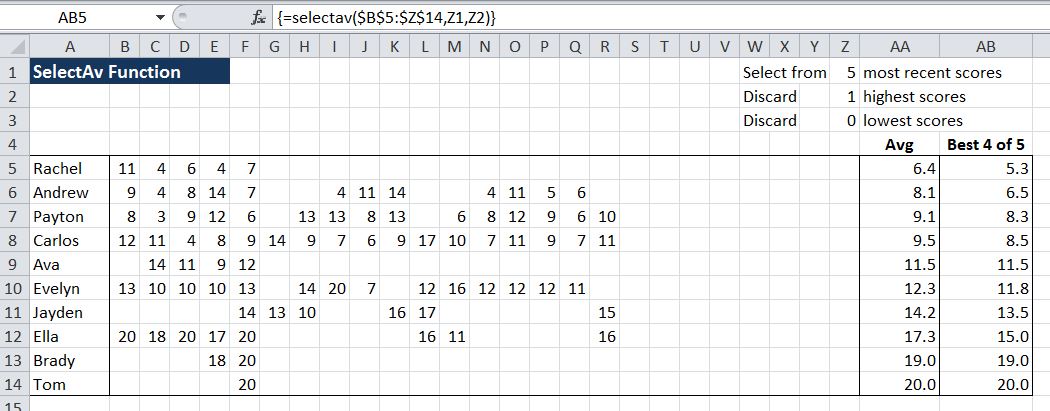
SelectAv function finding the average of the best (lowest) four out of the 5 most recent scores.

SelectAv function finding the average of the best (lowest) four out of the 5 most recent scores.

The function arguments are:

=SelectAv(DataRange, SelectFrom , DiscardHigh , DiscardLow)

  • DataRange: Spreadsheet range containing the data
  • SelectFrom (optional): number of values, from the right, to be included.  Blank cells are ignored.
  • DiscardHigh (optional): Number of high values to be excluded from the average
  • DiscardLow (optional): Number of low values to be excluded from the average

If all optional values are omitted the function will return the same as the built in Average() function, except that it returns a column array, with one value for each row of the selected data range.  The function must be entered as an array function, using Ctrl-shift-enter.  See https://newtonexcelbach.wordpress.com/2011/05/10/using-array-formulas/ for details.

The example spreadsheet (including open source code) can be downloaded from: SelectAv.xlsb

Posted in Excel, Maths, UDFs, VBA | Tagged , , , | 3 Comments

Copy non-blank rows to another sheet

A thread at Eng-Tips asked for a way to display the data from Sheet2 on Sheet1, but only the rows that were not blank in Column A.

There are probably ways to do it without VBA, but it seems to me that the simplest and most efficient way is to write a User Defined Function (UDF) that returns an array with the required data.  The procedure is:

  • Read the data from the specified range on Sheet2 into a VBA variant array.
  • Create a new array of the same size.
  • Copy the data from the imported array into the new array, skipping the blank lines.
  • Write a blank (“”) into any spare rows at the bottom of the new array, so they don’t display as 0.

Here is the code:

Function NonBlanks(DataRange As Variant) As Variant
Dim i As Long, j As Long, NumRows As Long, NumCols As Long, RtnA() As Variant
Dim RtnRow As Long

If TypeName(DataRange) = "Range" Then DataRange = DataRange.Value2
NumRows = UBound(DataRange)
NumCols = UBound(DataRange, 2)

ReDim RtnA(1 To NumRows, 1 To NumCols)
For i = 1 To NumRows
If DataRange(i, 1) <> "" Then
RtnRow = RtnRow + 1
For j = 1 To NumCols
If DataRange(i, j) <> "" Then RtnA(RtnRow, j) = DataRange(i, j) _ 
Else RtnA(RtnRow, j) = ""
Next j
End If
Next i

For i = RtnRow + 1 To NumRows
For j = 1 To NumCols
RtnA(i, j) = ""
Next j
Next i

NonBlanks = RtnA
End Function

You can download a file with the NonBlanks function from: NonBlank.xlsb

And here is what it looks like:

NonBlank function

NonBlank function

See https://newtonexcelbach.wordpress.com/2011/05/10/using-array-formulas/ if you are not sure about using array functions.

Posted in Arrays, Excel, UDFs, VBA | Tagged , , , , | 3 Comments

Just discovered – Data Explorer

Browsing, following up Jeff Weir’s recent comments, led me to a Bacon Bits post about a new add-in from Microsoft called Data Explorer, for importing, transforming and merging data from a wide variety of sources.

Follow the Bacon Bits link for more details and download link, and Calling A Web Service From Data Explorer for another look at it from Chris Webb’s BI Blog.

Posted in Excel | Tagged , | 1 Comment

Using RC Design Functions 4 – Umom and new MaxAx function

Previous post in this series.

Download latest version of RC Design Functions6.

Previous posts in this series have looked at elastic design functions.  We now move on to functions for ultimate limit state (ULS) analysis of reinforced concrete sections:

  • UMom: ULS analysis of rectangular reinforced concrete sections with two layers of reinforcement under combined bending moment and axial load. Australian and ACI codes.
  • UMomPF:  As UMom but for codes using a partial factor approach; Eurocode 2, BS 5400 and BS 8110.
  • MaxAx:  New.  Moment magnification factor for slender columns, and maximum axial load, including slenderness effects (AS 3600 only).

Input for the functions is shown below:

uMom-in
Output from the UMom function is controlled by the parameters: Out1 and Out2, as for the EStress functions, with 11 columns (selected by Out1) and up to 17 rows (selected by Out2).  Alternatively a complete column may be displayed by entering the function as an array function, with Ctrl-Shift-Enter.
Umom output columns 1 to 6:uMom-out1
Umom output columns 7 to 11: uMom-out2
UMomPF provides similar functionality for Eurocode 2 and BS 5400 and BS 8110: uMomPF-out
The new MaxAx function provides 3 alternative outputs (controlled by the Out1 parameter):

  1. the moment magnification factor for a specified axial load (Out1 = 1, default)
  2. the maximum axial load for a specified eccentricity, (Out1 = 2)
  3. loading line to the maximum axial load, for a specified eccentricity (Out1 > 2)

uMomMaxAx-out

Graph of average column stress for maximum axial load against slenderness ratio (Le/r), generated using the MaxAx function:

StressvLe

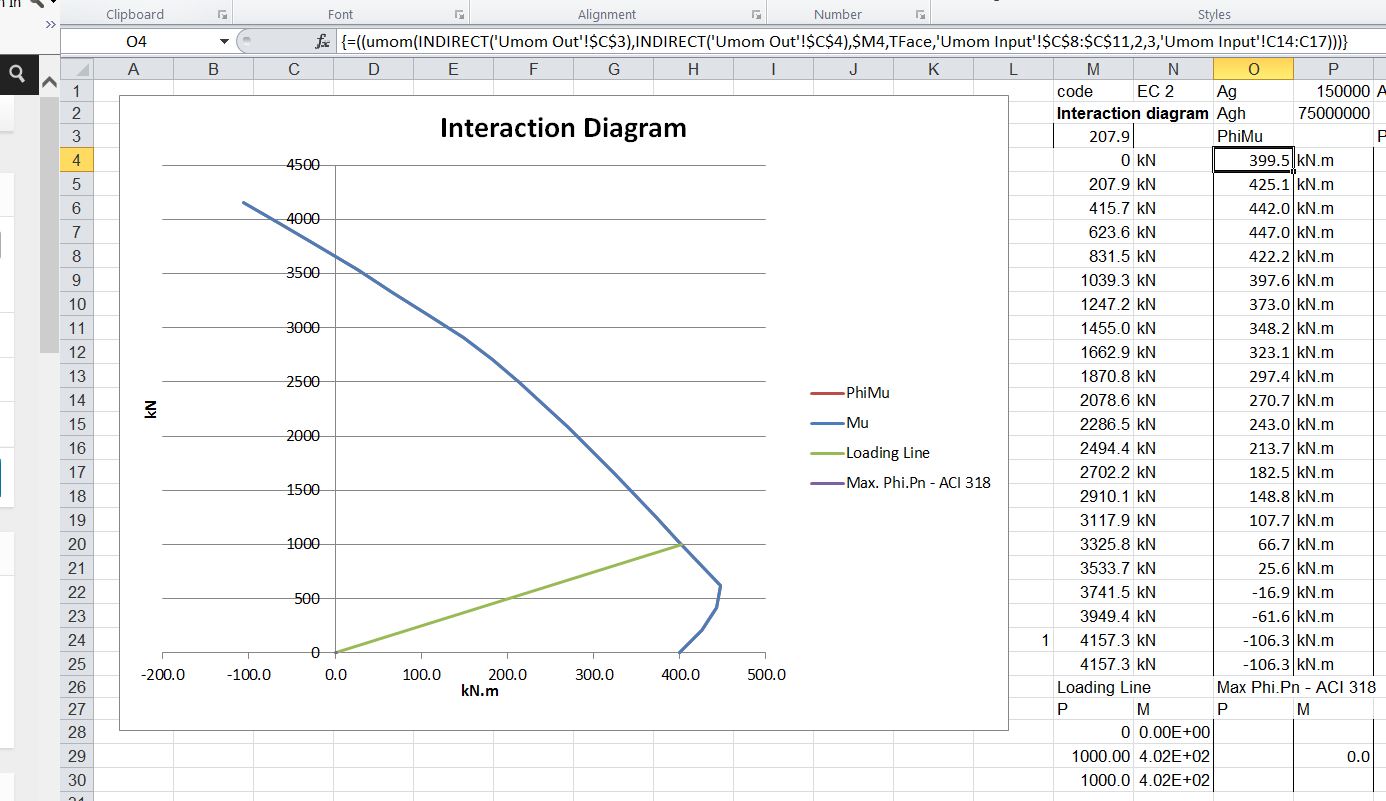
The “Interaction Diagram” sheet uses the Umom and MaxAx functions to create an interaction diagram, using the input on the Umom Input sheet.
uMomInt-Diag

Further details of input and output options are given on the download file:
RC Design Functions6.

Posted in Beam Bending, Concrete, Excel, Newton, UDFs, VBA | Tagged , , , , , , , , , , , | 6 Comments

Concrete ULS spreadsheet update-2

The concrete ULS design spreadsheet last posted at: Concrete ULS spreadsheet update has been updated to fix a problem encountered with non-symmetrical reinforcement using the Eurocode 2 rectangular stress block.

Download from ULS Design Functions.

Typical input and output interaction diagram are shown below for a simple rectangular section with asymmetric reinforcement.

Umom Input

Umom Input

Umom Interaction Diagram

Umom Interaction Diagram

Posted in Beam Bending, Concrete, Excel, Newton, UDFs, VBA | Tagged , , , , , , | 11 Comments