Interpolation Update

This post was prompted by a question at Eng-Tips.  The question was looking for ways to plot stress contours under a footing, which requires interpolation to find the depth where the stress is at the contour values, given stresses calculated on a regular grid.

The simplest way is using linear interpolation, which can be done using the IP2 spreadsheet.  In the example shown below the data to be interpolated is in B19:C19, and the lines representing the contour stress levels are in B42:C51.  Note that the contour stress levels are entered as a continuous line covering the full extent of the stress data (X = 0 to X = 10).

IP Function Input (click for full size view)

IP Function, linear interpolation results

The main problem with this approach is that linear interpolation will not always pick up peaks in the data, for instance at stress levels near 100, at X = 3.

Better results are given by the SolveSplineA function, which can be found in the CSpline2 spreadsheet.  This function has been revised to return multiple interpolation values, rather than just the first in the specified range.  In this case the stress data is entered in A72:B92, and the contour values are simply listed in order in D72:D76.  It can be seen below that the function has found an additional 2 intersection points for the 100 contour, close to X = 3.

Reverse Cubic Interpolation with the SolveSplineA Function

The spreadsheets described above (including full open source code) may be downloaded from:

IP2

CSpline2

Posted in Excel, UDFs, VBA | Tagged , , , , , , | 1 Comment

The Dome of Santa Maria del Fiore in Florence

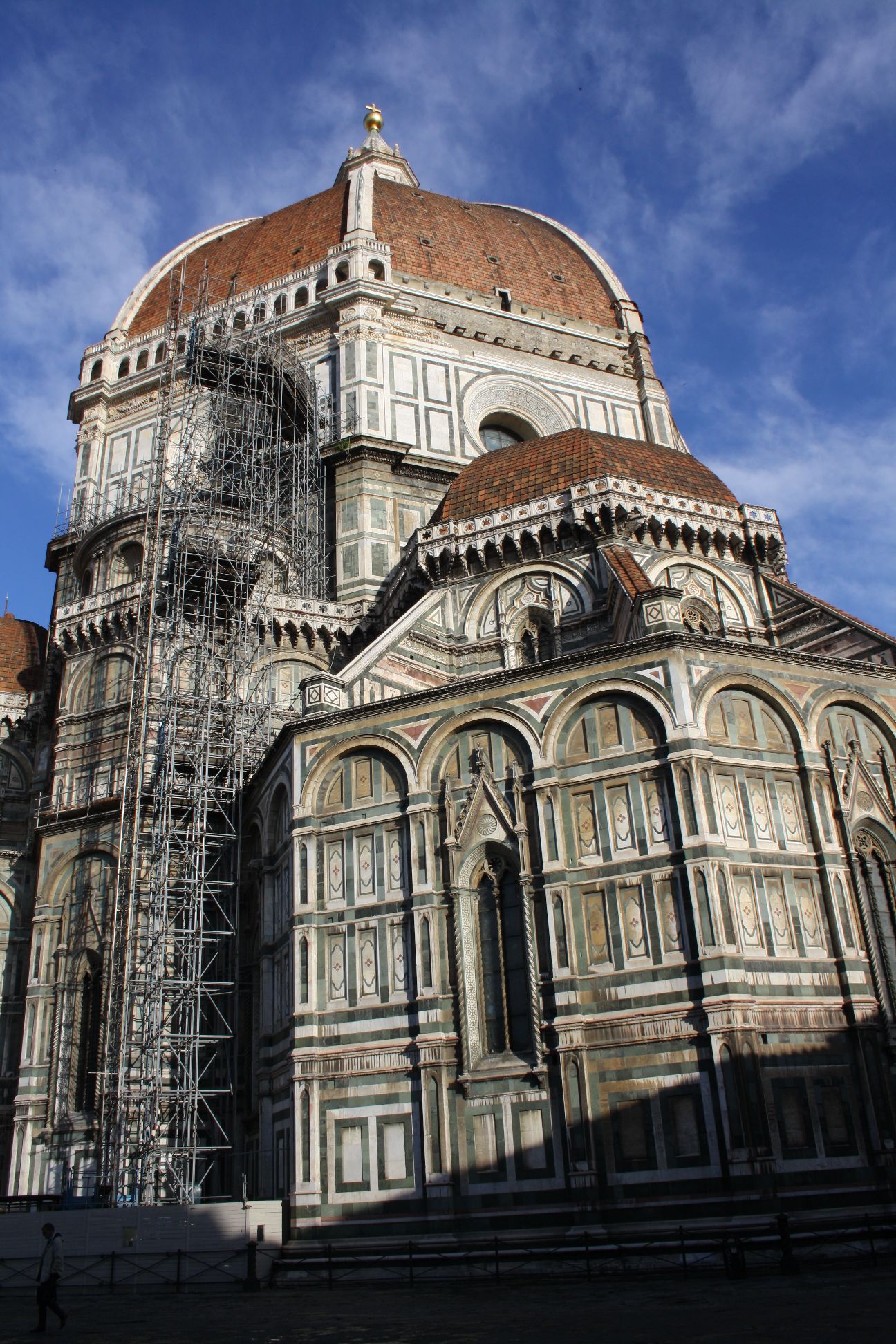
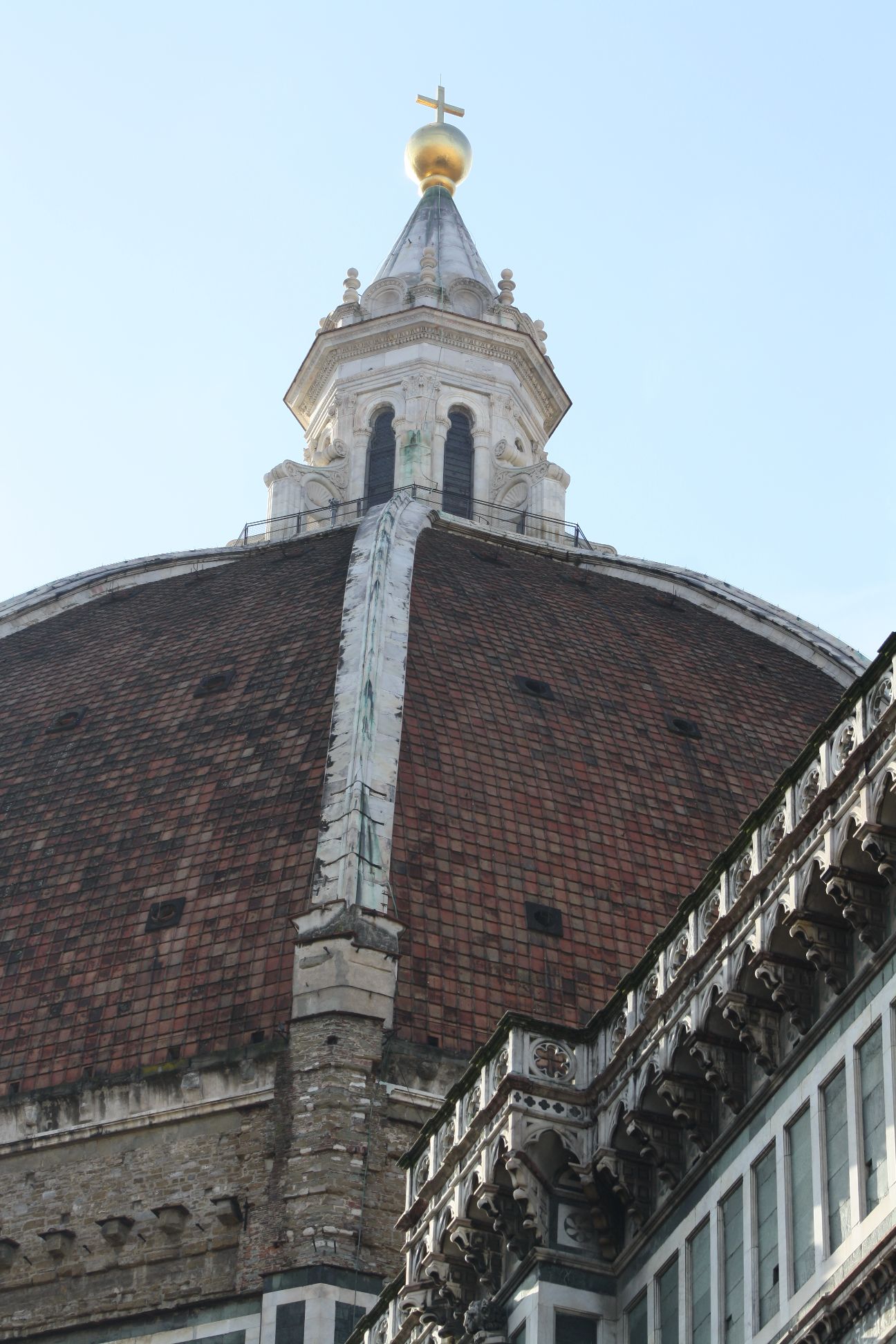
The dome of the Santa Maria del Fiore was the first dome structure of that size built since the Pantheon in Rome (126 AD) and the Hagia Sophia in Constantinople (537 AD).  Some sources say it is a little larger in diameter than the Pantheon, some a little smaller, it depends how you measure it.  It is an impressive structure that still dominates the city skyline today.

Florence city centre and the cathedral from Piazzale Michelangelo

There is much dubious information about this structure on the Internet; for instance Wikipedia reports that:

A wooden form had held the Pantheon dome aloft while its concrete set, but for the height and breadth of the dome designed by Neri, starting 52 metres (171 ft) above the floor and spanning 44 metres (144 ft), there was not enough timber in Tuscany to build the scaffolding and forms.

I can well imagine the architect  (Filippo Brunelleschi) saying this to a troublesome government official to make him go away, but if he had been told that 600 years later this statement would be reported as fact around the entire World, I suspect he would have been dumfounded.

In this post I will link to some sites that seem to give reliable information (albeit sometimes in rather “picturesque” English), and to a full panoramic display of the view between the two layers of the dome.  In later posts I will look at finding the true geometry (from photographic and Internet sources), and will construct a computer model, which time permitting, I will analyse to look at how the stresses in the structure were affected by the chosen geometry and construction method.

Brunelleschi’s “ox-hoist”

The book Brunelleschi’s Dome: How a Renaissance Genius Reinvented Architecture gives an account of the construction of the dome, involving invention of new machines, delay by wind, war, and a dissatisfied workforce, and imprisonment of the architect for bankruptcy.  A detailed summary can be found at: Brunelleschi’s Dome.

The Great Dome of Florence gives an account of the construction in a wider context, containing many excellent photographs (it does however repeat the story that erecting scaffolding for the dome construction would have required the deforestation of the whole of Tuscany, a persistent myth it seems).

DOME STRUCTURES: provides some information on how the geometry of the dome was determined, although the language is hard to follow at times (I thought it was an English translation of an Italian original, but it seems that it comes from the McGill University Philosophy of Structures department; that would explain it).

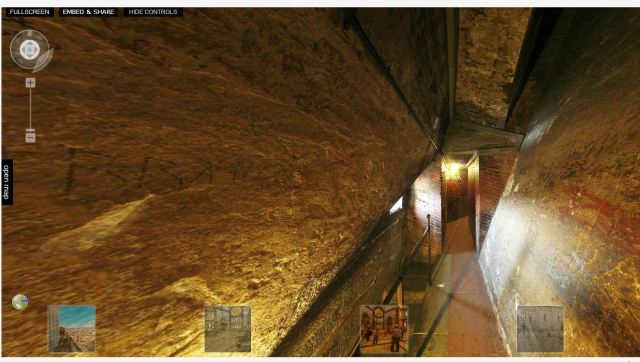
Finally 360cities.net provides the best view of the inside of the dome (between the two shells) that you will get without actually going there.

Inside the dome – click image to go to dynamic panoramic display

Posted in Dome Structures, Newton | Tagged , , , | 1 Comment

Extracting selected data with array functions.

This post is in response to a query at the Eng-tips forum asking how to extract selected data from a range, so that the three best scores for each individual could be extracted from a two column Excel table listing multiple individuals, each with several different scores.

My response was based on an article by Chip Pearson at: http://www.cpearson.com/excel/ArrayFormulas.aspx

If the names are in B6:B105 the scores are in C6:C105 and a selected name is in E6 then:
(IF($B$6:$B$105=$E6,$C$6:$C$105,FALSE)
will return an array of 100 items containing either a score for the selected name or FALSE.

You can then wrap the Large() function around that:
=LARGE(IF($B$6:$B$105=$E6,$C$6:$C$105,FALSE),F$5)
where F5 contains the rank you want.  An example is shown below, listing the three best scores of Thomas, Richard and Harold:
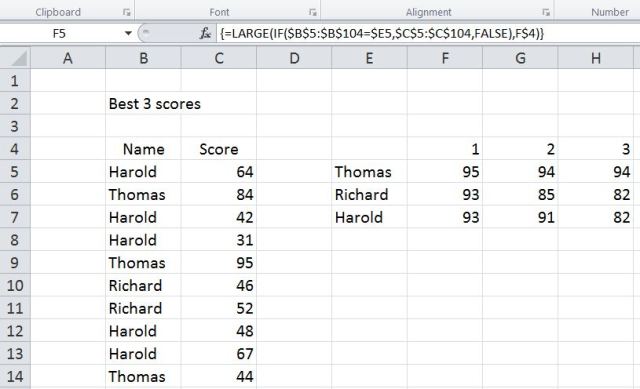
Array Function Example

Note that because this is an array formula it must be entered by pressing “Ctrl-Shift-Enter”. If you just press “Enter” it returns 0.

The working of the formula is shown below, with the results of the formula:
(IF($B$6:$B$105=$E6,$C$6:$C$105,FALSE)
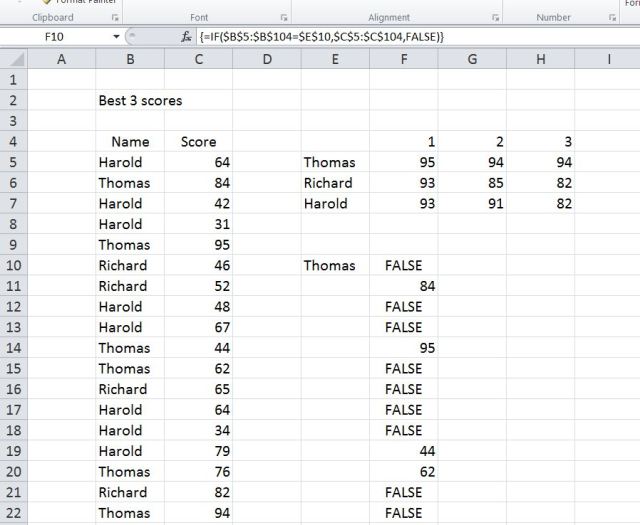
Array of scores for Thomas

Note that the array includes one entry for every row of the original table, containing either a score for Thomas, or FALSE if the row is data for another person.  This is not a problem for use with the Large() function, but if a continuous list of scores for reach individual is required then further work is required.

In many cases simply sorting the table, using the Excel filter functions, or using a pivot table would be the easiest way to go, but if an automatically updating array formula is required it is possible to wrap some additional functions around the solution presented above, such as that shown at The Get Digital Help blog (modified version shown below):

=IF($E$5=$B$5:$B$104,ROW($C$5:$C$104)-ROW($C$5)+1,FALSE)
will return an array of row numbers for rows containing scores for Thomas, with FALSE in the other rows.

=SMALL(IF($E$5=$B$5:$B$104,ROW($C$5:$C$104)-ROW($C$5)+1,FALSE),ROW(B1:B99))
Extracts the row numbers for Thomas from this array, without the FALSE values, and:

=INDEX(C5:C104,SMALL(IF($E$5=$B$5:$B$104,ROW($C$5:$C$104)-ROW($C$5)+1,FALSE),ROW(B1:B99)))
extracts the actual score from those row numbers.

In this case the first approach is not only much shorter, it is also much more convenient because before the Large() function can be used on the array returned by the second method the length of the array needs to be determined.

Once again, remember all the formulas presented here must be entered as array formulas.  See Using Array Formulas for more details.  Failure to enter as an array will sometimes result in an error message, but can return incorrect values, so beware.

Edit 19th June 12:  The comment from oli below is worth a closer look.  The basic technique is to replace the IF statement with an array multiplication:

($B$5:$B$104=E5) returns an array of TRUE and FALSE values.  When these are multiplied by the values in C5:C104 it returns an array of the values in column C or 0 (since TRUE and FALSE are treated as equal to 1 and 0 in numerical calculations), and then the Large function may be used directly on that array.  This is a very powerful technique, with many applications, the only proviso being that it is not suitable where the data may include 0 values, since it will be impossible to differentiate between this value and the values that do not match the selection criteria.

The other difference is that the Large function has also been applied as an array formula, so that rather than array entering the formula in a single cell and copying it to the two adjacent cells it must be array entered with the three adjacent cells selected.  It will then return the top three scores for the chosen person.

Posted in Arrays, Excel | Tagged , | 5 Comments

What have the Romans ever done for us?

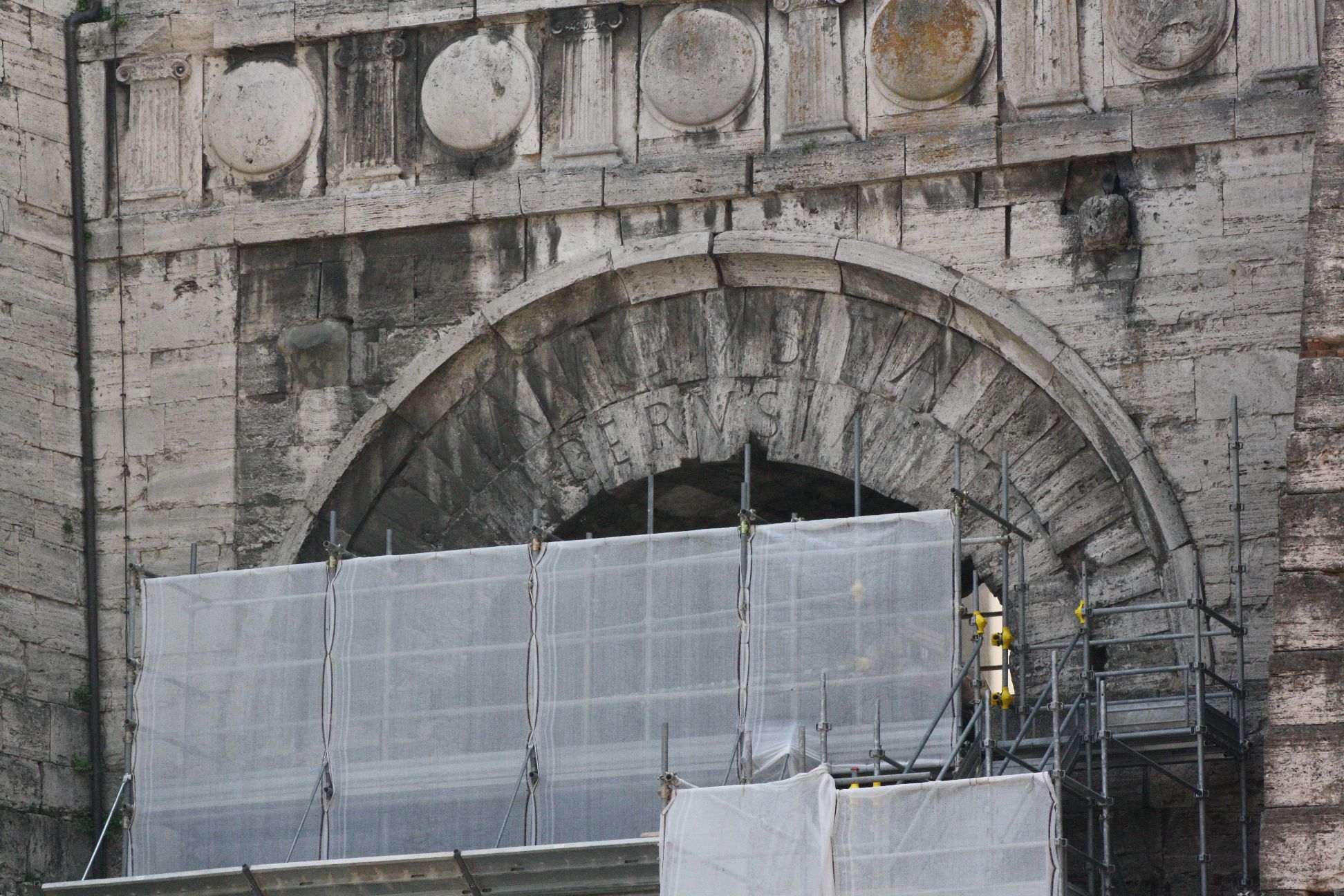
Maybe the Romans can  fairly claim the credit for spreading the aqueduct from Portugal to the Middle East, but the voussoir arch, typical of Roman aqueduct construction, did not originate with them.

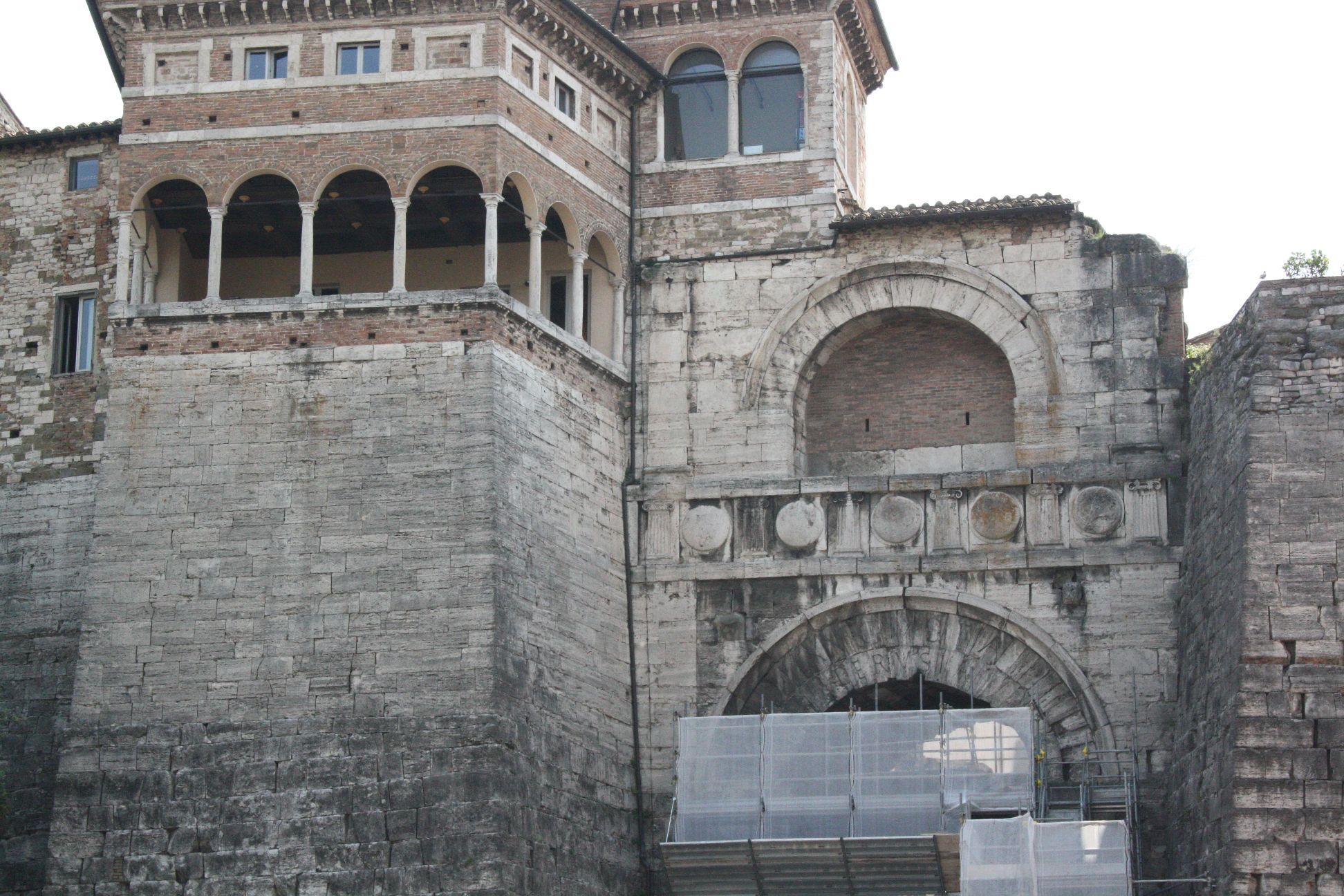
The first known voussoir arches were constructed by the Etruscans who occupied the regions north of Rome (including Tuscany, western Umbria and northern Latium) from before 700 BC to 264 BC, when they were absorbed in the Roman Empire.

There are at least two surviving Etruscan arches in Perugia, the most well known being the Augustus or Etruscan Arch, dating from the 3rd century BC.

Arch of Augustas, Perugia

Arch of Augustus, Etruscan Arch

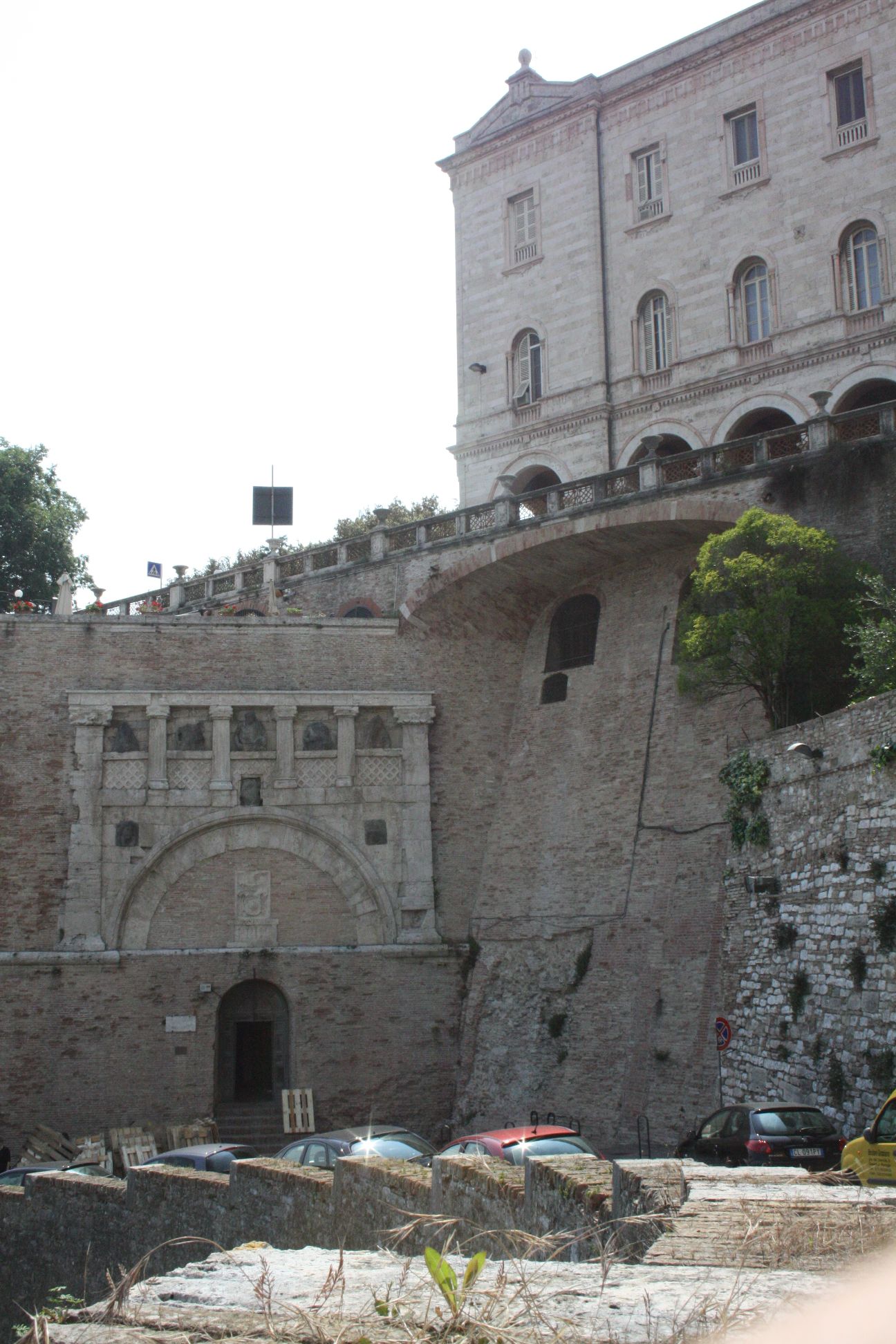
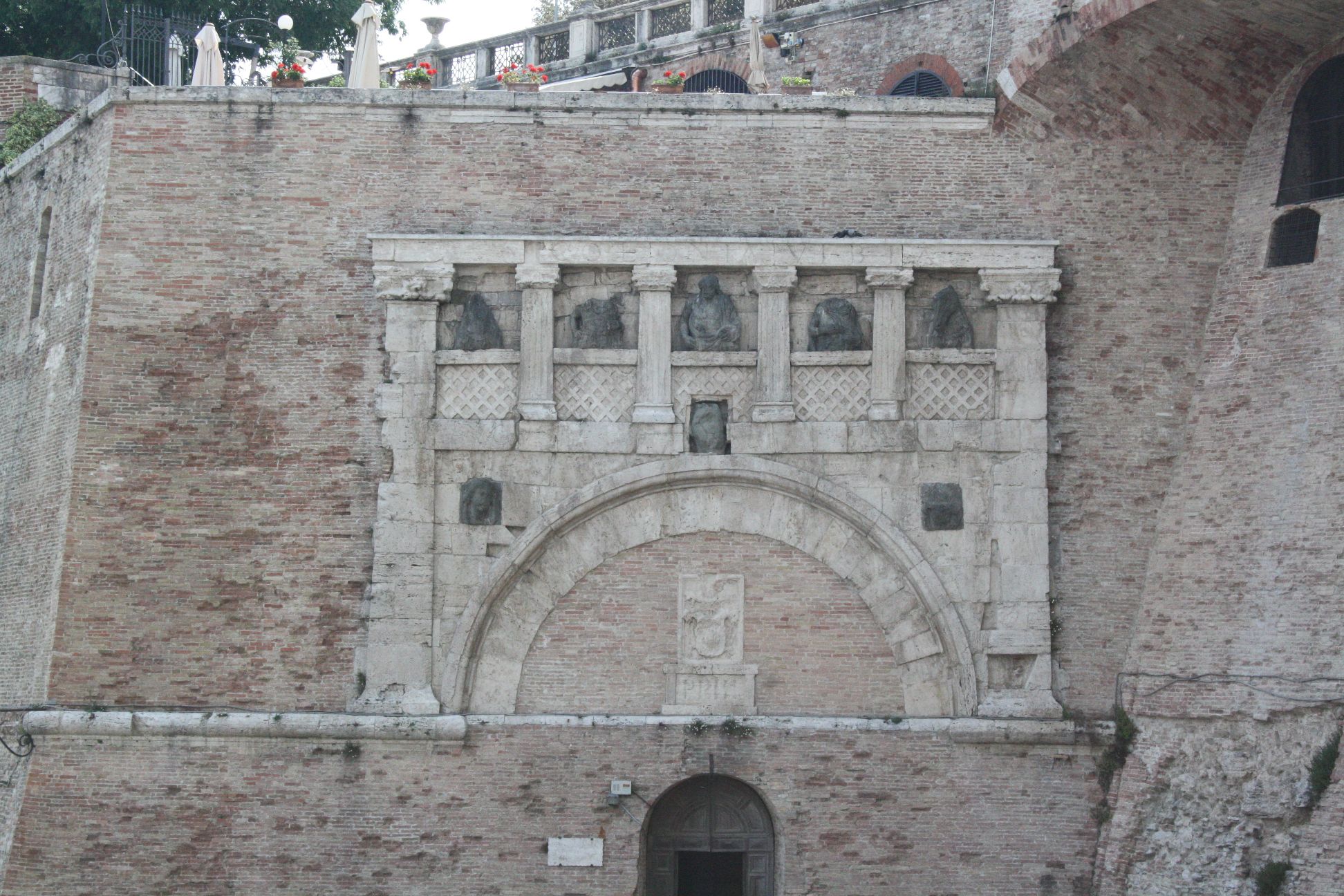
The other is the Porta Marzia, also dating from the 3rd Century BC.

Porta Marzia

Porta Marzia

Posted in Arch structures, Bach, Historic Bridges, Newton | Tagged , , , | 1 Comment

Return of Excel – Evaluating commas

The Newton/Galileo posts here will continue with their Italian theme for some time yet, but since I am now back in Australia it’s time to give Excel a look in again.

I recently (well a couple of months ago) had a query about using the Eval User Defined Function (UDF) when the decimal separator was set to a comma, rather than a decimal point.  In response to that I added an option to the code for Eval and Evala that would replace all occurrences of “,” with “.” and “;” with “,”.  This allows the Excel Evaluate command to operate correctly, regardless of how the values are entered.

The revised spreadsheets using these functions may be downloaded from:

Note that the modification has as yet only been made in the Eval and EvalA functions, and not the integration functions.

After modifying the code I discovered that there is an Excel option that allows the original functions to work, without substituting commas for decimal points.  In Excel 2010, under File-Options-Advanced, deselect “Use System Separators” and enter a “,” for Decimal Separator, and a space for Thousands Separator.

System separators options

The spreadsheet will now display decimal numbers with a comma separator, and will only accept a comma as the separator for new numbers, but the Eval functions will work correctly.

However – this (strangely) only seems to work if the region language is set to English.  If the region is set to French (or presumably any other region that uses the comma separator) the original Eval functions no longer work.  I have only given this limited testing (since I normally use the decimal point), so if anyone else has any comment on how the regional separator options work in Excel, please leave a comment below.

Posted in Excel, UDFs, VBA | Tagged , , , , , | 6 Comments