12th February 2009 is the 200th Anniversary of Charles Darwin’s birth.
Read all about it here

12th February 2009 is the 200th Anniversary of Charles Darwin’s birth.
Read all about it here
The Excel function MATCH() will find the position of the first occurrence of a specified number or string in a range of data, but what if you want to find the first row in a table that contains two or more different matching numbers? There may be some way to do this with a fancy array function, but I couldn’t think of one, so I wrote the UDF MMATCH(MatchValues, DataRange).
MatchValues is a single column or single row range containing the values that you are looking for. Datarange is the range that will be searched, which may be one or more rows. MMATCH returns the number of the first row that contains all of the values in MatchValues, in any order, or zero if there are no matching rows.
Download Mmatch.zip
The screenshot below shows the function in use. The edit line shows the contents of cell K2, which returns the first row containing all of 83, 17, 92, and 84, which is row 7. In Column I the function has been entered to look at a single row, returning 1 if it contains all the match values, or 0 if not.
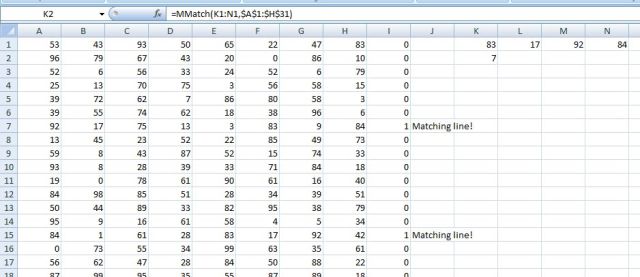
MMatch Function
The code is shown below, and is also viewable on the download file:
Function MMatch(MatchValues As Variant, Datarange As Variant)

Dim NumRows As Long, NumCols As Long, NumMatch As Long, i As Long, j As Long, k As Long

Dim Matches As Long
MatchValues = MatchValues.Value
Datarange = Datarange.Value
NumRows = UBound(Datarange)
NumCols = UBound(Datarange, 2)
If UBound(MatchValues, 2) > 1 Then
MatchValues = WorksheetFunction.Transpose(MatchValues)
End If
NumMatch = UBound(MatchValues)
For i = 1 To NumRows
Matches = 0
For j = 1 To NumMatch
For k = 1 To NumCols
If MatchValues(j, 1) = Datarange(i, k) Then
Matches = Matches + 1
Exit For
End If
Next k
If Matches < j Then Exit For
If Matches = NumMatch Then
MMatch = i
Exit Function
End If
Next j
Next i
MMatch = 0
End Function
Continuing from Frame Analysis with Excel 2 – Single inclined beam
Download Beam3.zip – the download file includes complete open source code.
The spreadsheet for a single inclined beam presented in the previous post has been modified to deal with up to six continuous horizontal or inclined beams. Examples of a 5 span beam and a four member portal frame have been compared with a frame analysis in Strand7 and show near exact agreement.
The procedure used in the new spreadsheet is:
Formation of the global matrix for beams 1 and 2 of a continuous beam are shown below:

Global Stiffness Matrix
Screenshots below show Strand7 models for a 5 member continuous beam, and a portal frame, and comparisons of the Strand7 analysis and the spreadsheet output:

Strand7 continuous beam analysis

Continuous beam results

Strand7 Portal Frame Analysis

Portal Frame results
This post continues from – Frame Analysis with Excel 1 – Single beam
Download Beam2.zip
The stiffness matrix shown in the previous post was for a single beam with loads applied either perpendicular to the beam, or along the longitudinal beam axis, which directions were aligned with the Y and X axes respectively. In this post the stiffness matrix will be modified for loading in other directions. It would be possible to simply resolve the applied loads into perpendicular and axial components, but since our intention is to derive an analysis method suitable for analysing frames with members intersecting at any angle it makes more sense to change the stiffness matrix to work in the global coordinate system so that both the applied loads and the resulting translations are specified with respect to the global X and Y axes.
It is now necessary to specify a direction for the beam, which is the angle of the beam to the Global X axis (horizontal), and is positive anti-clockwise. The input is otherwise identical to the horizontal beam case.
The modified stiffness matrix coefficients are shown below, where k_1 to k_4 are defined as before, and c and s are the Cosine and Sine of the beam angle respectively.
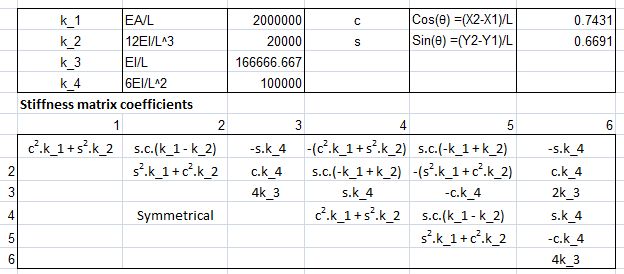
Select for full size image
It is also necessary to adjust the calculation of the fixed end moments and reactions to account for the slope of the beam.
The derivation of the fixed end moments for a horizontal beam subject to partial trapezoidal loading is shown below:
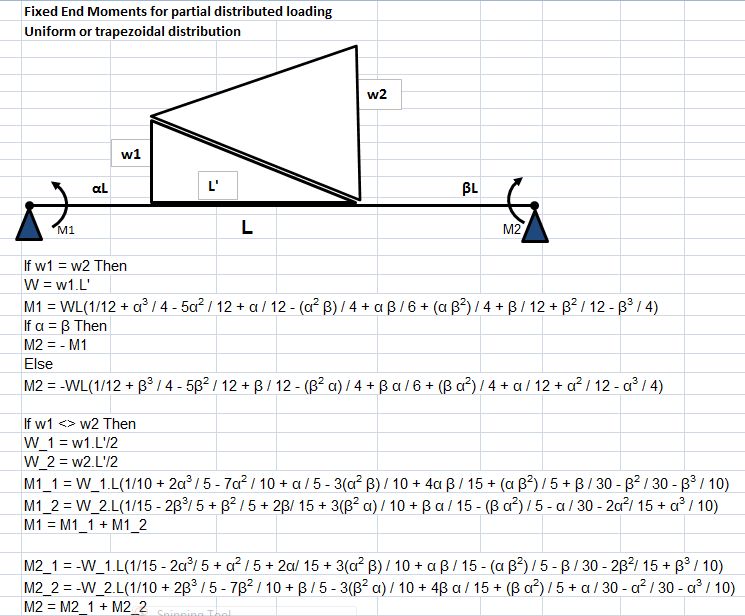
Select for full size image
The spreadsheet uses the UDF FEMact to solve these equations, and also to calculate the corresponding end reactions. The output from the UDF is a column array of the six fixed end actions. The algorithm for the UDF is:
The rest of the process is as for a horizontal beam, with the output being the translations and rotations of the active end freedoms, and the reactions at the fixed freedoms. Full source code for the function is available in the download file: Beam2.zip
To check the output of the program an example of an inclined beam loaded with distributed loads, vertical and horizontal point loads, and point moments was analysed in the finite element package Strand7. The results are compared with the spreadsheet output in the screen shots below, showing near exact agreement:
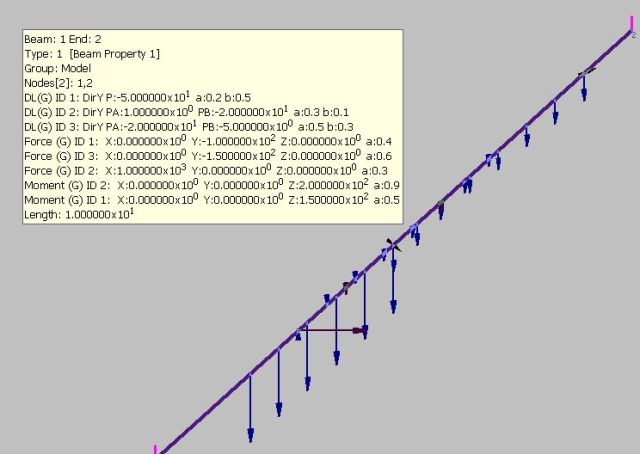

Select for full size image
Life, The Universe and everything plotted on a spiral scale:

Universal Energy Scale


 Newton Excel Bach, not (just) an Excel Blog