
VBA code to import text files to Excel was presented at Importing text files with VBA – 2 and following posts. We now look at Python code for a user defined function (UDF) for the same task.
The code requires Python and Numpy, together with pyxll to link the code to Excel. See Python and pyxll for information on the pyxll package, including a discount coupon for new users.
The code uses the Python readlines function to read the file to a list of text lines, then optionally the Numpy fromstring function to extract the numbers from each line.
import os
import numpy as np

@xl_func
@xl_arg('filename', 'str')
@xl_arg('dir', 'str')
@xl_arg('ExtractVals', 'bool')
@xl_return('numpy_array<var>')
def py_ReadText(filename, dir = '', ExtractVals = True ):
    """
    Returns the contents of a text file
    :param filename: Text file name.
    :param dir: Full directory path.
    :param ExtractVals: True = extract numerical values from each line and return as a numpy array.
    """
    if dir == '':
        dir = os.getcwd() # + r'/'
    filename = os.path.join(dir, filename)
    try:
        with open(filename, 'r') as file:
            txta = file.readlines()
    except:
        return np.array(['File not found at ' + dir])

    if ExtractVals:
        numlist = []
        nrows = len(txta)
        numlist = []
        maxn = 0
        for row in txta:
            numline = np.fromstring(row, sep = ' ')
            numlist.append(numline)
            n = numline.shape[0]
            if n > maxn: maxn = n
        numa = np.zeros((nrows, maxn))
        for i in range(0, nrows):
            n = numlist[i].shape[0]
            numa[i, 0:n] = numlist[i]
        return numa
    else:
        return np.array(txta, dtype = str)
Sample output is shown in the screenshot below:
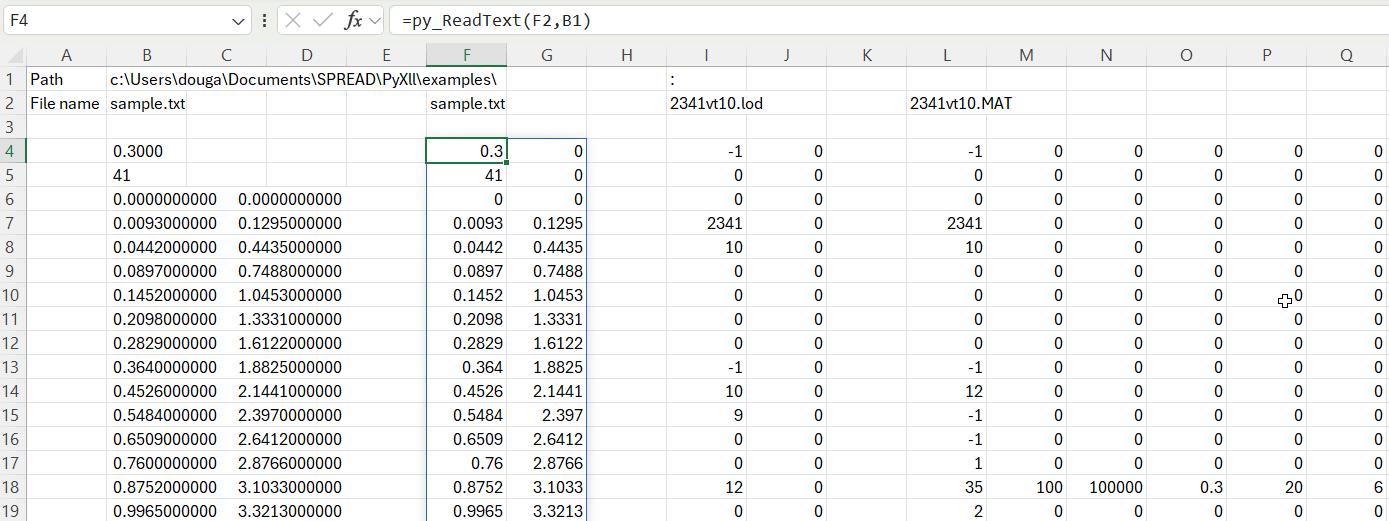
Column B imports the file as text, with Column F importing the same file with the numbers split into separate columns.
The text files to be imported may be in any folder, if the full path is specified as the second function argument. Alternatively, the active folder will be used. For the example shown the text files were in the same folder as the spreadsheet, but to make this the active folder the file had to be saved to the same location after opening, using Save-As-Replace.


 Newton Excel Bach, not (just) an Excel Blog