More from Martin Simpson

“Never any Good”

A beautiful song by Martin Simpson about his father, who he clearly did not see in the way the title might suggest:

Martin Simpson – Never Any Good Lyrics

You were never any good with money.
You couldn’t even hold a job,
Not steady enough for the office,
Not hard enough for the hod.
You’d rather be riding your Norton
Or going fishing with your split cane rod.
You were never any good with money.
You couldn’t even hold a job.

When your grammar school days were over,
It was nineteen-seventeen,
And you did the right and proper thing.
You were just eighteen.
You were never mentioned in dispatches.
You never mentioned what you did or saw.
You were just another keen young man
In the mud and stink of war.

You were never any good with money.
You couldn’t even hold a job,
Not steady enough for the office,
Not hard enough for the hod.
You’d rather be singing the Pirate King,
Or going fishing with your split cane rod.
You were never any good with money.
You couldn’t even hold a job.

You came home from the Great War
With the pips of a captain’s rank.
A German officer’s Luger,
And no money in the bank.
Your family sent you down in the coal mine
To learn to be captain there,
But you didn’t stand it very long.
You needed the light and the air.

You were never any good with money.
You couldn’t even hold a job,
Not steady enough for the office,
Not hard enough for the hod.
You’d rather be watching performers fly
Or going fishing with your split cane rod.
You were never any good with money.
You couldn’t even hold a job.

When the second war came along,
You knew what should be done.
You would re-enlist to teach young men
The booby trap and the gun;
And they sent you home to Yorkshire,
With a crew and a Lewis gun,
So you could save your seaside town
From the bombers of the Hun.

You were never any good with money.
You couldn’t even hold a job,
Not steady enough for the office,
Not hard enough for the hod.
You’d rather be finding the nightjar’s nest,
Going fishing with your split cane rod.
You were never any good with money.
You couldn’t even hold a job.

And when my mother came to your door,
With a baby in her arm,
Her big hurt boy only nine years old,
Trying to keep her from harm,
If you had been a practical man,
You would have been forewarned.
You would have seen that it never could work,
And I would have never been born.

There’s no proper work in your seaside town,
So you come here looking for a job.
You were storeman at the power station
Just before I came along.
Nobody talked about how you quit,
But I know that’s what you did.
My mother said you were a selfish man,
And I was your selfish kid.

You were never any good with money.
You couldn’t even hold a job,
Not steady enough for the office,
Not hard enough for the hod;
And your Norton it was soon gone
Along with your split cane rod.
You were never any good with money.
You couldn’t even hold a job.

You showed me eyebright in the hedgerow,
Speedwell and travellers joy.
You showed me how to use my eyes When I was just a boy;
And you taught me how to love a song
And all you knew of nature’s ways:
The greatest gifts I have ever known,
And I use them every day.

You were never any good with money.
You couldn’t even hold a job,
Not steady enough for the office, maybe,
Not hard enough for the hod.
You’d rather be riding your Norton
Or going fishing with your split cane rod.
You were never any good with money.
You couldn’t even hold a job.

Posted in Bach | Tagged , | Leave a comment

Three spoonfuls of Martin Simpson

According to Wikipedia, “Martin Simpson is regarded by many as one of the most skilled folk guitarists currently playing on the British and American folk scene”, with which my only disagreement would be that to characterise his music purely as “folk” really does not do it justice:


Posted in Bach | Tagged , | Leave a comment

Numpy and Scipy for Excel

The Python Numpy and Scipy libraries contain a huge number of maths and science related functions.  Most of these are not directly available from Excel, but using the free ExcelPython package it is fairly easy to make the link, vastly increasing the functionality of Excel for maths, science and engineering applications.

I have collected interface functions to many of the (to me) most useful Scipy and Numpy functions in a Python module called xlScipy.  These may be accessed from a free and open source spreadsheet: xlSciPy.zip.

The spreadsheet requires a copy of Python to be installed (including Numpy and Scipy), all other files, including ExcelPython, are included in the download package.  Just unzip to a convenient folder, enable macros when you start up, and it should work.  For those who have downloaded earlier versions of ExcelPython, this spreadsheet uses version 2.08, which is not compatible with earlier versions, so install in a different folder to the earlier versions.

The functions included in xlSciPy are listed on the first sheet (index):

xlScipy1
There are ten functions for interpolation and fitting:
xlScipy2
17 linear algebra functions:
xlScipy3
12 functions for solving, creating and evaluating polynomials of any order:
xlScipy4
All of the Scipy special functions (219 in all):
xlScipy5
and 26 statistical functions:
xlScipy6

Additional functions will be added as time permits.

The spreadsheet includes examples and brief documentation of each function; more detailed documentation can be found at Numpy Reference and Scipy Reference.

Posted in Excel, Link to Python, Maths, NumPy and SciPy, UDFs, VBA | Tagged , , , , , , | 11 Comments

Working with array functions

Regular visitors will know that I make frequent use of User Defined Functions that return an array of data, and need to be entered as an array function.

This has the advantages that the functions are very flexible in the layout of input and output data, and brief documentation can be added easily, but they do have a couple of disadvantages:

  • There is no simple built-in way to reduce the size of an array functions output range.
  • For applications where simplicity and speed of operation is more important than flexibility it is often better to use sub-routines with pre-defined ranges and user-input forms and buttons.

To get the best of both worlds I have modified the RegExpres spreadsheet with the following features:

  • Added two sub-routines that will adjust an array function range to the selected range (press Ctrl-Shift-R), or adjust the size to display the full output array (press Ctrl-Shift-S).
  • Added a simple demonstration of how a function can be wrapped in a sub-routine, that will read the input data from defined ranges, and write the output array as values to a range of adjustable size.

The spreadsheet can be downloaded from RegExpres.xlsb, including full open-source code.

The array re-sizing functions were taken from the Technicana site, where they are made freely available, along with other VBA utilities.

The screen-shots below show an array output being reduced down to the selected area with Ctrl-Shift-R, then re-sized to display the full array with Ctrl-Shift-S:

Array-resize1

Array-resize2

The code for the subroutine to return the array function output to a defined range is shown below:


Sub Reg_Expres_Sub()
Dim SubIn As Variant, SubArg As Variant, FuncResA As Variant
Dim Pattern As String, Operation As String, RepString As String, Glob As Boolean, IgnoreCs As Boolean
Dim NumRows As Long, NumCols As Long

' Read data
SubIn = Range("subin").Value2
SubArg = Range("subarg").Value2

' Create function arguments
Pattern = (SubArg(1, 1))
Operation = SubArg(2, 1)
RepString = SubArg(3, 1)
Glob = SubArg(4, 1)
IgnoreCs = SubArg(5, 1)

'Call Function
FuncResA = Reg_Exp(SubIn, Pattern, Operation, RepString, Glob, IgnoreCs)

'Check size
NumRows = UBound(FuncResA)
NumCols = UBound(FuncResA, 2)

' Clear output range and rezize
With Range("subout")
.ClearContents
.Resize(NumRows, NumCols).Name = "subout"
End With
' Write results to spreadsheet
Range("subout").Value2 = FuncResA

End Sub

This code is linked to a button allowing the displayed results to be updated as required:

Array-resize3

Posted in Arrays, Excel, UDFs, VBA | Tagged , , , , | Leave a comment

More on Regular Expressions

The previous post presented a User Defined Function (UDF) using regular expressions to extract all numbers, or a selected number, from any string (or a list of strings).  In this post I will look more closely at the code used to achieve this, and present a general purpose UDF allowing regular expressions to be used on strings.  A spreadsheet with examples of both functions, and full open-source code, can be downloaded from RegExpres.xlsb.

First the Regular Expression object must be created and given the appropriate criteria to return all numbers (0-9), the decimal character (“.”), the exponent symbol (“E”), and the plus and minus symbols (“+-“).  It is also set to return all matching strings (Global = True) and to ignore the case of alphabetic characters (IgnoreCase = True):


Const ExpString As String = "E", pmString As String = "+-"
'Initialize variables
Set RE = CreateObject("VBScript.RegExp")
'Criteria for Regular Expression
REPatt = "[0-9" & DecString & ExpString & pmString & "]"
With RE
.Pattern = REPatt
.Global = True
.IgnoreCase = True
End With

There follows some code to convert the input range to a variant array and count the number of rows; the numbers in each string are then extracted with the line:

Set Matches = RE.Execute(NumString)

As discussed in the previous post, for a string containing a single value, that is all that is required, but if there is more than one number all the number strings will be concatenated, and must be separated. This can be done by stepping through the original string and comparing the characters with those in the Matches variable, as shown below:

'Loop Matches collection and compare with each character of original string to build strings of all numbers in the sample string
        strNumber = ""
        NumMatches = Matches.Count
        NumChar = Len(NumString)
        j = 0
        k = 1
        PrevMatch = False
        For i = 1 To NumChar
            MatchString = Mid(NumString, i, 1)
            If PrevMatch = False And UCase(MatchString) = ExpString Then
                j = j + 1
            ElseIf PrevMatch = False And (MatchString = "+" Or MatchString = "-") And _
                   IsNumeric(Mid(NumString, i + 1, 1)) = False Then
                j = j + 1
            ElseIf MatchString <> IgnoreString Then
                Digit = Matches(j)
                If Digit = MatchString Then
                    strNumber = strNumber + Matches(j)
                    j = j + 1
                    PrevMatch = True
                ElseIf PrevMatch = True Then
                    If Position = 0 Then
                        OutA(Row, k) = CDbl(strNumber)
                    ElseIf Position = k Then
                        OutA(Row, 1) = CDbl(strNumber)
                        Exit For
                    End If
                    strNumber = ""
                    k = k + 1
                    PrevMatch = False
                End If
            End If
        Next i
        If PrevMatch = True Then
            If Position = 0 Then
                OutA(Row, k) = CDbl(strNumber)
            ElseIf k = Position Then
                OutA(Row, 1) = CDbl(strNumber)
            End If
        End If
        If k < Position Then OutA(Row, 1) = CVErr(xlErrNA)
    Next Row

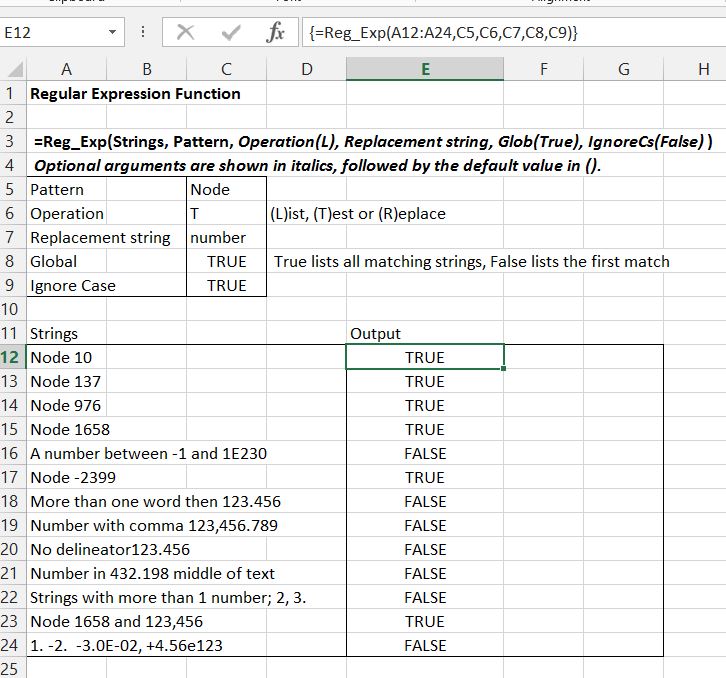
Regular Expressions also have many other uses, and the Reg_Exp UDF allows them to be applied quickly and easily. The Regular Expression object has the methods “List”, “Test”, and “Replace”, and the screen-shots below show the use of these methods on a list of strings:

Extract all numbers

RegExp1

Extract all occurrences of the string “Node”

RegExp2

Find strings containing “Node”

RegExp3

Replace “Node” with “Number”

RegExp4

Find all four letter strings starting with “n” and ending with “e”

RegExp5

For more details of setting up regular expression patterns see:
VBA RegEx: How to Evaluate and Use “Regular Expressions”

Finally note that if you want to apply these UDFs to a range they must be entered as an Array Function to return all the results.

Posted in Excel, UDFs, VBA | Tagged , , , , | 10 Comments