Extracting numbers with regular expressions

Shortly after I wrote about extracting numbers from text strings, Winston Snyder at dataprose.org wrote a detailed article about using “regular expressions” to separate text from numbers in any string.  I have adapted his routine for the same purpose as in the previous post, that is to extract a single numerical value from a text string.  The regular expressions approach has two main advantages:

  • The same function can be used to extract numbers from the left, right, or middle of a text string.
  • No delineators are required.

The only drawback is that if the text string contains more than one number the function will concatenate them if they are integers, or return zero if they both have decimals.

The new ExtractNum function has been added to GetNum.xlsb, and  Text-in2.xlsb, and is shown in use in the screenshot below:

ExtractNum Function

ExtractNum Function

This function is only scratching the surface of what can be done with regular expressions. For more details and links see dataprose.org.

Posted in Excel, UDFs, VBA | Tagged , , , , | 19 Comments

Dynamic sorting with Excel, VBA, and Python

A spreadsheet with User Defined Functions (UDFs) to dynamically sort a range of data has previously been presented here and here.

I have now modified the Python version of the UDF for improved functionality, added a second Python function, and added an example of how a dynamic sort can be accomplished without programming using the Rank() function.  The revised spreadsheet, including full open-source code, can be downloaded from: Sortfunc.zip.

Sorting data in Excel can be accomplished most easily (since 2007) by inserting the data as a table.  The data can then be sorted simply by clicking on the header of the sort column:

py_sort2

Table sorted on Column A


If you need a table that will automatically update when new data is entered, things are not so simple however.  The screen shot below shows the procedure using the built-in Rank() function.:

py_sort1

This procedure requires 4 dummy columns to generate the required row index values, which are used in conjunction with the Index() or Offset() functions to return the data.  Also note that this procedure cannot deal with two or more rows with exactly equal sort values, so the values are adjusted by subtracting different very small values from each row.

For situations where VBA is available, the VBA UDF shown below makes the whole procedure much easier and simpler: py_sort3

The only disadvantage of the VBA routine is that it only allows for one sort column.  This has been fixed in the revised Python sort function shown below:

py_sort4

The options range, specifying sort columns and sort directions, may be any number of columns wide.

The code for this function is shown below:

from operator import itemgetter, attrgetter

@xl_func("var SortRange, var SortCol: var")
def py_Sort(SortRange,SortCol):
    if SortCol is None:
        return sorted(SortRange)
    else:
        numsortrows = 0
        if type(SortCol) is list:
            numsortcols = len(SortCol[0])
            numsortrows = len(SortCol)
            x = int(SortCol[0][0])-1
        else:
            numsortcols = 1
            x = int(SortCol)-1
    sortrev = False
    for i in range(numsortcols-1,-1,-1):
        if numsortcols != 1: x = int(SortCol[0][i])-1
        if numsortrows > 1:
            if SortCol[1][i] is None:
                sortrev = False
            else:
                sortrev = SortCol[1][i]
        SortRange = sorted(SortRange, key=itemgetter(x), reverse = sortrev)
    return SortRange

A second Python function has been added, using the numpy argsort function for improved performance where there is only one sort column, and for use in other VBA and Python routines.  Note that this function returns the row offset for the sorted list, which can then be used with the Excel Index() or Offset() functions:

py_sort5

The code for this function is:

@xl_func("numpy_array SortRange, bool RevSort: numpy_array")
def py_ArgSort(SortRange, RevSort):
    if RevSort is None: RevSort = False
    sortind  = np.argsort(SortRange,0)
    if RevSort == True:
        indlen = sortind.shape[0]
        revind = np.zeros((indlen,1))
        indlen = indlen-1
        for i in range(0, indlen+1):
            revind[i] = sortind[indlen-i]
        return revind
    return sortind

For more details of using array functions, see the Using Array Functions and UDFs page.

For more details of installing and running Python from Excel, using the Pyxll add-in, see Installing Python, Scipy and Pyxll.

Posted in Excel, Link to Python, NumPy and SciPy, UDFs, VBA | Tagged , , , , , | 1 Comment

Salthouse

To show a bit of Southern Hemisphere solidarity with Jeff Weir (who has been getting a bit of flack for having the temerity to discuss non-Excel matters on an Excel blog), I’m bringing forward my next Bach instalment.

This post is guaranteed 100% Excel free.

Salthouse are a new Scottish group who have just released their first album, although the group members are all established musicians on the Scottish folk and jazz scenes.  The first link is from their first concert, which looks like it was held in a rather small shoe box.

Update 28 Mar 2014: This song is based on a poem by Lord Byron, but incorporates a number of other works, as listed at Salthouse.bandcamp:

From Byron’s classic poem of 1814, mixed with a few words of prison poetry by Scottish / Australian Bushranger / Highwayman / Bankrobber James Alpin McPherson (1842-1895) finished off with 3 verses from Ewan’s pen.

Verse 1 & 2 – G.G. Byron
Verse 3 – James Alpin McPherson
Verse 4 – 6, chorus and music – Ewan MacPherson (MCPS & PRS)
‘Berneray’ – Lauren MacColl (MCPS & PRS)

lyrics

She walks in beauty, like the night,
Of cloudless climes and starry skies,
And all that’s best of dark and bright,
Meet in her troubled eyes.

Waves in every raven tress,
Softly lighten o’er her face,
Lost but lined as ever strong,
Smiles from days of goodness spent.

And it’s down, down my lovely down
To the darkness deep and ever old.

Never a stone will sound tonight,
Beneath my horse’s lonely tread.
His sire was of the purest race,
That ever yet was born and bred.

Was not by silver stream we met,
Nor by rolling wave unseen.
I spoke she knew my only name,
I never gave it free or loud.

Then as I neared her on the track,
Her eyes looked ever into mine,
And wild as only weather knows,
She stole my heart and I her life.

So perfect my life shall never be,
And never a love can hold for me.
Whenever I look into the dark,
Her graceful form is near me still.

And here is the full text of the Byron poem:

She Walks in Beauty
By Lord Byron (George Gordon) 1788–1824

She walks in beauty, like the night
   Of cloudless climes and starry skies;
And all that’s best of dark and bright
   Meet in her aspect and her eyes;
Thus mellowed to that tender light
   Which heaven to gaudy day denies.
One shade the more, one ray the less,
   Had half impaired the nameless grace
Which waves in every raven tress,
   Or softly lightens o’er her face;
Where thoughts serenely sweet express,
   How pure, how dear their dwelling-place.
And on that cheek, and o’er that brow,
   So soft, so calm, yet eloquent,
The smiles that win, the tints that glow,
   But tell of days in goodness spent,
A mind at peace with all below,
   A heart whose love is innocent!

Poetry Foundation

The second piece is a “Setting Sun”, with a more spacious location:


Posted in Bach | Tagged , | 1 Comment

Transfer of arrays to/from Python with Pyxll – Part 2; Speed

Following the previous post, which looked at the way different data types worked when transferring data between Excel and Python, this post looks at ways t0 get the best performance.

As a benchmark I have used a short routine that:

  • Reads a range of 3 columns x 1,048,570 rows from Excel (this is 6 less than the maximum rows in a spreadsheet, in Excel 2007 and later).
  • Sums the contents in each row and saves this data in a single column array
  • Writes the sum of rows array back to Excel to a range 3 columns wide (generating 3 identical copies of the array).

Benchmark results were checked for the following combinations:

  1. 5 different combinations of array type (var, numpy_array, and float[]) to pass the data between Excel and Python.
  2. As 1, but using the Numba compiler.
  3. As 2, but looping the Sumrows routine 100 times

The data in the source array consists of numbers and blank cells, but no text.

For the first series of runs the data was read from Excel to a variant array in VBA, then passed to Python via Pyxll to sum the columns.  The resulting array was then returned to VBA and written back to the spreadsheet.  Typical VBA code is shown below:

Sub Timepysub()
Dim Func As String, InRName As String, InRange As Range, OutRange As String, Out As Long, TRange As String
Dim timenow As Double, timea(1 To 1, 1 To 4) As Double, RtnA As Variant

    timenow = Timer
    Func = Range("Func").Value
    InRName = Range("in_range").Value
    OutRange = Range("Out_Range").Value
    TRange = Range("trange").Value
    Set InRange = Range(InRName)

    Out = Range("out").Value

    RtnA = Application.Run(Func, InRange, Out)
    timea(1, 1) = RtnA(1, 1)
    timea(1, 2) = RtnA(2, 1)
    timea(1, 3) = Timer - timenow

    Range(OutRange).Value = RtnA
    timea(1, 4) = Timer - timenow
    Set InRange = Nothing
    If Out >= 2 Then
        Range(TRange).Value = timea
    End If
End Sub

Note that the data range is declared as a range (rather than a variant, as I would normally do when working entirely in VBA).  This is necessary to allow the full array of 1 million+ rows to be passed to Python, using “Application.Run”.

The results with the different options are shown in the screen shot below:

Benchmark results; read and write data from VBA

Benchmark results; read and write data from VBA

It can be seen that:

  • In the first series, the fastest results were obtained using a var array for both input and output.
  • The Sumrows time was significantly faster using a numpy_array, but transfer times were much longer.
  • Using the Numba compiler significantly reduced the execution time for the Sumrows function in all cases, but the effect was very much greater when working with numpy_arrays, where the time was reduced by a factor of the order of 400!
  • The much greater effect of Numba when working with numpy arrays was confirmed by looping through the Sumrows function 100 times.  For this case the total execution time for the numpy arrays was more than 6 times faster than float arrays, and the execution of the Sumrows function was over 60 times faster.

The results when reading and writing from/to the spreadsheet directly from Python are shown below:

py_arrays2-2

The execution times for this case are significantly slower than reading and writing from VBA because:

  • The time to transfer the data is of the order of 2-3 slower than working in VBA.
  • When using numpy arrays the blank cells are read as either ‘NoneType’ or as ‘numpy.float64’ with a value of ‘nan’ (not a number).  This results in rows with blank cells returning either an error or an incorrect value, so in the Sumrows function it is necessary to check for the blank cells.  This greatly slows down the performance of the function, in the case of the runs compiled with Numba the execution time being increased by a factor of over 100!

The results of using numpy arrays with dtype = np.float64 and not checking for ‘nan’ are shown in the screen shot below, where any row containing a blank returns 65535, rather than the sum of the two non-blank cells.  Note however that if the data set contains no blanks there is a huge improvement in execution time by not checking for ‘nan’, especially when using the Numba compiler.

py_arrays2-3

In summary:

  • When transferring large amounts of data, and where use of VBA is acceptable, read and write the data in VBA and pass it to Python using either Pyxll float[] or numpy_array data types.
  • If significant numerical processing is to be carried out in Python there can be a huge speed improvement by using the Numba compiler in conjunction with numpy_array.
  • If the numerical processing is limited the float[] data type may be significantly faster.
  • If Numba is not used then the Pyxll var data type may be the fastest (but only marginally faster than float[]).
  • If it is necessary to read and/or write from Python, and the data may contain blanks, either read the data to a Python List of Lists, or use a np.array and clean the data (by checking for values that are not of type “float”) before carrying out any numerical processing.
  • If it is certain that there are no blank cells then read the data to a numpy array using dtype = np.float64, and use the Numba compiler.
Posted in Arrays, Excel, Link to Python, NumPy and SciPy, VBA | Tagged , , , , , , | 1 Comment

Transfer of arrays to/from Python with Pyxll – Part1; Data Types

This post will look at options for transferring arrays between Excel and Python using Pyxll, including data types, and problems associated with transferring mixed data types.  In the following post I will look at the relative performance of the various options when used with a large range, which shows some big differences.

The sample data ranges used are shown below:

py_arrays0

Range_1 includes numbers (in different display formats), text (including numbers in text format), blank cells, and a variety of error constants.  Cell D5 contains a text string showing the value of pi to 17 significant figures.  Range_2 includes just numbers and blank cells, and Range_3 just numbers with no blanks.  Range_4 and Range_5 are a single row and column for use with the Pyxll numpy_row and numpy_column data types.

The first 6 examples illustrate the use of Python User Defined Functions (UDFs) in Excel, using the Pyxll @xl_func decorator.  Typical code is shown below:

@xl_func("var InRange,  int Out: var")
def py_GetTypes1(InRange, Out):
    numrows = len(InRange)
    numcols = len(InRange[0])

    if Out == 1:
        # Create Numpy text array and read data types for each cell in InRange
        outa = np.zeros((numrows, numcols), dtype='|S20')
        for i in range(0, numrows):
            for j in range(0, numcols):
                outa[i,j] = type(InRange[i][j])
        return outa
    elif Out == 2:
        # Return size of InRange
        outa = np.zeros((1,2))
        outa[0,0] = numrows
        outa[0,1] = numcols
        return outa
    elif Out == 3:
        # Sum rows in InRange
        rowsum = sumrows1(InRange)
        return rowsum
    elif Out == 4:
        # Sum rows using Numba jit compiler
        fastsum = autojit(sumrows1)
        rowsum = fastsum(InRange)
        return rowsum
    else:
        # Return InRange
        return InRange

The @xl_func decorator specifies the data type for the input function arguments, and the return values, which may be a single cell value or a range or array in both cases.

The most versatile of the data types is “var”, which is similar to a VBA variant object:
py_arrays1

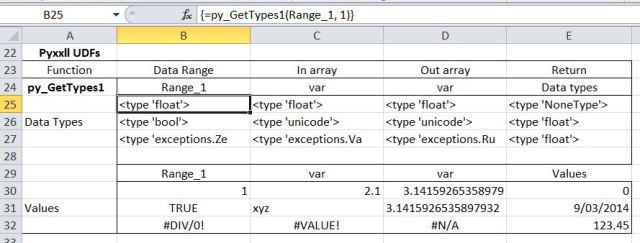
Using Range_1 we see that all cells with numeric values are passed as ‘float’, including date and currency values.  Blank cells are passed as ‘NoneType’, Boolean as ‘bool’, and text as ‘unicode’ (in Excel 2007 and later).   The error constants are passed as various types of ‘exception’.  The text string version of pi is returned as text, including all 17 significant figures.  This string will be recognised as a numerical value by Excel, but the additional significant figures will be lost.  Pi()-D31 will return exactly zero for instance.

Note that the blank cell is returned as a value of zero.

Use of var[] for input produces exactly the same results as var:
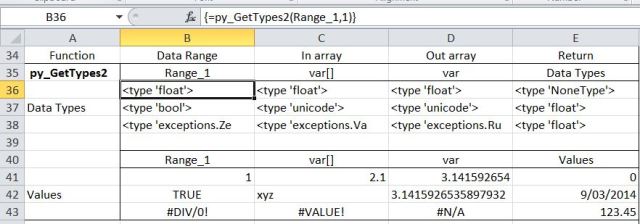
py_arrays2

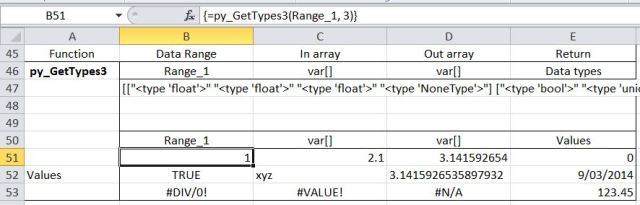
However, if the numpy array of data types is returned as var[], this is returned as a single text string:
py_arrays3

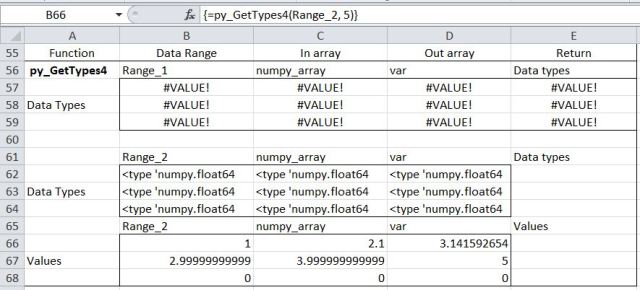
When Range_1 is passed as numpy_array, this produces an error, because all the values are expected to be numeric or blank.  With Range_2 all the values (including the blank cells) are passed as ‘numpy.float64’.  Note that the blank cells are returned as a value of zero:
py_arrays4

Using the numpy_row and numpy_column data types values (which must be numbers or blank) are passed as ‘numpy.float64’, creating a 1D numpy array.  If this array is returned to Excel using the var data type the result is an error because a var is expected to be either a single value or a 2D array (or list of lists).  The 1D array produced by numpy_row or numpy_column may be returned as either a row or column, allowing data to be transposed (see last example below):
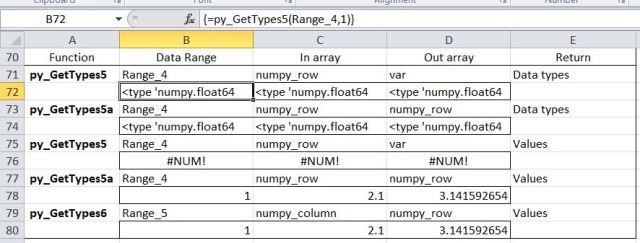
py_arrays5

If the data is all numeric or blank, it may be passed as an array of floats using float[].  Note that, as with the numpy_array type, attempting to pass non-numeric data results in an error.  Both numbers and blank cells are passed as ‘float’, and blanks are returned as a value of zero:
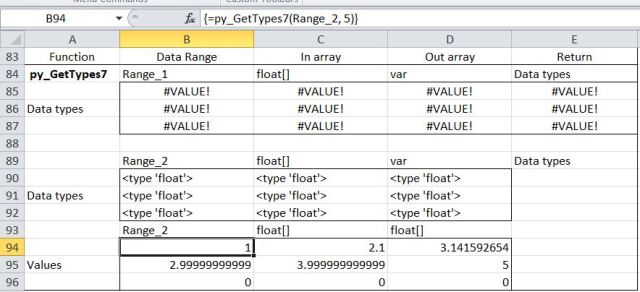
py_arrays7

The remaining examples illustrate the use of the xl.Range object inside Python to read data from the spreadsheet using COM.  This must be initiated using the following code:

from pyxll import xl_menu, get_active_object

def xl_app():
    """returns a Dispatch object for the current Excel instance"""
    # get the Excel application object from PyXLL and wrap it
    xl_window = get_active_object()
    xl_app = win32com.client.Dispatch(xl_window).Application

    # it's helpful to make sure the gen_py wrapper has been created
    # as otherwise things like constants and event handlers won't work.
    win32com.client.gencache.EnsureDispatch(xl_app)

    return xl_app

xl = xl_app()

Functions may then be written entirely within Python to read and write from/to range addresses, or named ranges, or as in these examples, I have written short VBA routines to pass range names to the Python code. A typical example is:

Sub py_GetTypeSub1()
Dim RtnA As Variant, Func As String, InRange As String, OutRange As String, Out As Long, TRange As String

' Read range names and Out index value from the spreadsheet
Func = Range("Func").Value
InRange = Range("In_Range").Value
OutRange = Range("Out_Range").Value
Out = Range("Out").Value
TRange = Range("trange").Value

' The python function 'Func' will read data from InRange, and write to OutRange
RtnA = Application.Run(Func, InRange, OutRange, Out)

' If Out = 4 the Python function will return execution time data, which is written to TRange
If Out = 4 Then Range(TRange).Value2 = RtnA
End Sub

The data in a named Excel range ‘InRangetxt’ may be read into a Python list of lists with the code:

@xl_func("string InRangetxt, string OutRange, int Out: var")
def py_GetTypes8(InRangetxt, OutRange, Out):
    InRange = xl.Range(InRangetxt).Value

Note that in this case the VBA function passes just a string with the range name.
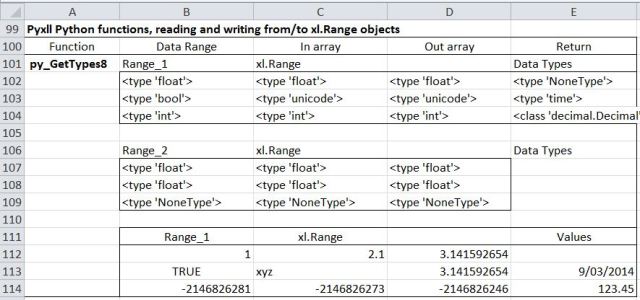
py_arrays8

The results are similar to using the Pyxll ‘var’ object, except that:

  • Error constants are read as type ‘int’ and written to the spreadsheet as negative integers
  • Blanks are read as ‘NoneType” but are written back as blanks, rather than zero
  • All strings are read as ‘unicode’, but strings looking like numbers are written back as numbers, truncated to 15 significant figures
  • Numbers formatted as date or currency are read as ‘time’ and ‘decimal.Decimal’ respectively.

Range data may be read into a numpy array using:

@xl_func("string InRangetxt, string OutRange, int Out: var")<
def py_GetTypes9(InRangetxt, OutRange, Out):
    InRange = np.array(xl.Range(InRangetxt).Value)

In this case the array data types are automatically coerced into the appropriate data type, with the same results as reading to a Python list of lists:
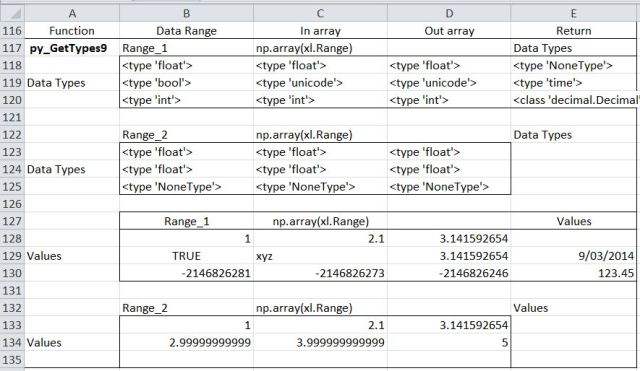
py_arrays9

The data type for the Numpy array may be specified using:

@xl_func("string InRangetxt, string OutRange, int Out: var")
def py_GetTypes10(InRangetxt, OutRange, Out):
    InRange = np.array(xl.Range(InRangetxt).Value, dtype=np.float64)

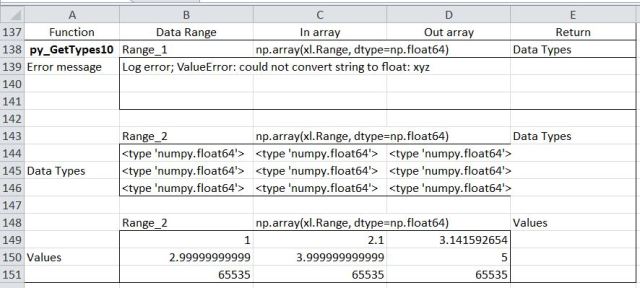
In this case Range_1 will generate an error because it contains non-numeric data.

Range_2 is read as ‘numpy.float64’ for all cells, including the blanks, but the blank cells are written back as integers, 65535:
py_arrays10
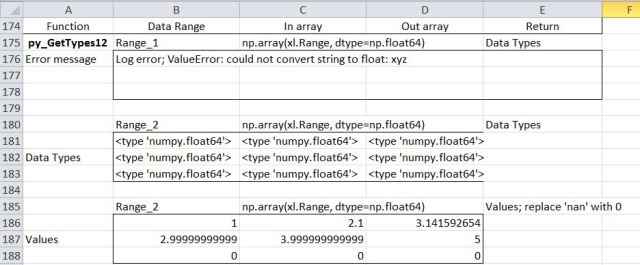
Data that may contain blanks can be checked using the numpy ‘isnan’ property:

        for i in range(0, numrows):
            for j in range(0, numcols):
                if np.isnan(InRange[i,j]):
                    InRange[i,j] = 0
py_arrays12
The data may be read into a numpy string array using:

@xl_func("string InRangetxt, string OutRange, int Out: var")
def py_GetTypes11(InRangetxt, OutRange, Out):
    InRange = np.array(xl.Range(InRangetxt).Value, dtype='|S24')

In this case the data from Range_1 is read as a string in all cases. Note that:

  • The value of pi is read into a string, but is written back as a value truncated to 12 significant figures
  • The 17 significant figure text string is read as a string, but written back as a value truncated to 15 significant figures
  • The blank cell and error constants are read as strings, but written back as ‘None’ and ‘-2146826281’ respectively

In the case of Range_2 all the values are read as ‘float’ or ‘NoneType’, and written back as values truncated to 12 significant figures or ‘None’

py_arrays11

Posted in Arrays, Excel, Link to Python, VBA | Tagged , , , , | 2 Comments