Python for VBA users- 6; Using Pysparse with Excel

Previous Python Post

The analysis of structural frames requires the solution of large sparse matrix systems, which rapidly becomes very time consuming using a VBA based solver, especially for 3D analysis.  I have previously presented versions of my frame analysis spreadsheet that link to compiled solvers (in Fortran, C++, and C#), but these have still required the generation of the complete matrix, consisting mostly of zeros, which needlessly limits the size of model that can be handled.

The Python Pysparse library contains a number of formats for handling and storing sparse matrices, and importantly for frame analysis, an iterative solver for sparse symmetric matrices.   I am now working on adding this solver (and also a sparse direct solver) to my frame analysis spreadsheet.  This post looks at how to generate the matrix data in Excel, and how to link this data to the Python routines, using Pyxll.

The Pysparse iterative solvers are found in the itsolvers module, which includes the following methods: PCG, MINRES, QMRS, BICGSTAB, and CGS.  Some brief experimentation found little difference in performance, but the QMRS was the fastest in my tests, so that is what I have used.  The procedure for using this routine is:

  • Import the data from Excel as a Numpy Array.
  • Process  the data in linked list format.
  • Convert to SSS format.
  • Run pre-conditioner routine.
  • Run iterative solver routine
  • Return the results to Excel as a Numpy_column array.

The code to do all this is:

@xl_func("numpy_array K, numpy_row b, float tol, int its: numpy_column")
def py_ItSolve2(K, b, tol, its):
    n = len(b)
    A = (ll_mat_from_array(K, n)).to_sss()
    x = zeros(n)
    D = precon.ssor(A, 1.0, 1)
    info, iter, relres = itsolvers.qmrs(A, b, x, tol, its, D)
    return x

def ll_mat_from_array(K,n):
    nr = len(K)
    A = spmatrix.ll_mat_sym(n,n)
    for row in range(0,nr):
        i = int(K[row][0])-1
        j = int(K[row][1])-1
        x = K[row][2]
        A[i,j] = A[i,j]+x
    return A

The input for the py_ItSolve2 routine consists of:

  • K, the frame stiffness matrix (see below for more details of the required format)
  • b, the load vector, a single column with one row for each frame node freedom
  • tol, the target tolerance required for the iterative solution
  • its, the maximum number of iterations

The stiffness matrix  is defined in three columns, two defining a pair of freedoms (the row and column number of the full matrix), and the third the associated stiffness value.  This data is generated by a VBA routine from the spreadsheet by calculating the freedom values for each beam in turn.  This results in many freedom pairs being repeated, with stiffness values that must be summed to find the resultant stiffness value for the global matrix.  This is done in the ll_mat_from_array routine, which creates a linked list matrix, then simply steps through the input data and adds the stiffness values for each of the freedom pairs.  The linked list array is then converted to sss (Sparse Skyline) format with the method .to_sss().  Finally this array is preconditioned, solved, and the resulting array of node deflections is returned to the calling VBA routine.

Initially I generated the K array as a VBA double array, but discovered that passing this to the Python routines using application.run had a maximum limit of 65536 (2^16) rows.  I experimented with generating the array in Python, but discovered that (surprisingly) this was substantially slower than the same operation in VBA.  Finally I returned to generating the array in VBA, then writing the data to a named spreadsheet range, and passing this range to the Python routine.  The VBA code for this operation is:

Range("kv_").ClearContents
    Range("kv_").Resize(lastk, 3).Name = "kv_"
    Range("kv_").Value = kv

        ' !------------------------equation solution -----------------------------------
    Select Case SolverType
    Case 1
        DefA = Application.Run("py_ItSolve2", Range("kv_"), Loads, Py_Tol, Py_Its)

    Case 2
        DefA = Application.Run("py_LUSolve2", Range("kv_"), Loads)
    End Select

The top of the kv_ range looks like:

kv_ array

kv_ array

A very similar approach is used to run the Pysparse direct sparse solver:

@xl_func("numpy_array K, numpy_row b: numpy_column")
def py_LUSolve2(K, b):
    n = len(b)
    A = (ll_mat_from_array(K, n)).to_csr()
    x = zeros(n)
    LU = superlu.factorize(A, diag_pivot_thresh=0.0)
    LU.solve(b, x)
    return x

In this case the linked list array is converted to a csr (Compressed Sparse Row) format, and the resulting array is then factorised and solved using the superlu routine.

Posted in Arrays, Beam Bending, Excel, Finite Element Analysis, Frame Analysis, Link to Python, Maths, Newton, NumPy and SciPy, VBA | Tagged , , , , , | 1 Comment

All about dictionaries

A couple of links to sites with comprehensive information on using the scripting dictionary object, found via Daily Dose of Excel:

VBA for smarties

I. What is a dictionary ?

A dictionary in VBA is a collectionobject: you can store all kinds of things in it: numbers, texts, dates, arrays, ranges, variables and objects.
Every item in a dictionary gets it’s own unique key.
With that key you can get direct access to the item (reading/writing/adapting).

VBA has several methods to store data: – a dictionary
– a collection
– an array (matrix) variable
– an ActiveX ComboBox
– an ActiveX ListBox
– a Userform control ComboBox
– a Userform control ListBox
– a sortedlist
– an arraylist

Which one to use is dependent of your ultimate goal.
This tutorial doesn’t offer an exhaustive comparison of all these methods.
What a dictionary has to offer will be discussed in detail.
With that knowledge it’s easier to compare different methods and to make a choice between them.

And a link to Experts Exchange, provided by Jeff Weir:

Using the Dictionary Class in VBA

Perhaps more familiar to developers who primarily use VBScript than to developers who tend to work only with Microsoft Office and Visual Basic for Applications (VBA), the Dictionary is a powerful and versatile class, and is useful for many programming tasks.
While VBA’s native Collection class offers functionality that is in many respects similar to the Dictionary, the Dictionary class offers many additional benefits.  Thus, depending on the exact functionality required for your VBA procedures, the Dictionary class may offer a compelling alternative to the more usual Collection.  Indeed, even if the Dictionary’s additional functionality is not relevant to your project, a Dictionary may offer a performance advantage over a Collection.
This article provides:

  • An overview of the Dictionary class and its properties and methods;
  • A comparison between the Dictionary and the VBA Collection;
  • An overview of early binding versus late binding;
  • Four illustrative example for using the Dictionary class;
  • Common errors and pitfalls (i.e., ‘gotchas) encountered in programming with the Dictionary class; and
  • A brief analysis of relative processing speed between the Dictionary and Collection classes

And if that is not enough for you, here are the previous Newton Excel Bach posts on dictionaries.

Posted in Excel, VBA | Tagged , , | 3 Comments

Python for VBA users – 5; Using built in numpy functions

Previous Python Post

In previous posts in this series I have looked at translating VBA functions to solve quadratic and cubic equations, but the Python numpy library has a polyroots function that will solve polynomials of any degree, and will also handle polynomials with complex coefficients.

Full open source code for all the functions described in this post, as well as the py_Quadratic and py_Cubic functions, may be downloaded from py_polynomial.zip. The download file also includes the spreadsheet py_Polynomial.xlsb, including the examples illustrated below, and VBA based polynomial functions. Note that once the py_polynomial.py module has been installed the functions may be called from any Excel worksheet, including .xlsx files that have VBA disabled.

To install the Python functions:

  • Install Python with the Numpy add-in.
  • Install PyXll
  • Add: polynomial.py to the “modules =” section of the PyXll pyxll.cfg file (example included in the download file)

See: Installing Python, Scipy and Pyxll for more details.  Details of the Python code for the functions are given below, but all this is included in the polynomial.py module, and once that has been installed no further coding is required.  All the functions will be available in the same way as the built-in Excel functions.

To call the polyroots (and other polynomial functions) from any Python function the following line must be added to the Python code module:

import numpy.polynomial.polynomial as poly

The polyroots function can then be called with the following one-liner (two-liner, including the Excel decorator):

@xl_func("numpy_column CoeffA: numpy_column")
def py_Polyshort(CoeffA): return poly.polyroots(CoeffA)

The functionality can be considerably improved with a little more work however:

  • Add “Inc_power” and “Row_out” options, so that coefficients may be listed in either ascending or descending powers of x, and output arrays may be in either row or column format.
  • Specify “numpy_array” rather than “numpy_column” as the input and output data types, so that the data may be arranged in row or column format, and complex numbers may be input and output as pairs of values in adjacent cells.
  • Add “doc strings” that will appear in the function dialogue box, and “category” and “help_topic” items.
@xl_func("numpy_array CoeffA, bool Inc_power, bool Row_out: numpy_array", category="py-Maths", help_topic="http://docs.scipy.org/doc/numpy/reference/routines.polynomials.polynomial.html!0")
def py_Polyroots(CoeffA, Inc_power, Row_out):
    """
    Find the real and complex roots of a polynomial equation: a x^n + b x^(n-1) ... + y x + z = 0
    CoeffA: Row or column of function coefficients
    Inc_power: Optional, default False = coefficents listed in order of descending powers of x
    Row_out: Optional, default False = roots output in two columns (real and imaginary parts of each root)
    """

The screen shot below shows the “Insert Function” Dialogue for the py_Polyroots function, showing the function description, and help for each function argument, as defined in the Python doc string:
polyroots0

To deal with the Inc_power and Row_out options, and to deal with output of complex numbers as a pair of floats, the following operations are then required:

  • Check the orientation of the input array of coefficients (CoeffA), and transpose to column format if necessary.
  • Create an output array, with two columns x (number of roots + 1)
  • The numpy polyroots function requires a 1D array with coefficients listed in ascending powers of x.  Extract the first column of CoeffA, and if Inc_power is False reverse the order of the coefficients.  Note that this operation, including reversing the order of the coefficients, can be accomplished with a single Python “list comprehension”:
    CoeffA[::-1,0]
    or without the reversal of the order:
    CoeffA[:,0]
  • Convert complex results to a pair of floats, and count the number of complex roots.
  • Write the number of real and complex roots to the end of the output array.
  • Return the results as a row or column, depending on the value of Row_out.

The final code is shown below, followed by example output for a fifth order polynomial, with different arrangements of input and output.

@xl_func("numpy_array CoeffA, bool Inc_power, bool Row_out: numpy_array", category="py-Maths", help_topic="http://docs.scipy.org/doc/numpy/reference/routines.polynomials.polynomial.html!0")
def py_Polyroots(CoeffA, Inc_power, Row_out):
    """
    Find the real and complex roots of a polynomial equation: a x^n + b x^(n-1) ... + y x + z = 0
    CoeffA: Row or column of function coefficients
    Inc_power: Optional, default False = coefficents listed in order of descending powers of x
    Row_out: Optional, default False = roots output in two columns (real and imaginary parts of each root)
    """
# Transpose CoeffA to column format if necessary
    if CoeffA.shape[0] == 1: CoeffA = transpose(CoeffA)
# Create output array; two columns x (number of roots + 1)
    nroots = CoeffA.shape[0]-1
    resa = zeros((nroots+1,2))
# polyroots requires a 1D array with coefficients listed in ascending powers of x
# Extract the first column of CoeffA, and if Inc_power is False reverse the order of the coefficients
    if Inc_power == False:
        res = poly.polyroots(CoeffA[::-1,0])
    else:
        res = poly.polyroots(CoeffA[:,0])
# Convert complex results to a pair of floats, and count the number of complex roots
    numi = 0
    for i in range(0,nroots):
        resa[i,0] = res[i].real
        resa[i,1] = res[i].imag
        if resa[i,1] != 0: numi = numi+1
# Write the number of real and complex roots to the end of resa
    i = i+1
    resa[i,0] = nroots-numi
    resa[i,1] = numi
# Return the results as a row or column, depending on the value of Row_out
    if Row_out == False :
        return resa
    return transpose(resa)

Row input and column output

polyroots1

Column input and output and polyshort function

polyroots2a

Results for a 60th order polynomial.  The results in columns C and D are from the VBA rpolyjt() function.  The results from the two functions are sorted in different orders, but are in good agreement (see the spreadsheet for full results list)

polyroots3

The py_PolyrootsC function will accept complex coefficients of x.  The function converts each pair of values to a Python complex number, then calls the py_Polyroots function

polyroots4

The py_PolyfromRoots function generates a monic polynomial from the input roots, which may be real or complex.  The example illustrated shows the use of the Inc_power and Row_out options to generate output with ascending powers of x in row format.

polyroots5

py_PolyfromRoots function with complex roots.

polyroots6

The results generated by py_Polyroots and py_PolyrootsC have been checked using the py_Polyval function. This evaluates a polynomial defined by a series of coefficients for a specified value of x. X may be a real value defined by a single cell, or a complex value defined by two adjacent cells. As for the other functions the coefficients may be listed in descending powers of x (default), or ascending order.

polyroots7

Posted in Arrays, Excel, Link to Python, Maths, Newton, NumPy and SciPy, UDFs, VBA | Tagged , , , , , , , , , , , | 5 Comments

Python for VBA users – 4; Python data types

Previous Python Post

The basic range of data types in Python is quite simple, but by the time we have added additional types used in the numpy package, and translation of Excel data types into the Python equivalent the picture gets considerably more complicated, and you can find yourself wasting significant amounts of time chasing down errors due to using incompatible data types.  This post will look at the main data types, including numpy arrays, with examples of their use in PyXll functions.

The Python code and associated Excel spreadsheet can be downloaded from pyTypes.zip.  To use the Python functions it is necessary to install the PyXll add-in, then either add “pyTypes” under modules in the pyxll.cfg file, or simply copy and paste all the code from pyTypes.py into the worksheetfuncs.py file, to be found in the PyXll\examples folder.

The PyXll manual lists the following PyXll data types, with their Python equivalent:

PyXll and Python Data Types

PyXll and Python Data Types

Note that the unicode type is only available from Excel 2007.

An Excel range of any of the above data types can be passed as a 2D array, which is treated in Python as a “list of lists”.  In addition the PyXll var type can be used for any of the above types, or a range.  A further option for transferring an Excel range  of numerical data is use of the numpy_array, numpy_row and numpy_column types.  Further options (which we will examine in a later post) are Custom Types and the xl_cell type.

The function var_pyxll_function_1 shown below (taken from the PyXll worksheetfuncs.py file) returns the name of the data type passed to the function. The var_pyxll_function_1a function simply returns the data back to the spreadsheet.

@xl_func("var x: string")
def var_pyxll_function_1(x):
    """takes an float, bool, string, None or array"""
    # we'll return the type of the object passed to us, pyxll
    # will then convert that to a string when it's returned to
    # excel.
    return type(x)

@xl_func("var x: var")
def var_pyxll_function_1a(x):
    return x

Examples of these functions are shown in the screenshot below:
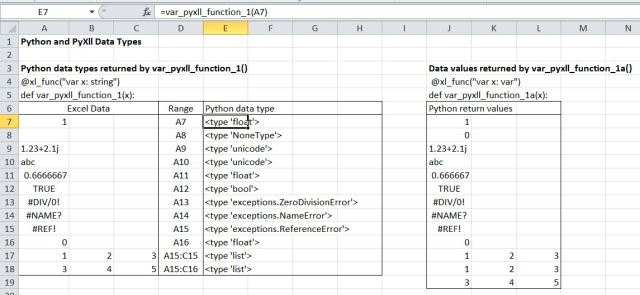
Python basic data types

Python basic data types

The var_pyxll_function_1 function passes data to Python as a var, and returns a string with the Python data type name.  Note that:

  • All numbers (including integers) become Python floats.
  • Empty cells become Python NoneType
  • Strings (including complex number strings) become Python Unicode (in Excel 2007 and later).
  • Boolean values become Python bool.
  • Excel error values become different types of Python exceptions.
  • Both 1D and 2D Excel ranges become Python lists.  In fact in both cases the range becomes a “list of lists”.

The var_pyxll_function_1a function passes data to Python as a var, and simply returns the same data, without modification:

  • All data types other than a blank, including 1D and 2D ranges and error values, are passed back unchanged, however blank cells are passed back as a zero.

Further details of the handling of data are examined in four variants of a function converting an Excel complex number string to a pair of floating point values in adjacent cells:

@xl_func("var x: var")
def py_Complex1(x):
    """
    Convert a complex number string to a pair of floats.
    x:  Complex number string or float.
    """
    if isinstance(x, float) == False:
        if x[-1] == "i":
            x = x.replace("i", "j",1)
    c = complex(x)
    clist = list([[0.,0.]])
    clist[0][0] = c.real
    clist[0][1] = c.imag
    return clist

The code first checks if the function argument is a float.  If not it checks if the last character is an “i” (the default Excel imaginary number indicator), and if so changes it to a “j” (the required character for a Python complex number).  The code then:

  • Converts the Excel complex number string to a Python complex number.
  • Creates a python “list of lists” consisting of a single list containing two floats: [0., 0.]
  • Allocates the real and imaginary parts of the complex number to the list.  Note that the index values are always base zero, and that two index values are required; the first indicating list index 0 (i.e. the first and only list in the list of lists) and the second indicating the index value in the selected list.
  • The resulting list is then returned with the statement: return clist

Note the use of text within triple quotes at the top of the function.  This text will appear in the “Excel function wizard”, including the description of each function argument.  This feature will be examined in more detail in a later post.

The results of this function are shown below:
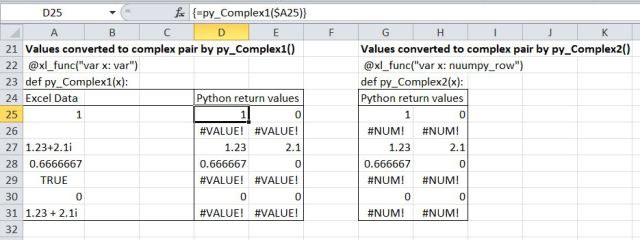
Results from py_Complex1 and py_Complex2

Results from py_Complex1 and py_Complex2

Note that the complex number string in cell A27 is returned as a pair of values, and the other cells with numerical values are correctly returned with the cell value as the real part, and an imaginary value of zero.  The blank and Boolean values return a #VALUE! error, as does the string in cell A31, because it has spaces around the “+”, which are not allowed in a complex number string.

The function py_Complex2 is similar, except that the return type has been changed from a var to a numpy_row:

@xl_func("var x: numpy_row")
def py_Complex2(x):
    """
    Convert a complex number string to a pair of floats.
    x:  Complex number string or float.
    """
    crow = zeros(2)
    if isinstance(x, float) == False:
        if x[-1] == "i":
            x = x.replace("i", "j",1)
    c = complex(x)
    crow[0] = c.real
    crow[1] = c.imag
    return crow

A numpy_row is a 1D array created with the statement: crow = zeros(x), where x is the number of elements in the array.  Since it is a 1D array each element is specified with a single index, e.g. crow[0] = c.real.

The results for py_Complex2 are the same as py_Complex1, except that invalid input returns a #NUM! error, rather than #VALUE!

In py_Complex3 a check has been added to pick up invalid input data, so a more useful error message can be returned:

@xl_func("var x: var")
def py_Complex3(x):
    """
    Convert a complex number string to a pair of floats.
    x:  Complex number string or float.
    """
    try:
        crow = zeros(2)
        if isinstance(x, float) == False:
            if x[-1] == "i":
                x = x.replace("i", "j",1)
        c = complex(x)
        crow[0] = c.real
        crow[1] = c.imag
        return array([crow])
    except:
        return "Invalid input type"

In this case the return array has been created as a 1D numpy-row, using crow = zeros(2), but the return value may also be the string “Invalid input type”.  To handle these alternative data types the return value must be specified as a var, and the numpy_row is converted into a 2D array with: return array([crow]).

Note the use of the Python “try:, except:” keywords to handle the exception raised when the statement: c = complex(x) is applied to an x that is not a valid complex number string or a float.
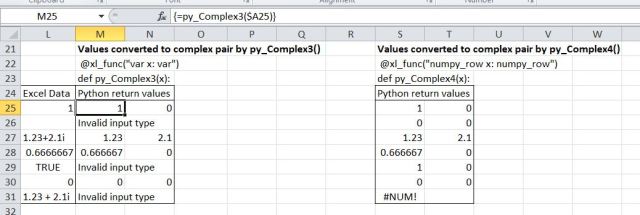
py_Complex3 and py_Complex4

py_Complex3 and py_Complex4

In py_Complex4 the check of the input data type has been amended to first check for a float or a Boolean (in which case the value is returned), then check for a string.  A blank cell does not satisfy any of these conditions, and returns a value of zero.  The numpy_row return type has been used, which precludes returning a string, but this could be changed to a var, as in py_Complex3, to allow an error message to be returned for invalid string input.

@xl_func("var x: numpy_row")
def py_Complex4(x):
    """
    Convert a complex number string to a pair of floats.
    x:  Complex number string or float.
    """
    crow = zeros(2)
    if isinstance(x, float) or isinstance(x, bool):
        crow[0] = x
    elif isinstance(x, unicode):
        if x[-1] == "i":
            x = x.replace("i", "j",1)
        c = complex(x)
        crow[0] = c.real
        crow[1] = c.imag
    else:
        crow[0] = 0
    return crow

The use of different types of array is illustrated with three variants of a function to sum the values in each row of a 2D range, and return the results as a column array.

@xl_func("float[] x: float[]")
def SumRows1(x):
    """
    Sum rows of selected range.
    x:  Range to sum.
    """
    nrows = len(x)
    i = 0
    suml = [0.] * nrows
    for row in x:
       for j in range(0,3):
            suml[i] = suml[i] + row[j]
       i = i+1
    return transpose([suml])

@xl_func("var x: var")
def SumRows2(x):
    """
    Sum rows of selected range.
    x:  Range to sum.
    """
    nrows = len(x)
    i = 0
    suml = [0.] * nrows
    for row in x:
       for j in range(0,3):
            suml[i] = suml[i] + row[j]
       i = i+1
    return transpose([suml])

@xl_func("numpy_array x: numpy_column")
def SumRows3(x):
    """
    Sum rows of selected range.
    x:  Range to sum.
    """
    nrows = len(x)
    i = 0
    suml = zeros(nrows)
    for row in x:
       for col in row:
            suml[i] = suml[i] + col
       i = i+1
    return suml

This code uses two variants of a for loop:

  • for row in x: loops three times to return a list of 3 values for each of the three rows in x
  • for j in range(0, 3): loops three times returning the values 0, 1, 2
  • the j value is then used as the index in row[j] to return each value in each row

The row sum values are assigned to the list suml, which is finally returned as a 2D array with 3 rows and 1 column with the line: return transpose([suml])

SumRows1 and SumRows2 are similar, except that SumRows2 uses vars for both input and output rather than float arrays (float[]).

In SumRows3 the input is a numpy_array, and output a numpy_column.  suml is created as a 1D numpy array, using the zeros function, and because the return type has been declared as a numpy_column this can be returned without transposing.

The screenshot below shows that when the input array has numbers in every cell them the three functions produce identical results:
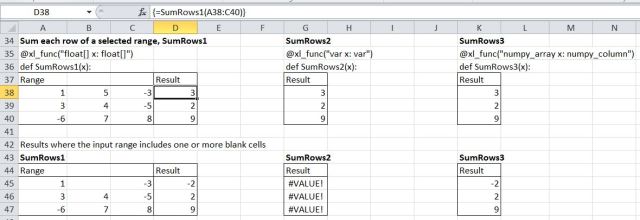
SumRows functions

SumRows functions

However if one more cells are blank SumRows2 returns an error, whreas SumRows1 and SumRows2 allocate a zero to the blank cell, and return the correct results.

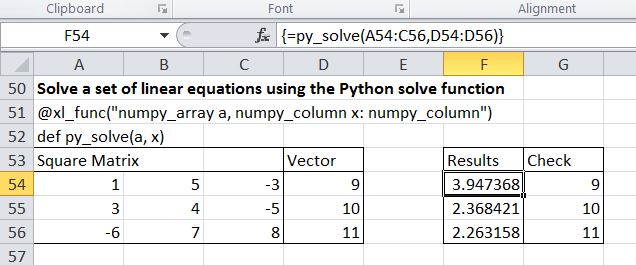
Finally the convenience of use of the numpy routines is illustrated with a function to solve systems of linear equations with a single line of Python code:

@xl_func("numpy_array a, numpy_column x: numpy_column")
def py_solve(a, x):
	"""
        Solve a matrix equation ax = y.
	a: square matrix
	x: column x vector
	"""
	return solve(a, x)
py_solve

py_solve

Posted in Arrays, Excel, Link to Python, NumPy and SciPy, UDFs, VBA | Tagged , , , , , , , | 5 Comments

Python for VBA users – 3

In the previous post in this series I looked at translating a routine to solve quadratic equations from VBA to Python.  Using the same process I have also created Python code to solve Cubic equations.  The only added difficulty for the Cubic routine was that the VBA function included a call to a VBA function to sort the results in ascending order.  It would have been quite easy to translate the VBA routine, but since Python already includes a sort routine it was easier to use this, so the VBA function call:

BubbleSort CubicA, 1, 3

became in Python:

CubicA[0:3,0:1] = sort(CubicA[0:3,0:1],0)

Note that this is the numpy sort routine, operating on the first 3 rows of a numpy 2D array.

Having generated the code that was returning numerical results in the desired format, it was just necessary to check that the results were correct, however a quick check soon showed that they were not.

For the Quadratic routine a quick check through the code soon found the source of the error.  I had converted the VBA:

If (Abs(B) >= Abs(C)) Then
            E = 1# - (A / B) * (C / B)
            D = Sqr(Abs(E)) * Abs(B)
        Else
            E = A
            If (C < 0#) Then E = -A
            E = B * (B / Abs(C)) - E
            D = Sqr(Abs(E)) * Sqr(Abs(C))
        End If

To Python

     if (abs(B) >= abs(C)):
            E = 1. - (A / B) * (C / B)
            D = ((abs(E)) * abs(B))**0.5
        else:
            E = A
            if (C < 0.):
                 E = -A
             E = B * (B / abs(C)) - E
             D = ((abs(E)) * (abs(C))**0.5)**0.5

The Python math module has a sqrt function, so it would have been simpler to use that, but using the equivalent **0.5, it was just necessary to correct the placement of brackets and exponents:

     if (abs(B) >= abs(C)):
            E = 1. - (A / B) * (C / B)
            D = ((abs(E))**0.5) * abs(B)
        else:
            E = A
            if (C < 0.):
                E = -A
            E = B * (B / abs(C)) - E
            D = ((abs(E))**0.5) * (abs(C))**0.5

The problem with the cubic code was not so obvious, but some experimentation revealed that the problem was occurring when there were one real and two complex roots, and was caused because:

A_ = -sgnR * (abs(R_) + (R2 - Q3) ** 0.5) ** (1 / 3)

was always evaluating to 1 or -1, i.e. to -sgnR.  The problem was due to the fact that in Python version 2 division of two integers always returns an integer, so 1/3 = 0.  To get a decimal result in Python 2 at least one of the two values must be non-integer, so 1./3 = 0.3333333333333333, and yields the correct result.

In this case changing the one instance of 1/3 to 1./3 was sufficient to fix the problem, but a better solution can be achieved by adding:

from __future__ import division

to the top of the code module.  This line causes Python Version 2 to use the Version 3 rules for division, which yields a decimal result when two integers are divide, rather than an integer.

Results from the two functions are shown in the screenshot below:

py_Quad and py_CubicC results

py_Quad and py_CubicC results

Posted in Excel, Link to Python, Maths, UDFs, VBA | Tagged , , , , , , | 2 Comments