Stringing more than two words together

It has always seemed strange to me that the Excel function Concatenate(), which has such a long name, provides no additional functionality over using the & operator.

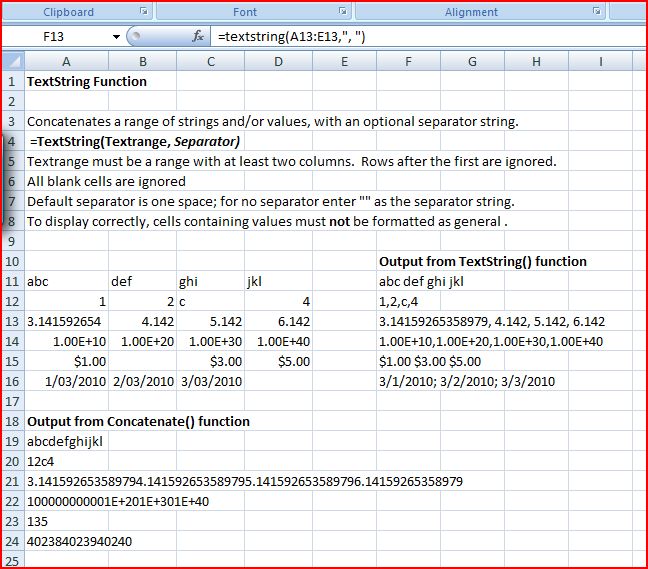
The TextString function is a simple User Defined Function (UDF) which provides the following additional features:

  1. The cells to be concatenated are defined as a single row range, rather than separate cells.
  2. An optional separator character may be specified.
  3. Numbers, including dates, times and currency are concatenated as displayed

A spreadsheet including full open source code and examples may be downloaded from: TextString.xls

Typical output (and results of the Concatenate function) are shown in the screen shot below:

TextString Output, click for full size view

Posted in Excel, UDFs, VBA | Tagged , , , | 5 Comments

Transferring data within VBA

The use of inappropriate techniques for passing data between sub-routines and modules is probably one of the most frequent causes of error in VBA programs, but many text books provide little guidance on this subject, and what there is, is often too general to be of much use. This post will focus on the basics, and a following post will look at some details affecting passing of arrays and ranges. The best source of more detailed information I know of is: Chip Pearson on Scope and ByVal and ByRef.

By default, when a variable or constant is declared within a VBA subroutine or function it is only available within that routine. The main ways of make the information available to other routines are:

  • Declare the variable with a wider “scope”
  • Copy the information to a worksheet, or to another file available to other VBA routines and possibly external routines
  • Pass the variable to a called subroutine or function at the time of calling

Declaring Module or Project wide scope

For a constant, since the value will not be changed during the execution of a routine, it generally makes sense to give it the widest scope possible. That is declare it as Public at the top of a module. In this way the constant will be available to every module in the project. For instance:

Public Const Pi As Double = 3.14159265358979

For large projects it is a good idea to put all constants in their own module.

For variables it is also possible to declare them at the top of a module so that they will be available anywhere within the module (if declared as Private) or anywhere within the project (if declared as Public). This is quick and easy, but in general it is not a good idea. The problems are:

  • Any change to a variable will be affect every procedure where the variable is used, and this may not be what was intended.
  • A variable of the same name may be declared within any procedure without any warning being generated. Changes to this variable will only will only be seen within the procedure where it is declared, but it may be assumed (especially at a later date) that the variable with global scope is applicable in every routine.

Transferring variable contents to a worksheet or file

The simplest way to accomplish this is to declare the variable as a range:


Dim RangeVariable as Range
Set RangeVariable = Range("Rangename")

Any changes made to the RangeVariable object will now change the worksheet range (since that is what the RangeVariable refers to), and this changed data will be available from any other routine or module within the project (or indeed from another project). The problem with this approach is that the transfer of data between VBA and the spreadsheet is very slow, and if the data in the range object changes frequently this can result in a significant loss of performance.

Passing Variables between routines

This is of course the main method of transferring data within VBA. Examples are:

  1. ReturnVal = FunctionName(Var1, Var2, Var3)
  2. SubName Var1, Var2, Var3
  3. Call SubName(Var1, Var2, Var3)
  4. SubName(Var1), (Var2), (Var3)
  5. Call SubName((Var1), (Var2), (Var3))

These are used to call:

Function FunctionName(Var1 as Double, ByRef Var2 as Double, ByVal Var3 as Double) as Double
Sub SubName(Var1 as Double, ByRef Var2 as Double, ByVal Var3 as Double)

Variables may be passed either “by reference” (ByRef) or “by value” (ByVal). Passing by reference passes the memory address of the variable, so that if the value of the variable is changed by the called subroutine, that change is seen by the calling routine, which continues to use the same memory address as the location of this variable. In contrast a variable passed by value may be changed by the called routine without affecting the value of the variable in the calling routine.

Examples can be found in ByRefByVal1.xls.

The response of the different varieties of passing variables is illustrated in the screenshot below:
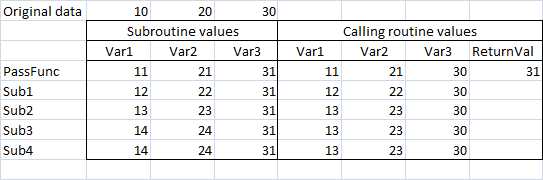
Output from data passed ByRef and ByVal

The routine used to produce this output performed the following tasks:

  1. Read the values in cells B3 to D3 and assign to the variables Var1 to Var3
  2. Pass the variables Var1 to Var3 to PassFunc and add 1 to each value
  3. Copy the resulting values to cells B4 to D4
  4. From the calling routine, copy the value of Var1 to Var3 to cells E4 to G4
  5. Copy the function return value to cell H4
  6. Repeat steps 2 to 4, but passing the variables to subroutines using the syntax styles of examples 2 to 5 above

The results of this excercise illustrate the following points:

  • Passing by reference is the default; the results for Var1 (method of passing not specified) and Var2 (passed by reference) are therefore always the same.
  • Var3 is passed by value, so the increment in its value by the called subroutine is not passed back to the calling routine.
  • Function return values (in this case Var3) do reflect the increment in value.
  • When the variables passed to a subroutine are enclosed in brackets these variables are passed by value, even if by reference is specified in the called routine.
  • Thus in Sub3 and Sub4 the increment in Var1 and Var2 is not passed back to the calling routine, even though these variables were passed by reference. This behaviour is particularly confusing if a single variable is passed to a subroutine with the variable enclosed in brackets, since this will be passed by reference by default if the Call statement is used, but always by value if the subroutine is called without the call statement.

When ByRef and when Byval?

In some circumstances the logic of the programme dictates the method of passing variables, so if any changes to the variable are required to be passed back to the calling routine (and it is not a function return value) then it must be passed by reference, and if the variables in the calling routine should not be affected by changes in the called routine, then they must be passed by value. But what is the best practice when the passed variable is not changed in the called routine, or is not used again in the calling routine? There are arguments for different procedures, but my preference is:

  • If the program logic is not affected by the method of passing, then leave it as unspecified (and hence by reference is adopted as the default).
  • If the program logic demands that the value must be passed by reference, then specify by reference. This then acts as a flag that the method should not be changed unless the program logic changes.
  • If the program logic demands that the value must be passed by value, then there is no option, by value must be specified.

In my opinion this procedure optimises performance (by passing by reference whenever possible), aids readability, but also flags those procedures where the correct method of passing is vital to correct performance.

Posted in Excel, VBA | Tagged , , , , | 7 Comments

Two Years Old Today

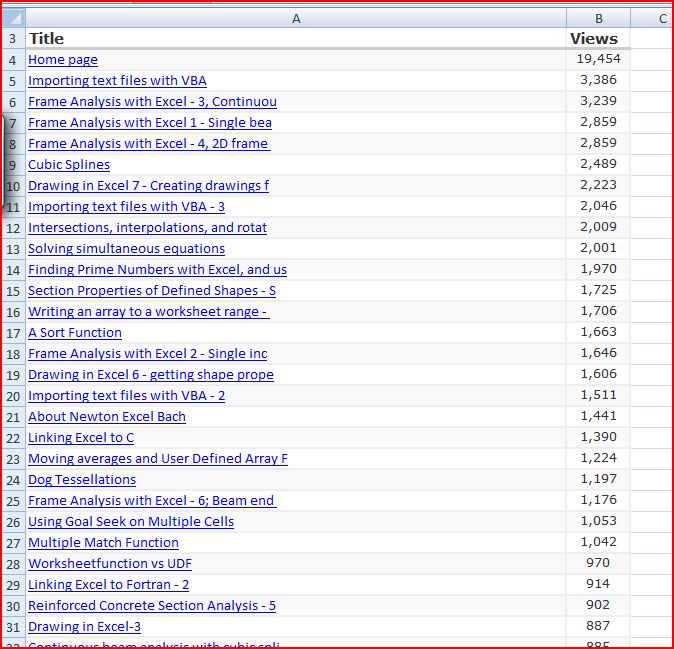
Newton Excel Bach today completes its second year in the Blogosphere, and as last year I have downloaded the statistics for number of hits on each post, and pasted them into an Excel worksheet.  The link to each post is preserved in the spreadsheet, so it makes a convenient index to what has been posted over the year, which can be downloaded here.

Most viewed posts - click for full size view

 Of those posts made in 2009, the Frame Analysis series were clearly the most popular in the “Newton” category, and Writing an array to a worksheet range was the most popular of the Excel related posts.  In the “Bach” category the Crab Canon on a Mobius Strip was the most popular of the non-science or Excel posts in 2009.

At the other end of the list, the most deserving but sadly neglected posts in 2009 were:

Newton: Reinforced Concrete Section Analysis – with prestress (20 hits) 

Excel: Section Properties and UDF Charting (11 hits)

Bach: I’ve got a feeling – ancient and modern (4 hits)

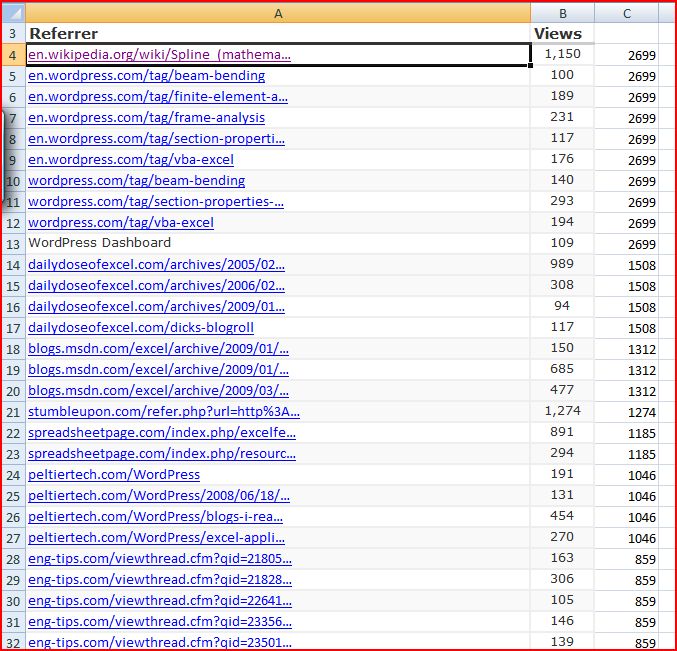
 Also added in this years statistics spreadsheet is a list of the most frequent referrers over the year:

Referrers to Newton Excel Bach in 2009; click for full size

So many thanks to:

  • WordPress
  • Dick Kusleika at Daily Dose of Excel
  • Microsoft Excel Blog
  • Stumbleupon
  • John Walkenbach’s Spreadsheet Page
  • Jon Peltier
  • The Eng-Tips Forum
  • Chandoo at Pointy Haired Dilbert
  • Simon Murphy at Smurf on Spreadsheets
  • Jimmy Pena at Code for Excel and Outlook

… and everyone else who posted links but didn’t make the list.

Posted in Excel | Leave a comment

Secondary axes in Excel 2007

Sometimes rarely used features in an application are so prominently placed that we become blind to them, and can’t find them when we need them.

This happened to me recently with the procedure for assigning an Excel chart series to a secondary axis, so that series covering widely different ranges can be displayed on the same graph.  The chart below shows a plot of concrete and reinforcement stresses in a reinforced concrete section subject to increasing bending moment.

Concrete and reinforcement stresses - one Y axis

In order to make the variation in the concrete stress more readable I wanted to assign one of the ranges to a second Y axis, but I couldn’t remember the procedure for doing this, and searching through the “Chart Tools” ribbons didn’t provide anything that would do what I wanted.  In particular, the “Axes” tab on the “Layout” sub-ribbon (which would surely be the logical place to put a tool for inserting a second axis) only referred to the primary axes.

As a last resort I looked up the on-line help, which told me I should select the range I wanted on the second axis, then click the “Format Selection” button in the “Current Selection” group on the Format sub-ribbon under Chart Tools.  This provides a dialog box with the options of “Primary Axis” and “Secondary Axis”, and selecting Secondary Axis did what I wanted:

Steel Stress on Secondary Y Axis

The dialog box looked strangely familiar though.  Then I realised that this is the same dialog you get by selecting a chart series and then selecting Format Data Series… from the right-click menu, an operation I probably do hundreds of times a week.  The “secondary axis” option was something that I had become so accustomed to ignoring that I just didn’t see it any more!

Further investigation revealed that once the secondary axis has been installed it then appears under the “axes” button, and whats more you can now insert a secondary X axis by clicking on Axes – Secondary Horizontal Axis.

Whether a secondary horizontal axis is ever a good idea is another matter, but for some ideas on what you can do with secondary axes, have a look at the Jon Peltier Blog (see both the linked post and the “related posts” listed at the bottom for some useful ideas).

Posted in Charts, Excel | Tagged , , | 9 Comments

Reinforced Concrete Moment-Curvature – 4; Development of curvature over time

The previous post in this series looked at how specified shrinkage and creep strains affect the curvature of a reinforced consrete section subject to a constant load.  In this post I will present a User Defined Function (UDF) that analyses the curvature due to loading, prestress, creep and shrinkage over a series of time steps, allowing the interaction between these factors to be taken into account, and also allowing for variation in loading and the concrete stiffness over time.

The UDF has been added to RC design functions6.zip.  As usual, the spreadsheet includes full open sourec code.

The procedure used is:

  • Read the section properties, creep and shrinkage parameters for each time step, and optionally load, prestress and concrete E value for each time step.
  • For each time step:
  • Adjust the applied loads, prestress, and concrete E value, if required.
  • Adjust the concrete E value for the increase in creep from the  previous step.
  • Calculate a virtual prestress force equivalent to the total shrinkage and creep strain up the the previous step, plus the shrinkage strain for the current step.
  • Calculate the section strains and curvature for the current step.
  • Update the virtual prestress to include the creep increment from the current step.
  • Go to next time step.

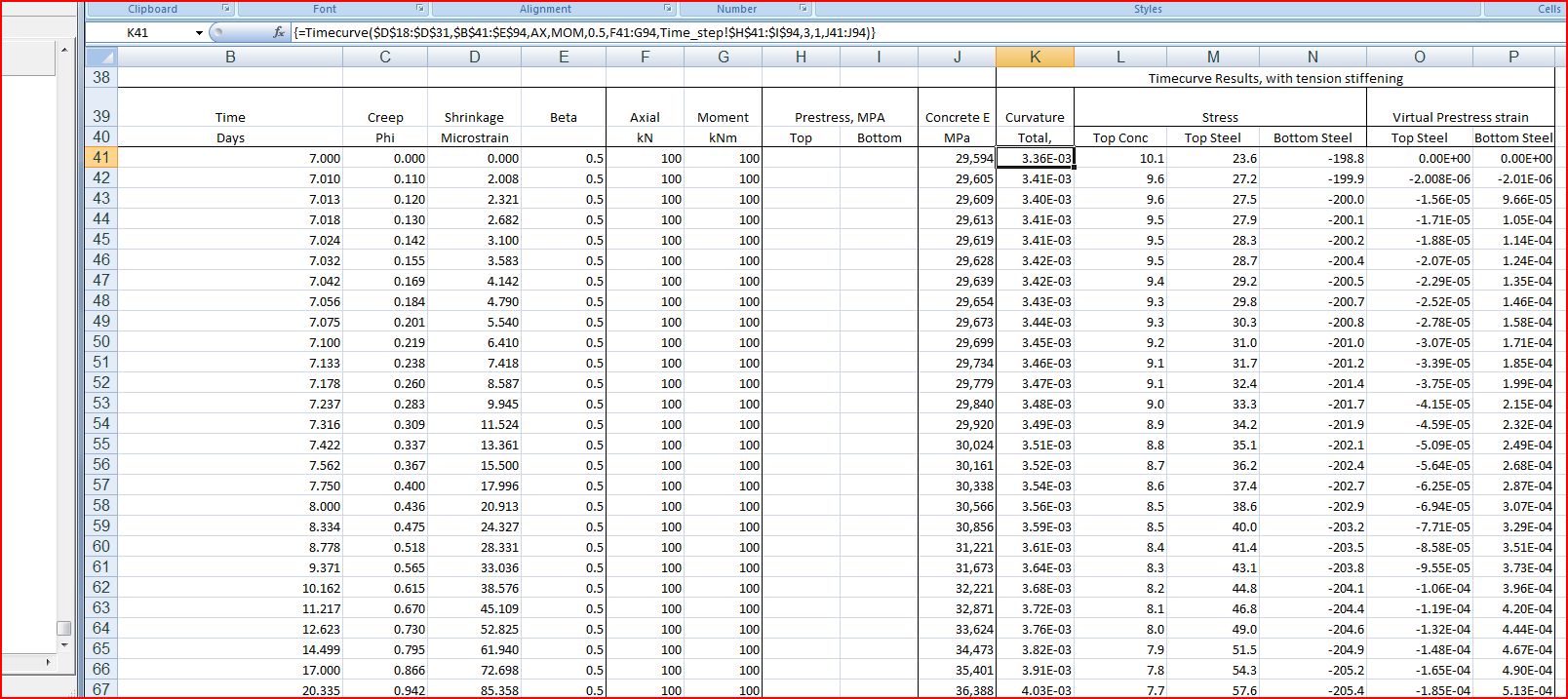
The screenshot below shows typical input data and results from the TimeCurve function compared with a time-step analysis carried out in the finite element analysis program Strand7.

Click to view full size

This screenshot shows typical time-step data and results.  Note that the UDF must be entered as an array function (press ctrl-shift-enter) to view all the results.:

Click to view full size

The spreadsheet also includes the following new functions:

  • TimeSteps – generates a series of timesteps with logarithmic spacing
  • EC2Props – generates concrete properties for a given age and strength grade, as specified in Eurocode2.
Posted in Concrete, Excel, Newton, UDFs, VBA | Tagged , , , | 6 Comments