Function roots with the Inverse Quadratic Method

An earlier post presented various methods for finding the roots of polynomial functions based on the use of linear interpolation.  It is sometimes advantageous to use a quadratic interpolation function, and methods using this approach will be presented in this and following posts.  The earlier functions and the new quadratic interpolation functions have been incorporated in the spreadsheet ItSolve Functions.xls

Any three points on a plane (other than co-linear points) will define a unique quadratic curve of the form ax2 + bx + c = 0.  The User Defined Function (UDF) FITQUAD returns an array of the three coefficients, a, b and c: 

 A = ((Y2 – Y1) * (X1 – X3) + (Y3 – Y1) * (X2 – X1)) / ((X1 – X3) * (X2 ^ 2 – X1 ^ 2) + (X2 – X1) * (X3 ^ 2 – X1 ^ 2))
B = ((Y2 – Y1) – A * (X2 ^ 2 – X1 ^ 2)) / (X2 – X1)
C = Y1 – A * X1 ^ 2 – B * X1 

This quadratic equation may then be solved in the usual way to find the x values for which it evaluates to zero.  The procedure for applying this method to evaluating the roots of higher order functions is: 

  • Select three known points on the function to be solved, in the region of the solution of interest, with at least one point on each side of the x-axis
  • Fit a quadratic curve to these three points
  • Find the root of the quadratic curve in the range of interest
  • Find the y value of the higher order function at this x value.
  • Replace the furthest outlying of the three trial points with this new point.
  • Repeat until the error is acceptably small.

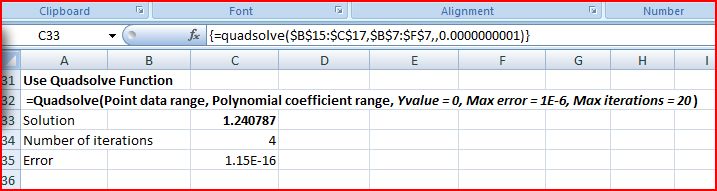
The screenshot below shows this procedure carried out on the spreadsheet, using the FitQuad function: 

Click to view full size


The process is automated using the UDF QuadSolve(): 

Inverse Quadratic Interpolation with QuadSolve

Posted in Excel, Maths, UDFs, VBA | Tagged , , , , | 5 Comments

Transferring data with arrays

The earlier post: Transferring data within VBA looked at some important aspects of transferring data between subroutines in Excel VBA.  This post will look at arrays in particular, and some peculiarities that affect the way they work.

VBA arrays are a very convenient data structure to use in combination with a spreadsheet, not least because conceptually they are very similar to the arrangement of data in a spreadsheet.  Previous posts have examined the ways of transferring data between a spreadsheet and VBA (select arrays in the category box to the left for a listing), and this post will look at the ways of handling arrays within VBA.

Arrays may be declared in VBA in one of two ways; either explicitly:

Dim Array1(1 to 10, 1 to 2) as double

or implicitly:

 Dim Array1(1 to 10, 1 to 2) as Double, Array2 as Variant
...
Array2 = Array1

In the second case Array2 is created as type Variant/Empty when it is declared, then after assignment it becomes a variant Array of the same type as the array it was assigned to; in this case Variant/Double(1 to 10, 1 to 2).  Reasons for declaring an array in this way include:

  • It is the most efficient way of passing data from and to a spreadsheet (see earlier posts on the subject)
  • It allows the contents of an array to be passed to another subroutine by value (see later in this post)
  • It allows one or more copies of the array to be made, without looping through each element of the array

With regard to the final point, note that the code below will not work:

Sub ArraySub2()
Dim Array1(1 To 10, 1 To 2) As Double, Array2(1 To 10, 1 To 2) As Double
Array2 = Array1
End Sub

This will generate the compile time error: Can’t assign to array

To assign one array to another, the second array must either be declared as a variant, or the array must be dynamic, that is it must be declared without specifying the dimensions:

Sub ArraySub3()
Dim Array1(1 To 10, 1 To 2) As Double, Array2 As Variant, Array3() As Double
Array2 = Array1
Array3 = Array1
End Sub

In this code Array3 will be of type Double() after being declared, then type Double(1 to 10, 1 to 2) after the assignment.

An array that has been declared as dynamic (i.e. with no stated dimension data at the time of declaration) may be dimensioned at any time with a ReDim statement, but remains dynamic:

Sub ArraySub4()
Dim Array1(1 To 10, 1 To 2) As Double, Array2 As Variant, Array3() As Double
ReDim Array3(1 To 20, 1 To 1)
Array2 = Array1
Array3 = Array1
End Sub

In this routine Array3 has dimensions (1 to 20, 1 to 1) after the ReDim statement, but (1 to 10, 1 to 2) after the assignment to Array1.

Arrays may be passed to and from other routines, but there are a number of important restrictions:

  • An array declared as an array (whether static or dynamic) can only be passed by reference, not by value.
  • A variant array (declared as a variant) may be passed by reference or by value (by reference is the default, as usual)
  • If a function return value is desired to be an array the function must be declared as a variant
  • Declaring the function as a variant is the only way that a user defined function may be used in a worksheet to return an array.
  • Arrays must either be declared as dynamic or as variant arrays in the called routine

These points are illustrated in the code below:

Sub ArraySub5()
Dim Array1(1 To 10, 1 To 2) As Double, Array2 As Variant, Array3() As Double, Array4 As Variant
ReDim Array3(1 To 20, 1 To 1)
Array4 = ArrayFunc1(Array1, Array2, Array3)
End Sub


Function ArrayFunc1(Array1() As Double, ByVal Array2 As Variant, Array3() As Double) As Variant
Dim ArrayF4(1 To 10, 1 To 2) As Double
ReDim Array3(1 To 10, 1 To 2)
ArrayFunc1 = ArrayF4
End Function

If you step through this routine you will observe that:

  • Array1 is passed to the function with dimensions (1 to 10, 1 to 2)
  • In the Function Array1 is assigned to Array2, a variant array, but because Array2 was passed by value this does not affect the status of Array2 in the calling routine.
  • Array3 is dimensioned to (1 to 10, 1 to 2) in the function, and because the array was passed by reference (the default and only option for an explicit array) this change is relected in the Array3 in the calling routine.
  • ArrayF4 is declared as a static array in the function, but because the function is declared as a variant the return value is a variant array of doubles, and Array4 in the calling routine becomes the same type after the function return value is assigned to it.
Posted in Arrays, Excel, VBA | Tagged , , , , , , , | Leave a comment

Tension Stiffening

Tension Stiffening in reinforced concrete is the increase in stiffness of a cracked member due to the development of tensile stresses in the concrete between the cracks.  The main application of tension stiffening theory in design applications is in the estimation of the bending deflection of transversely loaded beams and slabs, where this effect has a significant effect, especially at bending moments just above the cracking moment.

The main categories of analysis methods for tension stiffening are:

  1. Empirical adjustment methods, based on evaluation of an intermediate stiffness between the fully cracked and uncracked values, dependent on the ratio of the service moment to the cracking moment.
  2. “Smeared crack” methods where an effective tensile stress-strain relationship is developed, based on the average strain in the concrete, with the displacements at cracks distributed over the length between the cracks.  The stress-strain relationship may be fully empirical, or based on rigorous analysis, or a combination of the two.
  3. Rigorous methods modelling the formation of cracks,  the actual tensile stress-strain behaviour of the concrete before and after cracking, bond stresses and bond slip at the concrete-reinforcement interface, and, where applicable, the non-linear behaviour of the reinforcement and the concrete in compression.

A recent issue of the Institution of Civil Engineers “Structures and Buildings” journal (1, 2) contains two papers examining tension stiffening effects in flexural members based on rigorous analysis, which has then been used to derive a new smeared crack model.  Predicted beam deflection results using the new model have been compared with experimental results, results from rigorous analysis, and results using empirical methods contained in design codes, and found to be in good agreement.

I have updated the RC Design Functions spreadsheet to include two versions of the new model.  The spreadsheet, including full open source code, can be downloaded from RC Design Functions6.zip.

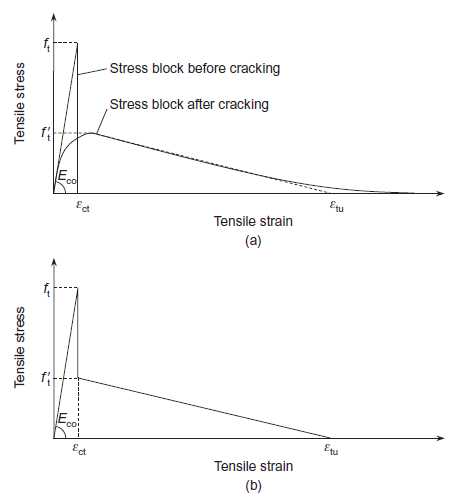
The concrete tension stress-strain model recommended by the paper is Figure (b) below.  This is based on the combination of the relationships before and after cracking shown in Figure (a).  The two models have been combined for simplicity on the grounds that the higher concrete tensile stresses allowed in the “pre-cracking” model will always occur near the section neutral axis, and hence will have little effect on bending moments.  This is true for sections with small or zero axial load, but where compressive axial loads are larger the effects of the rising tensile stress zone become significant.  Also since different analysis procedures are required for the cracked and uncracked sections there is little additional complexity in using a different stress strain curve for the cracked section.

Concrete Tension Stress/Strain Curves

The procedure used in the analysis was as follows:

  1. Check maximum tensile stress assuming an uncracked section.
  2. If this stress exceeds the cracking stress, or if the section is flagged as previously cracked, find the depth of the neutral axis and maximum concrete compressive strain ignoring concrete tensile stresses using a closed form solution.
  3. Using the results from step 2 find the axial force and bending moment due to the concrete tensile stresses.
  4. Algebraically subtract the force and moment due to concrete tensile stresses from the applied loads, and recalculate the depth of the neutral axis and concrete compressive strain ignoring concrete tensile stresses.
  5. Recalculate the axial force and bending moment due to the concrete tensile stresses.
  6. Find the difference between the applied axial force and bending moment and the sum of the revised applied loads and the reaction forces due to concrete tensile stresses.
  7. Repeat steps 4 to 6 until the load difference found at step 6 is less than a specified tolerance.
  8. The section curvature may now be calculated from the depth of the neutral axis and concrete compression strain found in the last iteration.

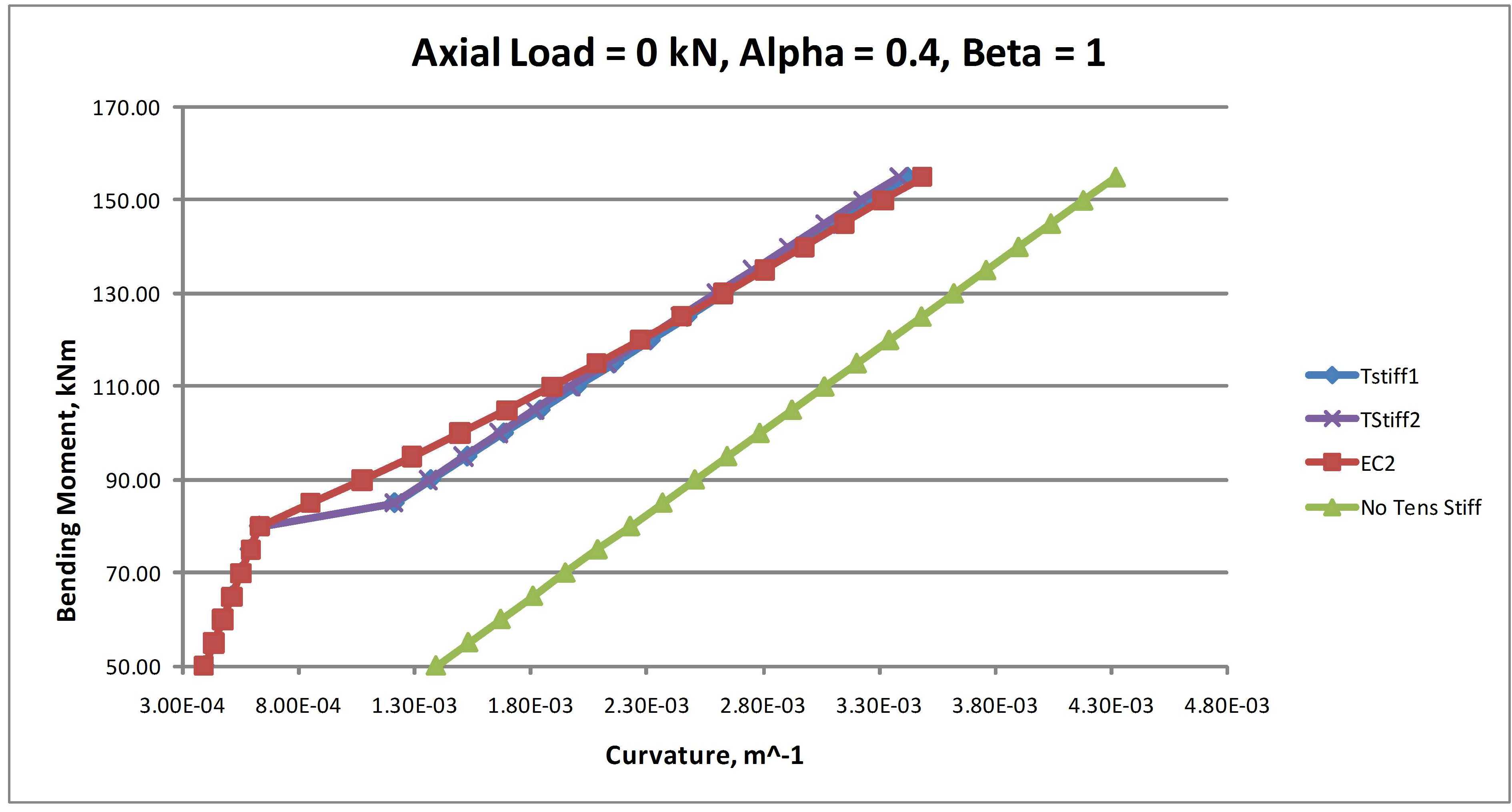
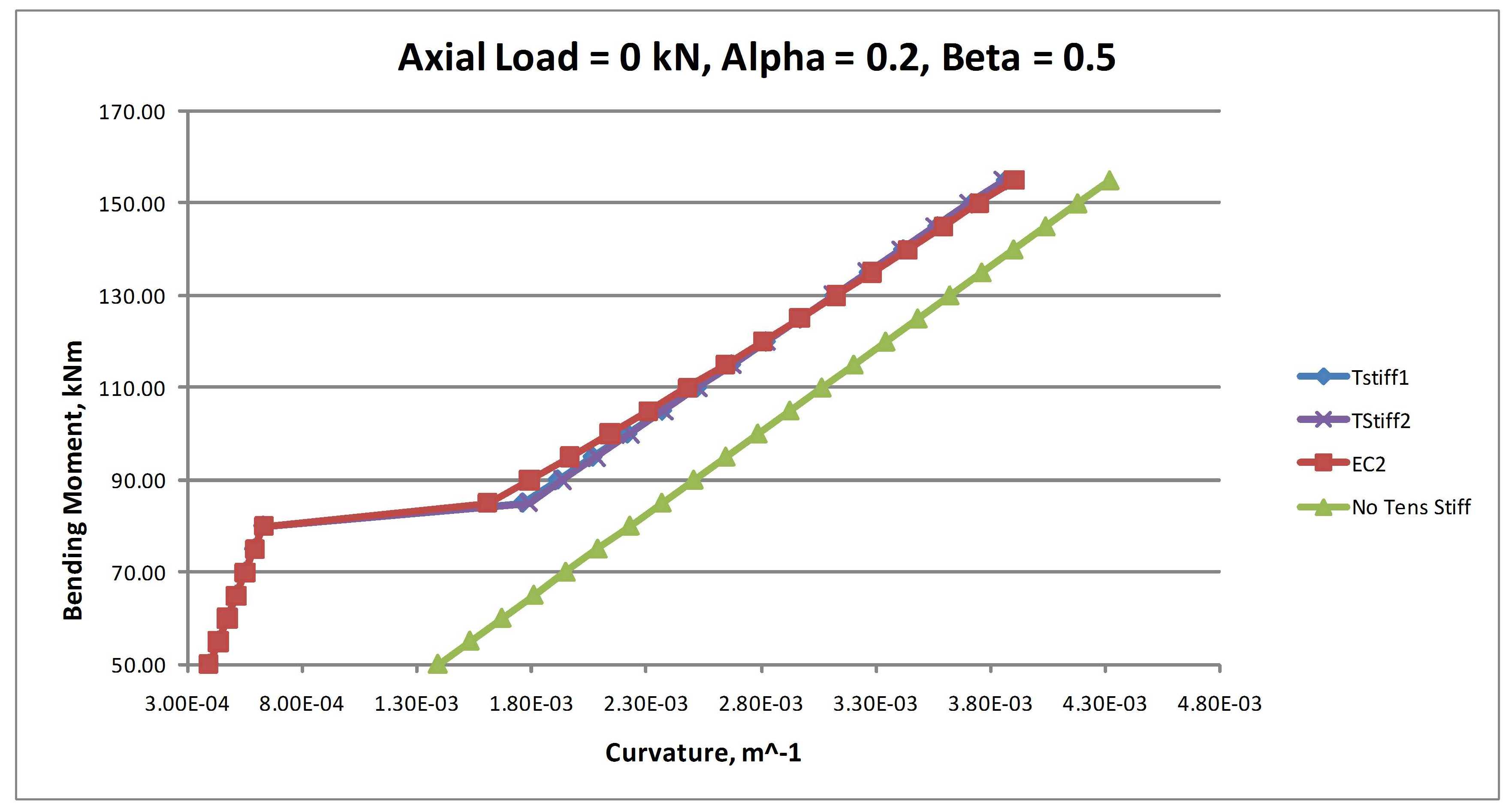
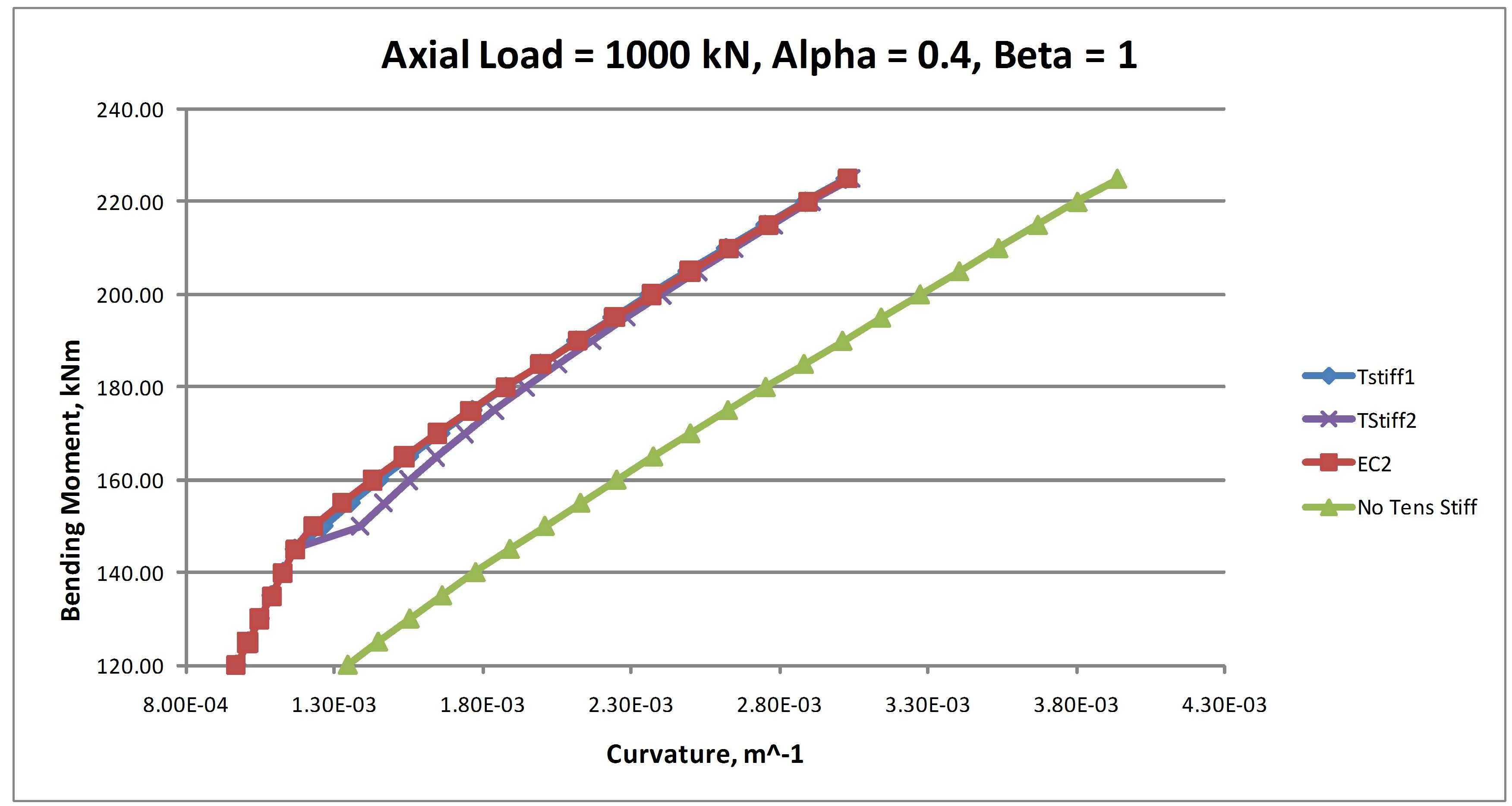
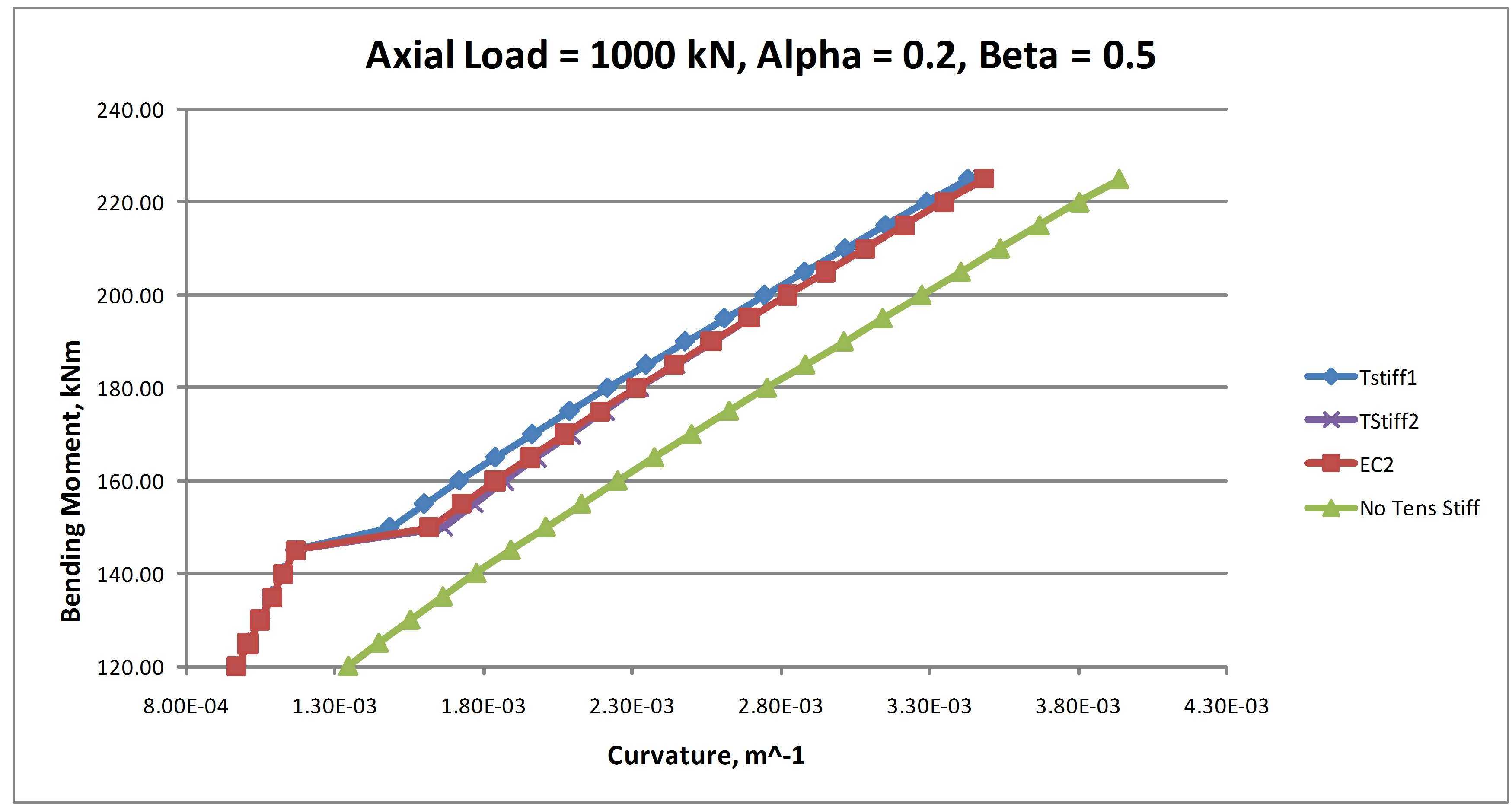
Results of this analysis are shown in the charts below for a 350 mm deep slab with a tensile reinforcement ratio of approximately 0.9%.  The analyses used the two alternative tensile stress blocks, and two alternative maximum tensile stress values.  The results are compared with the empirical method given in Eurocode 2 and with no tension stiffening.  On the charts:

  • TStiff1 indicates the results using the stepped bi-linear tension block shown in Figure (b).
  • TStiff2 indicates the results using the parabolic linear tension block shown in Figure (a).
  • Alpha is the tension stress factor for maximum tensile stress after cracking. In Figures (a) and (b) f’t = alpha.ft
  • Beta is the Eurocode 2 factor for loss of tension stiffening.  Beta = 1 for short term loading and 0.5 for long term loading.
  • For the purposes of comparison the analyses have used the relationship Alpha = 0.4Beta

Left click any image for a full size view:


The results of these analyses indicate that:

  • The results allowing for concrete tension are in reasonably good agreement with the Eurocode 2 results in all cases, but give slightly greater curvature at bending moments just above the cracking moment for sections with zero axial load.
  • With zero axial load the two different stress-strain curves gave virtually identical results
  • With 1000 kN axial load the parabolic-linear stress-strain curve (TStiff2) gave significantly greater curvature than the stepped bi-linear curve (TStiff1) at bending moments just above the cracking moment.
  • For short term loading the TStiff1 results were in better agreement with the Eurocode 2 results.
  • For long term loading the TStiff2 results were in better agreement with the Eurocode 2 results.

In summary, any of the three analysis methods compared here are likely to provide satisfactory results.  For practical design applications the Eurocode 2 method will be satisfactory, but for research purposes or for comparison with experimental results the tensile stress block method is better correlated with the actual bending mechanisms, and provides better and more rational means of adjustment for such factors as change in concrete tensile strength, creep and shrinkage strains, or changes in steel/concrete bond characteristics.  If the tensile stress block method is employed the use of the parabolic-linear stress block is closer to the underlying analytical results, and requires little if any increase in complexity of the analysis process, and is therefore recommended.

References:

  1. P.L. Ng et al., “Tension Stiffening in concrete beams. Part1 FE Analysis”, Structures and Buildings, Institution of Civil Engineers, Vol 163 Issue SB1, Feb 2010, pp 19-28.
  2. J.Y.K. Lam et al., “Tension Stiffening in concrete beams. Part 2 member Analysis”, Structures and Buildings, Institution of Civil Engineers, Vol 163 Issue SB1, Feb 2010, pp 29-39.
Posted in Beam Bending, Concrete, Excel, Newton, UDFs, VBA | Tagged , , , , , | 3 Comments

The speed of loops

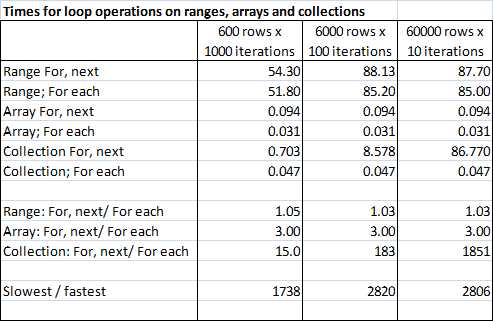
Commenting on the Good Practice post, John Tolle pointed out that with a collection it was very much quicker to loop using a For each loop than iterating by index, using a for, next loop.  I did some simple tests on this, also looking at ranges and arrays, and found he was absolutely right.  The test consisted of looping through a collection, range or array with 600, 6000 or 60,000 items, 1000, 100, or 10 times, adding 1 to the value at each step, so there were 600,000 operations in all cases.  The results are summarised in the screen shot below:

Looping through ranges, arrays and collections

 The lessons from this exercise were:

  • Arrays were always faster than the equivalent operations with a collection, and very much faster than a range
  • Using a “For Each” loop on an array was 3 times faster than a “For, Next” loop.
  • Using a “For Each” loop on a collection was almost as fast as a “For Each” loop with an array.
  • Times for a “For, Next” loop with a collection were proportional to the square of the size of the collection.  For the largest collection (60,000 items) this form of loop was nearly 2000 times slower than the “For Each” loop.
  • Where possible use “For Each” loops, in preference to a “For, Next” loop.
  • If a “For, Next” loop is necessary, use an array in preference to a collection.
  • Avoid iterating through a range in any application where speed is important.

For those interested in the code, the spreadsheet can be downloaded from CheckLoopSpeed.xls

The macro checkloop is currently set up for 10 iterations of 60,000 cells. If you want to change the parameters you need to change the NumReps value and the UserRng extent (at two locations) in the code. Note that for the loops using a range I have used 1/10 the number of iterations, and multiplied the time by 10, so the NumReps value should be 1/10 the actual number you want.

On re-running I also found that the range times were about twice as fast as previously, but still very much slower than the array times, or the collection times with a for each loop.

Posted in Arrays, Excel, VBA | Tagged , , , , , | 8 Comments

A post about everything …

… according to xkcd

From the top down:

Click for full size view

… and deeper down:


Posted in Newton | Tagged , , , | 3 Comments