Finding square roots …

… to 100 decimal places.

Why would anyone want to do that?

To solve Project Euler Problem 80:

It is well known that if the square root of a natural number is not an integer, then it is irrational. The decimal expansion of such square roots is infinite without any repeating pattern at all.

The square root of two is 1.41421356237309504880…, and the digital sum of the first one hundred decimal digits is 475.

For the first one hundred natural numbers, find the total of the digital sums of the first one hundred decimal digits for all the irrational square roots.

Michael at Daily Dose of Excel tracked down a method of finding square roots that requires only addition and subtraction of integers:

Square Roots by Subtraction, by Frazer Jarvis

Initial step
Let a = 5n (this multiplication by 5 is the only time when an operation other
than addition and subtraction is involved!), and put b = 5.

Repeated steps
(R1) If a is greater than or equal to b, replace a with a − b, and add 10 to b.
(R2) If a is less than b, add two zeroes to the end of a, and add a zero to b just before
the final digit (which will always be ‘5’).

Conclusion
Then the digits of b approach more and more closely the digits of the square
root of n.

Implementing this very simple algorithm in VBA was complicated by the lack of a very long integer, so instead I set up two arrays a little bigger than the number of required digits, to store a and b, with one digit in each array element.  The algorithm above was then iterated until all the required decimal places had been filled, then the array was converted to a string for display in the spreadsheet (or for the Project Euler problem the sum of the digits was found with a simple loop).

A spreadsheet with the VBA code for the SqRtI() function may be downloaded from here

The screen shot below shows the function returning the first 100 digits of the square root of 3, together with a spreadsheet implementation of the algorithm (which is limited to the 15 digit precision available in Excel).
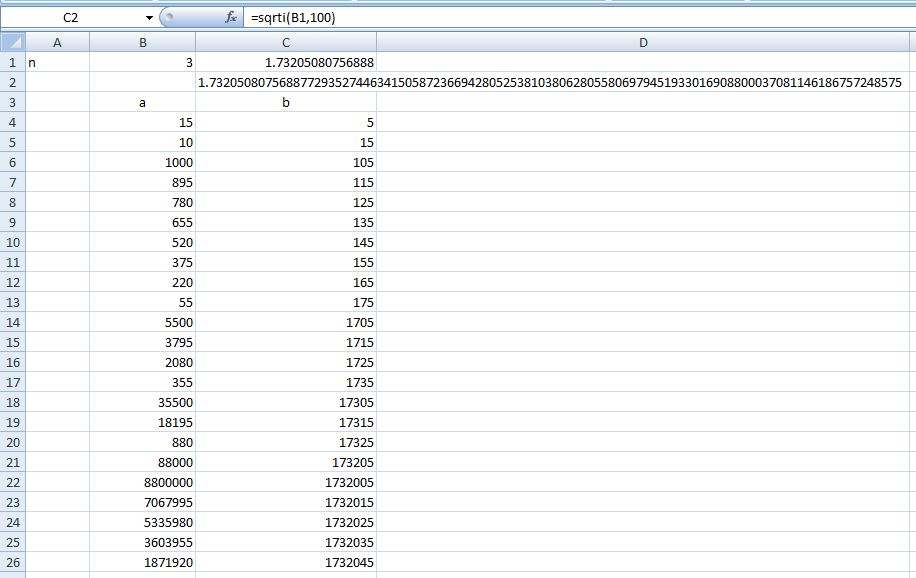
100 digits of root 3

100 digits of root 3

Posted in Arrays, Excel, Maths, Newton, UDFs, VBA | 2 Comments

Moving Average Function

The previous post presented a simple moving average user defined function (UDF).  This has been extended to provide additional functionality:

  • A weighted average may be returned; either a linear weight with a specified step value, or a using any specified weighting array.
  • The initial values may be returned either as #N/A, or with the current average values.
  • Zeroes in the data may be either treated as values or ignored.
  • Rectangular ranges may be specified to be treated as arranged in either columns or rows.

The function may be downloaded from: MovAv.zip

A screenshot is shown below:

MovAv UDF - click for full size view

MovAv UDF - click for full size view

Posted in Arrays, Excel, UDFs, VBA | Tagged , , , | 1 Comment

Moving averages and User Defined Array Functions

I have recently needed to work with moving averages on a large-ish data set (about 10,000 rows x 10 columns), and for reasons that I will describe in the next post, decided that a User Defined Function (UDF) would be useful.  Writing the UDF was simple enough, but because of the large number of data transfers between the spreadsheet and VBA it was painfully slow.  Fortunately it is easy to write a UDF as an array function, which allows all the data to be transferred in one step, the processing to be carried out within VBA, then the results to be written back to the spreadsheet in one step.  This dramatically improves the performance; to near instantaneous in the case of my 100,000 cell data set.

The procedure in outline is:

  • Declare the input datarange(s) and the function itself as variants
  • Convert the input range from a variant/range object to an array of variants with the statement: DataRange = DataRange.value2
  • Dimension an array of the required size for the results:  Dim ResA(1 to numrows, 1 to numcols) as double
  • Perform the necessary calculations and assign the results to ResA.
  • Assign the results array to the function return value:  FunctionName = ResA
  • That’s all

If you enter the function in the spreadsheet in the usual way it will only display the contents of array position (1,1).  To display the full array:

  • Enter the function in one cell in the usual way
  • Select a range large enough to hold the whole array, with the entered function in the top-left corner.
  • Press the Edit key (F2)
  • Press Ctrl-Shift-Enter
  • The array values will be transferred to the selected range

Code for a moving average array function is shown below.  This has the following advantages over using the built-in Average() function, or the “moving average wizard” in the data analysis add-in:

  • The number of values to be averaged is specified as a variable, rather than requiring the formula to be re-entered.
  • It will handle any number of columns, up to the spreadsheet limit
  • It can be easily refined to provide additional functionality, for instance weighted moving averages, as will be described in the next post

Note that this is a simplified function, with no error checking, and blank cells treated as zero.

Function MovAv1(AvData As Variant, Steps As Long) As Variant
Dim MovAvA() As Variant, NumRows As Long, NumCols As Long
Dim i As Long, j As Long, MovSum As Double
AvData = AvData.Value2
NumRows = UBound(AvData)
NumCols = UBound(AvData, 2)
ReDim MovAvA(1 To NumRows, 1 To NumCols)
For j = 1 To NumCols
MovSum = 0
For i = 1 To Steps
MovSum = MovSum + AvData(i, j)
MovAvA(i, j) = CVErr(xlErrNA)
Next i
MovAvA(i - 1, j) = MovSum / Steps
For i = Steps + 1 To NumRows
MovSum = MovSum + (AvData(i, j) - AvData(i - Steps, j))
MovAvA(i, j) = (MovSum) / Steps
Next i
Next j
MovAv1 = MovAvA
End Function

Screen shot:

Moving Average Function

Moving Average Function

Posted in Arrays, Excel, UDFs, VBA | Tagged , , , , | 8 Comments

More on Worksheetfunction vs UDF

A recent post at Roy Maclean’s VBA Blog suggested that the difference between using a worksheetfunction call in VBA and writing a User Defined Function (UDF) to do the same job was not enough to be worth worrying about.  He tested this with a routine that:

  • read a range of data from a worksheet as a variant array
  • transposed the array (using either worksheetfunction.transpose or a UDF)
  • wrote the transposed array back to the spreadsheet
  • increased the dimensions of the range by 1 row and 1 column
  • repeated until reaching a 255 x 255 range size

Times for running this routine on my machine were:

  • worksheetfunction: 11.2 sec
  • UDF: 9.9 sec

so a small advantage with the UDF, but hardly worth the trouble; but cutting out some of the extraneous operations gives a different picture:

If the same routine is run with the line to write the transposed array back to the spreadsheet commented out the times are:

  • worksheetfunction: 4.8 sec
  • UDF: 3.6 sec

If the array data is read from the spreadsheet once, and the varying sized arrays created with a loop in VBA the times are:

  • worksheetfunction: 3.8 sec
  • UDF: 2.6 sec

And if the full size array is read from the spreadsheet once, and transposed 255 times, the times are:

  • worksheetfunction: 7.7 sec
  • UDF: 3.6 sec

 Finally if the size of the array is increased to 512×512 the times are:

  • worksheetfunction: 34.2 sec
  • UDF: 16.2 sec

So overall the results show that the actual transpose operation is a little better than twice as fast in the UDF, compared with using the worksheetfunction call.  Whether this is a worthwhile saving depends on the rest of the routine (and minimising the number of data transfers between VBA and the worksheet is probably the best place to look for time saving), but if a routine does a large number of transpose or other array operations on large arrays there may well be a significant saving by using a VBA UDF rather than using worksheetfunction calls.

Posted in Arrays, Excel, UDFs, VBA | Leave a comment

A very un-useful “feature”

A recent post in the Engineering Spreadsheets forum at Eng-Tips draws attention to a potentially dangerous Excel “feature”.

The feature is called “Extend data range formats and formulas” and can be found under Options-Advanced (click on the multi-coloured button in the top-left hand corner in Excel 2007, or the Tools menu in earlier versions).  This is what the 2007 help says about it:

 “Extend data range formats and formulas  Select to automatically format new items added to the end of a list to match the format of the rest of the list. Formulas that are repeated in every row are also copied. To be extended, formats and formulas must appear in at least three of the five last rows preceding the new row.”

Now making an exact (relative) copy of an existing formula when a new row of data is entered is one thing, but making automatic adjustments to existing formulas when data is entered in a blank cell is something else entirely (in fact I think it is downright rude), but this is what Excel does.

Try entering three numbers in cells A1 to C1, then the formula =SUM(A1:C1) in cell E1.  If you now enter a number in cell D1 the formula will be changed to =SUM(A1:D1), without asking.  If the number you enter is a zero the displayed value won’t even change, but the formula does.

If you enter text, the formula doesn’t change, and if you over-type the text with a number it still doesn’t change, but if you delete the text, then enter a number, it does automatically adjust.

If you enter the formula in cell F1 (leaving two blank cells), and enter data in cell D1, then cell E1, it will adjust for both, but if you enter data in cell E1, then D1, it adjusts for neither.

If you copy and paste into either cell either or both cells the formula does not adjust.

Formulas covering a column range act in much the same way.  Formulas will extend without warning when numerical data is entered into a blank cell underneath a column range used in a formula.

The solution is simple; go into Options-Advanced and unselect the “Extend data range formats and formulas” feature.

Posted in Excel | Tagged , | 1 Comment