
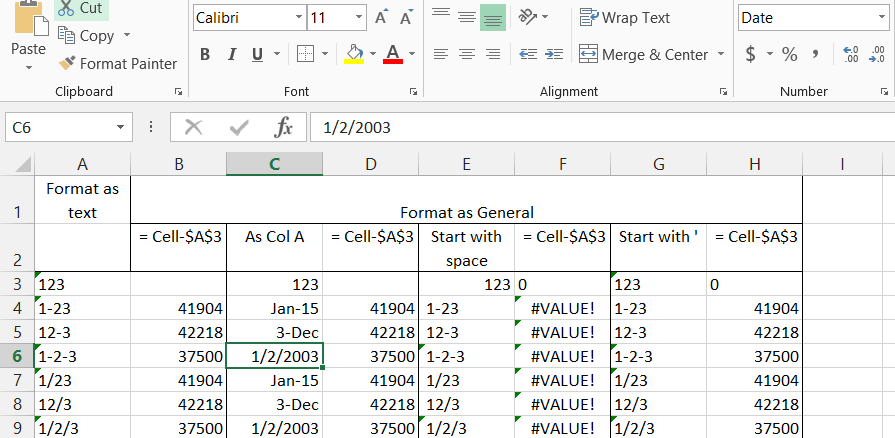
When working with imported data, or data from an opened csv file, it is often important to know the data type that has been used to store the data. This may not be obvious, for instance in the previous post we saw that a date imported into a cell formatted as text displays as text, but is converted into a date value when used in a simple formula. However if the cell is included as part of a range it will be treated as text, with a value of zero, even for a single cell range. For instance, if we format cell A1 as text and enter 8-jun the cell will display as entered (including the lower case j), but in another cell:
- =A1 will display 8-jun
- =A1+0 will (in 2015) display 42163 (the date number for 8 Jun 2015)
- =Sum(A1) will display 0 (because all text is treated as having a value of 0 when used in the Sum function, even if it looks like a date).
If we now format the cell as General, and re-enter 8-jun, the cell will display 8-Jun and =Sum(A1) will display 42163 (if it is formatted as a number), or 8-Jun (if it is formatted as a date).
The User Defined Function (UDF) below will return information about the data type for the values in a selected single column range:
Function GetDType(DRange As Range) As Variant
Dim DTypeA() As Variant, DVal As Variant, NumRows As Long, i As Long

DVal = DRange.Value
NumRows = UBound(DVal)
ReDim DTypeA(1 To NumRows, 1 To 2)

For i = 1 To NumRows
    DTypeA(i, 1) = DVal(i, 1)
    DTypeA(i, 2) = TypeName(DVal(i, 1))
Next i

GetDType = DTypeA
End Function
The function must be entered as an array function (using Ctrl-Shift-Enter), and returns two columns. The first shows the actual value stored by Excel (as opposed to the value displayed), and the second the data-type:

To work with number formats in VBA (which we need to use to open csv files without changing the data) we need to use Excel’s format codes, but there is no built-in way to show the correct format code for any selected cell format. An excellent and (almost) comprehensive guide to Excel number formats can be found at: A comprehensive guide to Number Formats in Excel, but for a quick way to find the correct number format, the UDF below will return the format code for any selected cell:
Function GetNumformat(Target As Range, Optional UseLocal As Boolean = True)

If UseLocal Then
    GetNumformat = Target(1, 1).NumberFormatLocal
Else
    GetNumformat = Target(1, 1).NumberFormat
End If

End Function
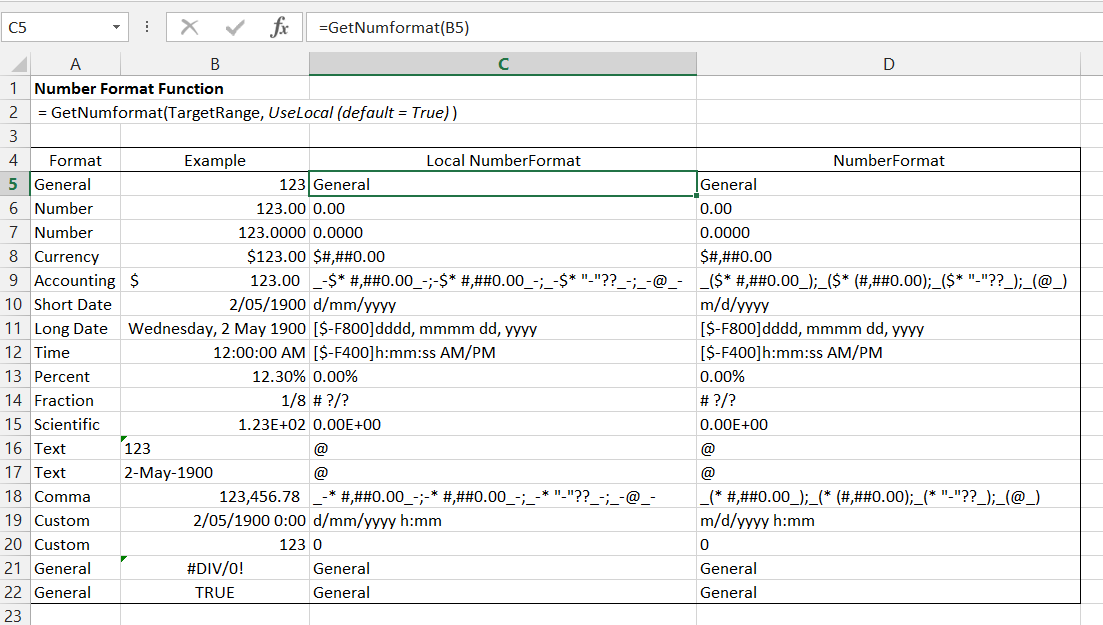
Examples of some format codes are shown below:
Click for full size view
Each format comes in a standard and local version; the local version is returned by default.
Full details of how to generate these sometimes lengthy codes are given in the article linked above, other than for the start of the codes associated with Long Date and Time ([$-F800] and [$-F400]). A search on these codes suggests that the answer to the question of what they mean is, no-one knows (my lord), but a bit of experimentation shows that if the code between the square brackets is applied as a custom format (including the brackets) a date displays in date format on the spreadsheet, but in date number format in the edit bar, whereas applying the full code the date format displays in both the worksheet and the edit bar.
These functions plus routines to allow data from csv files to be quickly imported and saved without corruption will be available for download in the next post in this series.




 Newton Excel Bach, not (just) an Excel Blog