Managing Data Using Excel …

… is a new book by Mark Gardener, published by Pelagic Publishing.*

It is subtitled “Organising, summarising and visualising scientific data”.  The publishers say of the book:

Microsoft Excel is a powerful tool that can transform the way you use data. This book explains in comprehensive and user-friendly detail how to manage, make sense of, explore and share data, giving scientists at all levels the skills they need to maximize the usefulness of their data.

Readers will learn how to use Excel to:
* Build a dataset – how to handle variables and notes, rearrangements and edits to data.
* Check datasets – dealing with typographic errors, data validation and numerical errors.
* Make sense of data – including datasets for regression and correlation; summarizing data with averages and variability; and visualizing data with graphs, pivot charts and sparklines.
* Explore regression data – finding, highlighting and visualizing correlations.
* Explore time-related data – using pivot tables, sparklines and line plots.
* Explore association data – creating and visualizing contingency tables.
* Explore differences – pivot tables and data visualizations including box-whisker plots.
* Share data – methods for exporting and sharing your datasets, summaries and graphs.

Alongside the text, Have a Go exercises, Tips and Notes give readers practical experience and highlight important points, and helpful self-assessment exercises and summary tables can be found at the end of each chapter. Supplementary material can also be downloaded on the companion website.

Managing Data Using Excel is an essential book for all scientists and students who use data and are seeking to manage data more effectively. It is aimed at scientists at all levels but it is especially useful for university-level research, from undergraduates to postdoctoral researchers.

Clearly the book is aimed at scientists, particularly those dealing with the analysis of observational data, but is it of value to a wider audience?  Having worked through the book I would say that it is definitely worthwhile for many other groups, including those in engineering and other branches of science and technology, and also those in commercial and marketing work dealing with the analysis of numerical data of any kind.

Aspects of the book that I found particularly useful were:

  • Detailed and clear descriptions of the use of pivot tables in the analysis and summary of numerical data of any kind (an area where I could certainly make more use of the features available in Excel)
  • Clearly laid out procedures for arranging, checking and exploring data.
  • Detailed procedures for display of data in a wide variety of graphs.
  • Detailed step-by step example spreadsheets available from the publisher’s web-site.

This is certainly not a book “for dummies”, and some may find the emphasis on scientific procedures off-putting, but for those willing to spend some time working through the examples I believe it will be of value to anyone who uses Excel to organise, summarise and visualise numerical data of any kind.

* Pelagic Publishing provided me with a free copy of the book for this review; I have no other connection with the publishers or the author.


Posted in Charts, Excel, Newton | Tagged , , | Leave a comment

Avoid si Aibohphobia is di ova …

… which loosely translated means, if you have inherited the rare but debilitating condition known as aibohphobia, or fear of palindromes, then read no further, and don’t even think about clicking on the Vimeo video below.

Since today (for those of you living in countries where the month comes before the day) is 5-10-2015, which is a palindrome, I thought we should celebrate with this palindromic song from Weird Al Yankovic (click the video full-screen icon to read the words!):

and the original (non-palindromic) version from “bob” himself:

And if that is not enough for you, read all about Subterranean Homesick Blues (1965) – Bob Dylan – Filming Location – London, England


Posted in Bach | Tagged , , | 2 Comments

xlSciPy 1.01

The xlSciPy spreadsheet, introduced here, has been updated with many new functions.  The new version, including full open source code (VBA and Python) can be downloaded from:

xlSciPy.zip

The spreadsheet requires Python to be installed, including NumPy and SciPy.  It is written for Python 2.7 and has not been tested with Rel 3.  All other files, including the required ExcelPython package, are included in the download file.  Just unzip everything to its own folder, and it should work.  Note that the first time it is loaded compilation is quite slow, so be patient.

See the previous post for details of the original inclusions.  New functions in this version are:

Fast Fourier Transform functions:

SciPy2-1

New sparse matrix solvers, including iterative and direct solvers:

SciPy2-2

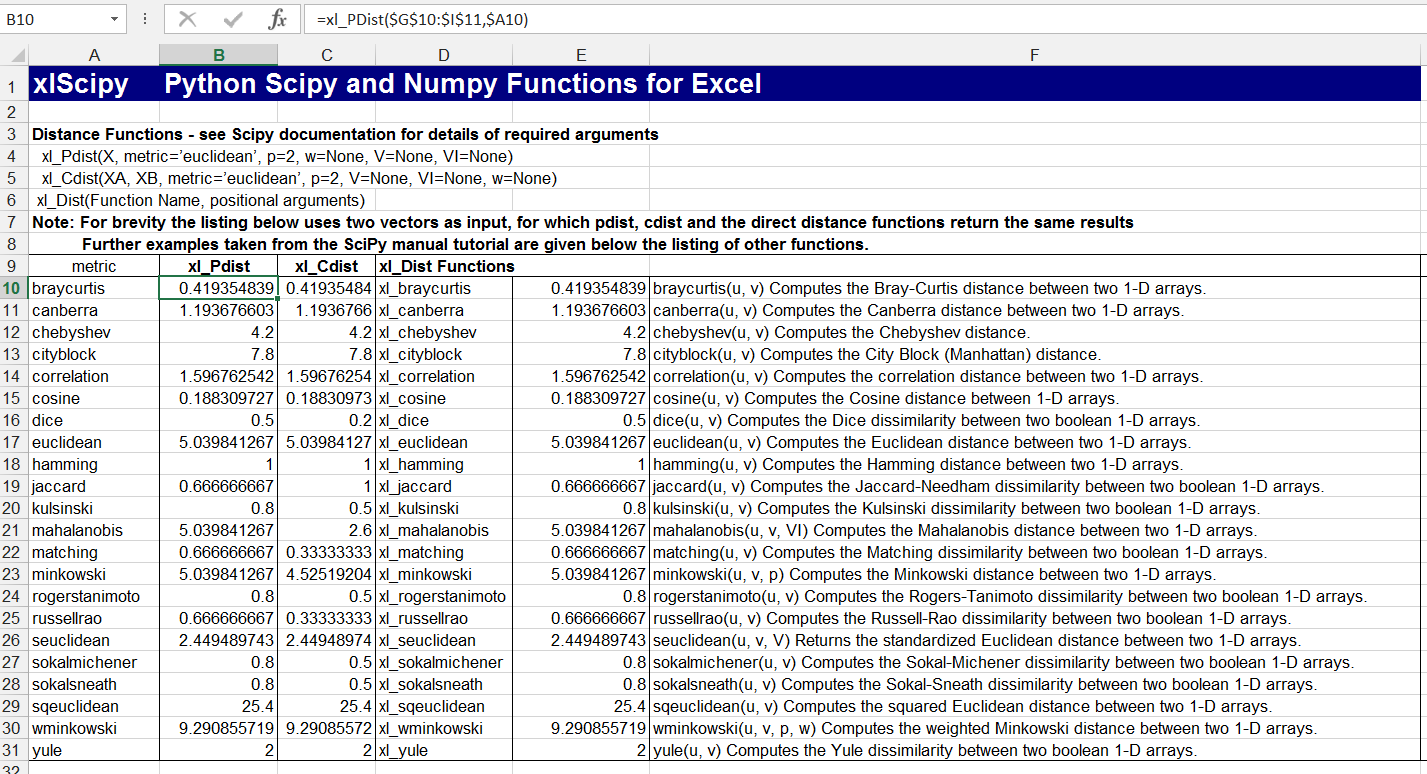
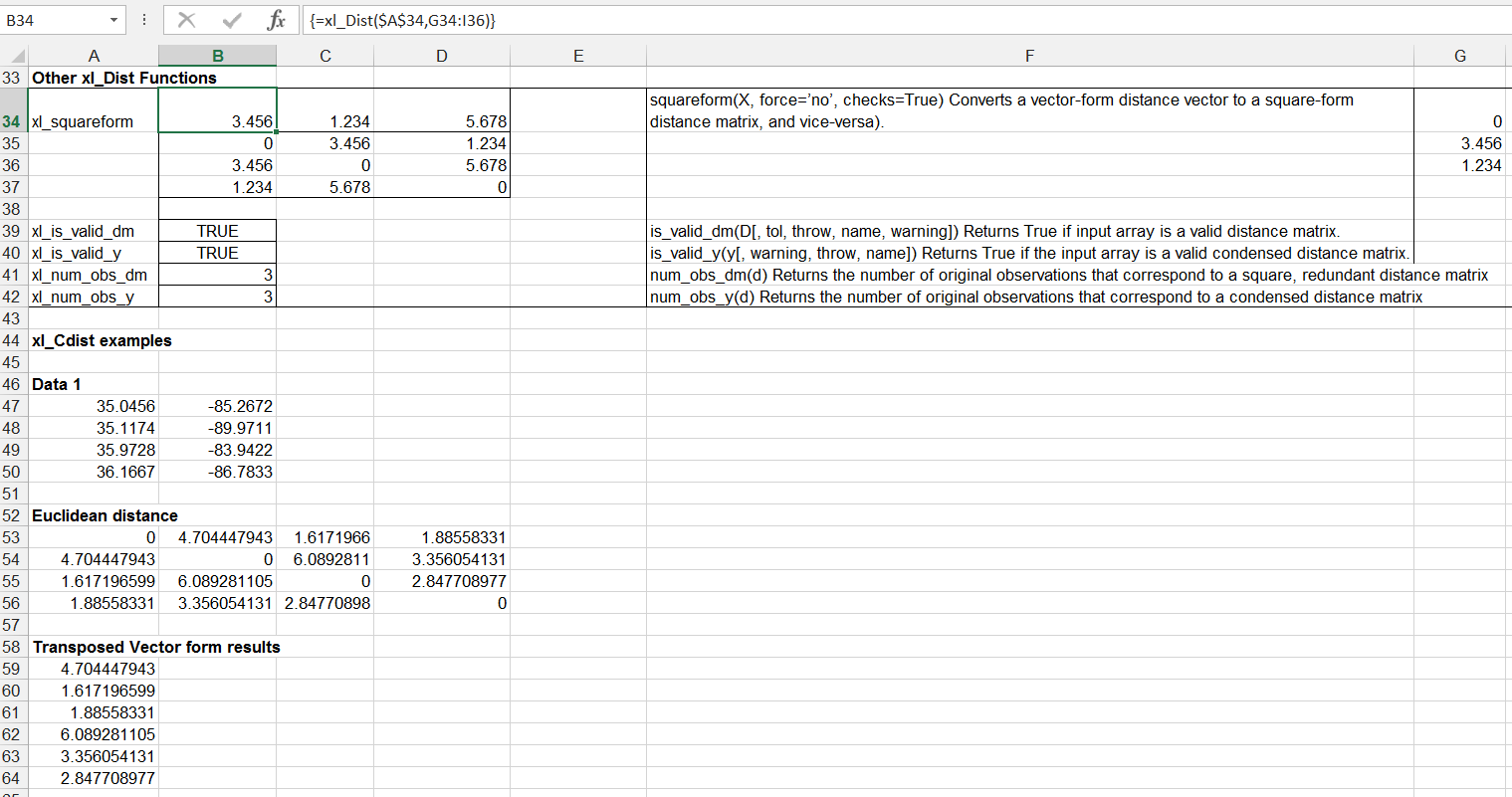
SciPy distance functions:

SciPy2-3

SciPy2-4


Posted in Excel, Link to Python, Maths, Newton, NumPy and SciPy, UDFs, VBA | Tagged , , , , , , | Leave a comment

Time to Lookup

At Daily Dose of Excel Jeff Weir has been looking at alternative methods of applying the VLookup function and ways of getting precise timing of the different formulations.

Based on his posts there I have written two Lookup User Defined Functions (UDFs):

  1. The LookExact Function finds the nearest lower match to a lookup value from a list of sorted data, then checks if this value is exactly equal to the lookup value (or optionally within any specified tolerance).  The advantage of this approach over using the built-in VLookup function with the “Approximate Match” option set to false is that a binary search on sorted data (as performed when the “Approximate Match” option is set to True) is hugely faster than searching through the list from beginning to end.
  2. The LookNear function also   performs a binary search to find the nearest lower match to the lookup value, then checks the next value from the list, and returns the closer value.

Checking the performance of these functions revealed some surprising differences, which in some cases turned out to be more to do with the method of timing than real differences between the various formulas and VBA routines, so I have also added my own version of the timer routines published at: speed performance measure vba function.

A spreadsheet including the Lookup functions and timer routines can be downloaded from: ExactLookup.zip, including full open source code and some example timings as discussed below.

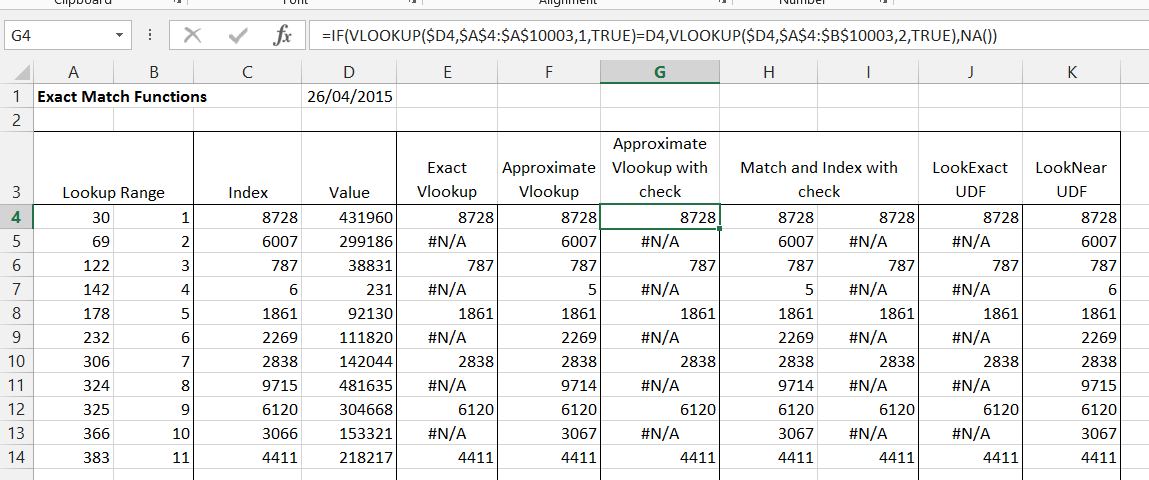
Four alternative lookup formulas, and the two UDFs are tested in the spreadsheet, as shown in the screen shot below:

ExactLook1

The lookup range in the download spreadsheet consists of 10,000 sequential numbers in column A, with an index value in column B.  The formulas have also been checked on a table of 1 million rows.  Column C contains 200 index values used to generate the values in Column D, using the formulas:

  1. =Index(A$4:A$10003, C4)
  2. =Index(A$4:A$10003, C5) + 1
  3. =Index(A$4:A$10003, C6)
  4. =Index(A$4:A$10003, C7) – 1

These four formulas were then copied down 200 rows to generate values that were alternately an exact value found in the lookup table, or just over or under one of the exact values.  Having generated the list the formulas were then converted to values.

Columns E to K contain:

  1. E: Exact Vlookup –  =VLOOKUP($D4,$A$4:$B$10003,2,FALSE)
  2. F: Approximate Vlookup – =VLOOKUP($D4,$A$4:$B$10003,2,TRUE)
  3. G: Approximate Vlookup with check –
    =IF(VLOOKUP($D4,$A$4:$A$10003,1,TRUE)=D4,VLOOKUP($D4,$A$4:$B$10003,2,TRUE),NA())
  4. H,I: Match and Index with check –
    =MATCH(D4,$A$4:$A$10003,1)
    =IF(INDEX($A$4:$B$10003,H4,1)=D4,INDEX($A$4:$B$10003,H4,2),NA())
  5. J: LookExact UDF – =LookExact($D$4:$D$203,$A$4:$B$10003,2)
  6. K: LookNear UDF – =LookNear($D$4:$D$203,$A$4:$A$10003,$B$4)

For the rows where the lookup value is an exact match to a value in the lookup range all the formulas return the same result (the index number from column B).  Where there is no exact match formulas 1, 3, 4, and 5 return #N/A, as intended.  Formula 2 returns the index number for the last row that is less than the lookup value, and Formula 6 (LookNear) returns the index number for the row that contains the value closest to the lookup value.

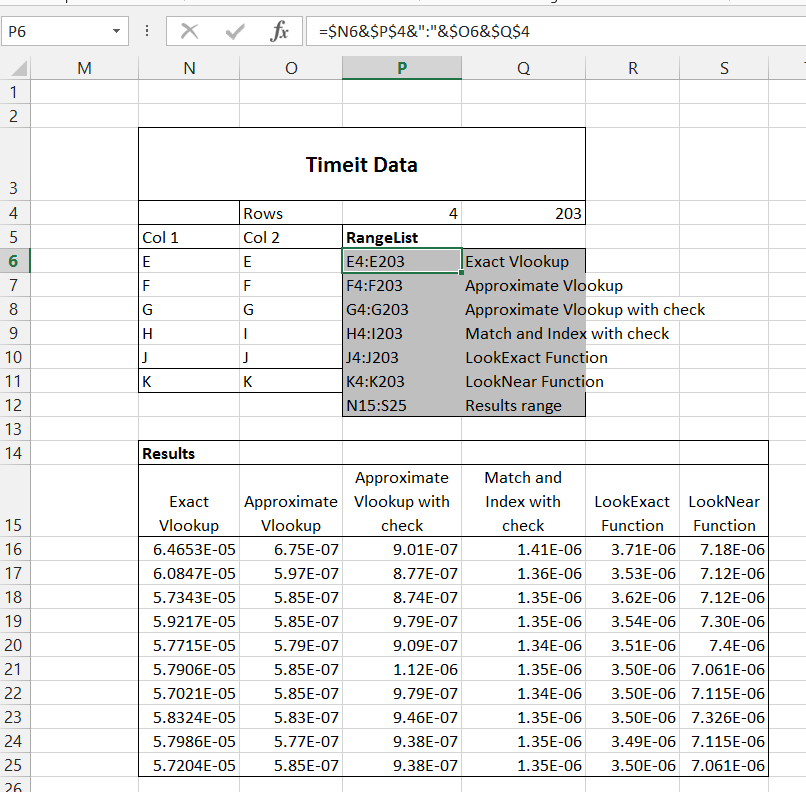
The screenshot below shows the input for the Timeit routine, and typical results:

ExactLook2

The required input is the two grey shaded columns.  The first column lists the ranges containing formulas to be timed.  Normally each range will have the same number of rows, but this isn’t necessary.  The table has been set up to generate the range addresses from the adjacent row and column details, but the ranges can also be just typed in as text.  The second column contains a description of each of the formulas.  The final row of column 1 contains the address for the output results, which should be 11 rows x one column for each formula range.

The range list may be extended (or reduced) as far as required.  If the number of rows is changed, or if the list is moved, the range name “RangeList” must be adjusted to suit.

Note that the extent of the array functions in columns J and K must be adjusted to match the recalculation ranges listed in P10 and P11.   To do this:

  • Edit the first cell in each column so that the first argument (“lookval”) covers the required number of rows.
  • Re-enter by pressing Ctrl-Shift-Enter.
  • Re-size the array extent by pressing Ctrl-Shift-S, which calls the custom  SetArrayToNaturalSize routine.

The Timeit routine recalculates each of the listed ranges 10 times, and generates a table of recalculation times in seconds per row.  To run the routine press Alt-F8 and select Timeit.

Typical results for a range of lookup table sizes and number of functions are shown below:

ExactLook3

It can be seen that the “Exact Vlookup” formula is by far the slowest, and with the long table it is over 7,000 times slower than the “Approximate Vlookup”.

The “Approximate Vlookup” is the fastest, but if the formula is required to return #N/A if there is no exact match, then the “Approximate Vlookup With Check” formula was surprisingly fast, taking only 25% longer on the long tables.

Splitting the formula into two columns, and using the Match and Index functions was, surprisingly, slower than the equivalent using Vlookup.

The two UDFs were slower than the Approximate VLookup formulas, but since the calculation time was only 4 to 8 microseconds, even with the 1 million row table, this would only become significant for enormous tables.

Posted in Arrays, Excel, UDFs, VBA | Tagged , , , , , , | 5 Comments

John Renbourn; 1944 – 2015

John Renbourn

John Renbourn, who has died aged 70, was one half of the powerful guitar duo of Pentangle, the innovative jazz-folk band of the 1960s and 70s. While his fellow guitarist, Bert Jansch, brought great emotion and inventiveness to his playing, it was Renbourn who provided a high level of technical accomplishment. They revelled in one another’s virtuosity.

Posted in Bach | Tagged , | Leave a comment