Connected

7:55 Thursday evening at Sydney’s Enmore Theatre for the Eric Bibb concert due to start 8:00, and the house is barely half full. An hour and a half later after the support act and an intermission the house is packed, the average age of the audience is maybe 20 years younger, and the show is about to start. Evidently the local kids know how things work at the Enmore Theatre.

It was worth waiting for; Eric Bibb supported by my favourite bass man Danny Thompson and Larry Crocket on drums.

Right now I’m listening to Andrew Ford of the ABC Music Show talk to Eric about connections, so this link seems appropriate:

After today (4th April) you can download the ABC interview for the next few weeks from The Music Show

Another YouTube clip, this time with Danny Thompson and Larry Crocket, plus the Melbourne Mass Gospel Choir

And Eric Bibb with Danny Thompson at the Maryport Blues Festival in 2007

Posted in Bach | Tagged , , , , | Leave a comment

Combining text files

Updated 3 April 2009. Following Jimmy Pena’s comments I have revised the code to read and write the files in one operation, rather than line by line. I have also added the option to add a numbered separator line between each file in the combined file.

What is the easiest way to combine a large number of text files into a single file?

Probably the easiest way is with some obscure command line syntax, that you can never remember or find help on when you need it; but for those of us who like to things in VBA the procedure below is reasonably fast and simple to use.  The procedure is:

  • Get the list of file names and location, and the name for the combined file.
  • Change directory to the location of the files to be combined.
  • Open the combined file.
  • For each file in the list:
  • Open the file.
  • Read the file and write it to the combined file.
  • If a separator line is specified wite the line and file number to the end of the combined file
  • Close the file and open the next.
  • After reading and writing all the files close the combined file.

To get the list of file names into a worksheet I use the file manager Total Commander, which lets you copy the names of selected files to the clipboard.

I have added the routine Comb_Text() to the spreadsheet Text-in2.xls, which can be downloaded here.

Here is the code:
Sub Comb_Text()
Dim i As Long
Dim FNameA As Variant
Dim NumFiles As Long, FName As String, Fnum1 As Long, FNum2 As Long
Dim Wholefile As String, FPath As String, AFname As String, SepLine As String
On Error GoTo no_selection
FNameA = Selection.Value
FPath = FNameA(1, 1)
If Mid(FPath, 2, 1) = ":" Then ChDrive Left(FPath, 1)
ChDir FPath
AFname = FNameA(2, 1)
Fnum1 = FreeFile
Open AFname For Output Access Write As #Fnum1
SepLine = FNameA(3, 1)
NumFiles = UBound(FNameA)
For i = 4 To NumFiles
FName = FNameA(i, 1)
FNum2 = FreeFile
Open FName For Input Access Read As #FNum2
Wholefile = Input$(LOF(FNum2) - 1, #FNum2)
Print #Fnum1, Wholefile
If SepLine .NE. "" Then Print #Fnum1, "End of File " & i - 3 & " " & SepLine
Close #FNum2
Next i
no_selection:
Close #FNum2
Close #Fnum1
End Sub

Note that if code is copied and pasted from the blog the “” characters get corrupted, and need to be corrected in the Visual Basic Editor, or just download the spreadsheet which has open source code.  Also replace “.NE.” with the usual VBA “not equal” symbol.

Here’s what it looks like:
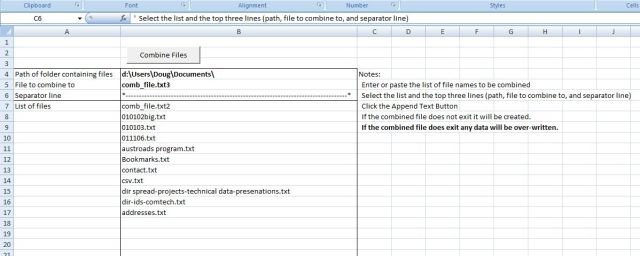
Combine text files from an Excel list
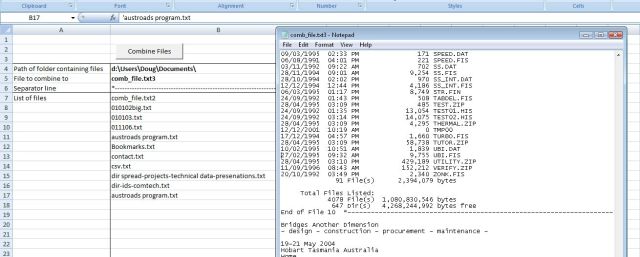
Combine text files from an Excel list

Comb-Text input and output with separator line

Comb-Text input and output with separator line

Posted in Excel, VBA | 10 Comments

Frame Analysis with Excel – 6; Beam end releases and actions

Continuing from: Frame Analysis with Excel – 5; Large frames in Excel 2003

Download Frame3.zip – the download file includes complete open source code.

The frame analysis spreadsheet presented previously has now been revised to deal with beam end releases (either rotation or translation) and to produce a table of member end actions, as well as node deflections and reactions.

In addition, all of the calculations, including formation and solution of the required matrices, are now performed in the VBA routines, with the spreadsheet being used for data entry, and presentation of the results.

Shown below are results for two example frames, with results from the same frames analysed in Strand7.

Example 1: Simple frame with inclined member and 1 beam end release.

Simple Frame; Strand7 Results

Simple Frame; Strand7 Results

Simple frame; Spreadsheet results

Simple frame; Spreadsheet results

Example 2: Building frame with vertical and horizontal loads, and 2 beam end releases.

Building Frame, Strand7 Results

Building Frame, Strand7 Results

Building Frame; Spreadsheet results

Building Frame; Spreadsheet results

Posted in Excel, Finite Element Analysis, Frame Analysis, Newton, VBA | 4 Comments

A Sort Function

There is often a need to sort data within a VBA routine, but VBA does not have a built in sort function, so I recently had a look for what is on offer on the Internet.

Chip Pearson has an article on Sorting Array in VBA, which provides a method to transfer data to a worksheet, sort it,  and bring it back, which has some disadvantages which he discusses in the article.  It also has an implementation of the Quick Sort method which I will have a closer look at when time allows.

John Walkenbach has an article at Daily-Dose-of Excel on Dynamic Sorting with a UDF, which whilst interesting has the disadvantages that it doesn’t work in Excel 2007, and is not supposed to work (but does) in earlier versions.

The procedure I ended up adapting comes from Xtreme Visual Basic Talk, and is an implementation of a comb sort.  It was written in VB for arrays of longs, but was easily adapted to VBA, with the additional features:

  • It can be used as a VBA function to sort an array, or on a worksheet as a User Defined Function (UDF).
  • It will sort multi-column ranges or arrays, with a selected column as the sort key.
  • The sort can be ascending or descending.
  • The data can be numbers, text, or mixtures of both.

When used as a UDF the function must be entered as an array function:

  •  select the range for the sorted data
  • enter the function
  • Press ctrl-shift enter

When used with a VBA array the array must be specified with 2 dimensions; i.e a vector array with n entries must be converted to an nx1 array .

The comb sort was chosen because it is reasonably fast, was simple to convert to variant arrays, and was found to be stable with large data sets.  Sorting a single column array of 1 million random numbers takes about 20 seconds.  For best performance on very large data sets the Radix method is superior.  If anyone knows of an implementation of this method that will work on a mixed list of floating point numbers, longs,  and strings I would be interested to see it.

A sample worksheet with open source code can be downloaded from:  Sort Func.zip

Screen shot of the function used as a UDF (click image for full size view):

sortfunc

Posted in Arrays, Excel, UDFs, VBA | Tagged , , , | 21 Comments

By Jingo

Dick Kusleika at Daily-Dose-of-Excel recently posted a video of an animated bingo spreadsheet, using the Jing screen capture program.

I had previously posted a still image of my Newton’s Cradle animation, which rather spoils the point, so here it is in glorious movie-colour:
(For a high resolution version, visit screencast.com)

Vodpod videos no longer available.
more about “By Jingo“, posted with vodpod
Posted in Animation, Excel, Newton, VBA | 1 Comment