This YouTube clip features a video of the title track from thier latest album, Gravity Calling
The video was directed by up and coming young London based film director Kerinne Jenkins, who apart from being young and up and coming, is also my daughter.
The number 2 tip (which in my opinion should have been the number 1 tip, and probably the number 3 to 10 tip as well) was “Read/Write Large Blocks of Cells in a Single Operation”. This could be expressed more generally as “minimise the number of data transfer operations between the worksheet and VBA”, which then also covers the benefits of writing VBA code rather than using a .worksheetfunction call for functions that are found in Excel but not VBA.
I covered this subject in one my first posts to this blog Ranges and Arrays-2, but looking back at this post I see that the code did not work as intended. What I wrote was:
With Range("MyNamedRange")

.Resize(NumArrayRows, NumArrayColumns).Name = "MyNamedRange"

.Value = MyArray

End With
This is intended to resize the worksheet range to the same size as the VBA array, then transfer the contents of the array to the worksheet. The code does resize the range, but because we are still inside the “with” statement the array is transferred to the original range size. If this is smaller than the array the array will be truncated, and if it is larger the cells outside the array dimensions will be filled with “#/NA” symbols.
What we need to do is close the “with” statement, then transfer the data to the now re-sized array. While we are at it we will normally want to clear old data from the worksheet range, which can be done with a .ClearContents statement within the with block.
Finally for large blocks of data, and where you don’t need the date or currency data types, there is a speed advantage in using .Value2, rather than .Value. Look here: Transferring information from Excel Ranges to the UDF for the reason why.
So the final code is:
ReDim myarray(1 To NumArrayRows, 1 To NumArrayColumns)
‘ Fill array
With Range(“MyNamedRange”)
.ClearContents
.Resize(NumArrayRows, NumArrayColumns).Name = “MyNamedRange”
End With
Range(“MyNamedRange”).Value2 = myarray
As usual, if this code is copied and pasted into the VBE you will nead to replace all the “smart-quotes” with proper quotes, and put a proper apostrophe before the comment line.
A previous post presented a user defined function (UDF) to perform a numerical integration of a function specified as a text string. The UDF allowed the number of subdivisions of the integration range to be specified, but the number of subdivisions required to reach the required precision of the result had to be found by trial and error.
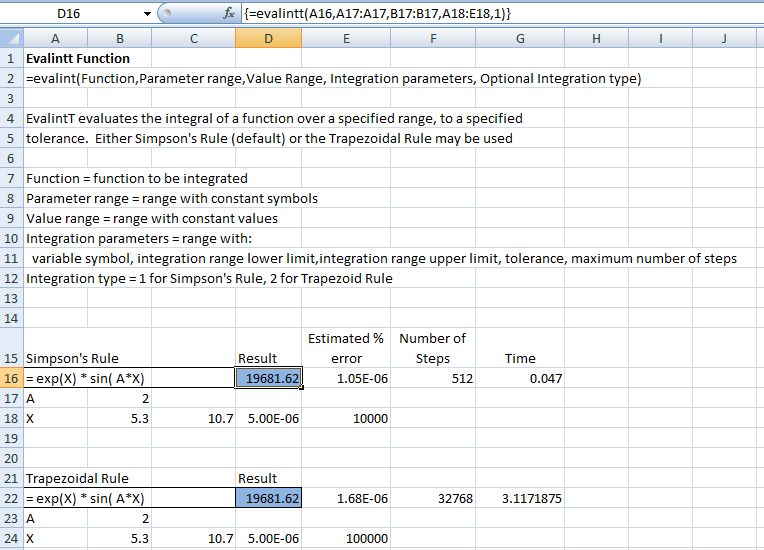
The Numerical Methods Guy has recently posted a method of performing the integration with the number of subdivisions doubled at each successive stage, until the required precision is reached. The beauty of this approach is that all the calculations used in the earlier stages are used in the final solution, so the calculation time is virtually the same as if the minimum required number of subdivisions had been known at the outset. I have used this approach to adapt the Excel UDF EvalInt(), the new function being EvalIntT, which is included in Eval.zip. As usual, the download includes full open source code.
The Numerical Methods Guy’s posts cover only the trapezoidal rule, but the same approach has been applied using Simpson’s Rule, which will normally give a much faster solution. Examples of the output of EvalIntT are shown below:
EvalIntT Function Results
The results shown are for the example given at The Numerical Methods Guy blog, and are virtually identical to the results given by the Matlab function listed there. Note that using Simpson’s Rule the function has given a result to the specified precision with 512 subdivisions, compared with 32768 for the trapezoidal rule, and the solution time is over 60 times faster.
When entering the function data take care when the function text includes any of the paramaters, as in this case x is included in “exp”. This problem is avoided by entering the function in lower case and the paramaters in upper case, so the correct substitutions are made when the function is evaluated.
A recent post on the Tek-Tips VBA forum reminded me that VBA has a split function, which will split a string into sub-strings at any specified character (such as a space). D’oh I thought, why did I waste my time writing my own split function when it is there in VBA already? Then I remembered that if the string has multiple consecutive split characters (such as two or more consecutive spaces) the VBA split function will treat each of these as a separate sub-string, which is not normally what we want.
Writing a split function from scratch is one way around this problem, but the Microsoft on line documentation for VB gives an alternative. The suggested code here uses the VB split function, then copies each non-blank member of the resulting array to a new array. This works well if you want to split entire lines of text, but if you want to split only some of the text, and return the remainder as a single string, then this approach will not work. To avoid this problem I wrote the code shown below, which removes all duplicate instances of the separator string, then uses the VBA split function on the resulting string.
Function SplitText2(Texta As Variant, Optional NumCols As Long = -1, Optional Separator As Variant = " ") As Variant
Dim NumLines As Long, i As Long, j As Long, Linea As Variant, Numwords As Long
Dim MaxWords As Long, SplitString As String, SplitString2 As String, LenString As Long, SplitCount As Long, NextChar As String
Dim AddChar As String, MaxCols As String</code>
If LCase(Separator) = "tab" Then Separator = Chr(9)
If Val(Separator) > 0 Then Separator = Chr(CLng(Separator))
Texta = GetArray(Texta)
NumLines = UBound(Texta) - LBound(Texta) + 1
If NumCols = -1 Then MaxCols = 10 Else MaxCols = NumCols
ReDim Preserve Texta(1 To NumLines, 1 To MaxCols)
For i = 1 To NumLines
' Remove 2nd and subsequent consecutive separator characters
SplitString2 = ""
SplitString = Texta(i, 1)
LenString = Len(SplitString)
SplitCount = 0
For j = 1 To LenString
NextChar = Mid(SplitString, j, 1)
If NextChar = Separator Then
If SplitCount = 0 Then
SplitCount = 1
AddChar = NextChar
Else
AddChar = ""
End If
Else
AddChar = NextChar
SplitCount = 0
End If
SplitString2 = SplitString2 & AddChar
Next j
'Split text
Linea = Split(SplitString2, Separator, NumCols)
' Add Linea to Texta
Numwords = UBound(Linea) - LBound(Linea) + 1
If Numwords > MaxWords Then
MaxWords = Numwords
ReDim Preserve Texta(1 To NumLines, 1 To Numwords)
End If
For j = 0 To Numwords - 1
Texta(i, j + 1) = Linea(j)
Next j
Next i
SplitText2 = Texta
End Function
Function SplitText2(Texta As Variant, Optional NumCols As Long = -1, Optional Separator As Variant = " ") As Variant
Dim NumLines As Long, i As Long, j As Long, Linea As Variant, Numwords As Long
Dim MaxWords As Long, SplitString As String, SplitString2 As String, LenString As Long, SplitCount As Long, NextChar As String
Dim AddChar As String, MaxCols As String
If LCase(Separator) = "tab" Then Separator = Chr(9)
If Val(Separator) > 0 Then Separator = Chr(CLng(Separator))
Texta = GetArray(Texta)
NumLines = UBound(Texta) - LBound(Texta) + 1
If NumCols = -1 Then MaxCols = 10 Else MaxCols = NumCols
ReDim Preserve Texta(1 To NumLines, 1 To MaxCols)
For i = 1 To NumLines
' Remove 2nd and subsequent consecutive separator characters
SplitString2 = ""
SplitString = Texta(i, 1)
LenString = Len(SplitString)
SplitCount = 0
For j = 1 To LenString
NextChar = Mid(SplitString, j, 1)
If NextChar = Separator Then
If SplitCount = 0 Then
SplitCount = 1
AddChar = NextChar
Else
AddChar = ""
End If
Else
AddChar = NextChar
SplitCount = 0
End If
SplitString2 = SplitString2 & AddChar
Next j
'Split text
Linea = Split(SplitString2, Separator, NumCols)
' Add Linea to Texta
Numwords = UBound(Linea) - LBound(Linea) + 1
If Numwords > MaxWords Then
MaxWords = Numwords
ReDim Preserve Texta(1 To NumLines, 1 To Numwords)
End If
For j = 0 To Numwords - 1
Texta(i, j + 1) = Linea(j)
Next j
Next i
SplitText2 = Texta
End Function
Note that this function lacks a couple of features found in my earlier Split function, but it does have the virtue of simplicity.
Download Frame2.zip – the download file includes complete open source code.
The solution presented in the previous post in this series made use of the Excel built in functions MINVERSE() and MMULT(), which restricted the size of problem that could be handled, especially in versions earlier than 2007. These functions have now been replaced with a VBA Gaussian Elimination routine, and the matrices are no longer written back to the spreadsheet, so frames with more than 250 degrees of freedom can now be tackled. There is still plenty of scope for improving the efficiency of the solution routine, but nonetheless the present system is adequate for quite large frames, so for the next few posts I will concentrate on improving the functionality:
Provision for moment and translational release of member ends
Output of member actions at nodes or intermediate points



 Newton Excel Bach, not (just) an Excel Blog