was recorded 50 years ago …
Recent Comments

… with Numba and Scipy sparse matrix functions.
As promised in the previous post in this series, I will be looking at speeding up the formation and solving of matrix functions for the analysis of structural frames, using Excel and pyxll to call Python routines with the Numba jit compiler, and Scipy sparse matrices and solvers.
For an example I have used the 3D analysis of a concrete building frame with 7065 beams and 2730 nodes. This has 14,742 degrees of freedom, which if analysed using the complete stiffness matrix would require creating and solving a matrix with 217,326,564 elements. The actual matrix has only 176,904 non-zero elements, so the use of a matrix in sparse format saves an enormous amount of memory resources and computing time. The use of alternative Scipy solvers, and options within each solver, also made a huge difference to the solution time.
The table below shows times for reading the data from Excel and setting up the stiffness matrix:

The time saving from using Numba is fairly modest (presumably because most of the work involves manipulating data within Numpy arrays), nonetheless the creation of the final stiffness array shows a useful time saving when using Numba.
I have used two matrix solver routines from the Scipy linalg and sparse.linalg libraries, and each of the 9 alternative iterative sparse solvers:
For all cases the initial “A” matrix (i.e. the square stiffness matrix) is prepared in COO format, which allows the matrix to be compiled with the minimum of calculation. The COO format consists of 3 columns listing each non-zero value of the array, and the row and column number of each value.
The solveh_banded function requires the A array to be a Hermitian banded array. Scipy does not seem to have a function to convert from COO to banded, so I wrote one:
def COO2BandedVect(kv, ki, kj):
    """
 Convert a COO matrix to symmetric banded upper triangle format.
 kv ki kj: COO matrix vectors
    """
    rows = kv.shape[0]
    n1 = 0
    cols = 0
    for k in range(0, rows):
        i = int(ki[k])
        j = int(kj[k])
        if i > cols: cols = i
        if (i-j) > n1:
            n1= i-j
    cols = cols+1
    bandwidth = n1+1

    BandMat= np.zeros((bandwidth, cols))
    for k in range(0, rows):
        i = int(ki[k])
        j = int(kj[k])
        if i - j <= 0: BandMat[ i + (n1-j), j] = BandMat[i + (n1-j), j] + kv[k]
    return BandMat
For the other functions the three vectors, v, i and j, must be converted to a COO matrix then to csc or csr format, which may de done with a single line of code:
A = ssp.coo_matrix((v,(i,j)),shape=(n,n)).tocsc()
The solveh_banded function performed much better than the other analytic solver (spsolve) with default arguments, with solution times of 0.70 and 18.15 seconds respectively. Spsolve has an optional argument called permc_spec that defines “how to permute the columns of the matrix for sparsity preservation”. The options with solution times are shown below:

For this case the “Natural” option is thus almost 6 times faster than the default “Colamd” option, and 11 times faster than the slowest option! The solveh_banded function, with default arguments, however remains substantially faster.
The 9 iterative solvers also had a huge range of performance, with solution times ranging from 0.5 seconds to 69 seconds. The gmres solver was by far the slowest, and gcrotmk was also very slow. The cgs solver returned an error. The performance of the other 6 is shown in the graphs below, with the first plotting solution time against the input tolerance value (log scale), and the second solution time against maximum error, compared with the results from the analytic solvers.


The minres solver was substantially faster than the others, but also generated greater errors with the default tolerance. The errors from the other solvers were all close to the minumum when run with the default tolerance of 1E-08. To reduce the minres error to this level it was necessary to reduce the specified tolerance to 1E-11. With this reduced tolerance minres remained the fastest of the iterative solvers, with a solution time of 0.75 seconds.
In Summary:
I have previously written of Boris Peon’s very short proof that Hinchcliffe’s Rule is true (but only if it is false): Is Hinchliffe’s Rule True? …
I have now been told of an even shorter scientific paper, which can be found at RealClear Science:
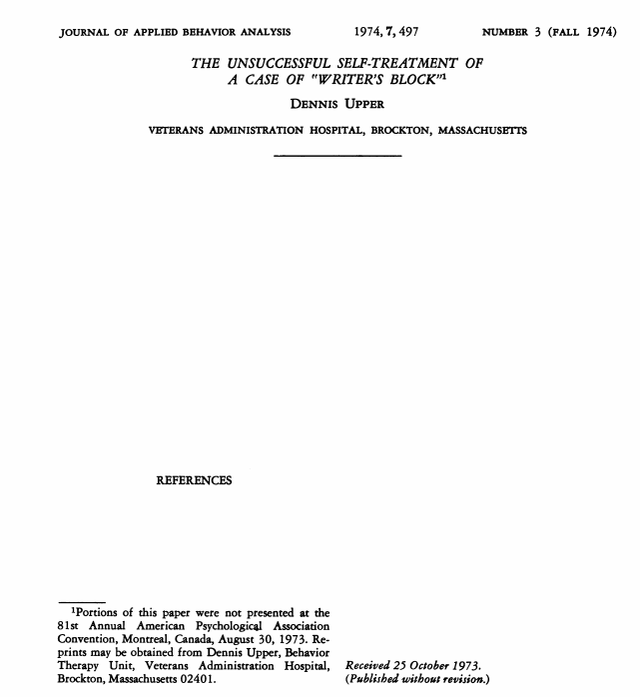
In 1974, clinical psychologist Dennis Upper found himself stricken with writer’s block. Though pen was to paper, no words would flow. He decided to solve his problem with a scientific experiment. Yet, as is frequently the case in science, his experiment didn’t work as intended, and that’s putting it euphemistically. Despite the failure, his work, “The unsuccessful self-treatment of a case of “writer’s block,” was published in the prestigious Journal of Applied Behavioral Analysis. It is reproduced in its entirety below:
I recently discovered (via a helpful comment) that clicking on any download link on this blog, when using Chrome, raised a message saying:
The site ahead contains harmful programs
I have now managed to get Google to agree that there are in fact no harmful programs, but in the process Chrome will now only download from links starting with https: but almost all the links inside blog posts start with http: and will not download using Chrome. Options that still work are:
I have also deleted all the Excel files saved as .xls, .xlsb or .xlsm and will be re-uploading as zip files, and updating the downloads spreadsheet.
Seen on Spicks and Specks on Sunday night, Amadou Suso plays the kora, and is based in Melbourne:


 Newton Excel Bach, not (just) an Excel Blog