
A previous post presented a spreadsheet with functions for solving cubic and quartic equations, and this has been extended with another function solving higher order polynomials. The functions are actually very easy to use, but the documentation in the spreadsheets is quite brief, and the large number of options presented may be off-putting.
To make these functions more accessible, this post presents an example of using the cubic function, and some notes on alternatives and usage of the other functions. These examples have been added as a separate file to the download file : Polynomial.zip. As usual, the download files include full open-source code. Those interested in the included Python functions, see: Python for VBA users – 5; Using built in numpy functions.
The problem to be solved is, if we have a cubic polynomial equation of the form:
Y = aX^3 + bX^2 + cX + e
how do we find the value or values of X that satisfy this equation for known values of a, b, c, and e, and any given Y?
The procedure is:
- Rearrange the equation to the form:
aX^3 + bX^2 + cX + d = 0
by subtracting Y from both sides; that is: d = e – Y. - Enter the coefficients, a to d, in a single column or row:
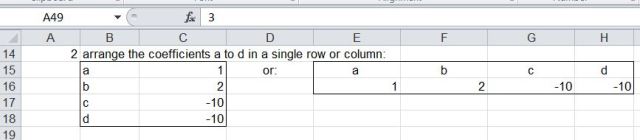
- Enter the cubic function, with the range of coefficient values as the argument.
- This will return one of the three solutions to the cubic equation. To display all three solutions, plus the number of real solutions, enter as an array function:
– Select the cell containing the function, and the three cells below.
– Press the F2 key (Edit)
– Press Ctrl-Shift-Enter
The four required values will be displayed as shown below:


This is a plot of the cubic function solved. It can be seen that the three solutions are the X values where the function is equal to zero.

Some cubic equations, such as in the graph below, have only one “real” solution, and two “complex” solutions, i.e. solutions with a “real” and “imaginary” part.

If the complex solutions are required the CubicC function must be used. This function is used in the same way as Cubic, except that the output range is two columns; for the real and imaginary parts of the solution:

If it is desired to display a single solution, other than the first, this can be done with the optional Out1, and Out2 arguments, as shown below. Alternatively the built-in Excel Index function may be used.

The functions Quadratic and Quartic operate in the same way as Cubic, except that they will also return complex results, so no QuadraticC or QuarticC functions are required.
The function RPolyJT may be used as an alternative to Quadratic, Cubic and Quartic, and also for higher order polynomials. RPolyJT uses the Jenkins-Traub iterative solution, and is a little slower than the other functions, but will return results nearly instantaneously in most circumstances, and can sometimes be more accurate than the other functions.

Further notes and examples are given in the download file. If anything remains unclear, please ask.





 Newton Excel Bach, not (just) an Excel Blog