The Incredible String Band

The Incredible String Band was a late 1960’s/ early 70’s musical group often categorised as “psychedelic folk”, and dismissed as a peculiarity of the era of no great interest beyond that.

That is a pity, because the two key members of the group, Robin Williamson and Mike Heron, combined traditional British and World Music with their own words and musical styles to create some of the most poetic, emotive, and original songs written in the English language.

The first two examples below are taken from their 1971 album “The Liquid Acrobat, as Regards the Air”, and the last one from the 1968 album “The Hangman’s Beautiful  Daughter”.

Posted in Bach | Tagged , , , , | 1 Comment

Xlls, Maths and Plots; some useful links

Two from regular commenter here, Keith Lewis:

Excel xll add-in library:

This is a library for creating xll add-ins for Excel from 97 through 2013. It makes every feature of the latest Excel SDK available to you including the big grid, wide character strings, and asynchronous functions. It is the easiest way to integrate your C and C++, or even Fortran, code into Excel to achieve the highest possible performance. You can also generate native documentation using the same tool Microsoft uses for their help files.

If you need a small, fast, portable, and self contained way to extend Excel’s functionality, this is the library for you. Just hand someone the xll and chm help file that you create and they are ready to go. No need to figure out what version of .Net they run, no Primary Interop Assemblies to worry about, no managed code that forces you to marshal data back and forth from Excel. There are also no automagic code generators, no proprietary markup languages to learn, and no wizards that hide things behind your back. Everything is just pure, modern, and readable C++.

 xll add-in library   :

Check out xllblog for the latest goodies in the pipeline.

And two maths and plotting links from Alfred Vachris:

Geometry Algorithms:

Welcome to the GeomAlgorithms.com website. The full list of Algorithm Titles is shown below, and active links indicate the algorithms that have been posted and are now accessible.

The purpose of this site is to provide practical geometric algorithms for the software developer. That is, algorithms that are:

  • Relevant – they solve significant geometric problems for real world applications
  • Correct – they give accurate solutions for the problems
  • Robust – they tolerate small numerical errors and avoid overflow within constraints
  • Efficient – they are fast in practice for typical applications, both small and large
  • Conservative – they use few resources, such as storage space
  • Maintainable – they are straightforward to implement and troubleshoot
  • Elegant – one can understand why they work, which gives confidence in their use.

Flowing Data
R plotting package ggplot2 ported to Python

Those who use the ggplot2 package in R and do everything else in Python will appreciate this Python port of the package from yhat.

Excel makes some great looking plots, but I wouldn’t be the first to say that creating charts in Excel involves a lot of manual work. Data is messy, and exploring it requires considerable effort to clean it up, transform it, and rearrange it from one format to another. R and Python make these tasks easier, allowing you to visually inspect data in several ways quickly and without tons of effort.

The preeminent graphics packages for R and Python are ggplot2 and matplotlib respectively. Both are feature-rich, well maintained, and highly capable. Now, I’ve always been a ggplot2 guy for graphics, but I’m a Python guy for everything else. As a result, I’m constantly toggling between the two languages which can become rather tedious.

Once you get the Python library installed (and its dependencies), you’ll be able to use the same layered graphics approach as the R package, with a similar syntax.

Also another couple of links from Alfred that have featured here before, but well worth another look:

Axel Vogt

Several files for numerical or financial Math, free for download and with no warranty.

Excellaneous:

This website is meant for scientists and engineers who want to use the ubiquity, convenience and power of Excel, including its flexibility to go beyond the functionality already provided by Microsoft. It contains many freely downloadable, open-access add-in functions and macros for Excel associated with my book, Advanced Excel for scientific data analysis, 3rd ed., Atlantic Academic 2012, as well as additional information that arrived too late tobe incorporated in the printed version or that required color.

Posted in Coordinate Geometry, Excel, Link to dll, Maths, Newton | Tagged , , , | 3 Comments

Python for VBA users- 6; Using Pysparse with Excel

Previous Python Post

The analysis of structural frames requires the solution of large sparse matrix systems, which rapidly becomes very time consuming using a VBA based solver, especially for 3D analysis.  I have previously presented versions of my frame analysis spreadsheet that link to compiled solvers (in Fortran, C++, and C#), but these have still required the generation of the complete matrix, consisting mostly of zeros, which needlessly limits the size of model that can be handled.

The Python Pysparse library contains a number of formats for handling and storing sparse matrices, and importantly for frame analysis, an iterative solver for sparse symmetric matrices.   I am now working on adding this solver (and also a sparse direct solver) to my frame analysis spreadsheet.  This post looks at how to generate the matrix data in Excel, and how to link this data to the Python routines, using Pyxll.

The Pysparse iterative solvers are found in the itsolvers module, which includes the following methods: PCG, MINRES, QMRS, BICGSTAB, and CGS.  Some brief experimentation found little difference in performance, but the QMRS was the fastest in my tests, so that is what I have used.  The procedure for using this routine is:

  • Import the data from Excel as a Numpy Array.
  • Process  the data in linked list format.
  • Convert to SSS format.
  • Run pre-conditioner routine.
  • Run iterative solver routine
  • Return the results to Excel as a Numpy_column array.

The code to do all this is:

@xl_func("numpy_array K, numpy_row b, float tol, int its: numpy_column")
def py_ItSolve2(K, b, tol, its):
    n = len(b)
    A = (ll_mat_from_array(K, n)).to_sss()
    x = zeros(n)
    D = precon.ssor(A, 1.0, 1)
    info, iter, relres = itsolvers.qmrs(A, b, x, tol, its, D)
    return x

def ll_mat_from_array(K,n):
    nr = len(K)
    A = spmatrix.ll_mat_sym(n,n)
    for row in range(0,nr):
        i = int(K[row][0])-1
        j = int(K[row][1])-1
        x = K[row][2]
        A[i,j] = A[i,j]+x
    return A

The input for the py_ItSolve2 routine consists of:

  • K, the frame stiffness matrix (see below for more details of the required format)
  • b, the load vector, a single column with one row for each frame node freedom
  • tol, the target tolerance required for the iterative solution
  • its, the maximum number of iterations

The stiffness matrix  is defined in three columns, two defining a pair of freedoms (the row and column number of the full matrix), and the third the associated stiffness value.  This data is generated by a VBA routine from the spreadsheet by calculating the freedom values for each beam in turn.  This results in many freedom pairs being repeated, with stiffness values that must be summed to find the resultant stiffness value for the global matrix.  This is done in the ll_mat_from_array routine, which creates a linked list matrix, then simply steps through the input data and adds the stiffness values for each of the freedom pairs.  The linked list array is then converted to sss (Sparse Skyline) format with the method .to_sss().  Finally this array is preconditioned, solved, and the resulting array of node deflections is returned to the calling VBA routine.

Initially I generated the K array as a VBA double array, but discovered that passing this to the Python routines using application.run had a maximum limit of 65536 (2^16) rows.  I experimented with generating the array in Python, but discovered that (surprisingly) this was substantially slower than the same operation in VBA.  Finally I returned to generating the array in VBA, then writing the data to a named spreadsheet range, and passing this range to the Python routine.  The VBA code for this operation is:

Range("kv_").ClearContents
    Range("kv_").Resize(lastk, 3).Name = "kv_"
    Range("kv_").Value = kv

        ' !------------------------equation solution -----------------------------------
    Select Case SolverType
    Case 1
        DefA = Application.Run("py_ItSolve2", Range("kv_"), Loads, Py_Tol, Py_Its)

    Case 2
        DefA = Application.Run("py_LUSolve2", Range("kv_"), Loads)
    End Select

The top of the kv_ range looks like:

kv_ array

kv_ array

A very similar approach is used to run the Pysparse direct sparse solver:

@xl_func("numpy_array K, numpy_row b: numpy_column")
def py_LUSolve2(K, b):
    n = len(b)
    A = (ll_mat_from_array(K, n)).to_csr()
    x = zeros(n)
    LU = superlu.factorize(A, diag_pivot_thresh=0.0)
    LU.solve(b, x)
    return x

In this case the linked list array is converted to a csr (Compressed Sparse Row) format, and the resulting array is then factorised and solved using the superlu routine.

Posted in Arrays, Beam Bending, Excel, Finite Element Analysis, Frame Analysis, Link to Python, Maths, Newton, NumPy and SciPy, VBA | Tagged , , , , , | 1 Comment

All about dictionaries

A couple of links to sites with comprehensive information on using the scripting dictionary object, found via Daily Dose of Excel:

VBA for smarties

I. What is a dictionary ?

A dictionary in VBA is a collectionobject: you can store all kinds of things in it: numbers, texts, dates, arrays, ranges, variables and objects.
Every item in a dictionary gets it’s own unique key.
With that key you can get direct access to the item (reading/writing/adapting).

VBA has several methods to store data: – a dictionary
– a collection
– an array (matrix) variable
– an ActiveX ComboBox
– an ActiveX ListBox
– a Userform control ComboBox
– a Userform control ListBox
– a sortedlist
– an arraylist

Which one to use is dependent of your ultimate goal.
This tutorial doesn’t offer an exhaustive comparison of all these methods.
What a dictionary has to offer will be discussed in detail.
With that knowledge it’s easier to compare different methods and to make a choice between them.

And a link to Experts Exchange, provided by Jeff Weir:

Using the Dictionary Class in VBA

Perhaps more familiar to developers who primarily use VBScript than to developers who tend to work only with Microsoft Office and Visual Basic for Applications (VBA), the Dictionary is a powerful and versatile class, and is useful for many programming tasks.
While VBA’s native Collection class offers functionality that is in many respects similar to the Dictionary, the Dictionary class offers many additional benefits.  Thus, depending on the exact functionality required for your VBA procedures, the Dictionary class may offer a compelling alternative to the more usual Collection.  Indeed, even if the Dictionary’s additional functionality is not relevant to your project, a Dictionary may offer a performance advantage over a Collection.
This article provides:

  • An overview of the Dictionary class and its properties and methods;
  • A comparison between the Dictionary and the VBA Collection;
  • An overview of early binding versus late binding;
  • Four illustrative example for using the Dictionary class;
  • Common errors and pitfalls (i.e., ‘gotchas) encountered in programming with the Dictionary class; and
  • A brief analysis of relative processing speed between the Dictionary and Collection classes

And if that is not enough for you, here are the previous Newton Excel Bach posts on dictionaries.

Posted in Excel, VBA | Tagged , , | 3 Comments

Python for VBA users – 5; Using built in numpy functions

Previous Python Post

In previous posts in this series I have looked at translating VBA functions to solve quadratic and cubic equations, but the Python numpy library has a polyroots function that will solve polynomials of any degree, and will also handle polynomials with complex coefficients.

Full open source code for all the functions described in this post, as well as the py_Quadratic and py_Cubic functions, may be downloaded from py_polynomial.zip. The download file also includes the spreadsheet py_Polynomial.xlsb, including the examples illustrated below, and VBA based polynomial functions. Note that once the py_polynomial.py module has been installed the functions may be called from any Excel worksheet, including .xlsx files that have VBA disabled.

To install the Python functions:

  • Install Python with the Numpy add-in.
  • Install PyXll
  • Add: polynomial.py to the “modules =” section of the PyXll pyxll.cfg file (example included in the download file)

See: Installing Python, Scipy and Pyxll for more details.  Details of the Python code for the functions are given below, but all this is included in the polynomial.py module, and once that has been installed no further coding is required.  All the functions will be available in the same way as the built-in Excel functions.

To call the polyroots (and other polynomial functions) from any Python function the following line must be added to the Python code module:

import numpy.polynomial.polynomial as poly

The polyroots function can then be called with the following one-liner (two-liner, including the Excel decorator):

@xl_func("numpy_column CoeffA: numpy_column")
def py_Polyshort(CoeffA): return poly.polyroots(CoeffA)

The functionality can be considerably improved with a little more work however:

  • Add “Inc_power” and “Row_out” options, so that coefficients may be listed in either ascending or descending powers of x, and output arrays may be in either row or column format.
  • Specify “numpy_array” rather than “numpy_column” as the input and output data types, so that the data may be arranged in row or column format, and complex numbers may be input and output as pairs of values in adjacent cells.
  • Add “doc strings” that will appear in the function dialogue box, and “category” and “help_topic” items.
@xl_func("numpy_array CoeffA, bool Inc_power, bool Row_out: numpy_array", category="py-Maths", help_topic="http://docs.scipy.org/doc/numpy/reference/routines.polynomials.polynomial.html!0")
def py_Polyroots(CoeffA, Inc_power, Row_out):
    """
    Find the real and complex roots of a polynomial equation: a x^n + b x^(n-1) ... + y x + z = 0
    CoeffA: Row or column of function coefficients
    Inc_power: Optional, default False = coefficents listed in order of descending powers of x
    Row_out: Optional, default False = roots output in two columns (real and imaginary parts of each root)
    """

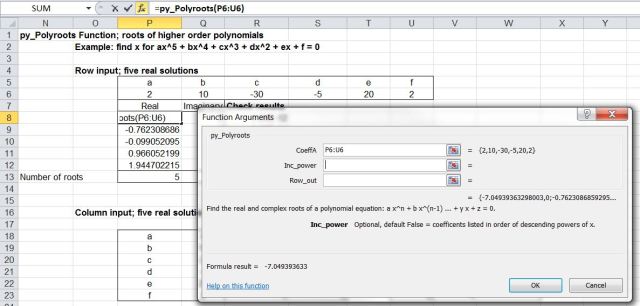
The screen shot below shows the “Insert Function” Dialogue for the py_Polyroots function, showing the function description, and help for each function argument, as defined in the Python doc string:
polyroots0

To deal with the Inc_power and Row_out options, and to deal with output of complex numbers as a pair of floats, the following operations are then required:

  • Check the orientation of the input array of coefficients (CoeffA), and transpose to column format if necessary.
  • Create an output array, with two columns x (number of roots + 1)
  • The numpy polyroots function requires a 1D array with coefficients listed in ascending powers of x.  Extract the first column of CoeffA, and if Inc_power is False reverse the order of the coefficients.  Note that this operation, including reversing the order of the coefficients, can be accomplished with a single Python “list comprehension”:
    CoeffA[::-1,0]
    or without the reversal of the order:
    CoeffA[:,0]
  • Convert complex results to a pair of floats, and count the number of complex roots.
  • Write the number of real and complex roots to the end of the output array.
  • Return the results as a row or column, depending on the value of Row_out.

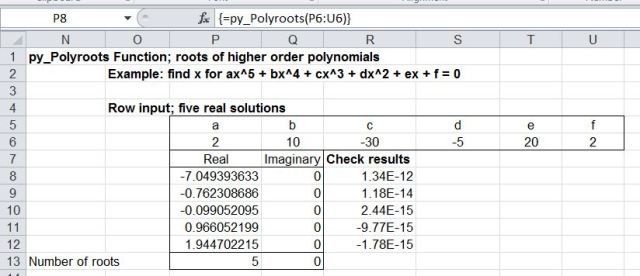
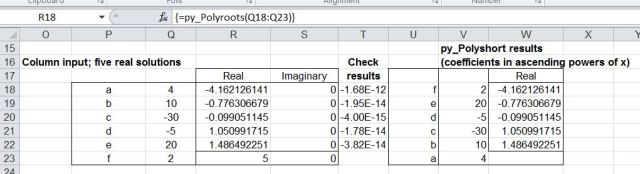
The final code is shown below, followed by example output for a fifth order polynomial, with different arrangements of input and output.

@xl_func("numpy_array CoeffA, bool Inc_power, bool Row_out: numpy_array", category="py-Maths", help_topic="http://docs.scipy.org/doc/numpy/reference/routines.polynomials.polynomial.html!0")
def py_Polyroots(CoeffA, Inc_power, Row_out):
    """
    Find the real and complex roots of a polynomial equation: a x^n + b x^(n-1) ... + y x + z = 0
    CoeffA: Row or column of function coefficients
    Inc_power: Optional, default False = coefficents listed in order of descending powers of x
    Row_out: Optional, default False = roots output in two columns (real and imaginary parts of each root)
    """
# Transpose CoeffA to column format if necessary
    if CoeffA.shape[0] == 1: CoeffA = transpose(CoeffA)
# Create output array; two columns x (number of roots + 1)
    nroots = CoeffA.shape[0]-1
    resa = zeros((nroots+1,2))
# polyroots requires a 1D array with coefficients listed in ascending powers of x
# Extract the first column of CoeffA, and if Inc_power is False reverse the order of the coefficients
    if Inc_power == False:
        res = poly.polyroots(CoeffA[::-1,0])
    else:
        res = poly.polyroots(CoeffA[:,0])
# Convert complex results to a pair of floats, and count the number of complex roots
    numi = 0
    for i in range(0,nroots):
        resa[i,0] = res[i].real
        resa[i,1] = res[i].imag
        if resa[i,1] != 0: numi = numi+1
# Write the number of real and complex roots to the end of resa
    i = i+1
    resa[i,0] = nroots-numi
    resa[i,1] = numi
# Return the results as a row or column, depending on the value of Row_out
    if Row_out == False :
        return resa
    return transpose(resa)

Row input and column output
polyroots1

Column input and output and polyshort function
polyroots2a

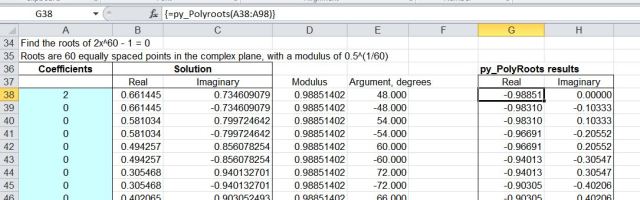
Results for a 60th order polynomial.  The results in columns C and D are from the VBA rpolyjt() function.  The results from the two functions are sorted in different orders, but are in good agreement (see the spreadsheet for full results list)
polyroots3

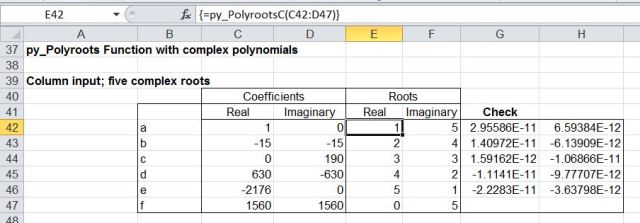
The py_PolyrootsC function will accept complex coefficients of x.  The function converts each pair of values to a Python complex number, then calls the py_Polyroots function
polyroots4

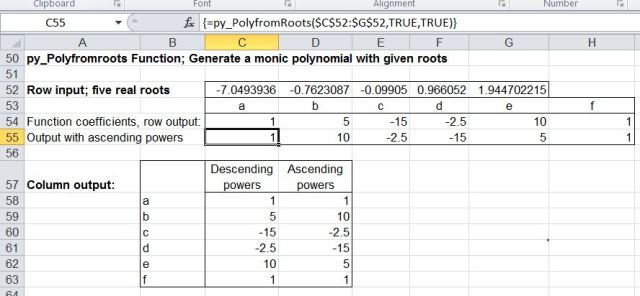
The py_PolyfromRoots function generates a monic polynomial from the input roots, which may be real or complex.  The example illustrated shows the use of the Inc_power and Row_out options to generate output with ascending powers of x in row format.
polyroots5

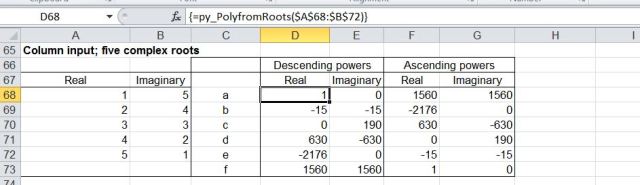
py_PolyfromRoots function with complex roots.
polyroots6

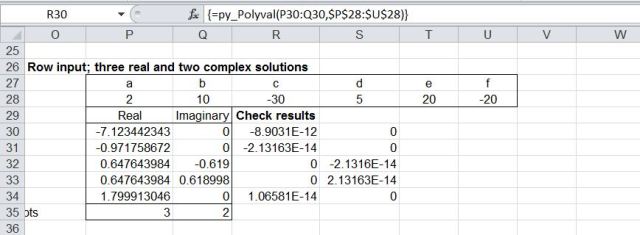
The results generated by py_Polyroots and py_PolyrootsC have been checked using the py_Polyval function. This evaluates a polynomial defined by a series of coefficients for a specified value of x. X may be a real value defined by a single cell, or a complex value defined by two adjacent cells. As for the other functions the coefficients may be listed in descending powers of x (default), or ascending order.
polyroots7

Posted in Arrays, Excel, Link to Python, Maths, Newton, NumPy and SciPy, UDFs, VBA | Tagged , , , , , , , , , , , | 5 Comments