Goal Seek Macro for Multiple Sheets

Following a comment on the Using Goal Seek on Multiple Cells post, I have modified the macro so that the goal-seek ranges can be on a different sheet to the named input ranges.  The new file can be downloaded from: GSeek.zip.

The new code is shown below, but the macro can be used as is; just enter the cell addresses where you want Goal Seek to work in the shaded cells (and sheet names, if not working on Sheet1), then press Alt-F8 and select GSeekA:

Sub GSeekA()
Dim ARange As Range, TRange As Range, Aaddr As String, Taddr As String, NumEq As Long, i As Long
Dim TSheet As String, ASheet As String
Dim GVal As Double, Acell As Range, TCell As Range, Orient As String

    ' Create the following names in the back-solver worksheet:
    ' Taddr - Cell with the address of the target range
    ' Aaddr - Cell with the address of the range to be adjusted
    ' gval - the "goal" value
    ' To reference ranges on different sheets also add:
    ' TSheet - Cell with the sheet name of the target range
    ' ASheet - Cell with the sheet name of the range to be adjusted

    Aaddr = Range("aaddr").Value
    Taddr = Range("taddr").Value

    On Error GoTo NoSheetNames
    ASheet = Range("asheet").Value
    TSheet = Range("tsheet").Value

NoSheetNames:
    On Error GoTo ExitSub
    If ASheet = Empty Or TSheet = Empty Then
        Set ARange = Range(Aaddr)
        Set TRange = Range(Taddr)
    Else
        Set ARange = Worksheets(ASheet).Range(Aaddr)
        Set TRange = Worksheets(TSheet).Range(Taddr)
    End If

    NumEq = ARange.Rows.Count
    If NumEq = 1 Then
        NumEq = ARange.Columns.Count
        Orient = "H"
    Else
        Orient = "V"
    End If

    GVal = Range("gval").Value

    For i = 1 To NumEq
        If Orient = "V" Then
            TRange.Cells(i, 1).GoalSeek Goal:=GVal, ChangingCell:=ARange.Cells(i, 1)
        Else
            TRange.Cells(1, i).GoalSeek Goal:=GVal, ChangingCell:=ARange.Cells(1, i)
        End If
    Next i
ExitSub:
End Sub
Posted in Excel, VBA | Tagged , , , | 4 Comments

Precise Angles and XNumbers

Further to comments by Georg under: The angle between two vectors, in 2D or 3D I have added four alternative ways of calculating the angle between two 3D vectors to the VectorFunc spreadsheet.  The new version can be downloaded from: http://interactiveds.com.au/software/VectorFunc.xlsb.

Vectang2-1

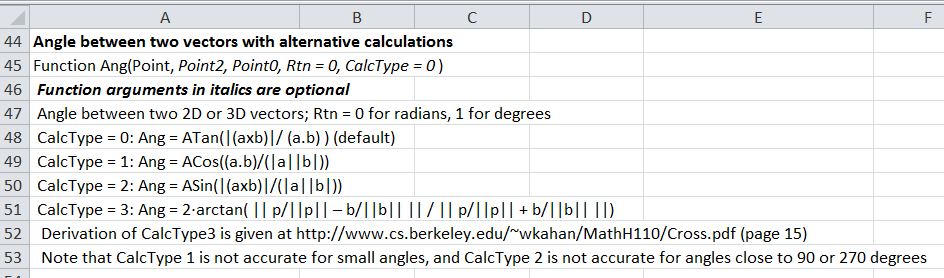
New Ang() Function

The alternative calculations are:

  • CalcType = 0: Ang = ATan(|(axb)|/ (a.b) ) (default)
  • CalcType = 1: Ang = ACos((a.b)/(|a||b|))
  • CalcType = 2: Ang = ASin(|(axb)|/(|a||b|))
  • CalcType = 3: Ang = 2·arctan( || p/||p|| – b/||b|| || / || p/||p|| + b/||b|| ||)

Derivation of CalcType3 is given at http://www.cs.berkeley.edu/~wkahan/MathH110/Cross.pdf  (page 15)

Note that CalcType 1 is not accurate for small angles, and CalcType 2 is not accurate for angles close to 90 or 270 degrees

As an illustration of the use of the different options I have calculated the radius of a certain large spherical object, based on precise measurements of the offset of a line tangential to the surface:

Vectang2-2

Ang Function Calculations of the Radius of the Earth

In this case Methods 0, 2 and 3 have all given an exact result, but Method 1 (using the Cosine of a very small angle) has an error of 7.47 km.

To compare the results of Method 1 with the same procedure using higher precision arithmetic I have installed the latest XNumbers package (6.05.5M) which can be downloaded from http://www.thetropicalevents.com/Xnumbers60/.  This package is based on the original XNumbers, but has been modified for Excel 2007 and later and improved performance.

It can be seen that even using the Cosine the additional precision has given a near exact result.

Vectang2-3

Calculation Type 1 Using XNumbers multi-precision functions

In the download version of the spreadsheet I have converted the XNumbers functions to text for the benefit of those who do not have XNumbers installed.  To make the formulas active just press F2 to edit, and delete the ‘ at the start of the line.

XNumbers Functions

Posted in Coordinate Geometry, Excel, Maths, Newton, UDFs, VBA | Tagged , , , , , | Leave a comment

Charts and Charting

I don’t do a lot on Excel charts because there are already a number of excellent blogs and sites that specialise in that area; notably: Peltier Tech Blog
but after compiling my “Downloads by Category” page I found that I had lumped together some posts specifically about charts in with posts about drawing (i.e. using Excel shapes), which made them hard to find; so this post separates out all my charting posts from the past nearly five years:

Associated download files are:

Posted in Charts, Excel, UDFs, VBA | Tagged , , , | Leave a comment

New Page

In an effort to make the information on this site easier to access I have collected all the “Daily Download” posts from last year onto a new page, listing each of the download posts by category.

It’s called “Download by Category

Posted in Excel, Newton, UDFs, VBA | Tagged , | Leave a comment

Counting unique values from a range or array

About this time last year, I posted a User Defined Function (UDF) that would return a list of unique items from a list: https://newtonexcelbach.wordpress.com/2012/01/31/retrieving-unique-values-from-a-range-or-array/

That post has recently received a few comments, and coincidentally Colin Legg at RAD Excel has recently posted an article entitled Count Distinct, Unique And Successive Values Using FREQUENCY(), so if you just want to count the number of occurrences of different numbers or strings, rather than return a list of them, using the Frequency() function is the way to do it.

Colin’s article is detailed and clear, and I have nothing to add to it, except to note the different usage of words.  Colin uses “distinct” where I used “unique” to mean one copy of each different number (or string), and “unique” to mean numbers or strings that occur only once.  So in the list “1,1,1,2,2,3” there are 3 distinct numbers (1,2,3) but only one unique number (3).

Posted in Excel | Tagged , , , , | Leave a comment