Continuous Beams With Spring Supports by Macaulay’s Method

Following the last post on this topic: Continuous Beams With Cantilevers by Macaulay’s Method, and by popular demand, I have now updated the continuous beam and single span analysis functions to accept spring translational and moment restraints.  Also added is a new function to find the rotational stiffness of a cantilever beam with moment fixity at the opposite end (RotnK()). The new spreadsheet can be downloaded from:

Macaulay.zip

The input for the revised Conbeam function can be seen in the screenshot below:

Conbeam input (click for full size view)

The Supports input range now has two additional (optional) columns allowing the translational and rotational stiffness of each support to be specified.  These have been used to model a 3 span beam with two cantilever ends, supported on 4 columns, with 4 columns above.  The rotational stiffness of the columns has been found using the RotnK function (the single column stiffness is doubled at each support because there are two columns).  A Strand7 frame model of the equivalent frame is shown below.

Strand7 Equivalent Frame Model

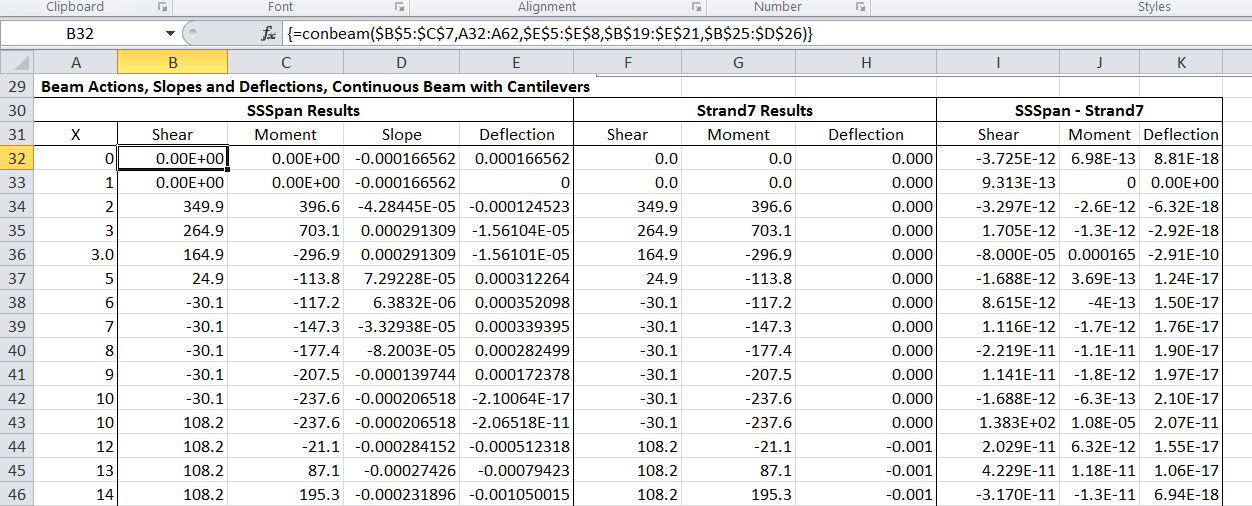
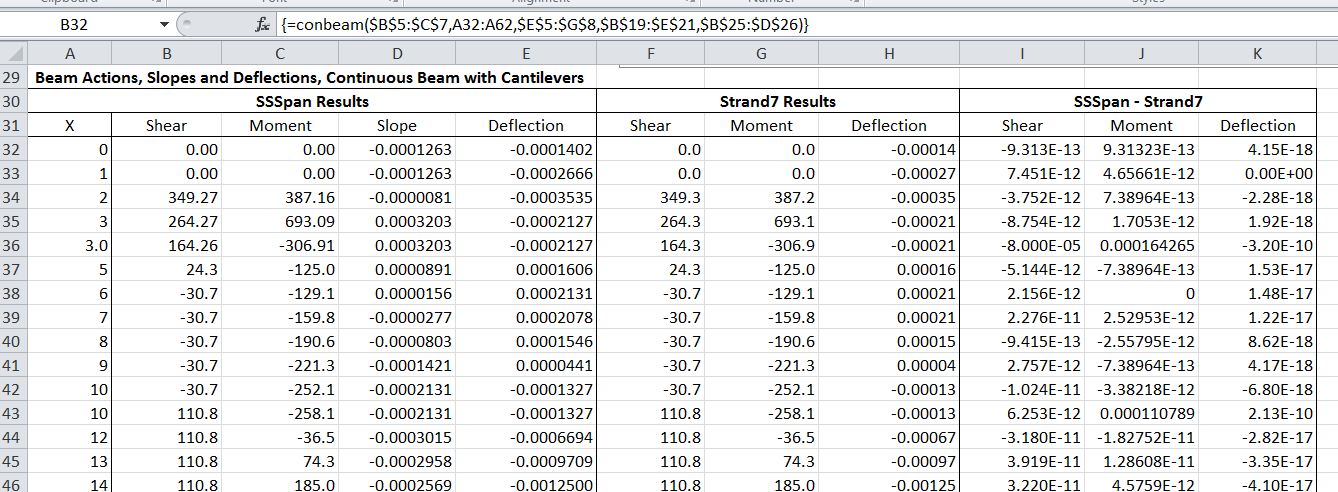
Part of the output of the Conbeam function, compared with the Strand7 results, is shown in the table below:
Conbeam output compared with Strand7 results

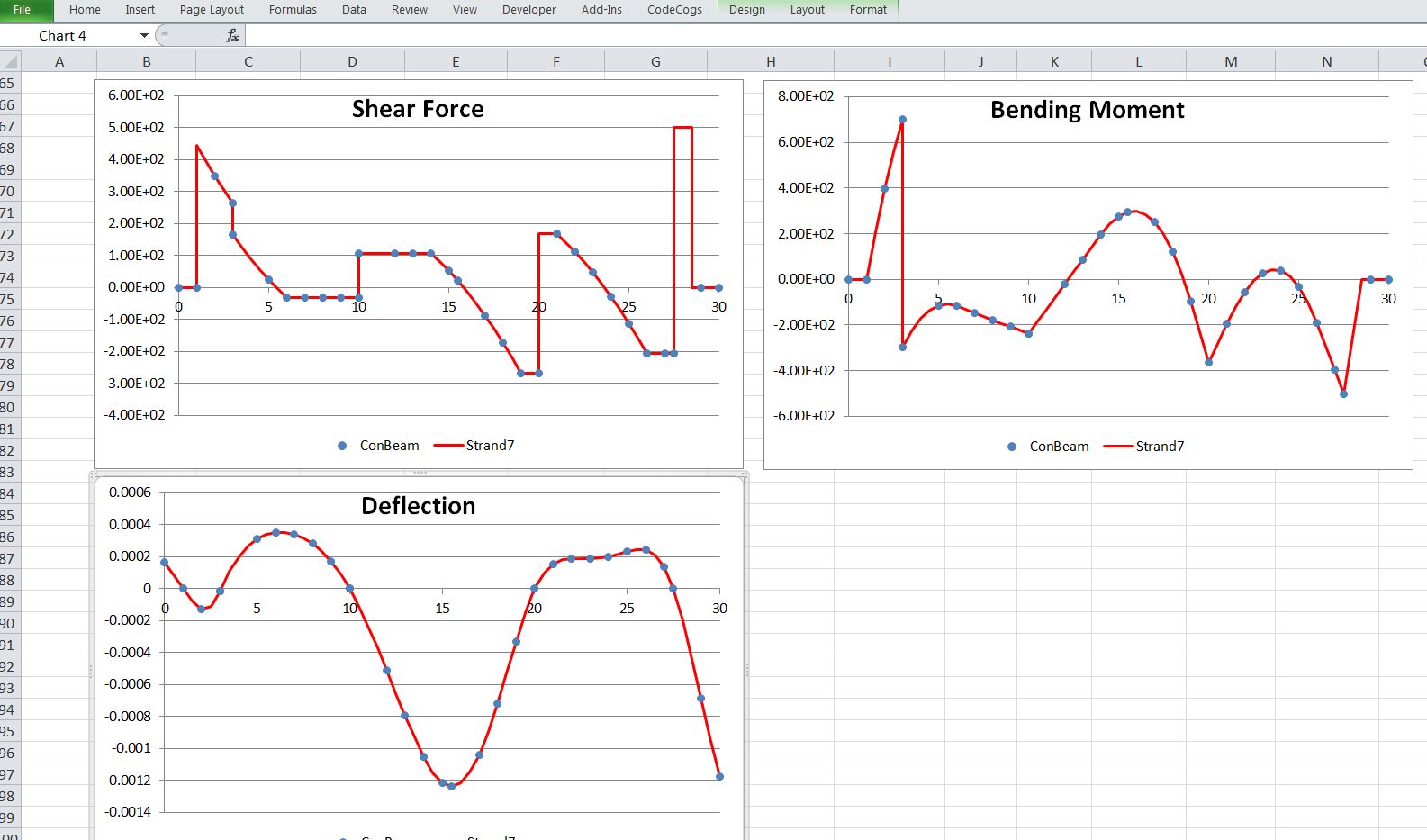
It can be seen there is almost exact agreement, as is also seen in the graphical results:
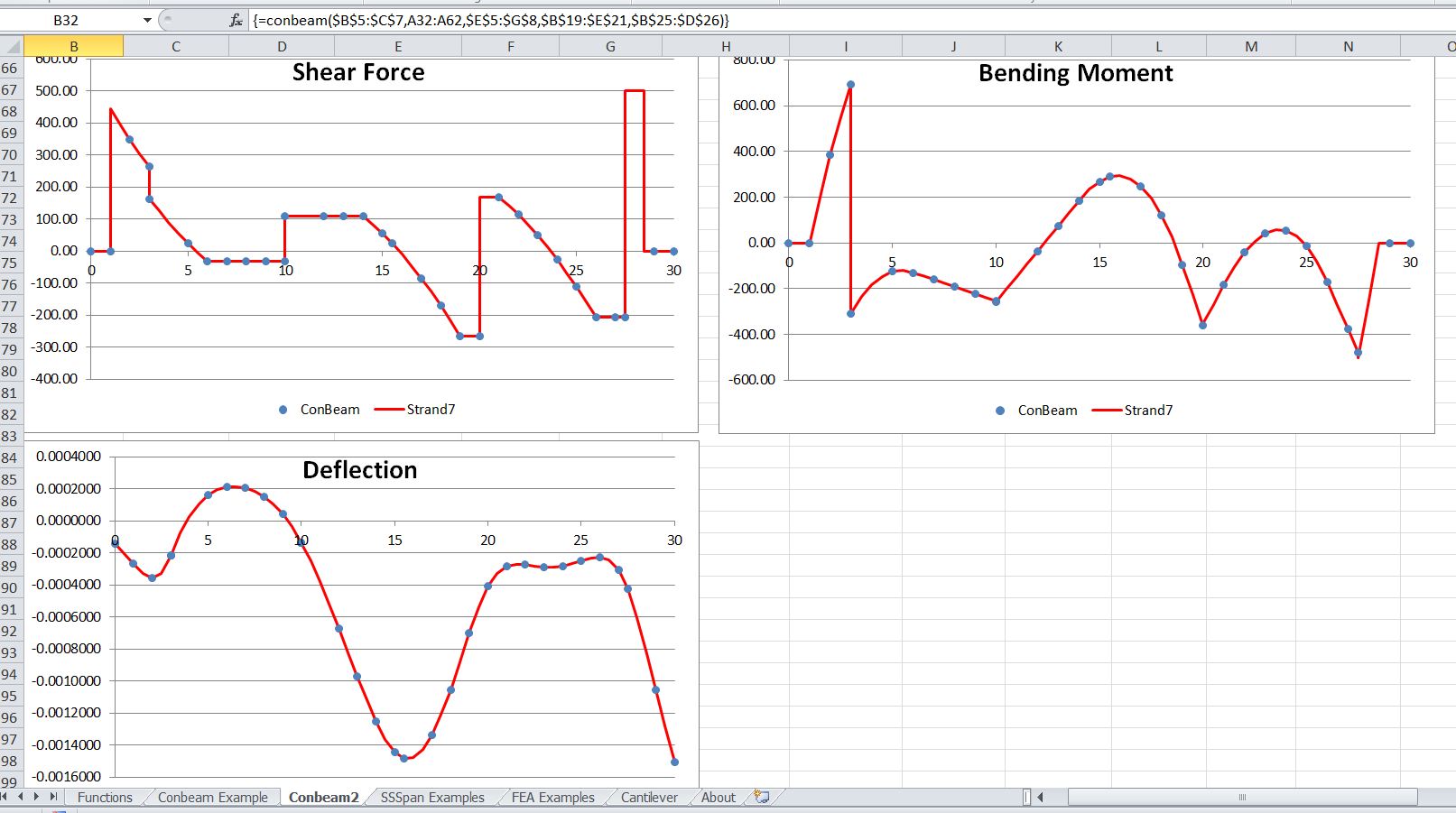
Conbeam output compared with Strand7 results

Posted in Beam Bending, Excel, Frame Analysis, Newton, UDFs, VBA | Tagged , , , , , | 36 Comments

Cambridge Digital Library

Newton Papers
Cambridge Digital Library
Cambridge University Library is pleased to present the first items in its Foundations of Science collection: a selection from the Papers of Sir Isaac Newton. The Library holds the most important and substantial collection of Newton’s scientific and mathematical manuscripts and over the next few months we intend to make most of our Newton papers available on this site.

This first release features some of Newton’s most important work from the 1660s, including his college notebooks and ‘Waste Book’.

Click to go to Flickr site

http://www.flickr.com/apps/slideshow/show.swf?v=109615

Posted in Newton | Tagged , , , | 2 Comments

Continuous Beams With Cantilevers by Macaulay’s Method

Edit 13 Apr 2014: See Continuous Beam Spreadsheet with Moving Load for the latest version, which is now called ConBeamU.

I have updated the Macaulay spreadsheet (described here) to allow the analysis of continuous beams with cantilevers at one or both ends.  The updated spreadsheet (including full open-source code) can be downloaded from Macaulay.zip.

My first attempt was to write a Cantilever user defined function (UDF), then apply the end moment and reaction from this function to a continuous beam with simple supports at the beam ends.  I ended up with a different approach, but the Cantilever UDF was completed, and is included in the download spreadsheet.

Cantilever Function Output

It turned out to be simpler to just amend the code to allow the input of the position of the end supports, with some fairly minor adjustments to the Macaulay analysis code.  Input and results for a three span beam with cantilevers both ends are shown in the screenshots below (click on any image for full size view).  As before, the results have been compared with an analysis in Strand7, and show near exact agreement.  See earlier posts in this series for more details of the background to Macauley’s method, and details of how to use the functions.

Conbeam Input with Cantilever Ends

Conbeam output compared with Strand7 results

Conbeam and Strand7 Results Compared

Posted in Beam Bending, Excel, Frame Analysis, Newton, UDFs, VBA | Tagged , , , , , | 12 Comments

Linest, NPV, IRR and solving polynomials

In a comment on Using LINEST for non-linear curve fitting Lori Miller posted a formula that found the coefficients fitting a cubic polynomial curve to a set of data, then solved the resulting equation to find the X value for a given Y value:

=IRR(LINEST(Yrange,Xrange^{1,2,3})-{0,0,0,1}*YValue)*1+1

which recently raised a question of how it works.

The Linest part is straightforward, as explained in the body of the post, it returns the coefficients of the cubic curve of best fit through the points specified in XRange and YRange:    y = ax3 + bx2 + cx +d

These values are returned as an array, and subtraction of the array {0,0,0,1}*YValue subtracts Y from the d value, resulting in ax3 + bx2 + cx +d – y = 0

The IRR part requires some background, including definition of Net Present Value (NPV) and Internal Rate of Return (IRR).

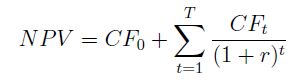
If a series of cash flows are made at regular intervals, the present value of those cash flows may be found by applying a discount to those occurring in the future:

where: CF0, CF1, … CFt are the cash flows, and r is the discount rate over each time step.

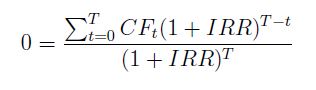
The Internal Rate of Return (IRR) is then defined as the discount rate that will result in the cash flows having  a NPV equal to zero:

Which may be written as:

Multiplying both sides by the denominator:

Which may be written as:

where a0 to an are the coefficients of the polynomial equation, and x = 1+IRR.

It follows that the function IRR({a, b, c, d – y}) + 1 is the desired solution to the equation:

ax3 + bx2 + cx +d – y = 0

As stated in the original comment, this approach is easily adapted to higher powers, although the use of cubic splines will often give more stable results.

Finally for those wanting to solve high order polynomials also consider the use of the Jenkins-Traub method, which has been incorporated in a user defined function, which is described in: Evaluating higher order polynomials, which will work in situations where the IRR method will not return a result (such as roots with negative value), often provides better precision, and will return complex roots.

Note: the derivation of the polynomial solution from the definition of IRR was taken from:

NPV and IRR by Dan Saunders

Posted in Excel, Maths, Newton, UDFs, VBA | Tagged , , , , , , | 3 Comments

Linestgap with data in rows

In response to a comment I have modified the LinestGap function to work on data arranged in rows.  This function works the same as the Excel built in LinEst function, but ignores any data that has a blank cell in the x or y values.  It is described in more detail at: Using LinEst() on data with gaps, and the revised spreadsheet (including full open source code) may be downloaded from: Linest-poly.xls

The screenshot below shows the revised function used to fit a quadratic curve to data arranged in rows:

The function in the edit box shows the X data specified in the form of an array function:

  • =LINESTgap(B30:L30,B28:L28^{1;2})

This must be typed as shown, then entered into the spreadsheet by pressing Ctrl-shift-enter, when it will display as {=LINESTgap(B30:L30,B28:L28^{1;2})}.

It is important to note that when the data is arranged in rows the exponents for the x values must be entered as a column array, with a semi-colon separator: {1;2}.  When the data is arranged in columns then this is entered with a comma: {1,2}.

Alternatively the x and x^2 values may be generated explicitly on the spreadsheet, as seen in rows 28 and 29, and then the function is entered as:

  • =LINESTgap(B30:L30,B28:L29)

In this case the function will return the first result when entered as a normal function (with the Enter key), but to return all three results it must still be entered with Ctrl-shift-enter (see Using Array Formulas for more details).

The function works with data in rows by simply using the Worksheetfunction.Transpose function on both the X and Y data if the specified Y range has more columns than rows.

Posted in Excel, UDFs, VBA | Tagged , , , , , , | 11 Comments