
“Beam Design Functions” is an Excel spreadsheet providing a User Defined Function (UDF) that will calculate the stresses, strains, forces and moments in a reinforced or prestressed concrete section subject to any specified bending moment and axial load, using an elastic analysis. The only restriction is that the section must be symmetrical about the vertical axis (i.e. the axis perpendicular to the axis of bending). The spreadsheet may be downloaded from: Beam Design Functions.zip
I recently had a request to provide more detail about how to use the spreadsheet, so here it is:
Like most of my engineering spreadsheet programs, the functionality of the spreadsheet is provided by a UDF, called Elastic in this case, which returns a variety of different arrays, depending on the input values. This provides a great deal of flexibility, allowing the function to work directly on the output of a frame analysis program for instance, but for starting out it is better to work with the example set up on the spreadsheet. The procedure is:
- Enter the concrete section details, in the grey shaded range on the Elastic1 Input sheet.
- Enter the reinforcement and prestress (if any) details.
- Enter the applied moment, axial load, and load eccentricity
When the data is entered the depth of the Neutral Axis and the tension face (top or bottom) will appear in the pink shaded range; more detailed output options are described below. The section can also be plotted by clicking the “Redraw Section” button. Sample input data is provided on the Examples sheet, and this may be simply copied and pasted into the appropriate data ranges. The screenshot below shows data for a circular sections, modelled as a series of trapeziums:

"Elastic" input for a circular section, click for full size view
Note that:
- The concrete section is specified in trapezoidal layers from the top face, by layer depth, top width, and bottom width.
- Voids may be specified by entering the top and bottom width of the void under B3 and B4.
- The concrete elastic modulus must be entered on the top row, and for any layer with a different modulus to the layer above.
- Reinforcement is specified by depth from the top face, diameter and number. It is assumed to be symmetrical about the vertical axis.
- The steel elastic modulus must be entered on the top row, and for any layer with a different modulus to the layer above.
- Prestressing is specified by the force per strand for each layer. The force should allow for lock-off and friction losses (if applicable), but elastic losses are calculated by the program.
- See the “Contents” sheet for more details about sign conventions, datum for eccentricity of loads, etc.
Having entered the section details and loads, detailed output information is given by the Elastic UDF on the “Elastic1 Out” sheet.
The download spreadsheet has been set up to adjust the input ranges automatically; the ranges are shown in cells C3 and C4, using a rather lengthy formula:

Calculated input ranges
These ranges are then called in the Elastic function, using the Indirect function:
=(Elastic(INDIRECT($C$3),INDIRECT($C$4),’Elastic1 Input’!$A$6,’Elastic1 Input’!$B$6,’Elastic1 Input’!$C$6,C$7,0))
For general use elsewhere it is easier to enter the ranges directly, using the function wizard:

"Elastic" Function arguments in the Function Wizard
If the input data is entered in the grey shaded ranges on the input sheet it is not necessary to make any changes to the Output sheet, the data shown below will be automatically displayed:

"Elastic" Stress, strain force and moment results
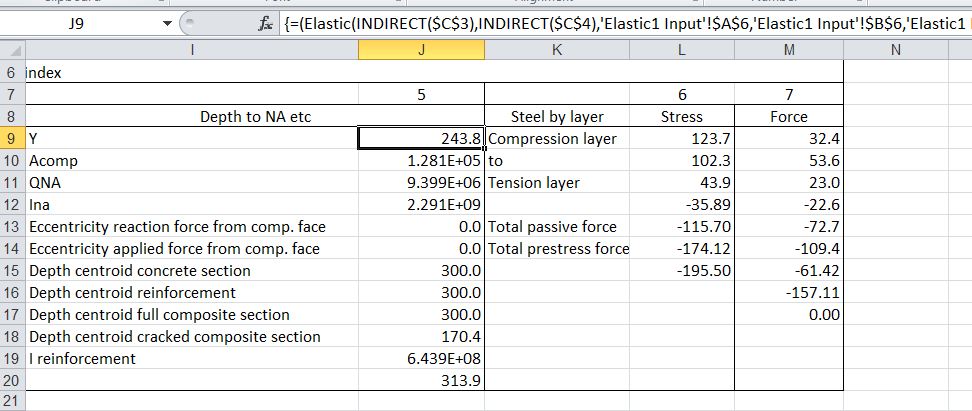
"Elastic" Miscellaneous, steel stress and steel force by layer results
If it is desired to display the results in a different location in the spreadsheet, or in a different spreadsheet, it must be reentered as shown below:
=Elastic(conc, reo, momin, axin, Optional [eccentric, Out_Index, Units])
- Conc: A 6 column range with concrete cross section details
- Reo: A 6 column range with reinforcement and prestress details
- Momin: The applied bending moment
- Axin: The applied axial load
- Eccentric: The eccentricity of the applied load
- Out_Index: An index number controlling the output data, see example output.
- Units: 0 for loads and eccentricity in kN and metres, dimensions in mm, stresses in MPa (default), any other number for any consistent units.
To see all the results for any output column the function must be specified as an array function. See here for details: Using Array Formulas
But once again, if you use the shaded input areas on the Input sheet, you don’t need to change anything on the output sheet.
If anything isn’t clear, or you would like more details of anything, please ask in the comments area below.





 Newton Excel Bach, not (just) an Excel Blog