XLDennis, the MSDN Library, and VBA rant

Dennis Wallentin, aka XLDennis, is a long time contributor to the on-line Excel community and co-author of the latest version of Professional Excel Development.  In recent years he has concentrated on the use of the VSTO and .NET products in conjunction with Excel, which you can read all about at his blog: VSTO & .NET & Excel, which has now been added to my blog list on the right.

Browsing the blog led me to the Microsoft All-In One Code Framework, which led me on to the MSDN Library.

Now don’t get me wrong, these are excellent resources, and well worth exploring, but what immediately struck me at the Developer’s Library was the invisibility of VBA.  Not surprising, perhaps, that there should be nothing under “Development Tools and Languages”, but surely the most widely used development tool for Office Applications should have a heading of its own under Office Development?   But no, to find a VBA related article we need to go down another three levels to MSDN Library: Office Development: Microsoft 2010: Excel 2010: Technical Articles: where we find:

 Getting Started with VBA in Excel 2010

So what does it have to say?

Microsoft Excel 2010 is an extremely powerful tool that you can use to manipulate, analyze, and present data. Sometimes though, despite the rich set of features in the standard Excel user interface (UI), you might want to find an easier way to perform a mundane, repetitive task, or to perform some task that the UI does not seem to address. Fortunately, Office applications like Excel have Visual Basic for Applications (VBA), a programming language that gives you the ability to extend those applications.

So that’s how Microsoft see VBA these days, “an easier way to perform a mundane, repetitive task, or to perform some task that the UI does not seem to address”.  To be fair, later on they do say:

VBA is not just for repetitive tasks though. You can also use VBA to build new capabilities into Excel (for example, you could develop new algorithms to analyze your data, then use the charting capabilities in Excel to display the results), and to perform tasks that integrate Excel with other Office applications such as Microsoft Access 2010. In fact, of all the Office applications, Excel is the one most used as something that resembles a general development platform. In addition to all the obvious tasks that involve lists and accounting, developers use Excel in a range of tasks from data visualization to software prototyping.

But even here it seems that Excel plus VBA is only something that “resembles a general development platform”.  With this level of lack of excitement from Microsoft is it any wonder that VBA is so often seen as a toy solution that no professional developer would waste their time on?  Now I’m not saying that VBA is the answer to everything, far from it, but neither is it, as often claimed, the second best solution to everything.  For rapid development of convenient and efficient tools for a wide range of numerical analysis problems, in engineering and scientific applications as well as finance, I don’t know of any tool that comes close to a spreadsheet with an integrated programming language; and as the de-facto standard application Excel with VBA is the obvious tool to fill that role.

Nearly forgot; what do you think?  The comment box is just down there.

Posted in Computing - general, Excel, VBA | Tagged , , , | 13 Comments

Inserting a list of names

Another function that I don’t use much, and that got hidden by the Ribbon, is the command to insert a list of named ranges together with the addresses they refer to.

Here’s where they hid it:

Formulas Tab; "Use in formula" button; down the bottom; - or just press F3

On the Formulas Tab, in the Defined Names box, is the “Use in Formula” button, and if you click that you get a list of named ranges, with “Paste Names…” right at the bottom, and if you click that you get the dialog box shown, which if you click the “Paste List” button will paste a list of all named ranges and their addresses.

Or alternatively just press F3, which brings up the Paste Name dialog, with the paste list button.

Posted in Excel | Tagged , | 1 Comment

More on writing arrays to the worksheet

Writing a large VBA array to the worksheet in a single operation, rather than cell by cell, can result in a huge improvement of the speed of many macros.  The basic technique was described here.  I recently wanted to modify this technique to write a number of arrays from a loop into adjacent ranges on the same sheet, then adjust the range name to cover all the arrays, so they could be cleared in one operation.  This is the code I came up with:

' Clear all old data
Range("DfileRes").ClearContents
' Reset column offset and maximum number of rows counters, and number of columns per array
DatOff = 0
Maxrows = 0
NumCols = 11

For i = 1 to NumOut
' Fill array "Stressa"
' ...
' Get size of output array; Numrows and reset Maxrows if necessary
' ...
If Numrows > Maxrows then Maxrows = Numrows

' Write array to spreadsheet
Range("DfileRes").Offset(0, DatOff).Resize(NumRows, NumCols).Value = Stressa

' Recalculate column offset value, "DatOff"
DatOff = DatOff + NumCols + 1  ' 1 blank column inserted between each output array

Next i

' Resize output range to cover all data
Range("DfileRes").Resize(Maxrows, DatOff).Name = "DfileRes"

The line that does all the work is:

  • Range(“DfileRes”).Offset(0, DatOff).Resize(NumRows, NumCols).Value = Stressa

This generates a range offset from the top left cell of the range “DFileRes” by zero rows and DatOff columns, with a size of NumRows x NumCols, and writes the contents of the array “StressA” into that range.  Note that a range named “DFileRes” must be created in the spreadsheet  for the macro to work.


Posted in Arrays, Excel, VBA | Tagged , , | 3 Comments

Using the Strand7 API

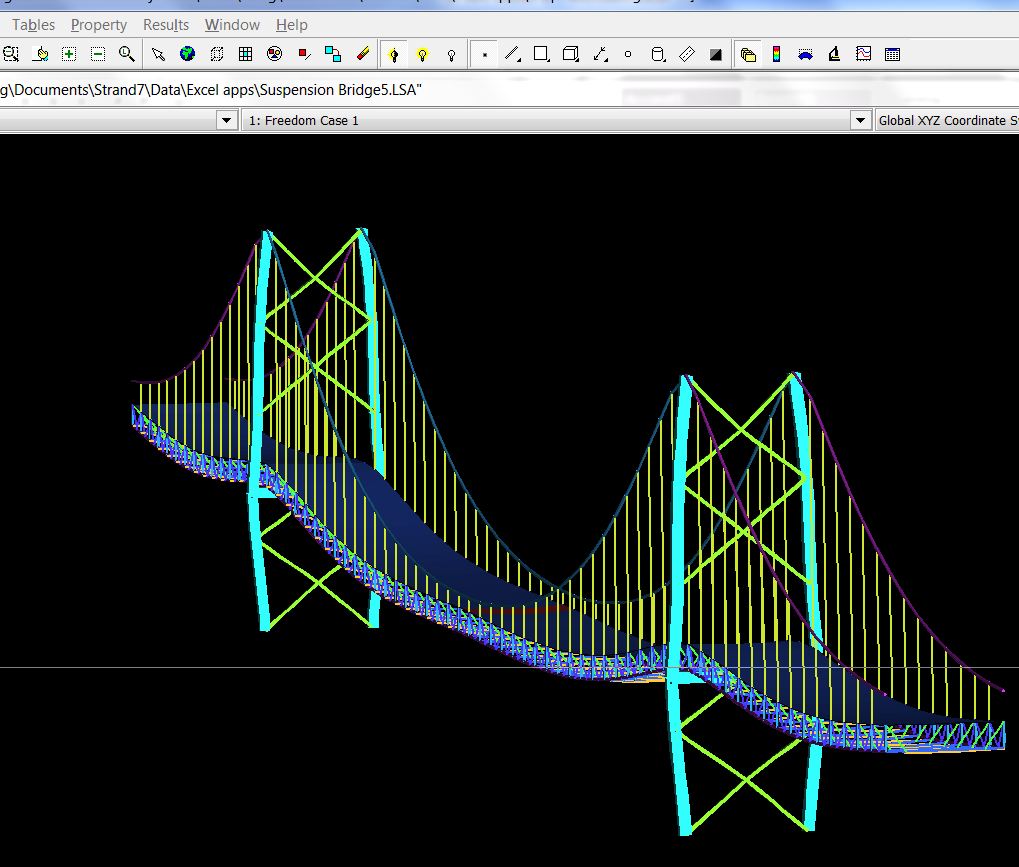
Strand7 is a general purpose Finite Element Analysis program, which has an Application Programming Interface (API), allowing external programs to interact with Strand7, including reading and writing to data files, running analyses, and reading the results.  The API is a comprehensive program, allowing control of almost all aspects of the software, but it is also very complex.  The manual consists of over 1000 pages of detailed technical information for instance.  To make the API more useable in a design environment I have written an Excel based front end, allowing the main functionality of the API to be accessed without programming, through a series of VBA routines and User Defined Functions (UDF’s).  A demonstration version of this spreadsheet may be downloaded from S7 API Tools.zip.  Unlike the other software on this site, this spreadsheet is intended for demonstration purposes only, and all the VBA code is hidden.  Future post on this blog will however cover the main elements in setting up an API application, including open source code.

The features of the spreadsheet are listed in the two screenshots below.

S7 API Tools – Introduction

Contents

The following screen shots illustrate the process of importing a Strand7 data file (using the Suspension Bridge example included in the Strand7 Bonus Models pack), modifying the properties of the main suspension cables over a range of values, running the analysis and importing deflection results into Excel:

List the data files, and import from data file 1

Node listing from imported data

Enter formulas to modify beam properties of the required range

Deflection results imported into Excel.

Strand7 Results View, showing deflections with 50x magnification.

Posted in Excel, Finite Element Analysis, Frame Analysis, Newton, UDFs, VBA | Tagged , , , , , | 7 Comments

Flipping Coin Problems

At Daily Dose of Excel Dick K. looks at a VBA solution to this problem:

Problem description: Take a stack of coins all heads up. Upturn the topmost coin, place back on the stack and then proceed: take the top 2 coins and upturn as a single stack (tail, head becomes when upturned and placed back on the stack tail, head (the two coins are flipped as if glued together)). Now in the same way flip the top 3 coins and place back on the stack (you get: tail, tail, head (and if there were 4 coins that would be tail, tail, tail, head). When you upturn the whole stack begin again with the first coin. Continue until you return to a stack with all heads up.

Dick’s macro produced this output for 1 to 50 coins:

Flips vs Number of Coins

I thought I’d see if I could come up with a reasonably tidy macro-free solution.  The formula I came up with is:

  • =IF(D$1<$B2,C2,MOD(INDEX(C$2:C$100,C$1+$A2-$B2+2)+1,2))

This treats a zero as a head, and a 1 as a tail.  The formula was entered into cell D2 and copied into D2:I7 (for a 6 coin stack), with numbers 1 to 6 in D1:I1 zeros in A2:A7, 1 to 6 in B2:B7 and zeros in C2:C7 :

First 6 flips

Next cells D2:I7 were copied to D9:I14; =I2 was entered in C9 and copied down to C14; =A2+7 was entered in A9 and copied down to A14, and 1 to 6 entered in B9:B14

Second block of six flips

This block of 6×9 cells (A9:I14) can then be copied down as often as required:

Completed solution for 6 coins

Having done that, I thought I’d try a similar approach in VBA.  Here’s the code:

Sub CoinStack2()
Dim StackA() As Long, NumCoins As Long, Numtails As Long, NumIts As Long
Dim i As Long, j As Long, k As Long, L As Long, ItTable() As Long, NumOut As Long
Const MaxLoops As Long = 1000000

NumOut = 300
ReDim ItTable(1 To NumOut, 1 To 2)

For L = 1 To NumOut
NumCoins = L
ReDim StackA(1 To NumCoins, 1 To NumCoins + 1)
Numtails = 0
NumIts = 0
For i = 1 To MaxLoops
For j = 1 To NumCoins
StackA(j, 1) = StackA(j, NumCoins + 1)
            Next j

For j = 1 To NumCoins
NumIts = NumIts + 1
                For k = 1 To j
StackA(k, j + 1) = (StackA(j - k + 1, j) + 1) Mod 2
Numtails = Numtails - StackA(k, j) + StackA(k, j + 1)
                Next k
For k = j + 1 To NumCoins
StackA(k, j + 1) = StackA(k, j)
                Next k
If Numtails = 0 Then
ItTable(L, 1) = L
ItTable(L, 2) = NumIts
GoTo nextstack
                End If
            Next j
Next i
nextstack:
    Next L
Range("stacka").Resize(L - 1, 2) = ItTable
End Sub

Output for up to 300 coins is shown below:

Number of Iterations vs Number of Coins (click for full size view)

The trend seen in Dick’s graph is continued, in fact the number of flips required to return to all heads is never more than n^2 (where n is the number of coins), but the peaks are more often n^2-1, and the number of points between peaks doesn’t seem to have any clear trend.  Also the trend for the minimum number apparent in the 1-50 coin graph seems to have disappeared.

Correction: Following Mawdo’s comment I had another look at the minimums, and there is a pattern, and it is more regular than the maximums.  For the integers 1,2,3 … m:

  • Coin stacks with (2^m)-1 coins are at a minimum
  • The number of flips required is  ((2^m)-1)(m+1); i.e. number of coins x (m+1)
  • The next stack (with 2^m coins) requires only (2^m)(m+1)-1 flips; i.e. number of coins x (m+1)-1
  • There are no other stacks that require less than (number of coins) x (m+1) flips.

I have added these minimum points to the chart below:

Iterations vs Number of coins with minimum line

Posted in Charts, Excel, VBA | Tagged , , | 2 Comments