Loopiest Anagram

A list of clever anagrams of  Douglas Hofstadter’s “I am a Strange Loop”

  • A Loop, Enigmas, Art;
  •  A Gal Remaps onto “I”
  • Loop Again, Master!

But the loopiest anagram for “I Am a Strange Loop” was:

  • Loopiest Anagram

Anagrams copied from: http://reocities.com/unmark/mblog.html (scroll down to Dec 2007, #32)

If you don’t see what is so clever about the anagrams, you’ll just have to read the book:
I am a Strange Loop

Posted in Bach | Tagged , | 1 Comment

Using LinEst() on data with gaps

A comment on Using LINEST for non-linear curve fitting asked if it was possible to use the function on data with gaps.  There are several options:

  1. Copy and sort the data to remove the gaps.
  2. Use the chart trendline function
  3. Use one of the on-sheet functions provided by Lori Miller in a reply to the comment.
  4. Use the LinEstgap() User Defined Function (UDF) that has been added to the Linest-poly spreadsheet.

A copy of linest-poly, including full open source code, may be downloaded from: LinEst-Poly.xls.  Both the on-sheet functions and the LinEstGap() function must be entered as an array function, as described here: Using Array Formulas

Use of these options (other than number 1) is shown in the screen-shots below:

With continuous data all options give the same result:

LinEst with continuous data

Deleting some data, the LinEst function returns an error, but the other functions return a result with the rows with blank cells ignored.  This result is consistent with the chart trend line result.

Linest on data with gaps

Using linest on filtered data (but with data in every row) includes the hidden rows in the analysis, as does the simpler of the two on-sheet functions.  The other options use only the visible data:

Linest with filtered data


The on-sheet formulas treat cells containing 0 (zero) as being blank, whereas the other options treat 0 as a valid data value:

LinEst including x value of zero

Posted in Arrays, Excel, UDFs, VBA | Tagged , , , , | 40 Comments

Bellows Falls Bridge

Sparked by this excellent high resolution photo from the Shorpy collection, posted at Eng-Tips, and a comment that it was a three-pinned arch (coming from Wikipedia), I thought I would investigate further.

Zooming in on the crown shows that there is indeed something different happening at the arch crown:

Hinge detail

… and this is shown more clearly in this detail taken from a collection of high resolution images at The Library of Congress.

Hinge Detail

The Library of Congress collection also includes a written report, and three detailed drawings, prepared at the time of the bridge’s demolition in 1982, from which excerpts are shown below (click on any image for a full screen view, or visit the Library of Congress site for full high resolution files:

Plan, section and notes (visit Library site for high resolution version)

Hinge Detail Drawing

Design notes

Posted in Arch structures, Historic Bridges, Newton | Tagged , , , | Leave a comment

Using Array Formulas

Many of my User Defined Functions (UDFs) return an array of values, that requires a special procedure to make all the values visible. I have usually given a brief description of the procedure with the UDF, but for convenience for future posts I will give a more detailed discussion here, and link to it in future.

In addition the use of array formulas is a powerful technique for use with built-in functions, so I will start with looking at that aspect.

As a simple example, take the case of generating a multiplication table from a row and column of numbers, each from 1 to 10.  One way is to enter a formula with a mixed absolute/relative address, and copy this over the required range, so with the numbers 1-10 in Row 2 and Column C:

=C$2*$B3

when copied from C3 to L12 gives:
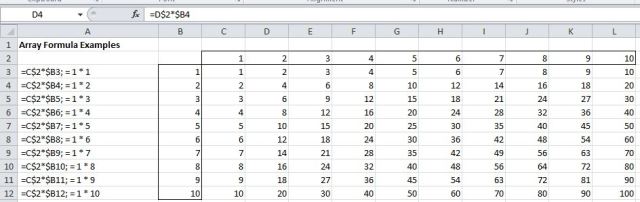
The same result can be reached using an array formula:

=C14:L14*B15:B24
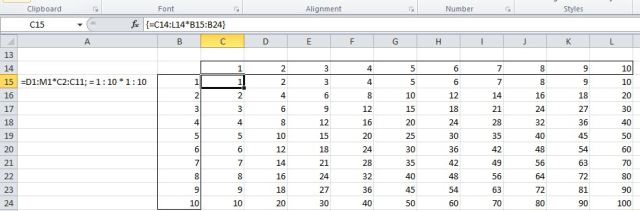
Table using an array formula

The procedure is:

  • Enter the formula as shown in cell C15 and press enter as usual
  • Select the entire range where output values are required: C15:L24
  • Press F2 to enter “edit” mode
  • Hold down the Ctrl and Shift keys and press Enter to enter the formula as an array formula
  • The results will now display over the selected range, and the formula will show in the edit bar surrounded by {}

A similar result is given by the built-in function MMult().  Note that to get the desired result with MMult the order is important.  Specify the row first, then the column:

=MMULT(B15:B24,C14:L14)
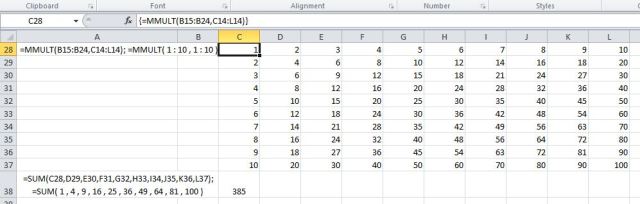
Table using MMult

The same procedure is used with a UDF that returns an array result.  For instance the procedure for the CSplineA function is:

  • Enter the function at the top of the desired output range: =csplinea($A$34:$A$38,$B$34:$B$38,$C$34:$C$55,1,1,B42,B43)
  • Select the complete output range: D34:D55
  • Press F2
  • Press Ctrl-Shift-Enter; the result (and associated graph) is shown below 
    CSplineA Function results

Important points to be aware of when using an array function are:

  • Any change to the function parameters will apply to the entire output range, and must be entered with Ctrl-Shift-Enter (just Enter will generate an error message).
  • You can extend the range of an array formula by selecting the extended range (including all of the original range) and pressing F2 followed by Ctrl-Shift-Enter
  • You cannot reduce the range of an array formula.  You must delete the entire range, then re-enter over the reduced range.
  • You cannot modify the formula over part of the range.
Posted in Arrays, Excel, UDFs | Tagged , , | 20 Comments

A Sailor’s Life

A Sailor’s Life was recorded by Fairport Convention in 1968 and marks the transition of the group from a pale copy of the American West Coast sound to an original and innovative re-interpreter of British folk songs.  At the time of the recording the lead guitarist, Richard Thompson, and the singer, Sandy Denny, had been with the group a matter of months, and the fiddler Dave Swarbrick had yet to join the group on a full time basis. The track was recorded in a single take, but is for me as good an example of the sublime interaction between these three as you will find (and not to forget the contribution of bassist Ashely Hutchings, guitarist Simon Nicol, and drummer Martin Lamble).  Read more at the You Tube link.  Put on your headphones, turn up the volume, and expand the video to full screen to enjoy the excellent accompanying graphics.  This is in my opinion an exceptional piece of music by any standards.

Edit 18 April 2023:  Unfortunately the Youtube video with the graphics has been removed, but you can still listen to the music:

Whilst researching the background to the Fairport version, I also found this fine interpretation by Sheila Chandra.  Very different, with some interesting parallels:

Posted in Bach | Tagged , , , , , , | 2 Comments