Showing numerical values of formulae cell references

This post follows from a discussion at Eng-Tips

The original question was for a way of displaying the value of each component of an Excel formula.  It is easy to display the formula, rather than the result, for all the formulae in any worksheet, using File(or Office) – Options – Advanced – Display options for this worksheet (or Tools – Options – View in Excel 2003 and earlier), but if you want to display the value of each cell reference in the formula, there is no built-in way to do this.

A link was provided to a macro by forum member macropod, which provided the required functionality, sending the results to a message box.  I have modified this routine to work on a column of formulae, rather than a single cell, and to write the results either to the adjacent column, or if a second range is selected, to this second range.  It would be convenient to write this routine as a Function, rather than a sub, but the routine used the method “Range.precedents.Cells”, and it seems that this does not work inside a function.

A sample worksheet, including open source code, may be downloaded from Getrefs.xls

The macro code and screenshots of the macro in operation are shown below:

Sub GetRefs()
  Dim MyRange As Range, strFormula As String, strVal As String, FormCell As Range
  Dim NumRows As Long, FormA() As String, i As Long, Outrange As Range

  NumRows = Selection.Rows.Count
  ReDim FormA(1 To NumRows, 1 To 1)
  i = 1
  For Each FormCell In Selection.Areas(1).Cells
  With FormCell
  strFormula = .Formula
  For Each MyRange In .Precedents.Cells
  With MyRange
  strVal = " " & Range(.Address).Value & " "
  strFormula = Replace(strFormula, .Address, strVal)
  strFormula = Replace(strFormula, .Address(RowAbsolute:=False), strVal)
  strFormula = Replace(strFormula, .Address(ColumnAbsolute:=False), strVal)
  strFormula = Replace(strFormula, .Address(RowAbsolute:=False, ColumnAbsolute:=False), strVal)
                End With
            Next

  strVal = "' " & .Formula & "; " & strFormula
        End With
  FormA(i, 1) = strVal
  i = i + 1
    Next

    With Selection
        If .Areas.Count > 1 Then
  Set Outrange = .Areas(2)
        Else
  Set Outrange = Selection.Offset(0, 1)
        End If
    End With
    Outrange.Value = FormA
End Sub
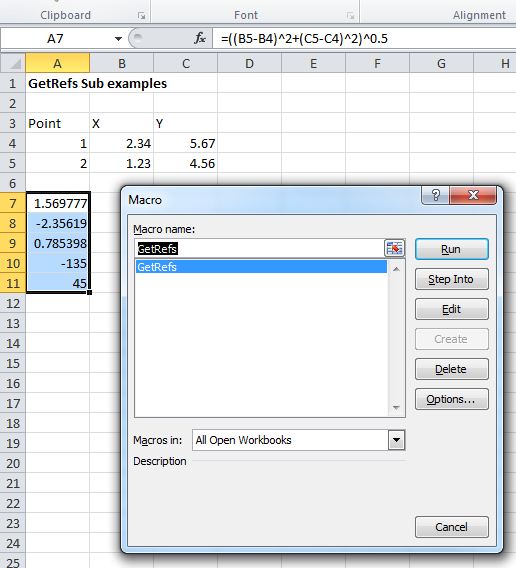
Select a single column range and run GetRefs

Results written to the adjacent column

Select two, non-adjacent ranges
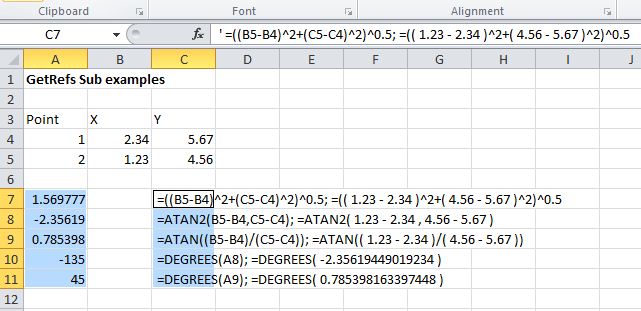
Results are written to the second selected range

Posted in Excel, VBA | Tagged , , , , | 9 Comments

Beware of the mod

Playing with a simple VBA user defined function (UDF), inspired by a thread at Daily Dose of Excel, I was finding it was mysteriously giving the wrong answer.

The task was to find the angle between the hands of an analog clock for any given time (given as a time serial number).  I came up with this formula on the spreadsheet:

  • =ABS(MOD(G2,1/2)*2-MOD(G2,1/24)*24)*360

which works, but when transferred to a VBA function:

Function Timeangle(TimeNum As Double) As Double
Timeangle = Abs((TimeNum Mod (1/2))*2 - ((TimeNum Mod (1/24))*24)) * 360
End Function

the UDF returned an error.

It seems that, for some reason best known to Microsoft, the VBA Mod function converts all values to Longs before doing its work, so any double between zero and one will be converted to zero, resulting in a divide by zero error in this case.

The solution to the problem is to not use the Mod function:

Function Timeangle(TimeNum As Double) As Double
Timeangle = Abs((TimeNum * 2 - Int(TimeNum * 2)) - (TimeNum * 24 - Int(TimeNum * 24))) * 360
End Function

An easily spotted error for a trivial application in this case, but this “feature” could cause some really hard to find bugs in a more complex application.

Posted in Excel, UDFs, VBA | Tagged , , | 2 Comments

Calling Add-in functions from VBA

When an Excel add-in is active any User Defined Functions (UDFs) in the add-in are available to any other open worksheet.  It might be expected that the same would apply to VBA routines defined in other files, but if you try calling an add-in function from VBA (other than from the add-in itself), you will find the function is not recognised.

This is an easy problem to fix.  The add-in needs to be referenced in the Visual Basic Editor.  Select Tools-References and either select the add-in from the list of available references, or if it is not on the list, use the browse button and select the add-in file.

Note that:

  • The add-in must be referenced for each file in which you wish to refer to it from VBA.
  • The add-in is referenced using the VBA Project name, not the file name.  It follows that the project name must be changed from the default (VBAProject), before selecting the reference.

An example of referencing the XNumbers add-in is shown in the screen shot below:

Referencing and add-in

Posted in Excel, UDFs, VBA | Tagged , , , , | 2 Comments

XLW

Prompted by a thread at The Wilmott Forums that linked here, I was prompted to take a look at XLW- A Wrapper for the Excel API.  This is what they say about themselves:

“XLW is an open source application that wraps the Excel C API in simple C++, C# or VB.NET interfaces which you can use to customize Excel with your own worksheet functions and menu items.

XLW developers include Financial Engineering practitioners with extensive experience of developing quantitative analytics in the finance industry including Mark Joshi the author of The Concepts and Practice of Mathematical Finance and C++ Design Patterns and Derivatives Pricing.”

I have yet to try it, so this isn’t a recommendation, but it does look interesting.

The Wilmott Forum thread is also worth a detailed read for different opinions on the best way to link Excel to compiled code.

Edit 14 Apr 2011:

Found via: http://chriscavanagh.wordpress.com/2008/04/13/excel-add-ins-in-c/

Moving from an Excel xla add-in to a C# add-in – a detailed account of the trials and tribulations of moving from an xla add-in to C#.  Not directly related to XLW, but well worth a read for anyone contemplating the same process.

Posted in Excel, Link to dll | Tagged , , | Leave a comment

Alternative IP and Rotations

In response to the 3D Intersections and PView Function posts Lori Miller has sent me two very elegant alternative ways of achieving similar results.

The first is an on-spreadsheet solution to the intersection of two lines, using the LinEst function:

Intersection point of two 3D lines

Note that if the lines intersect, Point 1 and Point 2 will have the same coordinates, otherwise they will be different.

The second is a perspective projection of a hypercube (specifically a 4D hypercube, or tesseract):

Tesseract Perspective Projection

 It took me some time to work out how this one worked.  The file is an xlsx, so there is no VBA, but also there is no visible data (other than a single number associated with each of the slider bars), but no hidden rows, columns or sheets either.  The secret is that all the data and calculations are in array formulas in defined names.  Have a look in the name manager and see if you can work out the algorithm.

The files may be downloaded from:

LineIP.xlsx

Hypercube.xlsx

Posted in Arrays, Charts, Charts, Coordinate Geometry, Excel | Tagged , , , | Leave a comment