AlgLib Complex Number Functions

The AlgLib module ap.bas includes complex number functions which can be called from other VBA routines, but they cannot be used as User Defined Functions (UDFs)  because they use the user defined data type “Complex”:

Public Type Complex
    X As Double
    Y As Double
End Type

To  call these functions from the spreadsheet an interface routine is required to convert the spreadsheet data into a complex data type, and for those functions that return a complex number, convert that back into a type that can be returned to the spreadsheet.  One option would be to use the Excel Complex() function on the spreadsheet and convert the resulting string into the Alglib Complex data type.  The use of strings to represent complex numbers seems to me to be cumbersome and inefficient, and for Excel versions before 2007 it requires the installation of the Analysis Tool Pack.  For these reasons I have chosen to use ranges of two adjacent cells to represent complex numbers.  The short routine below converts a single row, 2 cell, spreadsheet range (or a 1×2 array) into the AlgLib Complex data type:

Public Function Vara2Complex(ByVal Za As Variant) As Complex
Dim Z As Complex

If TypeName(Za) = "Range" Then Za = Za.Value2
Z.X = Za(1, 1)
Z.Y = Za(1, 2)

Vara2Complex = Z

End Function

All the modified routines have AL_ inserted in front of the AlgLib function name.

A similar routine could be used to carry out the reverse process, but because all the complex number routines are very short I have simply modified them to return a variant array rather than a complex data type.  An example is shown below:

Public Function AL_C_Mul(ByRef Z1a As Variant, ByRef Z2a As Variant) As Variant
    Dim Result(0 To 1) As Double
  Dim Z1 As Complex
  Dim Z2 As Complex

  Z1 = Vara2Complex(Z1a)
  Z2 = Vara2Complex(Z2a)
    Result(0) = Z1.X * Z2.X - Z1.Y * Z2.Y
    Result(1) = Z1.X * Z2.Y + Z1.Y * Z2.X

    AL_C_Mul = Result
End Function

A spreadsheet including Excel UDF versions of all the AlgLib complex number functions (including full open source code) can be downloaded here: Al-Complex.xls

Examples of each function (and the equivalent Excel function, where available) are shown in the screenshot below (click to view full size).

UDF versions of AlgLib complex number functions
Posted in AlgLib, Excel, Maths, Newton, UDFs, VBA | Tagged , , , , , | 2 Comments

Buckling of columns with varying cross section

Following a post in the Eng-Tips Forum about finding the buckling load of a stepped strut I have modified the Frame4 spreadsheet to carry out a buckling analysis of any straight member subject to axial load, including stepped or tapered cross sections.  The spreadsheet, including full open source code, may be downloaded from: Frame4Buckle.zip

The buckling load is found using the method of Vianello, described in a paper from the University of Ljubljana  (Note 20 Nov 14: The link to the University no longer works, but the iterative procedure used is described in Theory of Elastic Stability by Timoshenko and Gere).  This is an iterative method using successive approximations of the deflected shape:

  • Assume an approximation of the deflected shape.  In the spreadsheet a linear approximation is used from the fixed point(s) to the point of maximum deflection, which is assumed to be at the top of the column if the top is unrestrained in the X direction, or at mid height if the top is restrained.
  • Find the bending moments due to a unit axial load applied at the top in a column with this shape .
  • Find the deflections of a column subject to this bending moment distribution.
  • Normalise the deflections based on the maximum absolute deflection.
  • Update the column shape using the normalised deflections, and repeat the analysis.
  • Repeat until the difference in maximum deflection between successive iterations is negligible.
  • The buckling load is the inverse of the maximum deflection from the last iteration (before normalisation).

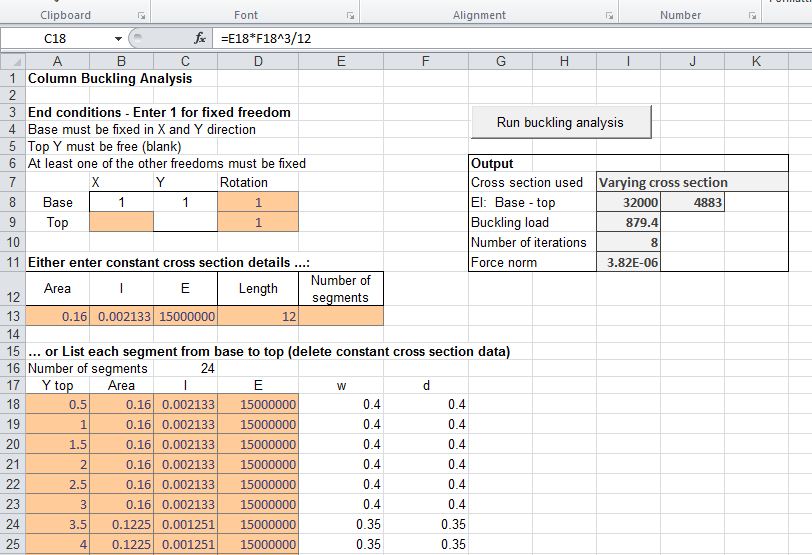
The Frame4 spreadsheet has been modified to generate the required input data and carry out the analysis simply and quickly for a straight member with axial load applied at one end.  The input required is:

  • End conditions: either 1 (fixed) or 0 (free) for base rotation, top X deflection and top rotation.  X and Y deflection at the base must be fixed, and Y deflection at the top must be free.
  • Cross section details: for a member of constant cross section specify the cross section area, second moment of area, and E (Young’s Modulus), and member length and number of sections in the analysis.  For a varying cross section enter the section details for every cross section, with the height to the top of the section.
  • If the number of sections is entered in the constant cross section data the constant cross section is used.  If this cell is blank or zero the varying cross section data table is used.

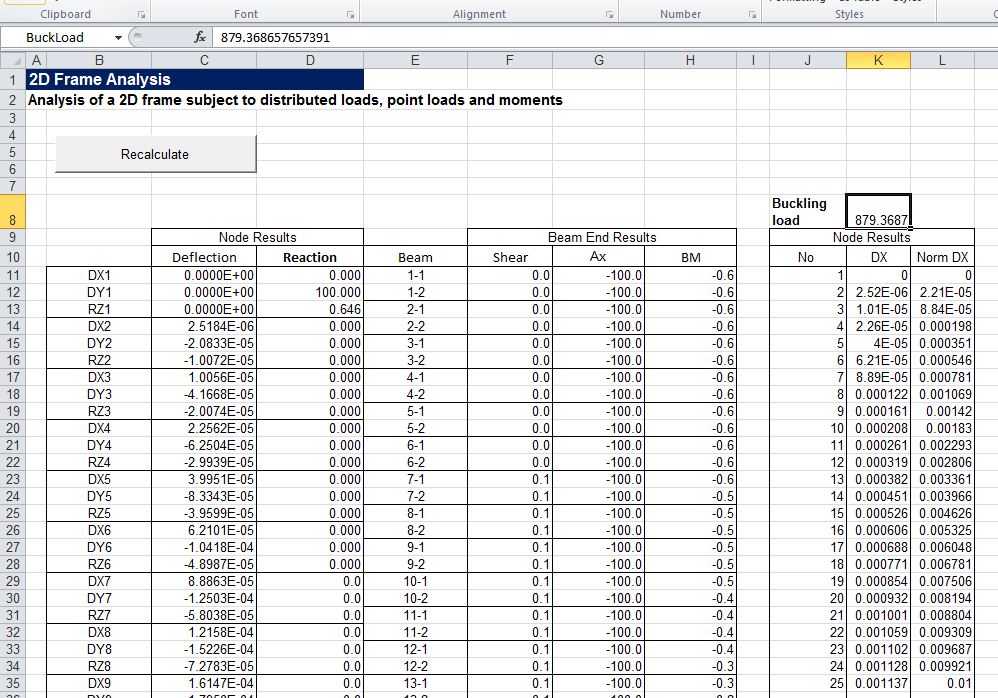
Typical input and results are shown in the screen shot below:

Frame4Buckle Input and Output, click image for full size view

The buckling shape may be plotted to a chosen scaled deflection:

Buckled shape

Calculated deflections and normalised deflections are listed on the “Output” sheet:

Analysis Output Details

Posted in Beam Bending, Excel, Frame Analysis, Newton, VBA | Tagged , , , , , , , | 27 Comments

A musical interlude …

… provided by my daughter’s latest music video with the excellent English band The Perishers:

Posted in Bach | Tagged , , | Leave a comment

Solving cubic and quartic equations with Excel

Although in earlier posts (such as this one) I have referred to some User Defined Functions (UDFs)  for solving cubic and quartic equations, I just realised recently that I haven’t actually talked about them here, and since they are in most cases the most practical way of dealing with these equations, that ought to be fixed.

An “on sheet” solution to quadratic, cubic and quartic equations can be found in the spreadsheet Polynom.xls by Alex Tomanovich, which can be downloaded from the ExcelCalcs site.

Polynom.xls Cubic solution

The solutions in polynom.xls provide an excellent explanation of the method of solution, but are not very flexible or practical for solving a large number of equations.  For that purpose I have written four UDFs:

  • Quartic
  • CubicC
  • Cubic
  • Quadratic

Each function, other than Cubic, returns the real and complex roots of a polynomial equation with coefficients specified in either a single column range or a single row range.  Cubic is for use when only the real roots are required, and is a little faster than CubicC.  The functions may either return a single specified root of the equation, or if entered as an array function, will provide all roots (including real and imaginary parts for complex roots) and the number of real and complex roots.  The spreadsheet may be downloaded from Polynomial.zip (including full open source code).  The screenshot below shows input and output:

Quartic.xls input and output, click for full size view

The cubic and quartic functions are based on Fortran code from The homepage of AK Kraska.

Posted in Excel, Maths, Newton, UDFs, VBA | Tagged , , , , , | 24 Comments

The hole through the middle of the Earth – moved to the Equator

Previous posts in this series assumed that the hole went from pole to pole, and ignored such complications as tidal effects and wobbles of the axis of rotation.  In this post we will examine the effect of moving the hole to the equatorial plane, so the ends of the hole (and anything dropped down them) have a significant velocity with respect to the centre.  The up-dated spreadsheet (including full open source code) may be downloaded from ODE-Buckle.zip.

But first, where can we place the ends of the hole?  There are actually very few suitable locations with land close to sea level at both ends.  The location I have chosen is shown below, with ends on the coast of Ecuador, and close to the West coast of Sumatra (found with the aid of antipodemap.com):

Ends of the Earth - at the Equator

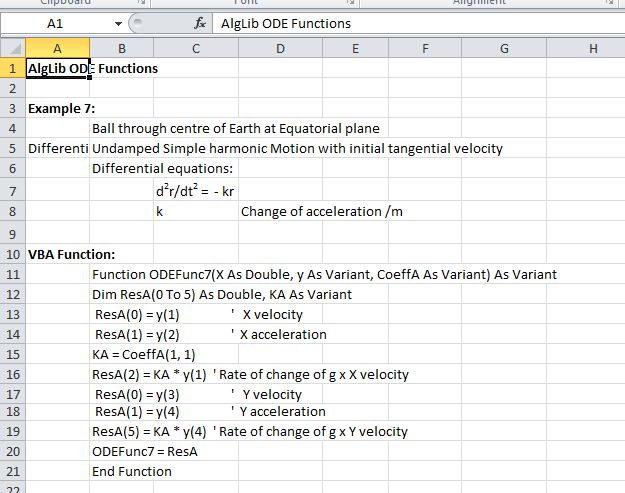
The ODE to be solved in this case is shown below.  It is very similar to ODEFunc4 (for a hole along the Polar Axis) , except the position, velocity and acceleration values are now each split into X and Y components, with X being along a line through the centre of the Earth on a non-rotating axis, and Y being distance in the perpendicular direction, on the Equatorial plane. 

ODE for hole through the centre of the Earth on the Equatorial plane

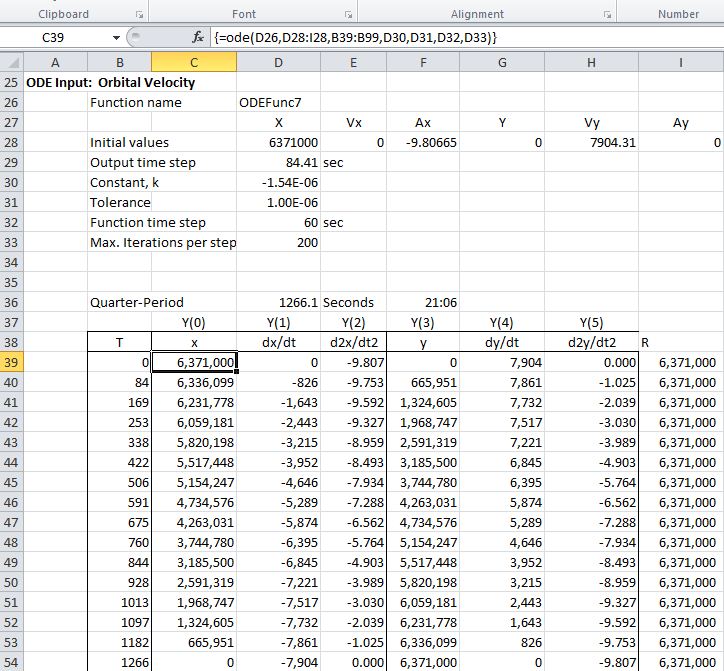
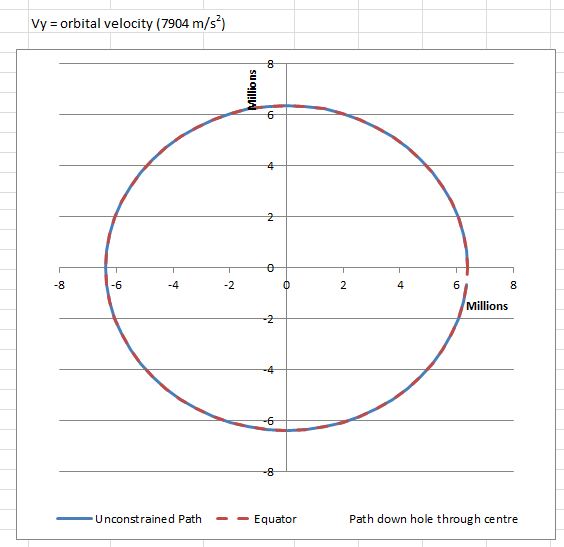
  The Y offset and acceleration in the Y direction are initially set to zero.  In order to check the output the Y velocity was set to orbital velocity.  The output results show a path following the surface of the Earth exactly, indicating that the ODE solution to the problem is providing accurate results:

Input and Output for a body released at the surface with orbital velocity

Plot of orbital velocity results

Finally the initial Y velocity was set to the surface of the Earth (463 m/s), modelling the situation when an object is dropped into a vertical hole at the Equator, with no horizontal velocity, relative to the Earth’s surface.  The results are shown below.  The blue line shows the path that would be followed if the object was unconstrained, and the green line the path followed if the object was constrained by the frictionless sides of a rotating hole.

Path for object dropped with zero velocity relative to the Earth's surface.

Posted in Differential Equations, Excel, Maths, Newton, UDFs, VBA | Tagged , , , , , | 2 Comments