Code Generator

One of the difficulties with Excel routines to solve differential equations, or do numerical integration, is that the equations to be solved must either be coded as VBA functions (which is time consuming), or solved using the evaluate function (which is slow and limited).  An alternative is to automatically generate the VBA function, using data on the spreadsheet; a process which can easily be fully automated so that it only requires the entry of the function to be solved in a suitable text format.  The code generation process is not difficult, but strangely there is little written about it.  The best source of information I have found is Chip Pearson’s site, where he provides detailed instructions, and many detailed examples.  In this post I will describe the essentials to get the process working, and provide a working example (with open source code).  Refer to Chip’s site for more details, and lots more open source code.

A setting  in the Visual Basic Editor (VBE), and an Excel option need to be changed to allow the code generation routines to work:

  • In the VBE choose Tools-References and select the Microsoft Visual Basic For Applications Extensibility 5.3 check box.
  •  From the spreadsheet, select the “Trust access to the VBA project object model” check box.  This is under the Developer Tab (macro security) in Excel 2007 and 2010, and under Tools-Macros-Security in 2003 and earlier versions.

Having done that, the code shown below should work.  I have adapted four procedures from Chip’s site:

  • Sub AddProcedureToModule()
  • Sub DeleteProcedure(ModName As String, ProcName As String)
  • Sub AddModuleToProject(ModName As String)
  • Function VBComponentExists(VBCompName As String, Optional VBProj As VBIDE.VBProject = Nothing) As Boolean

The basic is procedure is:

  • Prompt for a selected spreadsheet range containing the code module name, procedure name, and procedure code.
  • If the code module does not exist, create it.
  • If the procedure already exists, delete it
  • (Re)create the code
Sub AddProcedureToModule()
  Dim VBProj As VBIDE.VBProject
  Dim VBComp As VBIDE.VBComponent
  Dim CodeMod As VBIDE.CodeModule
  Dim LineNum As Long, CLine As Long
  Dim CodeRange As Variant, i As Long, ModName As String, ProcName As String
  Dim DefaultRange As String

    If Selection.Rows.Count > 1 Then
  DefaultRange = Selection.Address
    End If
    On Error GoTo Cancelled
  Set CodeRange = Application.InputBox _
  (Prompt:="Code range:", Title:="Select code range", Default:=DefaultRange, Type:=8)

  CodeRange = CodeRange.Value

  ModName = CodeRange(1, 1)
  ProcName = CodeRange(2, 1)

  If VBComponentExists(ModName) = False Then
  AddModuleToProject ModName
    End If

  Set VBProj = ActiveWorkbook.VBProject
  Set VBComp = VBProj.VBComponents(ModName)
  Set CodeMod = VBComp.CodeModule

  With CodeMod
        On Error Resume Next
  If .ProcCountLines(ProcName, vbext_pk_Proc) > 0 Then
  DeleteProcedure ModName, ProcName
        End If

  LineNum = .CountOfLines + 1
  For i = 1 To UBound(CodeRange) - 2
  CLine = LineNum + i
  .InsertLines CLine, CodeRange(i + 2, 1)
  Next i
    End With
Cancelled:
End Sub


Sub AddModuleToProject(ModName As String)
  Dim VBProj As VBIDE.VBProject
  Dim VBComp As VBIDE.VBComponent

  Set VBProj = ActiveWorkbook.VBProject
  Set VBComp = VBProj.VBComponents.Add(vbext_ct_StdModule)
  VBComp.Name = ModName
End Sub


Sub DeleteProcedure(ModName As String, ProcName As String)
  Dim VBProj As VBIDE.VBProject
  Dim VBComp As VBIDE.VBComponent
  Dim CodeMod As VBIDE.CodeModule
  Dim StartLine As Long, NumLines As Long
  Dim CodeRange As Variant, i As Long

  CodeRange = Range("coderange").Value
  ModName = CodeRange(1, 1)
  If VBComponentExists(ModName) = False Then
        Exit Sub
    End If

  Set VBProj = ActiveWorkbook.VBProject
  Set VBComp = VBProj.VBComponents(ModName)
  Set CodeMod = VBComp.CodeModule

  With CodeMod

  StartLine = .ProcStartLine(ProcName, vbext_pk_Proc)
  NumLines = .ProcCountLines(ProcName, vbext_pk_Proc)
  .DeleteLines StartLine:=StartLine, Count:=NumLines
    End With

End Sub


Public Function VBComponentExists(VBCompName As String, Optional VBProj As VBIDE.VBProject = Nothing) As Boolean
''''''''''''''''''''''''''''''''''''''''''''''''''''''''''''''''''''''''''''
' This returns True or False indicating whether a VBComponent named
' VBCompName exists in the VBProject referenced by VBProj. If VBProj
' is omitted, the VBProject of the ActiveWorkbook is used.
''''''''''''''''''''''''''''''''''''''''''''''''''''''''''''''''''''''''''''
  Dim VBP As VBIDE.VBProject
  If VBProj Is Nothing Then
  Set VBP = ActiveWorkbook.VBProject
    Else
  Set VBP = VBProj
    End If
    On Error Resume Next
  VBComponentExists = CBool(Len(VBP.VBComponents(VBCompName).Name))

End Function

The screenshots below show this code used to create a user defined function (UDF) to solve quadratic equations (included in the download file).  Click on any image for full size view.

Code Generator


Function code

Code range selection

Posted in Excel, VBA | Tagged , , | 1 Comment

Lateral pile analyis with PY curves …

… and non-linear pile properties.

In previous posts I have presented Excel User Defined Functions (UDFs) to analyse a laterally loaded pile, generate soil PY Curves based on the recommendations in the COM624 Manual, and determine the flexural stiffness of cracked reinforced concrete sections for rectangular and circular sections.  I have now combined these into one spreadsheet to provide a convenient and rapid analysis of laterally loaded piles, taking account of both soil and concrete non-linearity.

The spreadsheet includes full open source code, and may be downloaded from LatPilePY.zip.

New features in the functions include:

  • Soil PY curves may be automatically generated or externally generated curves may be used
  • The pile may be divided into any number of sections, each with either a fixed flexural rigidity, or for circular or rectangular reinforced concrete sections, a  calculated rigidity, based on the section properties, applied bending moment and axial load, and the concrete tensile strength  and modulus.
  • The flexural stiffness of reinforced concrete sections is based on the method specified in Eurocode 2, and includes the effects of tension stiffening, loss of tension stiffening, and shrinkage and creep.

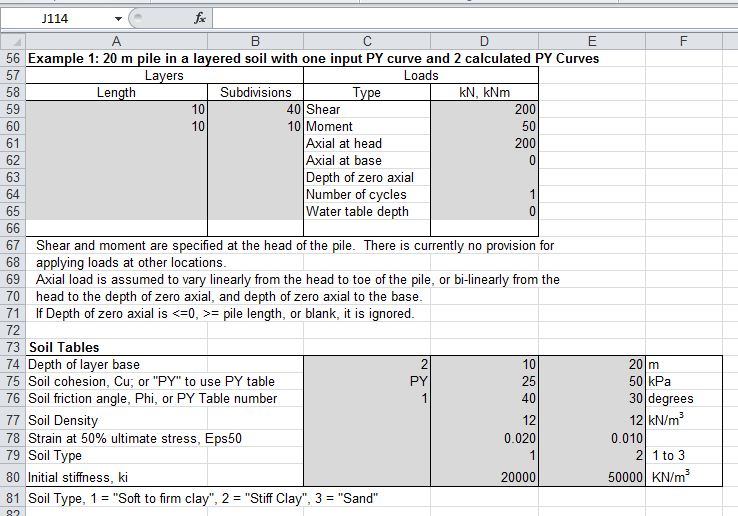
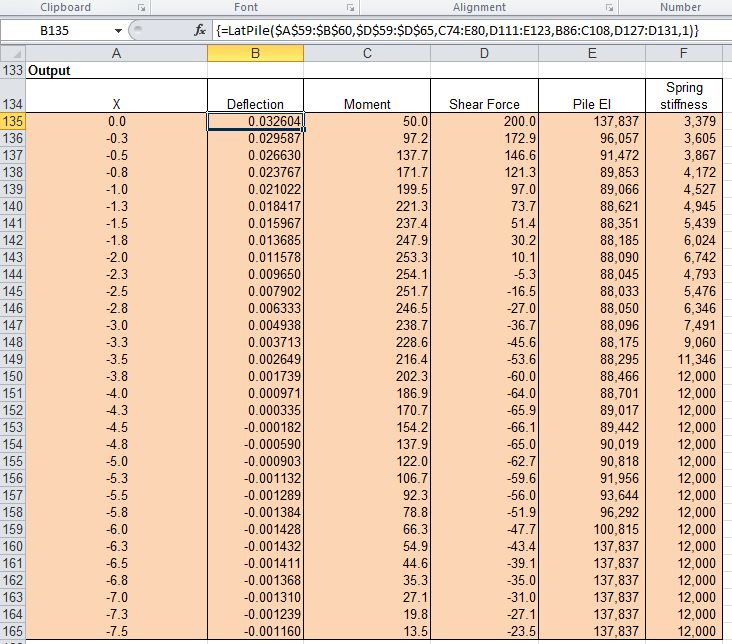
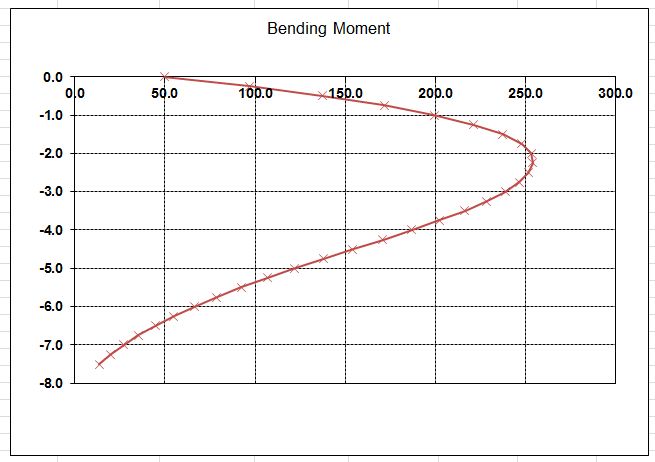
Typical input and output are shown in the screen shots below; further details are given in the spreadsheet.

LatPilePY, Input 1

LatPilePY, Input 2

LatPilePY, Input 3

LatPilePY, Output

LatPilePY, Deflection

LatPilePY, Bending Moments

LatPilePY, Shear Forces

Posted in Concrete, Excel, Geotechnical Engineering, Newton, UDFs, VBA | Tagged , , , , , | 17 Comments

Arches, anagrams and plagiarism

A previous post discussed Robert Hooke’s solution for the optimum shape of an ach structure standing under its own weight:

“Ut pendet continuum flexile, sic stabit contiguum rigidum inversum”
which translates as:
“As hangs the flexible line, so but inverted will stand the rigid arch

This statement was written by Hooke as an anagram, and only solved and translated after his death.  I noted at the end that the anagram had been miscopied at some stage,  with the insertion of an extra “e”, and the miscopied version seemed to have been accepted as correct, even at a site with an image of the original version.

Looking more closely, there are actually three errors in the “standard version”:

  • An extra e
  • An extra i
  • A v changed to a u

This analysis was done with the aid of a spreadsheet to count the letters in the solved text:

Click for full size view

Doing a Google search on the Internet version gets 121 results

Searching on Hooke’s version gets just 3 hits, two to this site, and one to a rather strange site who have copied my words exactly, other than changing “I” to “we” in a couple of places.

Posted in Arch structures, Newton | Tagged , , , | 3 Comments

The hole through the middle of the Earth – revised transit time

In the previous post in this series I produced a table of acceleration due to gravity against depth from surface, based on the four layers of the Earth (Crust, Mantle, Outer Core, Inner Core), assuming a constant density for each layer.  This showed that the variation of acceleration is far from linear, and that the maximum acceleration occurs not at the surface, but at the boundary between the Mantle and Outer Core. 

This table of accelerations can now be used as input to the ODE solver function to give a more accurate estimate of the time taken for a ball dropped down the Hole Through the Centre of the Earth to reach the centre (keeping all the other simplifying assumptions, such as perfect vacuum, no impact with the sides, etc).  The spreadsheet containing this calculation can be downloaded from ODESolver-Buckle.zip 

The revised function to be solved is shown in the screen shot below: 

Revised function for the ball through the centre of the Earth problem


Note that the CoeffA argument now contains an array of acceleration values at selected depths, rather than a single rate of change of acceleration value.  The CSpline function is used to return the slope of a cubic spline passing through these points, at the distance from the centre specified in Y(0). 

Input and part of the output results are shown below: 

ODE function input and output


The time to reach the centre of the Earth, taking account of the actual variation of acceleration with depth, has reduced from 1264.5 seconds to 1168.5 seconds (19 minutes 28.5 seconds), a reduction of about 7.6%. 

Graphs of distance from the centre, velocity, and acceleration against time are shown below, with the corresponding graph assuming linear variation of acceleration.  It can be seen that the maximum velocity has increased from 7,897 m/s to 9,636 m/s, and the acceleration at the Mantle/Outer Core boundary has increased from 5.4 m/s2 to 10.32 m/s2

Distance from Centre vs Time


Velocity vs Time


Acceleration vs Time

Posted in Differential Equations, Excel, Newton, UDFs, VBA | Tagged , , , , | 3 Comments

Update to CHSplineA Function

I have recently corrected the CHSplineA function included in the CSpline2 spreadsheet.  The earlier version was returning incorrect values for the slope and curvature of the spline (with output option 2), if the spacing of the points defining the spline was anything other than 1.

Posted in Excel, Maths, Newton, UDFs, VBA | Tagged , , , , , | Leave a comment