More on Worksheetfunction vs UDF

A recent post at Roy Maclean’s VBA Blog suggested that the difference between using a worksheetfunction call in VBA and writing a User Defined Function (UDF) to do the same job was not enough to be worth worrying about.  He tested this with a routine that:

  • read a range of data from a worksheet as a variant array
  • transposed the array (using either worksheetfunction.transpose or a UDF)
  • wrote the transposed array back to the spreadsheet
  • increased the dimensions of the range by 1 row and 1 column
  • repeated until reaching a 255 x 255 range size

Times for running this routine on my machine were:

  • worksheetfunction: 11.2 sec
  • UDF: 9.9 sec

so a small advantage with the UDF, but hardly worth the trouble; but cutting out some of the extraneous operations gives a different picture:

If the same routine is run with the line to write the transposed array back to the spreadsheet commented out the times are:

  • worksheetfunction: 4.8 sec
  • UDF: 3.6 sec

If the array data is read from the spreadsheet once, and the varying sized arrays created with a loop in VBA the times are:

  • worksheetfunction: 3.8 sec
  • UDF: 2.6 sec

And if the full size array is read from the spreadsheet once, and transposed 255 times, the times are:

  • worksheetfunction: 7.7 sec
  • UDF: 3.6 sec

 Finally if the size of the array is increased to 512×512 the times are:

  • worksheetfunction: 34.2 sec
  • UDF: 16.2 sec

So overall the results show that the actual transpose operation is a little better than twice as fast in the UDF, compared with using the worksheetfunction call.  Whether this is a worthwhile saving depends on the rest of the routine (and minimising the number of data transfers between VBA and the worksheet is probably the best place to look for time saving), but if a routine does a large number of transpose or other array operations on large arrays there may well be a significant saving by using a VBA UDF rather than using worksheetfunction calls.

Posted in Arrays, Excel, UDFs, VBA | Leave a comment

A very un-useful “feature”

A recent post in the Engineering Spreadsheets forum at Eng-Tips draws attention to a potentially dangerous Excel “feature”.

The feature is called “Extend data range formats and formulas” and can be found under Options-Advanced (click on the multi-coloured button in the top-left hand corner in Excel 2007, or the Tools menu in earlier versions).  This is what the 2007 help says about it:

 “Extend data range formats and formulas  Select to automatically format new items added to the end of a list to match the format of the rest of the list. Formulas that are repeated in every row are also copied. To be extended, formats and formulas must appear in at least three of the five last rows preceding the new row.”

Now making an exact (relative) copy of an existing formula when a new row of data is entered is one thing, but making automatic adjustments to existing formulas when data is entered in a blank cell is something else entirely (in fact I think it is downright rude), but this is what Excel does.

Try entering three numbers in cells A1 to C1, then the formula =SUM(A1:C1) in cell E1.  If you now enter a number in cell D1 the formula will be changed to =SUM(A1:D1), without asking.  If the number you enter is a zero the displayed value won’t even change, but the formula does.

If you enter text, the formula doesn’t change, and if you over-type the text with a number it still doesn’t change, but if you delete the text, then enter a number, it does automatically adjust.

If you enter the formula in cell F1 (leaving two blank cells), and enter data in cell D1, then cell E1, it will adjust for both, but if you enter data in cell E1, then D1, it adjusts for neither.

If you copy and paste into either cell either or both cells the formula does not adjust.

Formulas covering a column range act in much the same way.  Formulas will extend without warning when numerical data is entered into a blank cell underneath a column range used in a formula.

The solution is simple; go into Options-Advanced and unselect the “Extend data range formats and formulas” feature.

Posted in Excel | Tagged , | 1 Comment

Precious

“Precious” by Kerinne Jenkins has been selected for the London Independent Film Festival and the Heart of England Film Festival!

Precious

Precious

In a dystopian future, two men meet in an underground tunnel for an exchange of stolen goods.

Liam lives in the stacks, making small black market deals and dreaming of getting out of the city walls. The natural world is a distant memory for those who live in the slums of the city and the passes out are restricted to those with money. Conrad is young, rich and brash and thinks he can buy anything he wants. To him the world is there for his taking and those who aren’t as well off as him are just lazy.

Conrad has promised Liam a way out of the city and a better status in life, middle class status. The upgrade will give him a clean room, a small pension and a cremation service. For this and the transport pass Liam manages to steal an item for Conrad that he has been coveting.

The exchange seems set to give both parties what they want until Liam realises that Conrad has only come through on part of his deal. Ignoring Liam’s desperation and actual needs leads to a heated situation and neither party will leave with what they came for.

London Independent Film Festival

Now confirmed for Thu 23rd April 2009 at The Roxy:

Guest Speaker: Chris Jones
Making film in the UK
Thurs, Apr 23, 7:30pm at the Roxy — Free at the door
Chris Jones is the author of the Guerilla Filmmakers Handbook, and teaches masterclasses in low-budget filmmaking in the UK and around the world.

Heart of England Film Festival

Posted in Bach, Films | Tagged , , , | Leave a comment

Evaluating Pi …

… to 15 decimal places in one easy step (or not too difficult step).

In my previous post one of the examples given of the use of the Gaussian Quadrature function was to evaluate the value of Pi.  Let’s look at that a bit more closely.

Wikipedia has a nice article on the history of Pi, but like most such articles the methods described are either historical methods which are easy to understand but converge slowly, or recent methods which converge very quickly, but which are presented with little or no information about how they were derived.  For example the well known 20th Century Indian mathematician Srinivasa Ramanujan somehow derived the relationship:

\frac{1}{\pi} = \frac{2 \sqrt 2}{9801} \sum_{k=0}^\infty \frac{(4k)!(1103+26390k)}{(k!)^4 396^{4k}}\!

and in 1987 the Chudnovsky brothers  derived:

\frac{426880 \sqrt{10005}}{\pi} = \sum_{k=0}^\infty \frac{(6k)! (13591409 + 545140134k)}{(3k)!(k!)^3 (-640320)^{3k}}\!

which delivers 14 digits per term, but no indication is given of how these relationships were derived.

The early historical methods of calculating Pi, starting with Archimedes in the 3rd century BC, were based on the successive subdivision of polygons.

File:Archimedes pi.svg

Around AD 265, the Wei Kingdom mathematician Liu Hui provided a simple and rigorous iterative algorithmto calculate π to any degree of accuracy. He himself carried through the calculation to a 3072-gon and obtained an approximate value for π of 3.1416.

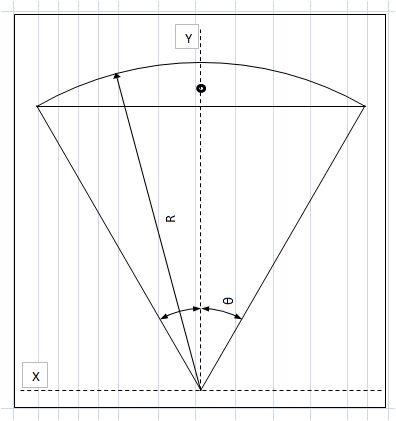
A simple way to improve the accuracy of the polygon approach is to find an approximation of the area between the circle and the polygon, and add this to the known area of the polygon.  Starting with a hexagon of unit side, this may be divided into 6 equilateral triangles and six circular segments with 60 degree included angle:

Area of 60 degree segment of circle

Area of 60 degree segment of circle

The area of the triangle is 0.5 x 3^0.5 / 2 (0.5 x base x height)

The equation of the segment is (1 – x^2)^0.5 – 3^0.5 / 2

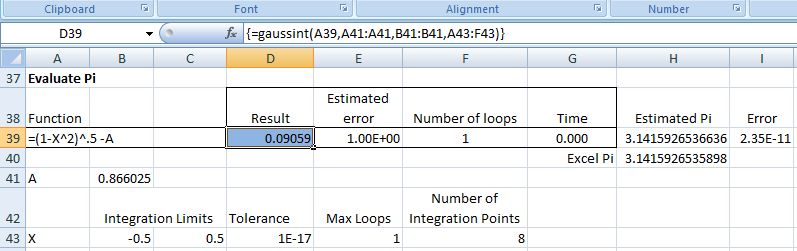
If this equation is integrated between x = -0.5 and x = 0.5, and added to the area of the equilateral triangle, this gives 1/6 the area of the circle of unit radius.  If the integration is evaluated using Gaussian Quadrature, with 8 integration points, the resulting area provides an estimate  of Pi with an error of 2.3E-11; not too bad:

Integration between -0.5 and 0.5

Integration between -0.5 and 0.5

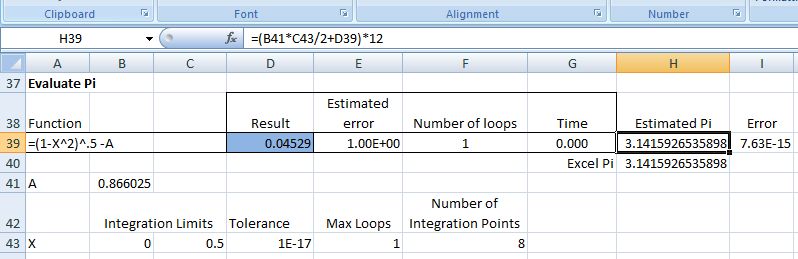
A further 4 significant figures can be obtained by simply changing the limits of integration to X = 0 to 0.5 (and adjusting the triangle area to suit, and multiplying the resulting area by 12):

Integration limits 0 to 0.5

Integration limits 0 to 0.5

The resulting estimate of Pi has an error of 7.6E-15, and matches the built in Excel Pi function to the 14th significant figure.

Posted in Excel, Maths, Newton, UDFs, VBA | Tagged , , , , | 4 Comments

Gaussian Quadrature

The previous post on integration provided an Excel User Defined Function (UDF) to perform numerical integration using Simpson’s Rule or the Trapezoidal Rule.  A third method is Gaussian Quadrature which is often much more accurate and/or quicker than Simpson’s Rule.  The UDF GaussInt() carries out integration using Gaussian Quadrature, in a similar format to the earlier functions, and has been added to the Eval.xls spreadsheet.  As far as I know this is the only open source VBA code with this technique available on the Web.

The basis of the method is to find the mean value of the function over the integration range by taking a weighted average of the function value at a number of specified points.  Using two integration points provides the same precision as Simpson’s Method using two subdivisions, but increasing the number of integration points increases the precision much more rapidly than a corresponding increase in the number of subdivisions using Simpson’s Method.  In addition to the function to be integrated, constant symbols and values, and the variable symbol, the UDF optionally allows the following values to be specified:

  • Tolerance (maximum estimated error / integration value) – default 1e-10
  • Maximum number of subdivision loops (the number of subdivisions, and approximate execution time, are doubled in each additional loop) – default 10
  • Number of integration points – default 8.

The UDF allows for between 2 and 12 integration points.  For each different number of integration points two arrays are set up, specifying the position and weight of each point.  The values for the required coefficients were taken from: ActiveState Code, and for values up to 8 integration points were checked at: Gauss Legendre Coefficients (link no longer active).

Having set up the coefficient arrays the analysis procedure is quite simple:

  • For each integration point: Substitute the position coefficient into the function
  • Evaluate the function and multiply by the appropriate weighting
  • Sum each integration point to estimate the integration result
  • If the required precision has not been achieved, double the number of subdivisions and repeat

As well as the integration result the UDF provides the estimated error, the number of loops required, and the execution time.

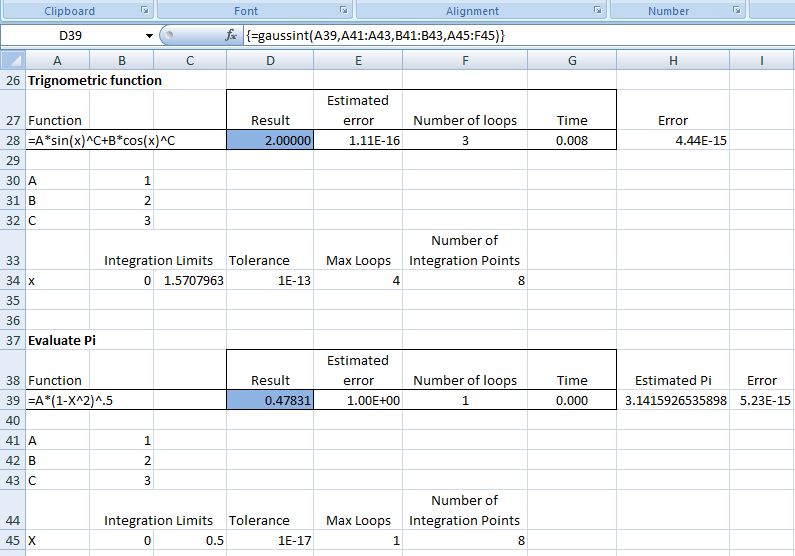
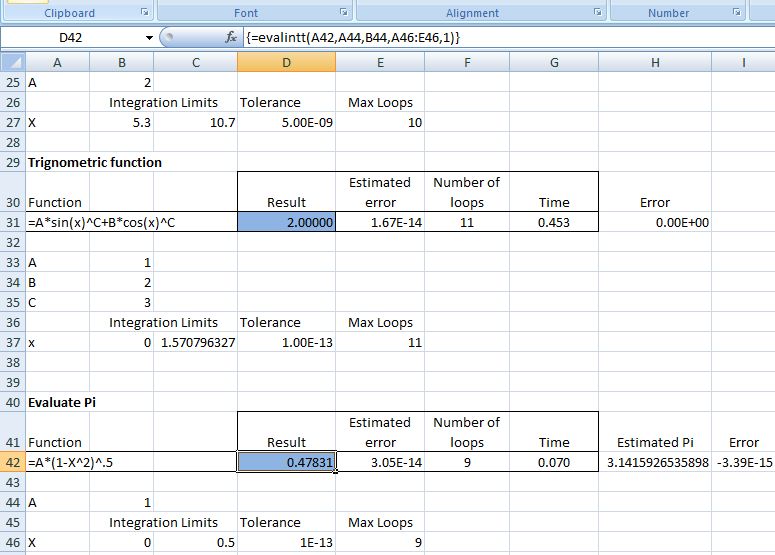
The screen shots below show the evaluation of a trigonometrical function (with exact value of 2), and an evaluation of Pi by finding the area under a unit circle between X=0 and X=0.5.  The upper screen shot is using the GaussInt function, and the lower one using Simpson’s Rule.  It can be seen that the GaussInt function is of the order of 60 times faster, for the same precision, compared with Simpson’s Rule in these cases.

Integration with GaussInt()

Integration with GaussInt()

Integration with EvalIntt(), (Simpson's Method)

Integration with EvalIntt(), (Simpson's Method)

Posted in Excel, Maths, Newton, UDFs, VBA | Tagged , , , , , , | 27 Comments