Trigonometric Functions in VBA – Update

In this post from February a set of VBA trigonometric functions were presented, using the derivations given on the Microsoft Developer Network site:

Derived Math Functions

Unfortunately two of the functions were wrong; the correct versions are shown below:

Inverse Secant Arcsec(X) = Atn(1 / Sqr(X * X – 1)) + Sgn((X) -1) * (2 * Atn(1))
Inverse Cosecant Arccosec(X) = Atn(1 / Sqr(X * X – 1)) + (Sgn(X) – 1) * (2 * Atn(1))

I have corrected the spreadsheet, which can be downloaded from: VBA Trig Functions

Does anyone know how I can notify Microsoft of the error?

Posted in Excel, Maths, Newton, UDFs, VBA | Tagged , , | 5 Comments

The Moon Smiles on Brisbane Water

Astronomy Picture of the Day for Friday Dec 5th:

Explanation: At sunset, Monday’s western sky showed off stunning colors and dramatic clouds reflected in Brisbane Water on the Central Coast of New South Wales, Australia. It also featured the remarkable conjunction of the crescent Moon, Venus, and Jupiter forming a twilight smiley face. While the gathering of the two bright planets and Moon awed skygazers around planet Earth, astronomer Mike Salway reports taking special pains to record this gorgeous view, braving mosquitos and rain squalls along a soggy shore. His southern hemisphere perspective finds brilliant Venus at the highest point in the celestial grouping. For now, a bright pairing of Venus and Jupiter continues to dominate the western horizon after sunset but the Moon has moved on and tonight is near its first quarter phase. ”

And something completely different.

Posted in Newton | Tagged , | Leave a comment

Linking Excel to Fortran – 2

In this post the procedures described for C++ here will be replicated for Fortran:

The spreadsheet, fortran source code, and compiled dll described in this code may be downloaded from Cubic.zip

As always, it is better to use the downloaded code, rather than copying from the post, because the WordPress software changes quotes (“”) and several other characters, so that code copied and pasted from the post will often not run without editing.

This post describes:

  • Transferring arrays between VBA and Fortran.
  • Writing and compiling a simple Fortran function to solve quadratic equations, and linking to it from Excel.
  • Compiling a Fortran function to solve cubic equations, and linking from Excel. 
  • The Fortran code for the quadratic function (QUADA) is shown below:


    F_stdcall FUNCTION QUADA(qdat, ResA, NumRows)
    IMPLICIT NONE

    INTEGER, intent(in) :: NumRows
    REAL(2), intent(in) :: qdat(NumRows, 3)
    REAL(2), intent(out) :: ResA(NumRows,2)

    REAL(2) :: QUADA
    REAL(2) :: P, DIS

    INTEGER I

    DO I=1, NumRows

    IF (qdat(I,1).NE.0.D+0) THEN

    ! quadratic problem
    P=5.D-1*qdat(I,2)/qdat(I,1)
    DIS=P**2-qdat(I,3)/qdat(I,1)
    IF (DIS.GE.0.D+0) THEN
    ! two real solutions!
    ResA(I,1)=-P-SQRT(DIS)
    Resa(I,2)=-P+SQRT(DIS)
    QUADA=2
    ELSE
    ! no real solution!
    QUADA=0
    END IF

    ELSE IF (qdat(I,2).NE.0.D+0) THEN

    ! linear equation
    ResA(I,1)=-qdat(I,3)/qdat(I,2)
    QUADA=1

    ELSE
    ! no equation
    QUADA=0
    END IF
    END DO

    RETURN
    END FUNCTION QUADA

    Note that:

    • The function is preceded with “F_stdcall”
    • The function parameters: qdat, ResA, and NumRows are declared as either intent(in) or intent(out); intent(inout) is also allowed.
    • The arrays qdat and ResA are dynamic, and will be sized at run time to the size specified in NumRows
    • Paramaters that are specified as double in VBA are REAL(2) in Fortran
    • Parameters specified as Long in VBA are Integers in Fortran
    • It is essential to ensure that both the data types and the sizes of arrays in the VBA and Fortran routines match.

    The fortran routine is compiled as a dll as before, and may then be called from a VBA routine.  The dll has been named cubic.dll, since it contains both the quadratic and cubic functions:


    Declare Function QUADA Lib "D:\Users\...\Cubic\Release\Win32\Cubic.dll" (qdat As Double, ResA As Double, NumRows As Long) As Double

    Function FQuada(QuadData As Variant) As Variant
    Dim xa() As Double
    Dim A As Double, b As Double, c As Double
    Dim ResA() As Double, NumRows As Long
    Dim Retn As Double, i As Long, j As Long
    On Error Resume Next

    QuadData = QuadData.Value2
    NumRows = UBound(QuadData) – LBound(QuadData) + 1

    ReDim xa(1 To NumRows, 1 To 3)
    ReDim ResA(1 To NumRows, 1 To 2)
    For i = 1 To NumRows
    For j = 1 To 3
    xa(i, j) = QuadData(i, j)
    Next j
    Next i
    Retn = QUADA(xa(1, 1), ResA(1, 1), NumRows)

    FQuada = ResA

    End Function

    As for C++ dlls, array parameters are passed by reference by entering the first member of the array. Unlike C++, in Fortran the array members are named in the same way as VBA; i.e. ArrayName(Row No, Column No).

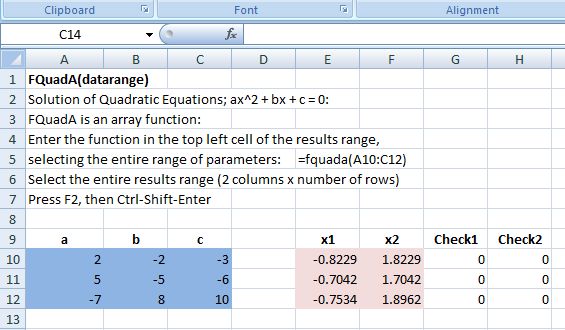
    A screen shot showing the output of the quadratic function is shown below:
    Output from QuadA

    Output from QuadA

    Fortran code for two Cubic functions, and the resulting dll, are included in the download files.  The code to call these functions from VBA is shown below:
    Declare Function CUBIC Lib “D:\Users\…\Cubic\Release\Win32\Cubic.dll” (cdat As Double, ResA As Double) As Double
    Declare Function CUBICA Lib “D:\Users\..,\Cubic\Release\Win32\Cubic.dll” (cdat As Double, ResA As Double, NumRows As Long) As Double

    Function FCUBIC(P As Variant) As Variant
    Dim P1(1 To 4) As Double, Res(1 To 1, 1 To 3) As Double
    Dim cval As Double, i As Long

    P = P.Value

    For i = 1 To 4
    P1(i) = P(1, i)
    Next i

    cval = CUBIC(P1(1), Res(1, 1))

    FCUBIC = Res

    End Function

    Function FCubica(CubicData As Variant) As Variant
    Dim xa(1 To 4) As Double
    Dim ResA1() As Double, ResA(1 To 1, 1 To 3) As Double, NumRows As Long
    Dim Retn As Double, i As Long, j As Long
    On Error Resume Next

    CubicData = CubicData.Value2
    NumRows = UBound(CubicData) – LBound(CubicData) + 1

    ReDim ResA1(1 To NumRows, 1 To 3)
    For i = 1 To NumRows
    For j = 1 To 4
    xa(j) = CubicData(i, j)
    Next j
    Retn = CUBIC(xa(1), ResA(1, 1))
    For j = 1 To 3
    ResA1(i, j) = ResA(1, j)
    Next j
    Next i

    FCubica = ResA1

    End Function

    Function FCubica2(CubicData As Variant) As Variant
    Dim xa() As Double
    Dim ResA() As Double, NumRows As Long
    Dim Retn As Long, i As Long, j As Long
    On Error Resume Next

    CubicData = CubicData.Value2
    NumRows = UBound(CubicData) – LBound(CubicData) + 1
    ReDim xa(1 To NumRows, 1 To 4)
    ReDim ResA(1 To NumRows, 1 To 3)
    For i = 1 To NumRows
    For j = 1 To 4
    xa(i, j) = CubicData(i, j)
    Next j
    Next i
    Retn = CUBICA(xa(1, 1), ResA(1, 1), NumRows)

    FCubica2 = ResA

    End Function

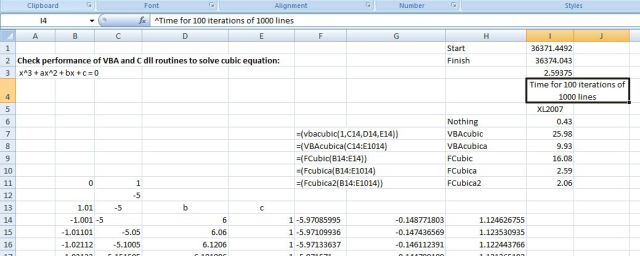
    The code includes one function that operates on one equation at a time, and two alternative array functions that provide much better performance by avoiding the transfer of data between the spreadsheet and VBA. For comparison VBA cubic functions are also included in the download file.

    Screenshot of cubic function output and relative performance results:
    cubic

    Posted in Excel, Fortran, Link to dll, Maths, UDFs, Uncategorized, VBA | Tagged , , , , , | 23 Comments

    Linking Excel to Fortran

    An earlier series of posts described how to link Excel to programs written in C or C++.  The same advantages of increased security and performance may be obtained by linking to Fortran programs with the additional advantages:

    • Many specialist engineering and scientific programs are only available in Fortran
    • The structure and syntax of Visual Basic is closer to Fortran than C
    • Fortran has features for the manipulation of arrays that are particulary useful for engineering and scientific analysis.
    • The linking process is much simpler

    This post will look at creating four simple maths functions in Fortran, and linking them so that they are available in Excel, either to VBA routines, or directly from the spreadsheet.  Later posts will look at creating more complex and useful programs, including passing arrays, and some catches in the handling of floating point numbers that need to be watched for.

    The examples will all be using Silverfrost Personal Fortran, which is available for download, and is free for non-commercial use.

    To create MathFunc.dll 

    1.  Create a new directory called MathFunc at any convenient location
    2.  Start up the Plato IDE (the Silverfrost Fortran editor)
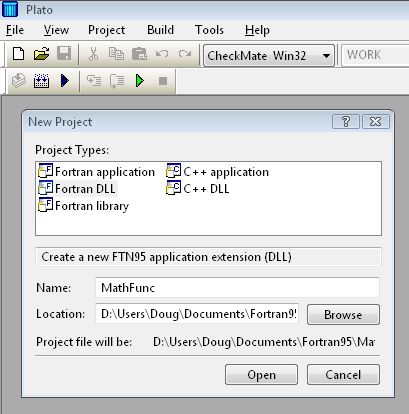
    3.  Create a new dll project called MathFunc:

    Select File – New Project
    Select Fortran DLL
    Enter MathFunc for the name
    Browse for the MathFunc directory that you previously created

    Craete new Fortran DLL Project

    Craete new Fortran DLL Project

    4. Create a new file in the project: Project – Add New Item; select Free Format Fortran file, and enter MathFunc.f95 for the name.

    5. Enter or copy and paste the code shown below:


    ! MathFuncs
    F_stdcall function ADD(a, b)
    REAL(2), intent(in) :: a, b
    REAL(2) ADD
    ADD = a + b
    RETURN
    end function ADD

    F_stdcall function SUBTRACT(a, b)
    REAL(2), intent(in) :: a, b
    REAL(2) SUBTRACT

    SUBTRACT = a - b
    RETURN
    end function SUBTRACT

    F_stdcall function MULTIPLY(a, b)
    REAL(2), intent(in) :: a, b
    REAL(2) MULTIPLY

    MULTIPLY = a * b
    RETURN
    end function MULTIPLY

    F_stdcall function DIVIDE(a, b)
    REAL(2), intent(in) :: a, b
    REAL(2) DIVIDE

    IF(b == 0) THEN
    DIVIDE = 0
    ELSE
    DIVIDE = A/B
    END IF
    RETURN
    end function DIVIDE

    6. Select Build – Build, or click the Build icon.
    7. That’s all.

    The program will create a file called MathFunc.dll in a subdirectory: \CheckMate\Win32\.  When debugging is complete you can select “Release Win32” from the drop-down list at the top of the editor screen, and a release version of the dll will be created in \Release\Win32\.

    To make the four functions in MathFunc.dll available in Excel:

    1.  Open a new workbook and save it as MathFunc.xls
    2.  Open the Visual Basic Editor (press Alt-F11), insert a new module, and enter the following lines of code:


    Declare Function ADD Lib "D:\Users\...\MathFunc\CheckMate\Win32\poly.dll" (A As Double, b As Double) As Double
    Declare Function SUBTRACT Lib "D:\Users\...\MathFunc\CheckMate\Win32\poly.dll" (A As Double, b As Double) As Double
    Declare Function MULTIPLY Lib "D:\Users\...\MathFunc\CheckMate\Win32\poly.dll" (A As Double, b As Double) As Double
    Declare Function DIVIDE Lib "D:\Users\...\MathFunc\CheckMate\Win32\poly.dll" (A As Double, b As Double) As Double

    … adjusting the file path to the full path name for your file locations.

    The four new MathFunc should now be available in the worksheet, just like the built in Excel functions:

    MathFunc functions called from spreadsheet

    MathFunc functions called from spreadsheet

    The Fortran files and Excel spreadsheet described in this post may be downloaded from: MathFunc.zip

    Posted in Excel, Link to dll, VBA | Tagged , , | 20 Comments

    Silverfrost Personal Fortran

    Silverfrost Personal Fortran is a Fortran95 compiler that is free for personal use.  According to the suppliers:

    “With Silverfrost FTN95: Fortran for Windows you can create console based, conventional Windows® and Microsoft .NET applications. Silverfrost FTN95 is the only compiler that can produce Microsoft .NET applications that can use the full Fortran 95 language. Silverfrost FTN95 also boasts its world leading CHECKMATE run-time checking technology that finds bugs fast!

    Silverfrost FTN95: Fortran for Windows is now available free for personal and evaluation use. To try the compiler click here.”

    What does this have to do with Excel?

    My next post will deal with linking Excel to Fortran DLL’s, using the Silverfrost compiler.

    Posted in Computing - general, Excel, Fortran, Link to dll, Newton, VBA | Tagged , , , | 1 Comment