Sydney Opera House: the designs that didn’t make it

From the Guardian:

In 1956, the New South Wales premier Joseph Cahill announced a competition – open to anyone – to design a national opera house at Bennelong Point in Sydney. There were more than 200 entries and the eventual winner, Jørn Utzon’s concrete shells, took 17 years to realise. But what of the designs that didn’t make the cut? UK-based creative studio NeoMan were commissioned by Budget Direct to research and render seven of those entries, working with Venezuelan architecture specialists Projection Comunicación Arquitectónica to produce the final images, republished with permission below.

All seven at:

Sydney Opera  House Alternatives


Posted in Bach, Newton | Tagged , | Leave a comment

Multiple Integration with Scipy

Scipy has 3 functions for multiple numerical integration in the scipy.integrate module:

  • dblquad: Compute a double integral.
  • tplquad: Compute a triple integral’
  • nquad: Integration over multiple variables.

I have written six functions to call these functions from Excel, via Pyxll:

Each of the Python functions can be called to evaluate the integrals of either a function entered as a string on the spreadsheet (py_DblQuadS, py_TplQuadS, or py_NQuadS), or a Python function (py_DblQuadF, py_TplQuadF, or py_NQuadF).

The integration limits are passed as either two or three two-column ranges for the dblquad and tplquad functions, or an n-row, two-column range for nquad functions.  Note that the order of the limits is different for nquad to the dblquad and tplquad functions:

The two screen shots below show output from dblquad and tplquad on the left, and nquad on the right, with an example of the “S” and “F” function in each case,  Click on the images for full-size view:

Other significant differences between the functions are:

  • For the dblquad and tplquad functions, the variables must be x, y, and z, which are passed in the order z, y, x.  For the nquad functions the variable names are an input argument, and they are passed in the order listed.
  • Where one or both limits for the nquad functions is a formula the limits are entered in one cell in the format: [lower limit or function, upper limit or function].  See examples in the screenshots.

A Pyxll based Excel-Scipy application including these functions, and many others, will be published in the near future.

Posted in Excel, Link to Python, Maths, Newton, Numerical integration, NumPy and SciPy, PyXLL, UDFs | Tagged , , , , , | 6 Comments

Another (very slow) way of computing pi

The previous post included 100 Python code one-liners for calculating pi that recalculates in a fraction of a second.  The video below shows an alternative approach that is a little slower:

How much slower?  If you had a computer that would do 1 million collision calculations per second, and you ran it for about 10 billion years, you could calculate pi to just 23 decimal places.

What makes this interesting is not its practical value, but why it works at all:

Posted in Bach, Maths, Newton | Tagged , , | 2 Comments

mpmath for Excel

mpmath has been mentioned in passing here before, but not in any detail.  The mpmath site says:

mpmath is a free (BSD licensed) Python library for real and complex floating-point arithmetic with arbitrary precision. It has been developed by Fredrik Johansson since 2007, with help from many contributors.

The following example computes 50 digits of pi by numerically evaluating the Gaussian integral with mpmath. See 100 mpmath one-liners for pi and the documentation links below for many more examples!

>>> from mpmath import mp
>>> mp.dps = 50
>>> print(mp.quad(lambda x: mp.exp(-x**2), [-mp.inf, mp.inf]) ** 2)
3.1415926535897932384626433832795028841971693993751

I have set up some simple examples illustrating the use of mpmath from Excel, linking with Pyxll (minor changes to the code will provide the same results with xlwings):

Full Python code for the functions shown above is:

from mpmath import mp

@xl_func
@xl_arg('dp', 'int')
def mp_setdp(dp = 15):
    mp.dps = dp
    return mp.dps

@xl_func
def mp_sin(x):
    return str(mp.sin(x))

@xl_func
def mp_cos(x):
    return str(mp.cos(x))

@xl_func
@xl_arg('syms', 'str[]')
@xl_arg('vals', 'str[]')
def mp_Eval(func, syms = [], vals = []):
    func = exp_py(func)
    f = eval('lambda ' + ', '.join(syms) +': ' + func )
    if vals != []:
        vals =np.asarray(vals, dtype= object)
        for i in range(0, vals.shape[0]): vals[i] = mp.mpf(vals[i])
    return str(f(*vals))

The mp_setdp function sets the number of decimal points to be used in all subsequent calculations, until the function is called again. Entering 25   in cell B3, and recalculating the worksheet changes the returned values as shown below:

The mp_sin and mp_cos functions illustrate how any mpmath function may be called from Excel.  Note that:

  • Data may be entered as a number or a string.
  • Decimal numbers should in general be entered as a string, since floats will be converted to 64bit binary form before being converted to the higher precision mpmath format.
  • Results are returned as a string.

As an alternative to creating an interface function for each mpmath function, the function may be entered on the spreadsheet and evaluated to mpmath precision using the mp_Eval function.

The screen-shots above show examples of mp_Eval:

  • mp.sin(x)^2 + mp.cos(x)^2 which evaluates to exactly 1.0 for any value of x.
  • mp.asin(0.5)*6, which evaluates to exactly mp.pi

The mpmath main page links to a list of 100 mpmath one-line expressions for pi.  To create the screen-shots below I have simply:

  • Changed the mpmath import line to:  ‘from mpmath import *’ (to avoid the need to enter mp. before each function).
  • Copied and pasted the text from the mpmath link directly into Column I.
  • Entered =mp_Eval(I3) in cell J3, and copied down for 100 rows.

As can be seen below, all but 2 of the functions evaluate to pi, to 60 decimal places (click on any image for full-size view).   The two functions that did not evaluate included the statement “if k else 0” in the lambda expressions.


Posted in Excel, Link to Python, Maths, PyXLL, UDFs, VBA, xlwings | Tagged , , , , , , , , | 7 Comments

Transferring large arrays with Pyxll

Pyxll is a commercial Excel add-in linking Excel and Python.  The latest version  offers greatly improved performance in transferring data between Excel and Python as Numpy arrays, amongst many other new features and improvements.

To check what this means in practice, I have checked the time to invert a large matrix (2000 x 2000 cells) in Python using various options:

  1. Calling a Python macro from VBA.  This passes data via Microsoft COM, which is inherently slower than the  other methods.
  2. Calling the Python function as a user defined function (UDF), with five different data types:
    1. A Python tuple of variant data type.
    2. A tuple of float type.
    3. A Numpy array defined as floats.
    4. A Numpy array of undefined data type.
    5. Input as a Numpy array, with output as an object cache.

Parts of the input and output arrays, and times for these six options are shown in the screen-shot below:

Performance for the first option is very slow, with the data transfer taking about 20 times longer than the much more complex and computer intensive task of inverting the matrix.

The first two UDF options, passing the data as Python tuples, shows a great improvement, with the total execution time reducing to less than 2 seconds.  The UDF passing the data as floats rather than variants was slightly faster, as would be expected.

The two UDFs passing data as Numpy arrays in both directions showed a further significant improvement, with the data transfer time being reduced by about half, for a total execution time of about 1 second.  There was not a significant difference between the two UDFs, which is as expected since the default data type for Numpy arrays is float.

The final UDF reduced the data return time to close to zero, with a total execution time of just over half a second.  The data returned to the spreadsheet is shown in the screen-shot below:
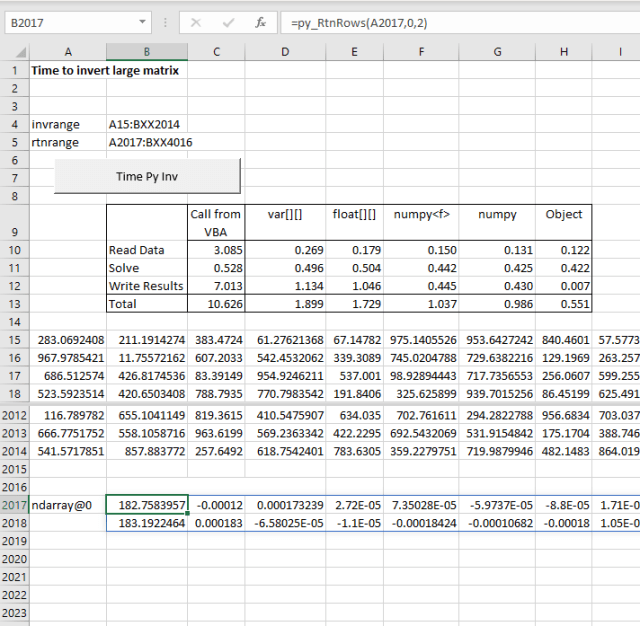
The return value of the UDF displays as ndarray@0, which is pointer to the full 2000 x 2000 array.  Results from the cached array may be displayed with a second UDF, which in this case has been set to display the first 2 rows.  The data return time is proportional to the number of rows displayed, with the full array taking about the same time as the Numpy array results.

In addition to the greatly improved performance when not all results are required in the spreadsheet, the cache object provides a simple and effective means to deal with large data sets exceeding 1 million rows.

I also started a check of the built-in Excel MInverse function with the same array used for the Python functions.  After six minutes it was still calculating (using just one processor), and I gave up.

For practical engineering analysis matrices for linear algebra problems may be much larger than 2000×2000, but will normally be sparse, with most of the elements being zero.  An example (taken from a 3D frame analysis of a large building structure) is shown below, with a matrix size of 14743 x 14743:

In spite of the much larger overall matrix size, the Scipy iterative sparse solver reduces the solution time to about 0.15 seconds, and the sparse input and single column output greatly reduce the data transfer time, with the UDF with Numpy arrays again giving by far the best results.

Posted in Arrays, Excel, Frame Analysis, Link to Python, PyXLL, UDFs, VBA | Tagged , , , , , , | Leave a comment