The Big Short and When the Levee Breaks

The new film the Big Short features Led Zeppelin’s “When the Levee Breaks” in the closing credits.

The story of how the complete song (with 1 minute 30 seconds of intro) came to be included in the film is also interesting:

The crazy story of how ‘The Big Short’ got Led Zeppelin to approve song rights


Posted in Bach | Tagged , , | 1 Comment

Running Fortran from Python with F2PY

The last post looking at using the Python F2Py package said:

It is also necessary to install a Fortran compiler.  After some trial and error I found that the MinGW (Minimalist GNU for Windows) package worked well.

Trying some simple examples on a new computer however yielded a variety of “unable to find” errors, and a search on each returned a range of conflicting suggestions on how they might be fixed.  Eventually the following (relatively straightforward) process worked for me:

  • Uninstall Python and install the latest version of Anaconda Python, appropriate to the operating system.  I actually had 2 versions of 32 bit Python in different folders, on 64 bit Windows, which may or may not have contributed to the problems.
  • Install the version of MinGW provided with the Anaconda download, from the command line using:
    conda install mingw
    from the top level Anaconda folder.  There is an installation package available on the MinGW site, but I couldn’t get F2Py to work with that installation.
  • That’s all

I had previously installed Visual Studio Express 2015.  It is not clear to me whether this is required or not.

After this process I found that:

  • The simple examples from the F2Py tutorial worked without a problem.
  • Any example with a PRINT* statement in the Fortran code still does not compile.  I haven’t found a solution to this one yet, other than avoiding PRINT statements.
  • The callback example from the tutorial worked after adding a line to declare the FUN variable as REAL*8.  More on this one later.

I hope to have some more detailed and useful examples to present in the near future!


Posted in Excel, Link to Python, NumPy and SciPy | Tagged , , , , | Leave a comment

xlSciPy – Python SciPy for Excel; Update with new functions

The xlSciPy spreadsheet, previously described here, has been updated with new functions for integration, finding equation roots and maxima and minima, solving systems of non-linear equations, and evaluation of equations entered as text.  The new version (including full open-source VBA and Python code) may be downloaded from:

xlSciPy.zip

As before, the spreadsheet requires Python, SciPy, and Numpy to be installed, but all other files (including the required ExcelPython files) are included in the download zip file.  Unzip the download file to its own folder, and enable macros when Excel is started, and it should work.

All the available functions (about 350) are listed on the Index tab.  The new functions introduced in this versions are illustrated in the screenshots below:

The integration functions allow the numerical integration of a function entered as text, a named Python function, or a Python function hard coded in the “xl_IntFunc1” function:

SciPy3-01

The first function below oscillates rapidly about the x axis, and requires an increased number of iterations to converge to an accurate result.  The second has converged to machine precision in a much shorter time.

Scipy3-02

The xl_Brent function finds a root of any function of one variable (between specified limits), using Brent’s method.

Scipy3-03

The examples below show the evaluation of the integral of a function entered as text, the same function with additional fixed parameters, and Python versions of the two functions.

Scipy3-04

The xl_MinimizeFS function calls the SciPy minimize_scalar function, which will find the minimum of a Python function of one variable, or an equivalent lambda function entered as text.

Scipy3-05

The xl_MinimizeF function calls the Python minimize function to find the unconstrained or constrained minimum of a scalar function of one or more variables, using one of 11 alternative methods.

Scipy3-06

The examples below show the same root finding problem as in previous examples, followed by an example from the tutorial in the SciPy Manual, finding the minimum of the Rosenbrock Function, using different methods.

Scipy3-07

For constrained minimization, as shown below, the constraints may either be specified with Python functions or text Lambda functions. Change the “Constraint Type” to 2 on the spreadsheet to see the lambda function constraint input.

Scipy3-08

The xl_SolveF function solves a system of non-linear equations with an equal number of unknowns and objective values, using one of 10 alternative methods.

Scipy3-09

The example below shows a system of non-linear equations, from the SciPy Manual reference section.

Scipy3-10

The example below analyses a reinforced concrete section to find depth of neutral axis (DNA), compression face strain (epsc), and tension bar diameter for specified axial force, bending moment, and tensile steel stress values.  A VBA routine to solve the same problem was presented in: https://newtonexcelbach.wordpress.com/2015/10/20/solving-non-linear-equations-with-two-or-more-unknowns-5/

Scipy3-11

The example below, from the SciPy Manual tutorial, illustrates the use of Krylov’s Method (Method 9), with and without the use of pre-conditioners.

Scipy3-12

The results shown in the SciPy manual show faster solution time with the use of a preconditioner, but my results for this example were slightly slower with the preconditioner.

Scipy3-13

Posted in Excel, Link to Python, Maths, Newton, Numerical integration, NumPy and SciPy, UDFs, VBA | Tagged , , , , , , , , , , | Leave a comment

Worksheetfunction.Transpose – changed behaviour in Excel 2013 and 2016

It is (fairly) well known that when using Worksheetfunction.Transpose on an array in VBA the array must be no more than 65,536 (2^16) rows long, or it will return an error.

Recently when using Excel 2016 (32 bit) I thought this limitation had been fixed; I was able to transpose arrays with up to the maximum number of rows allowed by Excel (1,048,576 0r 16 * 2^16), without generating any error.  Then I checked the end of the returned arrays, and discovered that they had in fact been truncated at 65,536 rows.  A closer look revealed that the truncation is in fact done in blocks of 2^16 rows, so if you transpose an array of 65,537 rows the operation will delete all but 1 of them, with no indication that anything unusual has happened.

To investigate what is happening I wrote 7 functions to split an array into single columns, then transpose them, the intent being to generate 1D arrays, which are much faster when transferring large data sets to other programs.  The variations were:

  • Splitarray: Split a 3 column array into 3 single columns, with no transpose.
  • Splitarray-a: Split and transpose in a single operation.
  • Splitarray-b: Redim the output arrays first, then split and transpose in a single operation.
  • Splitarray-c: Redim the output arrays first, then split into three variant arrays, then transpose.
  • Splitarray-d: Transpose without splitting, creating a 3 row array.
  • Splitarray-e: Split into single columns, then copy to 1D arrays with a loop.
  • Splitarray-f:  Convert the input range to a variant array, then split and transpose with a loop.

The functions were modified to return the following information:

  • Row 1:  Run time
  • Rows 2-4:  The number of values in the returned arrays, or in the case of Splitarray-d the  number of rows, then the number of columns.

In the case of Splitarray-c and Splitarray-f, which had a two stage operation, two columns were returned, with times and array sizes at the end of each step.

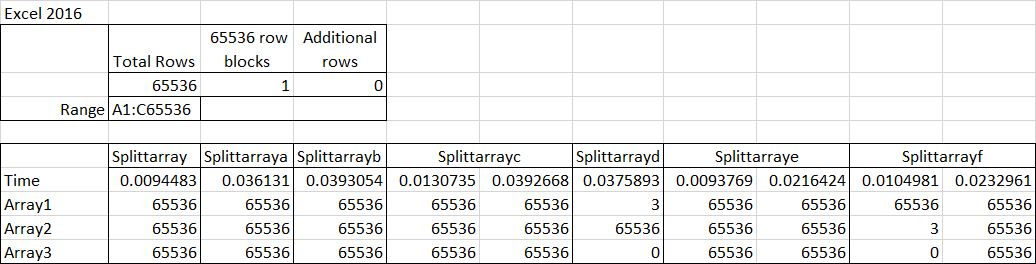
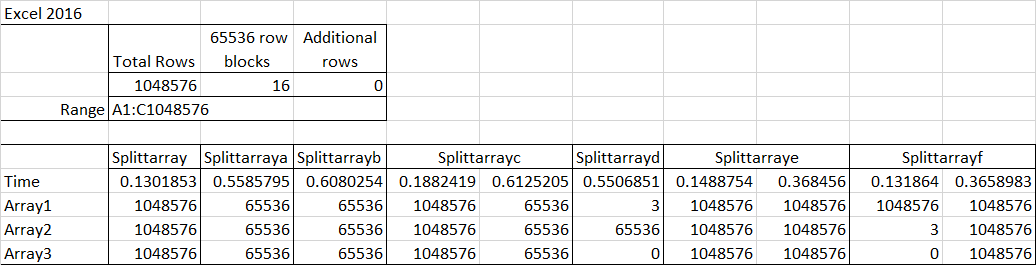
The results for Excel 2016 are shown below for four different array sizes:

65,536 rows; all functions return all the input data

Transpose1-1

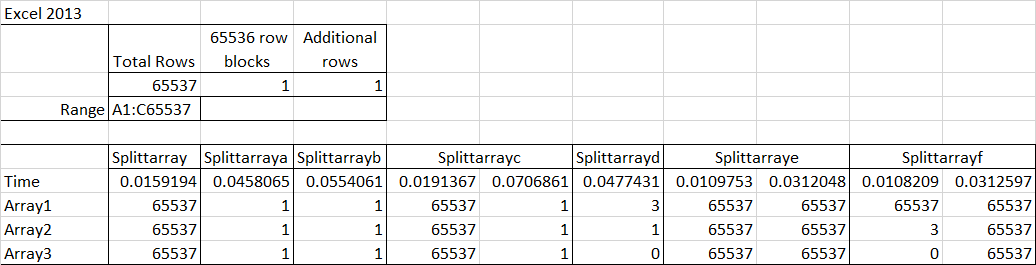
1,048,576 rows: the first function (which did not transpose) and the last two (which used loops) return all the data, but all the others truncate the output to 65,536 values.

Transpose1-2

65,537 rows: The second to fifth functions have all truncated the data to just one value.

Transpose1-3

1,048577 rows: Now all the functions return #VALUE! errors (as in previous versions of Excel), because the specified range size exceeds the maximum number of rows.  Note that VBA arrays can have a much greater number of rows (limited by available memory), but if you are reading data from the spreadsheet the range limit on number of rows applies.

Transpose1-4

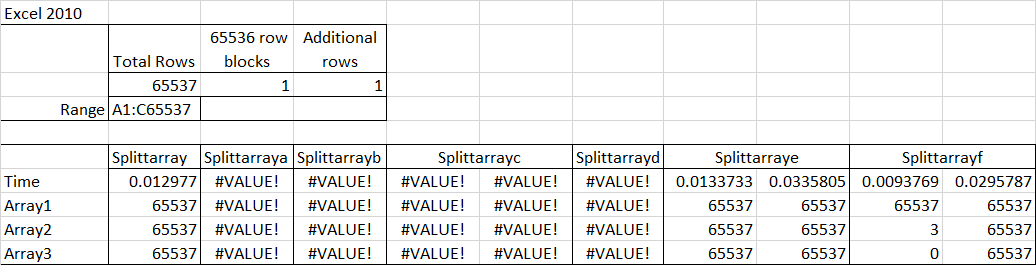
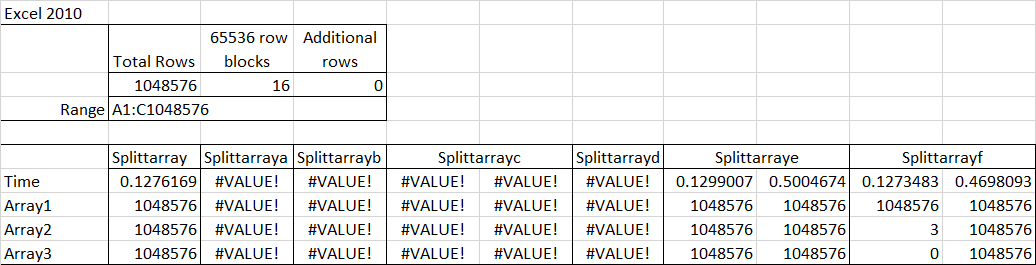
Comparing with Excel 2010; results for 65536 rows are the same:

Transpose1-5

With 1 additional row up to 1,048, 576 rows, all the functions that use Transpose return #VALUE! errors:

Transpose1-6

Transpose1-7

And with 1 or more rows past the range limit all the functions return errors:

Transpose1-8

It was my recollection that Excel 2013 worked the same as 2010, but checking with 65,537 rows I found that the arrays were truncated to one value, when Transpose was used, as for Excel 2016.

Transpose1-9

So the conclusions are:

  1. In Excel 2013 and 2016 (32 bit) using Worksheetfunction.Transpose in any VBA routine will truncate the array without warning if it has more than 65536 rows, so if you must use this function be sure to check the size of the array first.
  2. But really, there is no good reason for using it at all.  It can be replaced by a short VBA routine using loops, which will return the full array up to 1,048,576 rows (or larger if working entirely in VBA), and is actually faster than the Transpose version (at least for arrays of the size used in these tests).
Posted in Arrays, Excel, UDFs, VBA | Tagged , , , , , , , | 6 Comments

Opening and searching pdf files from Excel

The file PdfLink.zip (free download with open source code) contains two short but useful macros for opening and searching pdf files from Excel.
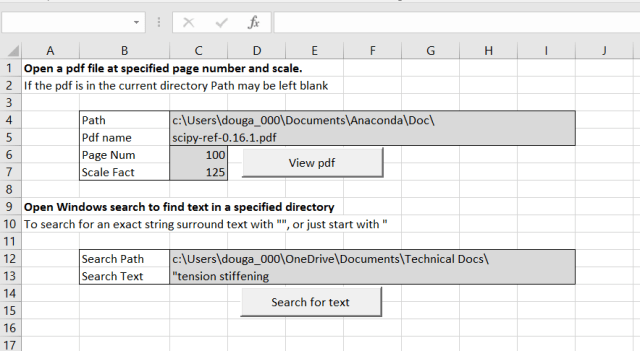
Search1

The first is based on code from My Engineering World. I have just added a simple interface to allow the file path and name, page number and scale factor to be entered on the spreadsheet.  The code may be copied to any other file; just create the range names: Path_name, Pdf_name, Page_num, and Scale_fact, at any convenient location in the new file.

The My Engineering World blog also has a wide range of other software available for free download, including engineering applications, as well as other routines for working with pdf files, using both Acrobat Reader, and the full Acrobat Professional package.

The second opens the Windows File Explorer search, using the search path and text entered on the spreadsheet.  Typical results are shown below:

Searchres1

The search results can be set up to show the files in list format (together with selected details), and a file preview on the right.  The preview is very small by default, but can be dragged to be of readable size, and the selected size (plus the other selected settings) are stored for the next use.  The Windows search is now greatly improved from earlier versions.  Search indexing takes place in the background, without noticeable effect on other operations, search is now very fast (on indexed folders), and the preview also works near instantly.

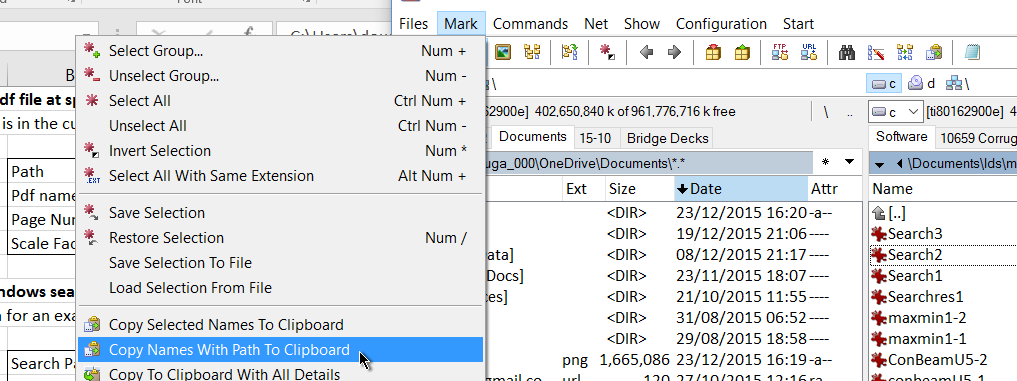
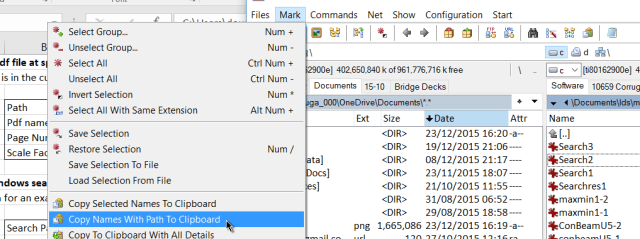
Both the View pdf and Search macros require the full path to be entered, or will work on the current path if the path entry is left blank.  My favoured method to copy the full directory path is using the Total Commander file management package.  Select the directory you want to copy, then Mark – Copy Name With Path to Clipboard:
Search2

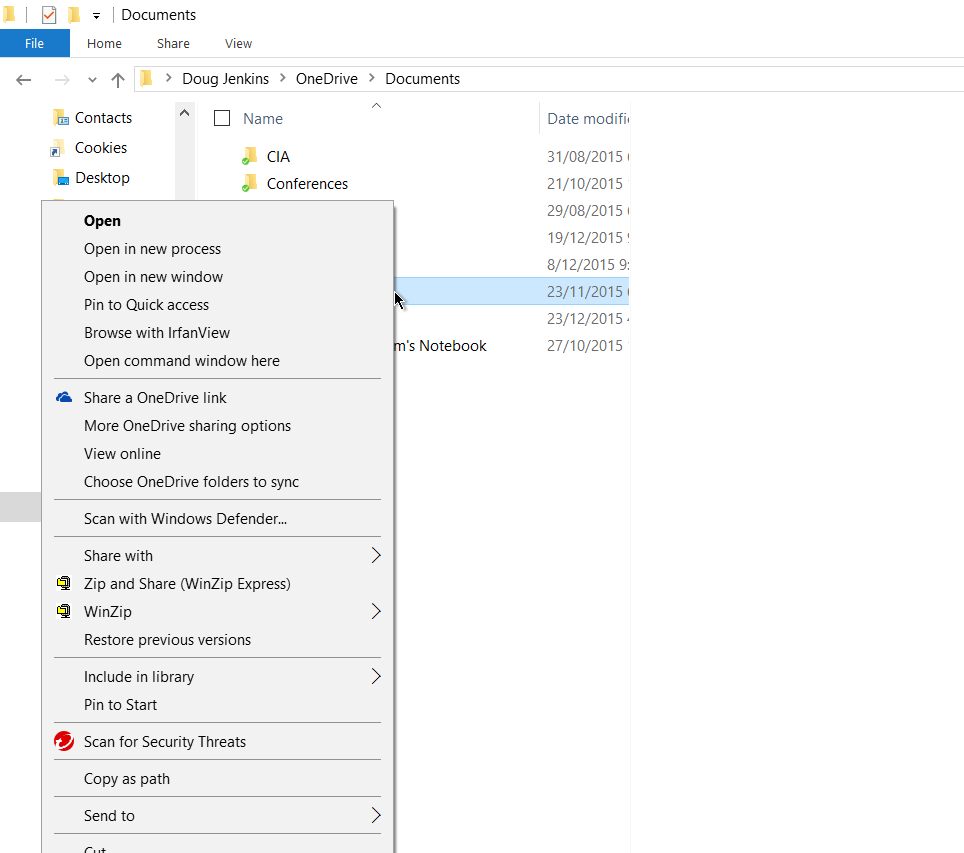
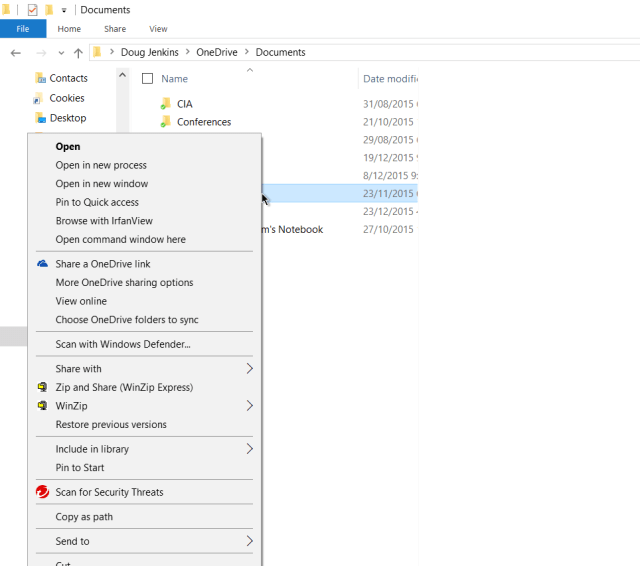
For those who prefer to stick with File Explorer, a similar facility is available, but as usual it is well-buried:  Open File Explorer, select the directory you want, then shift-Right Click and select Copy as path:
Search3

Update 7 Jan 2016:
Bob Phillips commented with code for 64 bit Excel which I have copied in a code box below. I have also updated the download file, so it should work in both 32 bit and 64 bit Excel. Please let me know if not:

Replace the API definitions with this code

'API declaration for the windows "Search" dialog
#If VBA7 Then
    Private Declare PtrSafe Function ShellSearch Lib "shell32.dll" Alias "ShellExecuteA" ( _
        ByVal hwnd As LongPtr, _
        ByVal lpOperation As String, _
        ByVal lpFile As String, _
        ByVal lpParameters As String, _
        ByVal lpDirectory As String, _
        ByVal nShowCmd As Long) As String

#Else
    Private Declare Function ShellSearch Lib "shell32.dll" Alias "ShellExecuteA" ( _
        ByVal hwnd As Long, _
        ByVal lpOperation As String, _
        ByVal lpFile As String, _
        ByVal lpParameters As String, _
        ByVal lpDirectory As String, _
        ByVal nShowCmd As Long) As String
#End If
Private Const SW_SHOWNORMAL = 1
'Retrieves a handle to the top-level window whose class name and window name match the specified strings.
'This function does not search child windows. This function does not perform a case-sensitive search.
#If VBA7 Then
    Public Declare PtrSafe Function FindWindow Lib "user32" Alias "FindWindowA" ( _
        ByVal lpClassName As String, _
        ByVal lpWindowName As String) As LongPtr
#Else
    Public Declare Function FindWindow Lib "user32" Alias "FindWindowA" ( _
        ByVal lpClassName As String, _
        ByVal lpWindowName As String) As Long
#End If

'Retrieves a handle to a window whose class name and window name match the specified strings.
'The function searches child windows, beginning with the one following the specified child window.
'This function does not perform a case-sensitive search.
#If VBA7 Then
    Public Declare PtrSafe Function FindWindowEx Lib "user32" Alias "FindWindowExA" ( _
        ByVal hWnd1 As LongPtr, _
        ByVal hWnd2 As LongPtr, _
        ByVal lpsz1 As String, _
        ByVal lpsz2 As String) As LongPtr
#Else
    public Declare Function FindWindowEx Lib "user32" Alias "FindWindowExA" ( _
        ByVal hWnd1 As Long, _
        ByVal hWnd2 As Long, _
        ByVal lpsz1 As String, _
        ByVal lpsz2 As String) As Long
#End If

'Brings the thread that created the specified window into the foreground and activates the window.
'Keyboard input is directed to the window, and various visual cues are changed for the user.
'The system assigns a slightly higher priority to the thread that created the foreground
'window than it does to other threads.
#If VBA7 Then
    Public Declare PtrSafe Function SetForegroundWindow Lib "user32" (ByVal hwnd As LongPtr) As LongPtr
#Else
    Public Declare Function SetForegroundWindow Lib "user32" (ByVal hwnd As Long) As Long
#End If

'Sends the specified message to a window or windows. The SendMessage function calls the window procedure
'for the specified window and does not lParenturn until the window procedure has processed the message.
#If VBA7 Then
    Public Declare PtrSafe Function SendMessage Lib "user32" Alias "SendMessageA" ( _
        ByVal hwnd As LongPtr, _
        ByVal wMsg As Long, _
        ByVal wParam As LongPtr, _
        lParam As Any) As LongPtr
#Else
    Public Declare Function SendMessage Lib "user32" Alias "SendMessageA" ( _
        ByVal hwnd As Long, _
        ByVal wMsg As Long, _
        ByVal wParam As Long, _
        lParam As Any) As Long
#End If

'Places (posts) a message in the message queue associated with the thread that created the specified
'window and lParenturns without waiting for the thread to process the message.
#If VBA7 Then
    Public Declare PtrSafe Function PostMessage Lib "user32.dll" Alias "PostMessageA" ( _
        ByVal hwnd As LongPtr, _
        ByVal wMsg As Long, _
        ByVal wParam As LongPtr, _
        ByVal lParam As Long) As LongPtr

#Else
    Public Declare Function PostMessage Lib "user32.dll" Alias "PostMessageA" ( _
        ByVal hwnd As Long, _
        ByVal wMsg As Long, _
        ByVal wParam As Long, _
        ByVal lParam As Long) As Long
#End If

'Constants used in API functions.
Public Const WM_SETTEXT = &HC
Public Const VK_RETURN = &HD
Public Const WM_KEYDOWN = &H100

and also change some variables in the OpenPDF procedure:


#If VBA7 Then
Dim lParent                     As LongPtr
Dim lFirstChildWindow           As LongPtr
Dim lSecondChildFirstWindow     As LongPtr
Dim lSecondChildSecondWindow    As LongPtr
#Else
Dim lParent                     As Long
Dim lFirstChildWindow           As Long
Dim lSecondChildFirstWindow     As Long
Dim lSecondChildSecondWindow    As Long
#End If

Posted in Computing - general, Excel, VBA | Tagged , , , , , | 10 Comments