Melanie Safka is touring Australia this month, which prompted me to look up some of her old songs on YouTube – I’d forgotten how good she was:
And something more recent, London in 2009:

Melanie Safka is touring Australia this month, which prompted me to look up some of her old songs on YouTube – I’d forgotten how good she was:
And something more recent, London in 2009:
As noted in the comments here, the main bottleneck in the Python matrix solver functions presented recently was not in the data transfer from Excel, but rather in the creation of the Numpy arrays for very long lists of short lists (see this Stackoverflow thread for more details of the background). It seems there is a substantial time saving in converting the long array into 1D vectors, which can be converted into Numpy arrays very much more quickly. The VBA code below converts a 3D array of any length (up to the maximum allowed in Excel) to 3 vectors.
Function Vectorize(x As Variant, x_1 As Variant, x_2 As Variant, x_3 As Variant) As Long
Dim nr As Long

nr = x.Rows.Count
x_1 = x.Resize(nr, 1).Value2
x_2 = x.Offset(0, 1).Resize(nr, 1).Value2
x_3 = x.Offset(0, 2).Resize(nr, 1).Value2
Vectorize = nr
End Function
To transfer these vectors to Python, via ExcelPython, the PyObj function must be used:
Set x = Range("SSA")  ' Excel range with 500500 rows and 3 columns
n = Vectorize(x, x_1, x_2, x_3) 'Convert range values to 3 vectors
' Create ExcelPython objects for transfer to Python
Set x_1 = PyObj(x_1, 1)
Set x_2 = PyObj(x_2, 1)
Set x_3 = PyObj(x_3, 1)
In Python the three vectors are converted to Numpy arrays:
def xl_getnpvect(x_1, x_2, x_3):
    timea = np.zeros(4)
    timea[0] = time.clock()
    x_1 = np.array(x_1)
    timea[1] = time.clock()
    x_2 = np.array(x_2)
    timea[2] = time.clock()
    x_3 = np.array(x_3)
    timea[3] = time.clock()
    return timea.tolist()
The table below compares the data transfer and conversion times using this method on an Excel range of 500500 rows x 3 columns, with the same operation using a 2D variant array.

The times for solution of a large sparse matrix system (10945×10945 matrix), using the new vector transfer routine, are shown below:

The data transfer and array creation times are now a relatively small proportion of the total solution time, even for the iterative solver with a solve time of only 0.28 seconds.
The simplest way to check the execution time of VBA code is with the built in Timer function, but this returns a single precision value in seconds, resulting in a minimum time step of about 10 milliseconds. For VBA code much better precision can be achieved with the Microtimer function, found at a Microsoft article by Charles Williams:
Private Declare Function getFrequency Lib "kernel32" _
Alias "QueryPerformanceFrequency" (cyFrequency As Currency) As Long
Private Declare Function getTickCount Lib "kernel32" _
Alias "QueryPerformanceCounter" (cyTickCount As Currency) As Long
Function MicroTimer() As Double
'

' Returns seconds.
Dim cyTicks1 As Currency
Static cyFrequency As Currency
'
MicroTimer = 0

' Get frequency.
If cyFrequency = 0 Then getFrequency cyFrequency

' Get ticks.
getTickCount cyTicks1

' Seconds
If cyFrequency Then MicroTimer = cyTicks1 / cyFrequency
End Function
For use with Python code, called from VBA, the code below will call the Python time.clock function, allowing the VBA and Python code to be timed on the same basis:
Function xl_pytime()
Dim result As Variant, Res As Variant
Static methods As Variant

On Error GoTo fail:

    Set methods = PyModule("timesum", AddPath:=Path1)
    Set result = PyCall(methods, "xl_getpytime1", PyTuple())

    Res = PyVar(result)
    xl_pytime = Res
    Exit Function

fail:
    xl_pytime = Err.Description

End Function

Public Function Path1() As String
Dim pyPath1 As Variant
    If pyPath1 = vbNullString Then pyPath1 = ThisWorkbook.Path
    Path1 = pyPath1
End Function
The Python code is simply:
def xl_getpytime1():
    return time.clock()
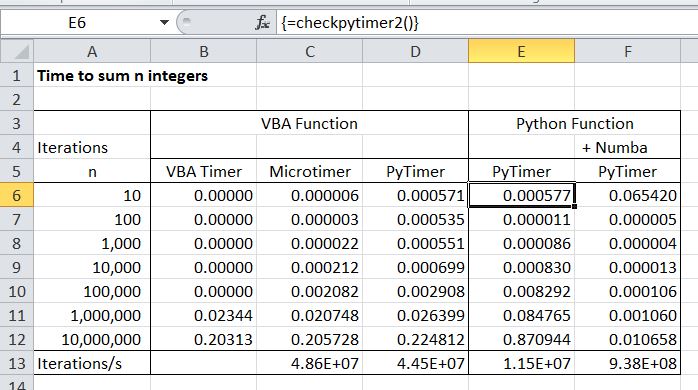
These two timers are included in the spreadsheet Timers.xlsb, together with a routine to sum 7 sequences of integers from 1 to 10 up to 1 to 10,000,000. The results for the two timers, compared with the VBA Timer function are shown below.
Also included are times for the sum routine in Python, using pure Python code, and with the addition of the Numba just-in-time compiler for the sum loop. Note that the Python code is about 4 times slower than the VBA, but with the addition of the Numba compiler it is about 20 times faster. Also note that the Python timer, when called from VBA, has a lag of about 0.5 milliseconds, so the Microtimer is preferable for code all in VBA.
Following a query at Eng-tips I have had a look at options in Excel for converting metres to feet and inches, with the inches displayed as a fraction rather than a decimal.
Converting from metres to feet or inches is straightforward (with a length in metres in C3):
=CONVERT($C$3,”m”,”ft”) or =CONVERT($C$3,”m”,”in”)
or just: =C3/0.3048 or =C3/0.0254
To display the resulting value as a fraction, the cell may be formatted to display fractions, or the same result may be achieved with the text function, which also allows the string to be terminated with the ‘ or ” symbol:
=TEXT($C$3/0.0254, “# #/16”)&CHAR(34)
The number following the ##/ is the denominator for the fraction, which may be entered explicitly, or read from another cell:
=TEXT($C$3/0.0254, “# #/”&D13)&CHAR(34)
To display the result in feet and inches is not so straightforward. The simplest method I found came from: http://excel-formulas.blogspot.com.au/2009/07/display-feet-and-inches-as-5-8-12.html
To convert from decimal feet to feet and fractional inches:
=INT($C$5)&”‘ “&TEXT(12*($C$5-INT($C$5)),”#/16″)&CHAR(34)
or for metres to feet and fractional inches:
=INT(CONVERT($C$3,”m”,”ft”))&”‘ “&TEXT(12*(CONVERT($C$3,”m”,”ft”)-INT(CONVERT($C$3,”m”,”ft”))),”# #/16″)&CHAR(34)
Alternatively, a short User Defined Function (UDF) will give the same result with:
=M2Ftinf($C$3,16)
These formulas, and 4 UDFs (converting to inches or feet and inches, and in the opposite direction) are included in the download file: M2ft-in.xlsb:

Metres to feet and fractional inches
On-sheet formulas for conversion in the other direction would be still more complex, but the UDFs provide this functionality.
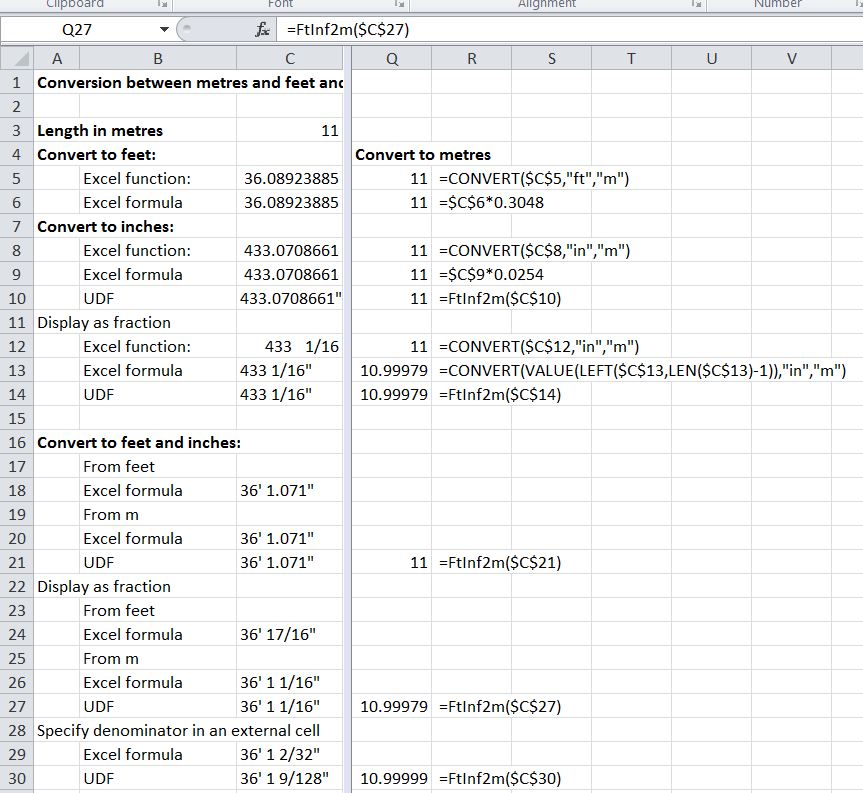
Feet and inches to metres
The four UDFs have also been added to the Units4Excel spreadsheet, which also provides functions for conversion between a wide range of other units, and units aware evaluation of functions entered as text. The spreadsheets (including full open-source code) may be downloaded from Units4Excel.zip
Following the previous ExcelPython post I have modified the VBA and Python code for improved performance and to simplify the Python coding. The main change is that where Numpy Arrays are required in the Python code, these are now created in the VBA, as described here (see post number 9 from Eric Reynolds) and here (a more detailed and wide ranging tutorial).
The new spreadsheet and Python Code may be downloaded from MatrixXLpy.zip including full open source code.
I have also updated the performance benchmarks as shown below:

ExcelPython Matrix Solver Functions
I have now separated out the data transfer times from the actual solution time. It can be seen that when operating on a full dense matrix the xl_Solve function is very much faster than any of the sparse functions, but on the 1000×1000 sparse matrix all of the functions performed in much the same time. With the large (10945×10945) sparse matrix (which is too large for the dense functions to handle) the xl_SpSolveCOO function (using the Scipy Library) was significantly faster than the PySparse based xl_SpSolveLU, but the iterative xl_SpSolveit function (also using the PySparse Library) was 5 times faster again. The PySparse based functions operate on the non-zero elements of the lower triangle of symmetrical matrices, allowing substantially larger problems to be solved than could be handled by the xl_SpSolveCOO function.
Coding for the xl_SpSolveCOO function is shown below:
Function xl_SpSolveCOO(SMatrix As Range, SVect As Range) As Variant
Dim Rtn As Variant
    Rtn = xl_Run2A("xl_spsolvecooL", SMatrix, SVect, modname2, 1)
    If TypeName(Rtn) = "String" Then
        xl_SpSolveCOO = Rtn
    Else
        xl_SpSolveCOO = WorksheetFunction.Transpose(Rtn)
    End If
    End Function
The Python code is called by the xl_Run2A function:
Function xl_Run2A(FuncName As String, VA_1 As Range, VA_2 As Range, Optional Modname As String = modname1, Optional RtnDims As Long = 2) As Variant
Dim methods As Variant, result As Variant, VA_1py As Variant, VA_2py As Variant, NumpyArray As Variant, Result_List As Variant
    On Error GoTo rtnerr

    Set NumpyArray = PyGet(PyModule("numpy"), "array")
    Set VA_1py = PyCall(NumpyArray, , PyTuple(VA_1.Value2))
    Set VA_2py = PyCall(NumpyArray, , PyTuple(VA_2.Value2))

    Set methods = PyModule(Modname, AddPath:=Path1)
    Set result = PyCall(methods, FuncName, PyTuple(VA_1py, VA_2py))
    Set Result_List = PyCall(result, "tolist")
    xl_Run2A = PyVar(Result_List, RtnDims)
    Exit Function
rtnerr:
    xl_Run2A = Err.Description

End Function
The associated Python code is:
import numpy as np
import scipy.sparse as ssp
import scipy.sparse.linalg as sspla
from pysparse import spmatrix, superlu, precon, itsolvers
import linalgfuncs as laf
import time

def xl_spsolvecooL(m, x):
    """
    Solve a matrix equation Mx = y in sparse COO format, input from array.
	m: three column array of: row indeces, column indeces, values.
	x: column x vector
    """
    i, j, v, x = list2ijvx(m, x)
    n = x.size
    A = ssp.coo_matrix((v,(i,j)),shape=(n,n))
    return xl_spsolvecoo(A, x)

def list2ijvx(m, x):
    """
    Convert 3 column array, m, to 3 vectors, and single column array, x, to vector
    """
    v = m[:,2]
    i = m[:,0]
    j = m[:,1]
    x = np.array(x)
    x = x[:,0]
    return i, j, v, x

def xl_spsolvecoo(A, x):
    """
    Solve a matrix equation Ax = y in sparse COO format.
    A: Sparse array in COO format.
    x: column x vector
    """
    A = A.tocsr()
    A = sspla.spsolve(A, x)
    return A


 Newton Excel Bach, not (just) an Excel Blog