Planxty and Little Musgrave


Planxty are one of my favourite groups form the early 70’s, consisting of  Christy Moore (vocals, acoustic guitar, bodhrán), Andy Irvine (vocals, mandolin, mandola, bouzouki, hurdy-gurdy, harmonica), Dónal Lunny (bouzouki, guitars), and Liam O’Flynn (uilleann pipes, tin whistle), all of whom had notable subsequent careers, both as solo musicians and members of other groups.  They were active from 1972 – 83 (with a short break), and from 2003 to 2005, from which period the concert below is taken.

Little Musgrave (otherwise known as Matty Groves)

This piece led me to another version from Martin Simpson (who we have heard from before):

And here is the Nic Jones version from 1970, mentioned by Christy Moore:

Posted in Bach | Tagged , , , | Leave a comment

Linking to Python with Excel-Python, and Python matrix functions

I have been experimenting for a few weeks with a new package linking Excel to Python, by the name of ExcelPython.  Here is what the author says about it:

“ExcelPython is a lightweight, easily distributable library for interfacing Excel and Python. It enables easy access to Python scripts from Excel VBA, allowing you to substitute VBA with Python for complex automation tasks which would be facilitated by Python’s extensive standard library.”

The main points of differentiation from PyXll are:

  • It is open source and free for all applications (GNU Lesser General Public License)
  • All routines must be called via VBA (examples will be given in a later code, and may also be viewed in the download file)
  • The number of data-types supported is much more restricted; excel variant arrays being transferred as Python lists of lists.
  • Documentation is also lightweight
  • Being a non-commercial package, support will be limited, although to be fair, the author does seem to respond promptly to all queries on the discussion forum.
  • Data is transferred to Python via COM, which allows data to be passed by reference.
  • There are no facilities for setting up Excel Menus from Python code (so far as I know), and the Python docstrings are not transferred to the Excel function wizard.

I found installation to be straightforward with my Anaconda Python setup.  The only problem I had was that if PyXll is installed, the add-in must be disabled before opening any file with ExcelPython code, otherwise an immediate crash results.  To disable PyXll, go to File-Options-Addins, click the Manage button, and unselect PyXll from the list of add-ins.  It may easily be re-enabled from the same menu, when required.

As an example of the use of Excel-Python, I have adapted the Matrixpyxll spreadsheet. The new file may be downloaded from MatrixXLpy.zip, including full open source code.

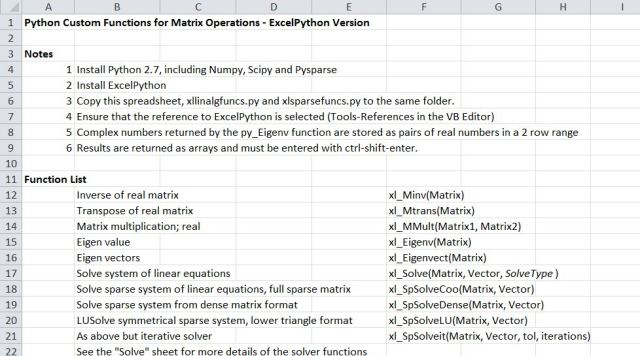
The functions included in the new file are:
XLpyMatrix1-1
The matrix functions are used in a similar way to the built-in Excel matrix functions, and provide identical results, but performance is very much better for large matrices. XLpyMatrix1-2

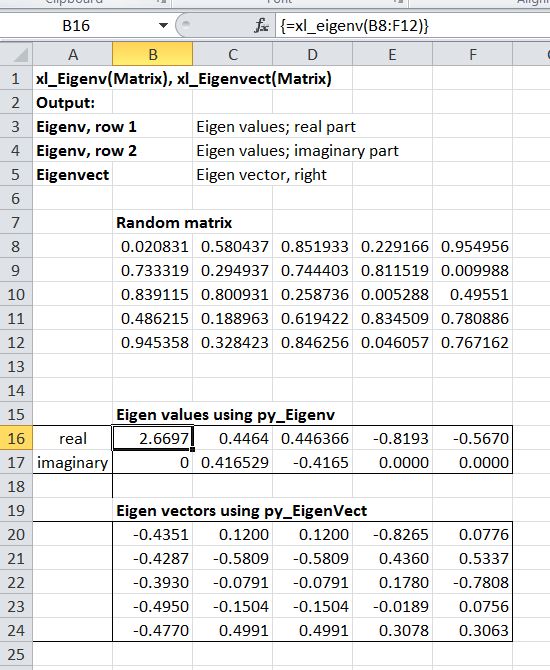
Eigenvalue and Eigenvector functions are provided, which have no equivalent in Excel.
XLpyMatrix1-3

A variety of functions are provided to solve systems of  simultaneous equations.  The examples shown here on small data-sets provide identical results to use of the built-in MInverse and MMult functions, but provide much better performance, especially with large data sets.
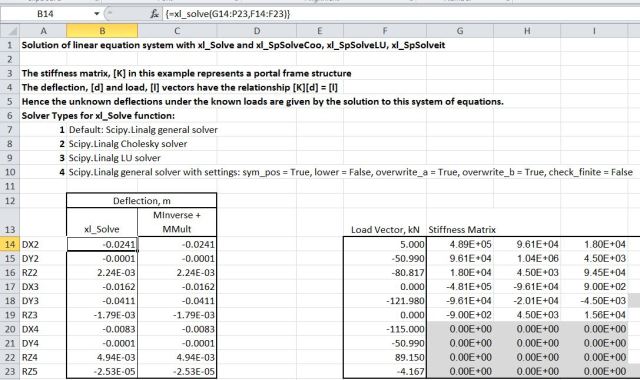
XLpyMatrix1-4

Functions linking to the PySparse library provide much better performance with large sparse systems, and also allow the solution of systems far larger than can be accommodated by systems operating on the full matrix.
XLpyMatrix1-5

Run times for 8 different functions are shown below with 4 different systems of equations:

  • A small 10 x 10 system, solved 1000 times.
  • A 1000 x 1000 system, solved once
  • A sparse 1000 x 1000 system
  • A sparse 10945 x 10945 system (sparse solvers only, this system would be much too large for the solvers operating on the full matrix)

XLpyMatrix1-6

For the small and medium sized dense systems the standard solvers were found to be significantly faster than the sparse solvers, although it should be said that the code I used for setting up the sparse matrices was probably far from optimum.  With the medium sized sparse matrix the sparse solvers were significantly faster than the others, which had almost identical run times to the dense matrices of the same size.  The iterative solver was marginally faster than the others with the medium sized sparse matrix, but with the large sparse matrix it was 5-10 times faster than the other sparse solvers.

The data transfer time reported on the bottom row is the difference between the total run time in VBA and the run time of the Python code.  Note that this is a significant part of the total, especially for the larger dense matrix which required the transfer of a matrix of 1 million doubles.  To minimise this overhead the data transferred from Excel to Python should be minimised, with the matrices being created in Python, using the functions provided in the PySparse library where possible.

The next post in this series will look at the VBA code required to call the Python code, and also differences required in the Python coding, compared with that required when Pyxll is used.

Posted in Arrays, Excel, Finite Element Analysis, Frame Analysis, Link to Python, Maths, Newton, NumPy and SciPy, UDFs, VBA | Tagged , , , , , , , , | 5 Comments

Dividing shapes into layers

For reasons that will become apparent in a later post, I need to rotate irregular polygons, defined by the coordinates of each corner, by a specified angle, and then split the resulting shape into horizontal trapezoidal layers. I have written an Excel User Defined Function (UDF) to perform this task, and incorporated it with some section properties functions. The spreadsheet (including full open source code) can be downloaded from Section Properties-Layers.

A summary of the functions provided in the spreadsheet is shown in the screenshot below:

Functions included in Section Properties-Layers

Functions included in Section Properties-Layers

The screenshot below shows coordinates defining the cross section of a precast bridge girder (Columns B,C), section properties calculated from coordinates (Column F), coordinates for the section rotated about the centroid by 30 degrees (Columns H, F), and section properties for the rotated shape calculated from the trapezoidal layers (Column K) and directly from coordinates (Column L):

SecProp-Layers2

Output from the function splitting the section into layers is shown below:
SecProp-Layers3

The chart below shows the rotated section plotted directly from coordinates, overlain with the trapezoidal layers generated by the HIP_2 function:

SecProp-Layers4

The second sheet (Func Index) provides details of the included UDFs, listing input and output for each.
SecProp-Layers5

All of the included functions return results as an array. See Using Array Functions and UDFs for details of how to display the full function output, if you wish to use them elsewhere.


Posted in Coordinate Geometry, Excel, Maths, UDFs, VBA | Tagged , , , , , | 8 Comments

Getting help in 2013

Getting help in Excel 2013 takes you by default to the Microsoft on-line help files, which is not only much slower than connecting to a local file, when you get there finding what you want is even slower.

From the worksheet getting to the local help is not too hard:

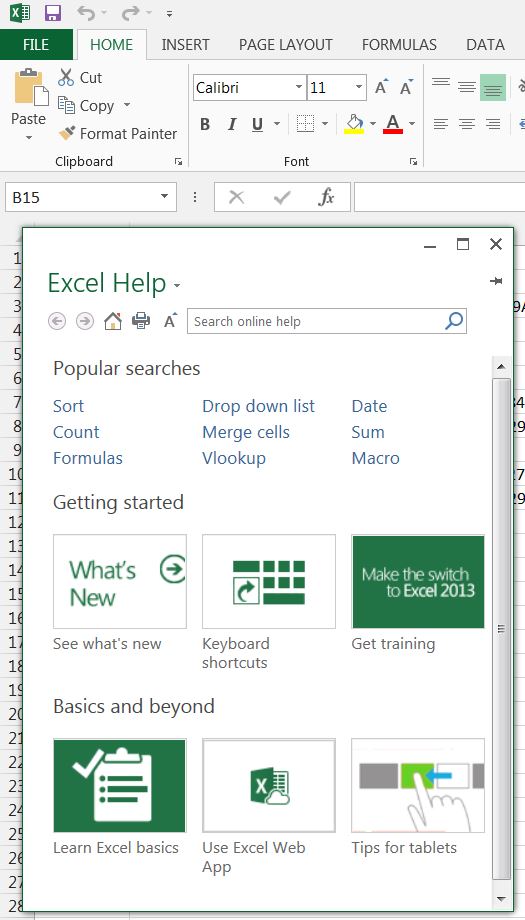
Press F1, or click the ? in the top right hand corner, and you will get the on-line help dialog, looking like:

On-line help

On-line help

Click the down arrow, to the right of Excel Help, and select “Excel Help from your computer”, and you will get quick help instead of slow help from thereon (or until the next upgrade anyway).

Help1

Quick help

In the VBA editor things are not so easy.  It seems that there is now no way to link to local VBA help direct from the editor.  The best you can do is download the file “Excel 2013 Developer Documentation.chm” from: VBA documentation, and copy that to a convenient folder, where you can open and search it.  Even that isn’t straightforward though.  As downloaded the main window in the chm file remains blank!  You have to right click on the file in Windows Explorer (or the file manager of your choice), and then click “Unblock”!  After that, you can access local help on VBA, but not direct from the editor window, and of course it isn’t linked to what you are editing in the editor, so it is still far from convenient.

The alternative (which as far as I can see has no real down-side) is to do your VBA development work in Excel 2010, which still has the old and far more convenient help system.


Posted in Excel, VBA | Tagged , , , , , | Leave a comment

Displaying range names

A useful tip, brought to you from Bob Umlas, via Mike Alexander:

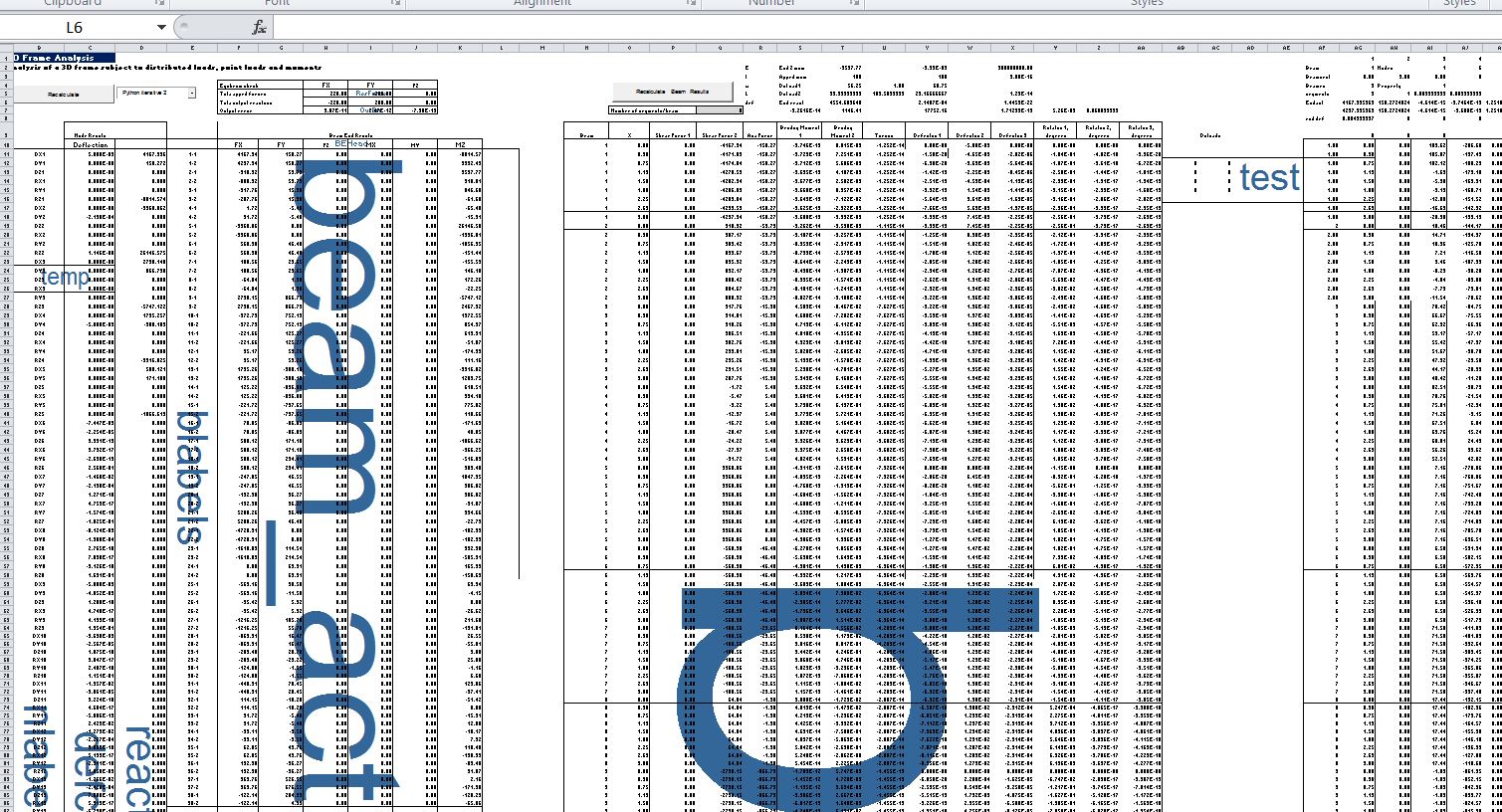
If you want to display the named ranges in a spreadsheet, one way is to open the Name Manager (from the Formulas ribbon).  Another is to press F3, which also allows you to paste the list of names to the spreadsheet.  A third (and it seems little known) method is to zoom out to a scale of 39% or less.  The named ranges will then be displayed as a watermark:

rangenames

Each method has its advantages, but to my mind the zoom to 39% is particularly useful because:

  • It displays just the range names in the particular area of interest.
  • It gives an instant visual picture of parts of the spreadsheet badly in need of a tidy up!
Posted in Excel | Tagged , , | 1 Comment