Solving Quadratic, Cubic, Quartic and higher order equations; examples

A previous post presented a spreadsheet with functions for solving cubic and quartic equations, and this has been extended with another function solving higher order polynomials.  The functions are actually very easy to use, but the documentation in the spreadsheets is quite brief, and the large number of options presented may be off-putting.

To make these functions more accessible, this post presents an example of using the cubic function, and some notes on alternatives and usage of the other functions.  These examples have been added as a separate file to the download file : Polynomial.zip.  As usual, the download files include full open-source code.  Those interested in the included Python functions, see: Python for VBA users – 5; Using built in numpy functions.

The problem to be solved is, if we have a cubic polynomial equation of the form:
Y = aX^3 + bX^2 + cX + e
how do we find the value or values of X that satisfy this equation for known values of a, b, c, and e, and any given Y?

The procedure is:

  • Rearrange the equation to the form:
    aX^3 + bX^2 + cX + d = 0
    by subtracting Y from both sides; that is: d = e – Y.
  • Enter the coefficients, a to d, in a single column or row:
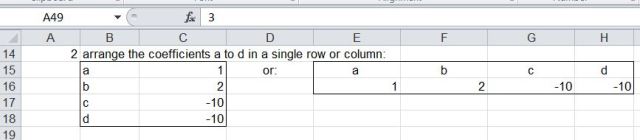
    polyroots2-1
  • Enter the cubic function, with the range of coefficient values as the argument.
  • This will return one of the three solutions to the cubic equation.  To display all three solutions, plus the number of real solutions, enter as an array function:
    –  Select the cell containing the function, and the three cells below.
    – Press the F2 key (Edit)
    – Press Ctrl-Shift-Enter
    The four required values will be displayed as shown below:

polyroots2-2
This is a plot of the cubic function solved.  It can be seen that the three solutions are the X values where the function is equal to zero.
polyroots2-3
Some cubic equations, such as in the graph below, have only one “real” solution, and two “complex” solutions, i.e. solutions with a “real” and “imaginary” part.
polyroots2-5
If the complex solutions are required the CubicC function must be used.  This function is used in the same way as Cubic, except that the output range is two columns; for the real and imaginary parts of the solution:
polyroots2-4
If it is desired to display a single solution, other than the first, this can be done with the optional Out1, and Out2 arguments, as shown below.  Alternatively the built-in Excel Index function may be used.
polyroots2-6
The functions Quadratic and Quartic operate in the same way as Cubic, except that they will also return complex results, so no QuadraticC or QuarticC functions are required.

The function RPolyJT may be used as an alternative to Quadratic, Cubic and Quartic, and also for higher order polynomials.  RPolyJT uses the Jenkins-Traub iterative solution, and is a little slower than the other functions, but will return results nearly instantaneously in most circumstances, and can sometimes be more accurate than the other functions.
polyroots2-7

Further notes and examples are given in the download file. If anything remains unclear, please ask.
Posted in Arrays, Excel, Link to Python, Maths, Newton, UDFs, VBA | Tagged , , , , , , , , , | 13 Comments

Converting from global to local coordinates (and vice versa)

In 3D structural analysis (as well as many other applications) it is necessary to convert section properties, forces, and deflections between coordinate systems defined by individual structural members (local coordinates) and the common coordinate system defining the entire structure (global coordinates).  For a 2D analysis this is straightforward, but for 3D analysis the transformation needs to be carefully defined to avoid unexpected results.  Functions to perform this operation are included in the 3D frame analysis presented here previously (most recently here), but since these functions have other applications I have extracted them and added them to the IP2 spreadsheet.

Download IP2.zip with full open source code.

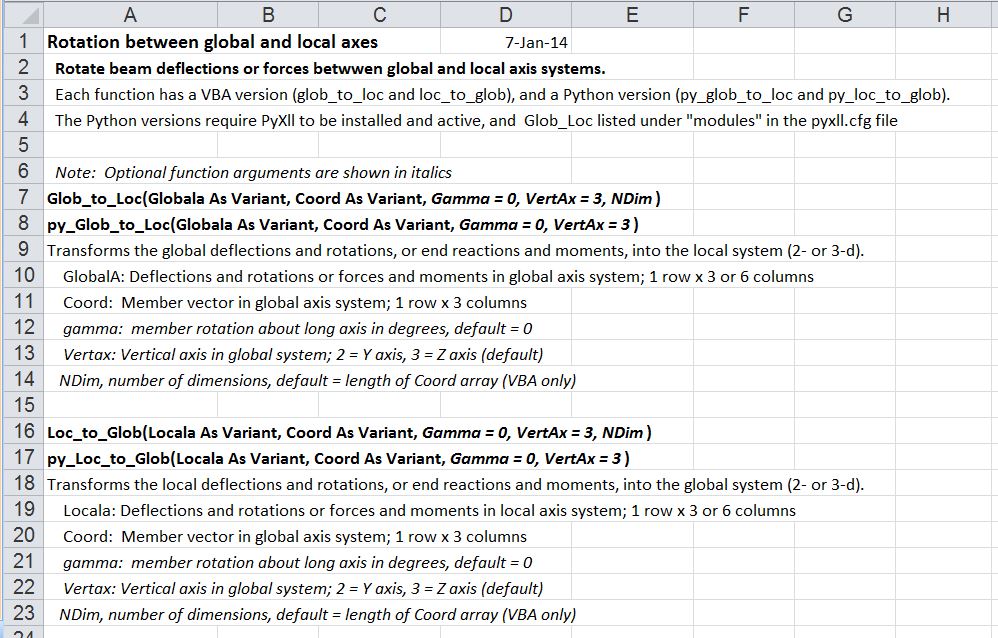
The new functions are glob_to_loc() and loc_to_glob, which also come in Python versions (py_glob_to_loc() and py_loc_to_glob).  Use of the Python versions requires the PyXll add-in.  See Installing Python, Scipy and Pyxll for more details. Details of usage are shown in the screen-shot below (also included in the download file).:

glob_loc1

glob_to_loc and loc_to_glob functions (click for full size view)

The function arguments are:

  • Globala or Locala: the values to be converted to the new axis system.  The values may be deflections, rotations, forces, bending moments, or section properties (translational and rotational stiffness values).  The Globala and Locala arrays may contain 3 or 6 elements; for instance deflections in the X, Y and Z directions, followed by rotations associated with those deflections.  Global values are always listed in the order X, Y, Z.  See below for the definition and order of the local axes.
  • Coord: a 3 element array defining the direction of the longitudinal local axis, relative to the global axis system.  In the context of a frame analysis it is the length of the beam element in the X, Y and Z directions.
  • Gamma: an angle (in degrees) defining the orientation of the local axes, relative to the default alignment (see below).
  • Vertax: 2 or 3, the default vertical direction of the local axes.  This value defines both the vertical direction and the ordering of the local axes (see below).

There are a number of options for defining the default orientation and numbering of the local axes; the two I have chosen are:

  • Vertax = 2:  Local Axis 1 is aligned with the longitudinal axis of the beam, from node 1 to node 2.  Axis 2 is perpendicular to Axis 1 and parallel to the X-Z plane, so the Y axis is in effect treated as vertical.  Axis 3 completes the orthogonal system, being perpendicular to both Axis 1 and Axis 2.  This is the system used in the book “Programming the Finite Element Method”, which is the source of many of the routines used in the frame analysis spreadsheets.
  • Vertax = 3: Local Axis 3 is aligned with the longitudinal axis of the beam, from node 1 to node 2.  Axis 2 is perpendicular to Axis 3 and parallel to the X-Y plane, so the Z axis is treated as vertical.  Axis 1 completes the orthogonal system, being perpendicular to both Axis 3 and Axis 2.  This is the system used in the program Strand7, which I have used to check the results of my spreadsheets.

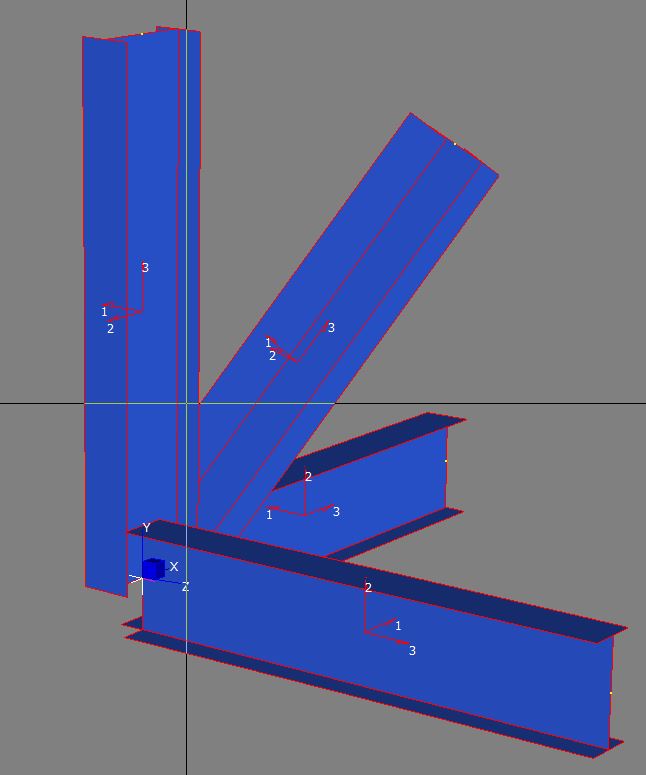
The screen-shot below shows the results of generating four I-beams in Strand7, using the default local axis system:

glob_loc0

Note that Axis 2 for all four beams is parallel to the XY Plane.  Also note that by default the web of the I beams is also aligned with Axis 2.

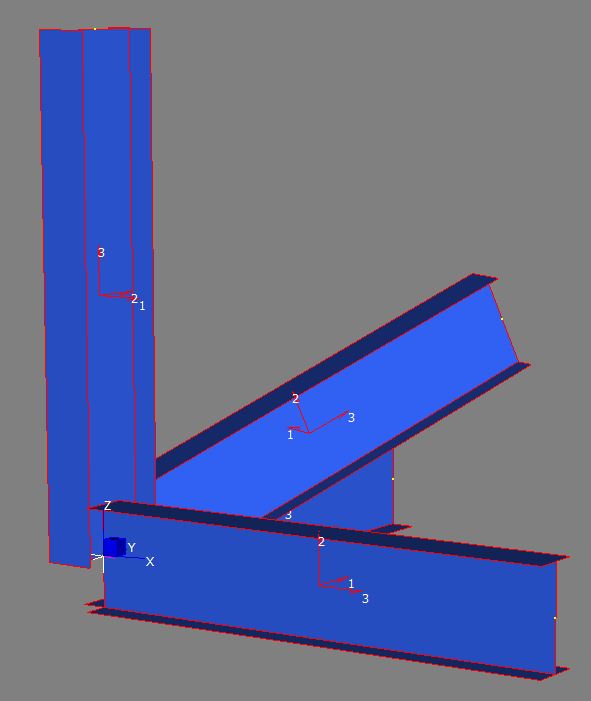
The next screen-shot shows the result of rotating the view of the model, so that the Y axis is vertical, rather than the Z axis:

glob_loc0a

Now the webs of the horizontal members are vertical, but note that the web of the inclined member is now inclined.

The simplest way to achieve a vertical web orientation in all members is to use the Z axis as the vertical direction, and rotate the principal axes of all the beams through 90 degrees, as shown below:
glob_loc0b

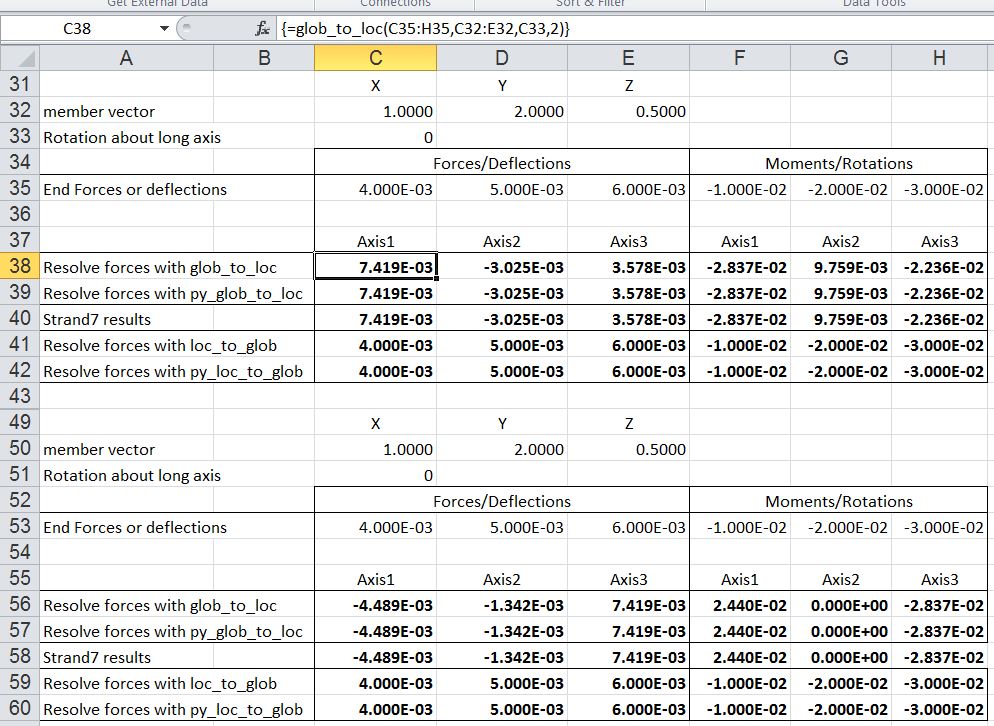
The two screen-shots below show the results of the glob_to_loc function for  beam aligned with the X axis, and with Vertax set to 2 and 3 respectively.  The results are the same except that Local Axes 1 and 3 are swapped and the sign of the Axis 3/1 values has changed.  Note that applying loc_to_glob with the appropriate Vertax value returns the original data.
glob_loc2a

glob_loc2b
Similar results are seen for a beam lying in the XY plane:
glob_loc3
The sign of the Axis 3/1 values can be changed by applying a rotation of 90 degrees:
glob_loc4
For an inclined beam the changing the Vertax value leaves the axial results unchanged (Axis 1/3), but the other axes have differing results, due to the differing rotations of the beams.  The function results are compared with results from Strand7, showing exact agreement:
glob_loc5
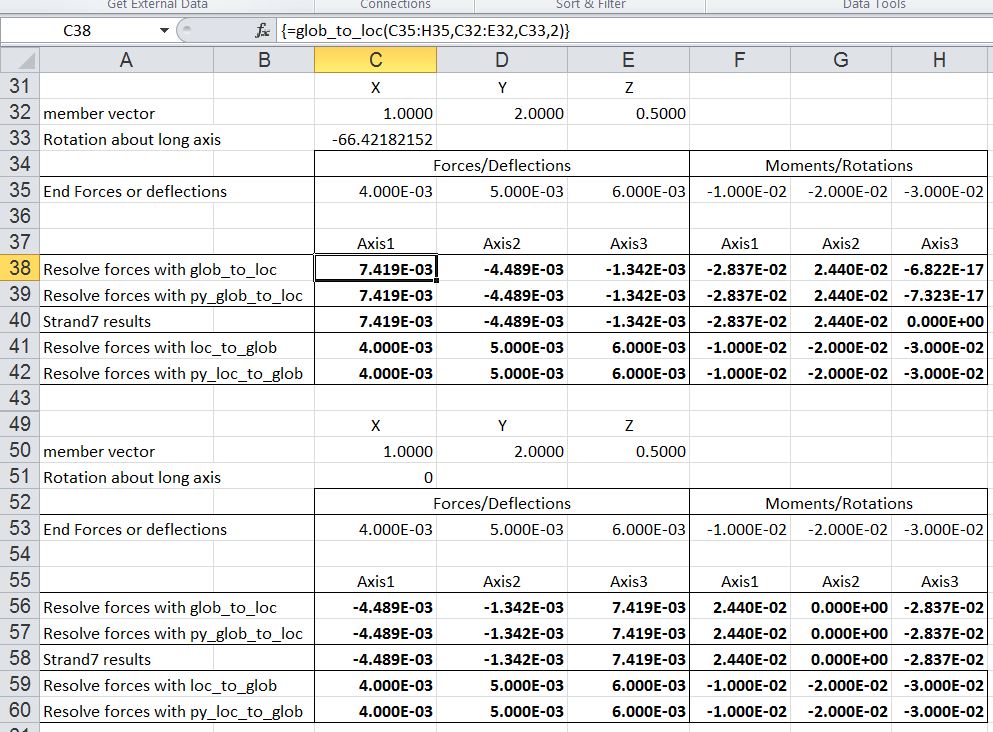
The results of the different Vertax options may be equalised by applying a rotation to one of the beams, bringing the beam principal axes back into alignment:
glob_loc6

Posted in Excel, Finite Element Analysis, Frame Analysis, Link to Python, Maths, UDFs, VBA | Tagged , , , , , , , | 22 Comments

Dictionary link

The VBA Scripting Dictionary object is very useful (examples here and here), but the documentation is poor.

This is fixed at Data Dictionary in VBA – Complete Syntax Documentation, which provides just what it says.

Posted in Excel, VBA | Tagged , , , | 2 Comments

Python for VBA users- 7; Making Python go Faster

As reported in the previous post in this series, although the compiled routines included in packages such as Numpy, Scipy, and Pysparse are very fast, other parts of the code turned out to be slower than the equivalent in VBA.  Some experimentation with the frame analysis code has found two simple strategies that can substantially improve this situation:

  1. Where the code is performing any function that is included in any available compiled library, use the compiled version.
  2. Any block of code that is called repeatedly can be converted to use a “just in time” compiler, such as Numba.

In the case of the frame analysis program, the following code is called for each frame member in assembling the global stiffness matrix:

for i in range(0 , 12):
            for j in range(0 , 12):
                sum = 0.0
                for k in range(0 , 12):
                    sum = sum + tt[i, k] * cc[k, j]
                km[i, j] = sum

This code is performing matrix multiplication, and can be replace with a single line calling the Numpy dot function:

km = npy.dot(tt, cc)

This single change reduced the time to generate the solver input data from about 30 seconds to 6 seconds (the run time for the modified code was reduced by a factor of about 100). Some further modification of the Python code brought this down to about 4 seconds, which was faster than the VBA code, but was still longer than the run time for the solver, which was doing all the hard work, so there was clearly room for further improvement.

This was achieved using Numba, which to quote their web site is:

a just-in-time specializing compiler which compiles annotated Python and NumPy code to LLVM (through decorators). Its goal is to seamlessly integrate with the Python scientific software stack and produce optimized native code, as well as integrate with native foreign languages.

Implementing the Numba routines proved to be surprisingly easy; an example is shown below:

from numba import double, jit, autojit
...
 fastkva = autojit(py_formkv)
lastk = fastkva(km, g, lastk, kva)

def py_formkv(km, G, k, kva):
    idof = km.shape[0]
    for i in range(0,idof):
        m = G[i]
        if m != 0:
            for j in range(0,idof):
                n = G[j]
                if n != 0:
                    K = km[i,j]
                    if K != 0:
                        icd = n - m
                        if icd  >= 0:
                            kva[k,2] = K #km[i,j]
                            kva[k,0] = n
                            kva[k,1] = m
                            k = k+1
    return k

The function py_formkv is standard Python.  The function fastkva is defined as a Numba compiled version of py_formkv, and this may then be called in the same way as any other function.  This single call to Numba reduced the run time from 4 seconds to less than 1 second.  Further improvements to the data generation time would no doubt be possible, but I will now be concentrating on the post-processing, currently all done in VBA, which takes about 5 seconds.

See more about Numba at: Numba vs. Cython: Take 2, where the author (who unlike me is an experienced Python programmer) has compared Numba to several alternatives, and found it to be the fastest (with a 1400 x speed-up, compared with the original Python code!).

Posted in Arrays, Excel, Finite Element Analysis, Frame Analysis, Link to Python, Newton, NumPy and SciPy, UDFs, VBA | Tagged , , , , , | Leave a comment

Two viewers

I have previously looked at using Excel for generation of images from data listing  3D coordinates of points and lists of connections (see  https://newtonexcelbach.wordpress.com/2012/09/27/daily-download-11-perspective-projection/ for instance), but this approach is limited in what can be done:

  • It will only generate a “wire-frame” image
  • It doesn’t provide any means of processing the data
  • It is very slow if the images contains more than a few thousand lines

Paraview (to quote from their web site) is “an open-source, multi-platform data analysis and visualization application. ParaView users can quickly build visualizations to analyze their data using qualitative and quantitative techniques. The data exploration can be done interactively in 3D or programmatically using ParaView’s batch processing capabilities.

ParaView was developed to analyze extremely large datasets using distributed memory computing resources. It can be run on supercomputers to analyze datasets of exascale size as well as on laptops for smaller data.”

It came to my attention through the latest edition of “Programming the Finite Element Method” which I recently purchased.  This publication contains Fortran routines for generating Paraview readable files of finite element models, including output data, which can then be used to generate surface contoured images and animations for instance.  As well as being open-source, Paraview uses Python as a scripting language, which would seem to offer the possibility of linking it to Excel for direct transfer of data.

It must be said that the program appears to be sufficiently complex to require a significant learning period before it can be used effectively, but comments from a user at OSGeology suggest that this will be worth the effort.

A related product is the Kiwi Viewer which will allow the VTK files used by Paraview to be viewed on tablet and phone devices (both I-phone and Android).

You Tube video illustrating some basics of working in Paraview:

And the Kiwi Viewer in action:

Posted in Animation, Computing - general, Finite Element Analysis, Newton | Tagged , , | Leave a comment