Download update 2

I have updated the Downloads spreadsheet on Skydrive to include all new files added this year, and I have also added two Category columns, which link to the Download by Category page, giving more details and links for each file.  The list can be sorted on-line if you select “edit” mode, or download and open in Excel.

Posted in Computing - general, Excel, Newton, UDFs, VBA | Tagged , , , | Leave a comment

Download update – Python downloads

Download files related to linking to Python from Excel are to be found in:

Python matrix functions in Excel, using Pyxll:
Download file: http://interactiveds.com.au/software/Matrixpyxll.zip

Python for VBA users – 4; Python data types:  The main Python data types, including numpy arrays, with examples of their use in PyXll functions.
Download file: http://interactiveds.com.au/software/pyTypes.zip

Python for VBA users – 5; Using built in numpy functions:
Download file: http://interactiveds.com.au/software/py_Polynomial.zip

Also see the PyXll add-in, which is required for the downloads in this category.


Posted in Excel, Link to Python, UDFs, VBA | Tagged , , , , , | Leave a comment

Extracting numbers from text strings

There is often a need to extract numbers from the start or end of text strings.  It’s not too hard to do with on-sheet formulas, but after having done it a few thousand times I decided it would be worth spending 5 minutes writing two VBA User Defined Functions (UDFs) to do the job.  Here they are:

NumRight() will extract a number from the right hand end of a text string, with the number delimited by a space by default, or optionally any other character:

Function NumRight(NumStrings As Variant, Optional Delim As String = " ") As Variant
Dim i As Long, numrows As Long, OutA() As Variant, j As Long, NumDig As Long, Numstring As String, StringLen As Long

    If TypeName(NumStrings) = "Range" Then NumStrings = NumStrings.Value2
    If TypeName(NumStrings) = "String" Then
        numrows = 1
    Else
        numrows = UBound(NumStrings)
    End If

    ReDim OutA(1 To numrows, 1 To 1)
    On Error Resume Next
    For i = 1 To numrows
        If IsArray(NumStrings) = True Then
            Numstring = NumStrings(i, 1)
        Else
            Numstring = NumStrings
        End If
        StringLen = Len(Numstring)
        j = 1
        Do While Left(Right(Numstring, j), 1) <> Delim
            If j >= StringLen Then Exit Do
            j = j + 1
        Loop
        If j >= StringLen Then
            OutA(i, 1) = ""
        Else
            OutA(i, 1) = CDbl(Right(Numstring, j - 1))
        End If
    Next i
    NumRight = OutA
End Function

Numleft() is similar, but extracts a number from the left hand end.

Function NumLeft(NumStrings As Variant, Optional Delim As String = " ") As Variant
Dim i As Long, numrows As Long, OutA() As Variant, j As Long, NumDig As Long, Numstring As String, StringLen As Long

    If TypeName(NumStrings) = "Range" Then NumStrings = NumStrings.Value2
    If TypeName(NumStrings) = "String" Then
        numrows = 1
    Else

        numrows = UBound(NumStrings)
    End If

    ReDim OutA(1 To numrows, 1 To 1)
    On Error Resume Next
    For i = 1 To numrows
        If IsArray(NumStrings) = True Then
            Numstring = NumStrings(i, 1)
        Else
            Numstring = NumStrings
        End If

        StringLen = Len(Numstring)
        j = 1
        Do While Right(Left(Numstring, j), 1) <> Delim
            If j >= StringLen Then Exit Do
            j = j + 1
        Loop
        If j >= StringLen Then
            OutA(i, 1) = ""
        Else
            OutA(i, 1) = CDbl(Left(Numstring, j - 1))
        End If

    Next i
    NumLeft = OutA
End Function

For both functions the input “NumStrings” may be either a single cell or a single column range. In the latter case the function must be entered as an array function to return all the results:

  • Enter the function, with the input range being a single column range
  • Select the range of output rows, with the function in the top row
  • Press F2 (Edit)
  • Press Ctrl-Shift-Enter

The functions may be found in GetNum.xlsb, and have also been added to Text-in2.xlsb.

Here’s what they look like in use:
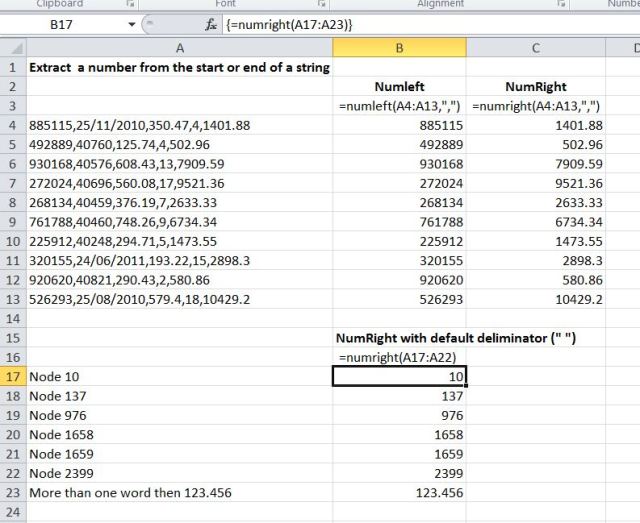
NumLeft and NumRight functions

NumLeft and NumRight functions
Posted in Excel, UDFs, VBA | Tagged , , , , , , | 13 Comments

1 Million Page Views

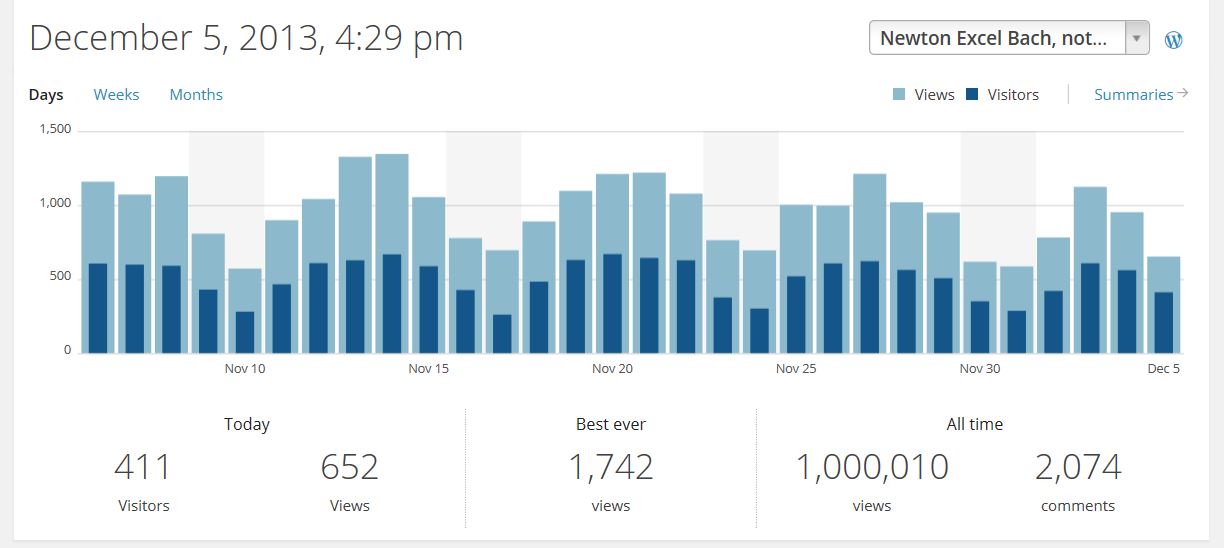
At some time in the next couple of hours or so the number of page views here will pass the 1 million mark, so congratulations in advance one millionth page viewer.

Stats by country4

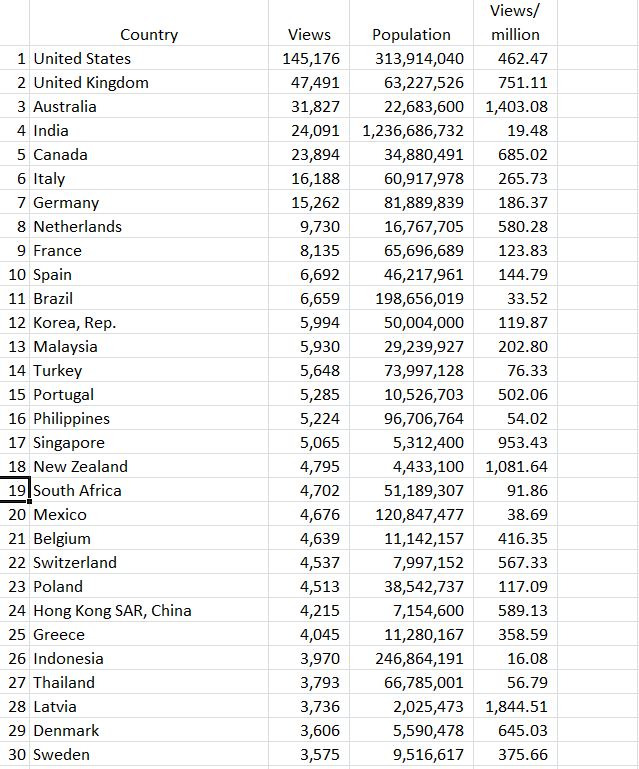
I thought it would be interesting to see where all these viewers of 1 million pages come from, so here are the figures (since Feb 2012, when WordPress started publishing the daily count by country):

By Total Page Views

By Total Page Views

Unsurprisingly, the list sorted by total page views is headed by the English speaking countries, with the USA well ahead and Australia in third place, but more surprisingly:

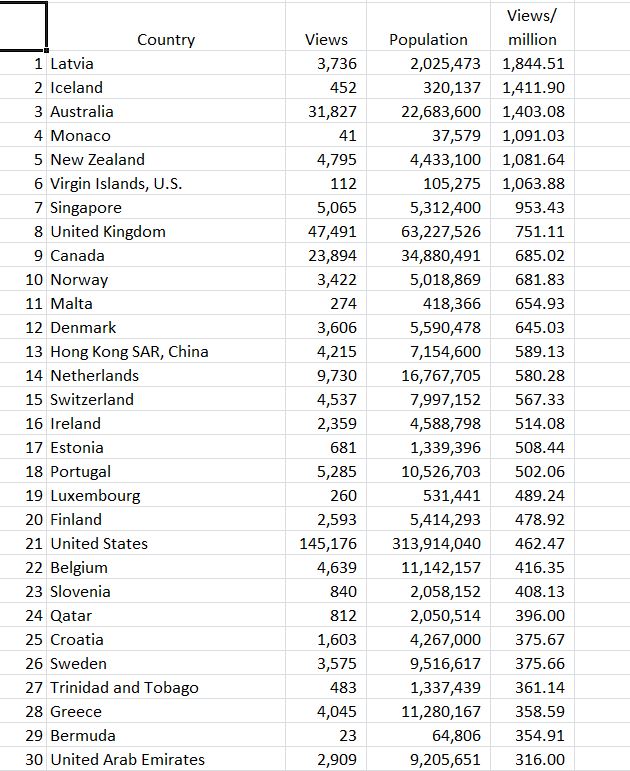
By Page views / Million Population

By Page views / Million Population

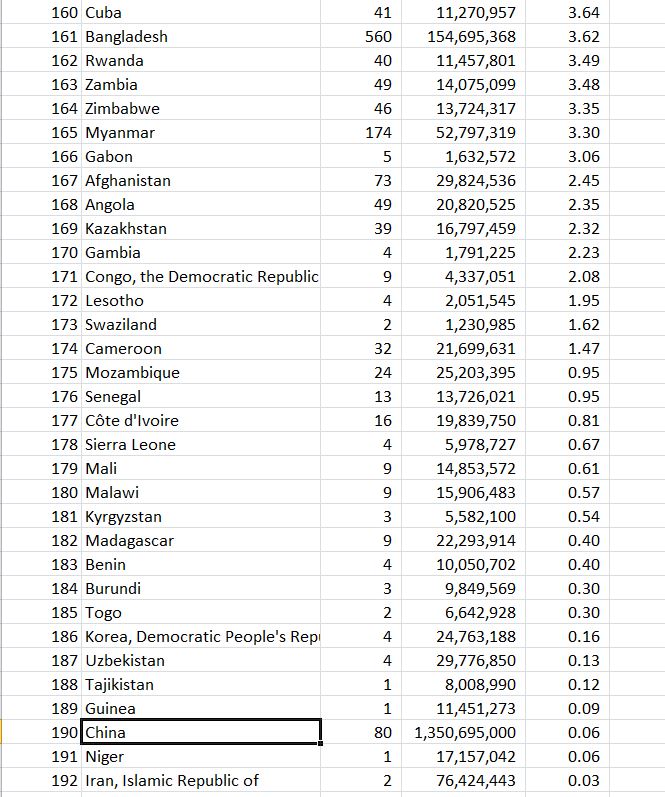
, when sorted by page views per million population the USA falls to 21st place, Australia remains 3rd, headed by Latvia well ahead in first place, followed by Iceland.  Singapore is the first Asian country, ahead of the UK and Canada.  Hong Kong takes the second Asian spot in 13th place, but down at the bottom of the list:

By Page views / Million Population

By Page views / Million Population

mainland China comes in at 190th out of 192, with only 80 views from close to 20% of the World’s population.

So greetings to my fan or fans in Latvia and Iceland, I hope you find the blog continues to be worth reading!

Posted in Computing - general | Tagged , | 3 Comments

Moving Load Spreadsheet – update and how to use

As noted in the comments on the previous post on this topic, the moving load function (and also the associated continuous beam functions) have been modified to make data entry more flexible; the output results are unchanged.  The modified spreadsheet may be downloaded from ConBeamU Download, including full open-source code.

Further details of the use of the MovLoadU function are given below, with the example of a typical 3 span bridge consisting of precast concrete girders with in-situ concrete link slabs at the internal piers, and using the AS 5100 M1600 truck loading.

The definition of the 3 spans and the truck load is shown in the screen-shot below:

Definition of 3 span beam with link slabs and M1600 Vehicle

Definition of 3 span beam with link slabs and M1600 Vehicle

To carry out the moving load analysis:

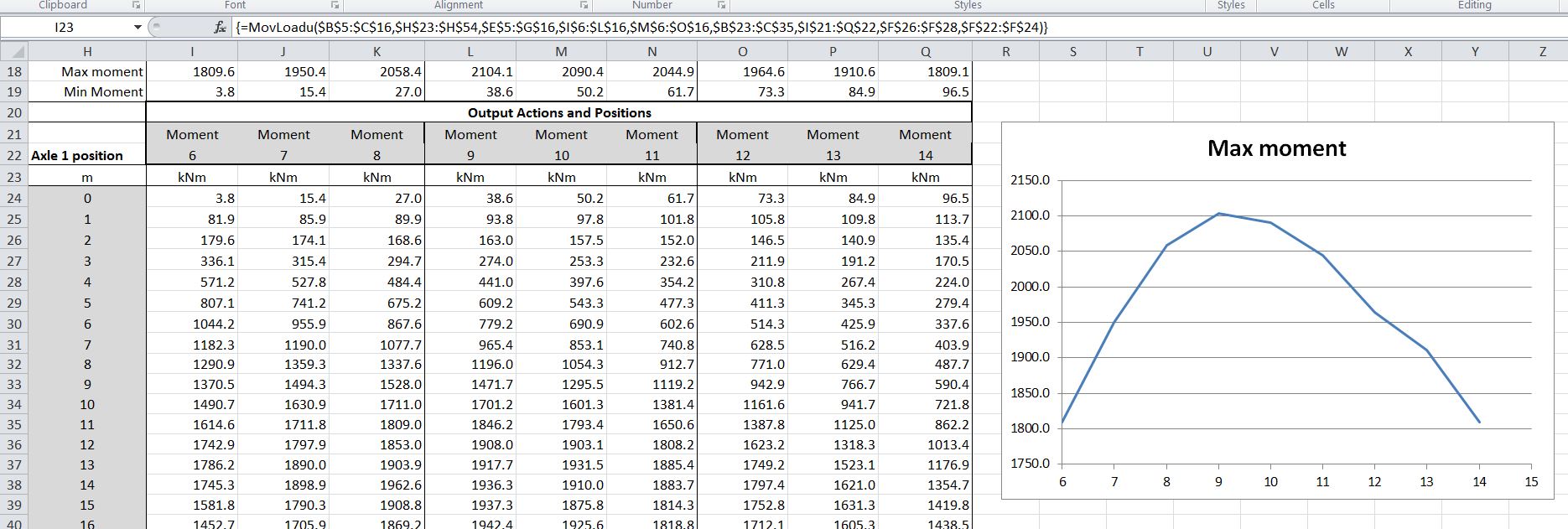
  • Define a number of vehicle positions, with the X value of axle 1 (cells H24 down in the screen shot below – click the image for a larger size view)
  • For each point where the effect of the moving load is to be analysed, enter in a 2 row range the output required (one of “moment”, “shear”, “slope” or “deflection”), and the position of the point, as shown in cells I21:Q22 in the screen shot below.
  • The MovLoadU function will return the selected output actions for each vehicle position listed.  The function can either be used with the ranges selected in the example, or re-entered (as an array function) anywhere in the spreadsheet.
MovLoadU Output

MovLoadU Output

In the screen shot above the action type (“moment”) has been entered above every output column. This may be replaced with a single entry in the left-most column, with the columns to the right of the same type being left blank:

Output action type entered in column I only

Output action type entered in column I only

The “moment” text may also be aligned centrally over the columns to which it applies, using the “Center Across Selection” alignement:

MovLoad2-3

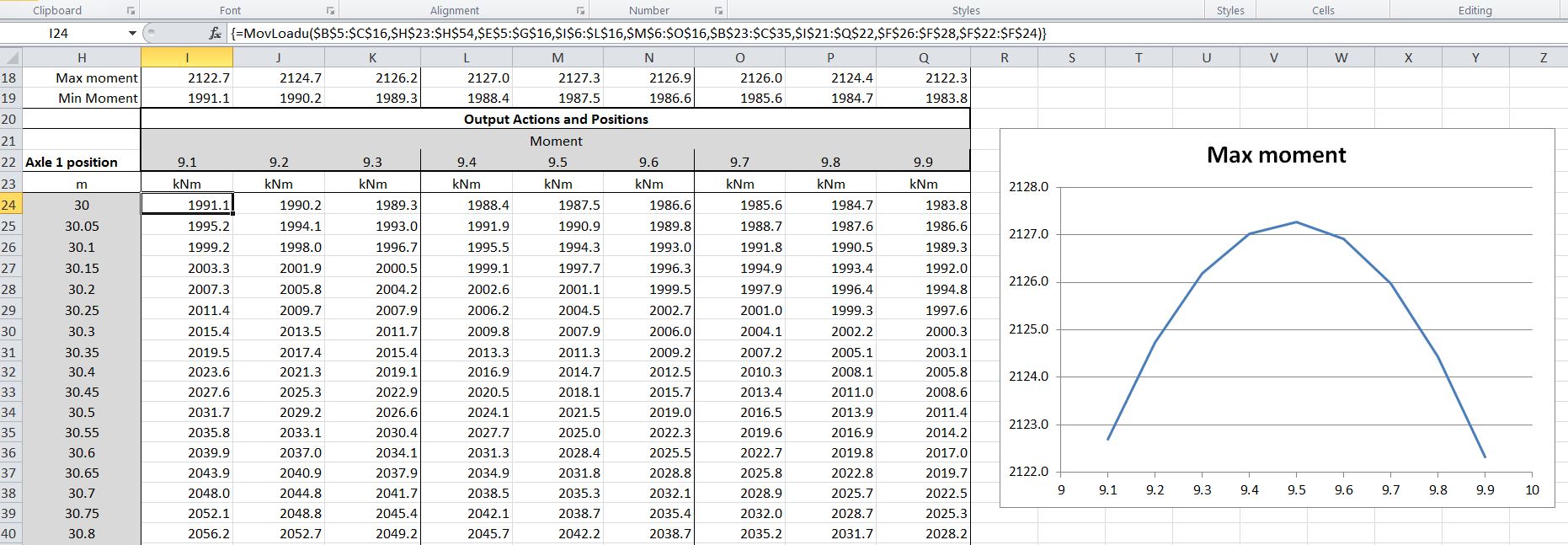
To find the maximum bending moment in span 1 the location of the output actions, and the vehicle positions may be specified at closer centres:

Location of maximum moment

Location of maximum moment

Alternatively the Excel Solver may be used to adjust the output location to maximise or minimise the value of the selected action. In the screenshot below the Solver is set up to maximise the bending moment in the central span (cell K18) by adjusting the output location in cell K22:

Solver set-up to find maximum moment position in central span

Solver set-up to find maximum moment position in central span

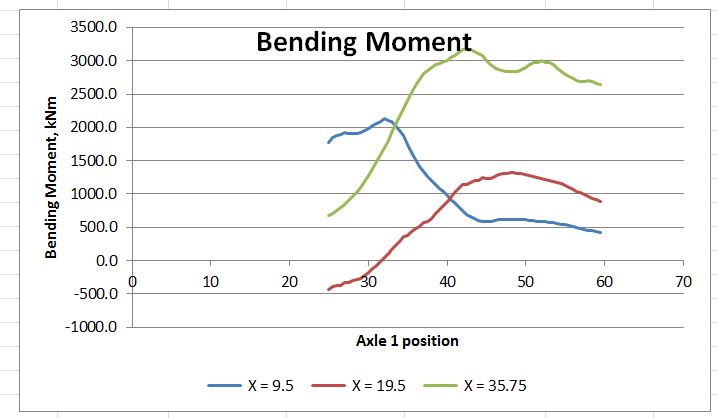
After using the Excel Solver to locate the position of maximum moments, shears and deflections at the 9 locations shown above, the resulting output of actions and deflections can be plotted against vehicle position, as shown below:

Maximum Bending Moments

Maximum Bending Moments

Maximum Shear

Maximum Shear

Maximum Deflection

Maximum Deflection

Posted in Beam Bending, Excel, Frame Analysis, Newton, UDFs, VBA | Tagged , , , , , , , , | 7 Comments