Extracting a hyperlink

Excel does not have a function to extract the address from a cell containing a hyperlink.  Here is a short UDF that will do the job:

Function HLink(rng As Range, Optional RtnSub As Boolean = False) As String
'extract URL from hyperlink
'Orinal from http://blog.contextures.com/archives/2010/12/13/get-the-url-from-an-excel-hyperlink/
 'posted by Rick Rothstein
 'Modified by Doug Jenkins

    If rng(1).Hyperlinks.Count Then
        If RtnSub = False Then
            HLink = rng.Hyperlinks(1).Address
        Else
            HLink = rng.Hyperlinks(1).SubAddress
        End If
    End If
End Function

The original was a one-liner posted by Rick Rosthstein on Debra Dalgleish’s Contextures Blog.  I have just added an option to return the “sub-address” (part following the #), rather than the main address.  Follow the link to Contextures for more suggestions and VBA code for working with hyperlinks.

Posted in Excel, UDFs, VBA | Tagged , , , | Leave a comment

Defining beam orientation in 3D

The principal axes of a beam (or any 2D closed shape) are defined as the axes along which an applied load will not cause any deflection in the transverse direction.  In mathematical terms, if the beam cross-section is defined in the XY plane, then the product of area Ixy is zero when the principal axes are coincident with the X and Y axes.  See Fundamentals of Beam Bending for more details.

In a 2D frame analysis it is assumed that one of the principal axes of  each beam is in the plane of the analysis, so that in-plane loads do not cause any out of plane deflection.  In a 3D analysis deflections in all 3 directions are taken into account, so it is necessary to define the orientation of the principal axes to the global axes used to define the beam positions.  One way to do this unambiguously is to define each beam with three nodes, where nodes 1 and 2 define the longitudinal axis and direction of the beam, and the plane defined by all three nodes defines the plane of Principal Axis 1.   This procedure requires significant additional data input, and since in most cases the planes of the principal axes will be vertical and horizontal, it is possible to define default directions for the principal axes, and then provide an angle of rotation for any beams where the principal axes do not lie in the default directions.  This procedure is quick and convenient, but it is important to know the details of the convention used by each frame analysis program, and understand the effect of this convention on the model generated.

As an example, the FEA program Strand7 defines the default principal axes as follows:

The default orientation for Beam2 elements is defined by:
i3 – is the unit vector directed from Node 1 to Node 2.
 i2 – is the unit vector arising from i2 = Z × i3 where Z is the unit vector in the global Z direction
 i1 – completes the right-handed system such that i1 × i2 = i3

This procedure in effect creates an Axis-2 parallel to the XY plane, and an Axis-1 in the plane parallel to the Z axis; i.e. the Z axis is in effect defined as the vertical axis in the model, and the XY plane is horizontal.  It is important to understand how these axes relate to the default axes of standard beam cross sections, and also to understand the effect of using the Y axis as the vertical, rather than the Z.  In the examples below an arch section has been modelled with different assumptions for the axes directions to illustrate the effect on beams that are not parallel to the global axes.  The arch section has been modelled with sections at the base and top using an I beam section to illustrate  the effect of various options on the direction of the web.

The first screen-shot shows the effect of constructing the model with the Y axis as vertical, and no adjustment of the principal axis angles:
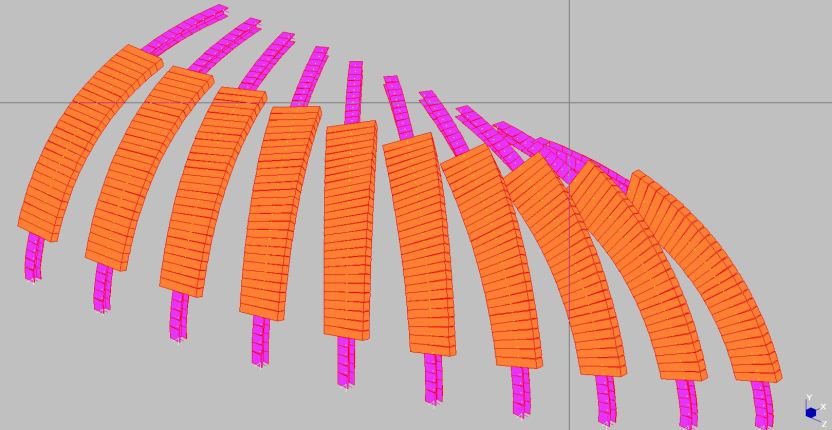
Y Axis vertical, no rotation

The arch on the left is parallel to the X axis, and all the beam members are oriented as intended, but as the angle of the arch vertical plane is rotated through 90 degrees, the angle of the principal axes is also rotated, which is not what is required.

BeamAxes2

Detail at crown, right hand end

Also note that at the right end, the end segment is parallel to the Z axis, and for this one member the beam web is vertical, whereas for the other members lying in the YZ plane, but not parallel to the Z axis, the beam web is horizontal.

BeamAxes3

Z axis vertical

 For a model with the Z axis vertical the beam Principal Axis-2 is created horizontal (parallel to the XY plane), but in this case the default orientation of the I beam webs, and the rectangular section breadth, is parallel to the Principal Axis-1, which is not what is required in this case.

BeamAxes4
Also note that the members at the base, which have a longitudinal axis parallel to the Z axis, are rotated relative to the other members.

BeamAxes5

Z Axis vertical, beams rotated by 90 degrees

Where the Z axis is vertical the correct orientation of the I-beam webs, and the rectangular section breadth, can be obtained by rotating the principal axis through 90 degrees, for all but the vertical beams.

Y Axis vertical

Y Axis vertical, beams rotated by varying amount

Where the Y axis is vertical each beam segment (other than those in the XY and YZ planes) must be rotated by a different amount.  In Strand7 the Tools-Align-Beam Axes command will perform this task automatically, as illustrated above.

BeamAxes7

Correction of the orientation of the vertical beams at the base

For both the vertical Y axis and Z axis the beams at the base must be oriented individually, because the Principal Axes 2 are aligned with the Y axis.

Posted in Beam Bending, Coordinate Geometry, Frame Analysis, Maths, Newton | Tagged , , , , | Leave a comment

The angle between two vectors, in 2D or 3D

Finding the angle between two lines in 2D is easy, just find the angle of each line with the x-axis from the slope of the line and take the difference.  In 3D it is not so obvious, but it can be shown (using the Cosine Rule) that the angle θ between two vectors a and b is given by:

Cos θ = (a.b)/(|a||b|)

Unfortunately this gives poor accuracy for angles close to zero; for instance an angle of 1.00E-7 radians evaluates with an error exceeding 1%, and 1.00E-8 radians evaluates as zero.  A similar formula using the sine of the angle:

Sin θ = |(axb)|/(|a||b|)

has similar problems with angles close to 90 degrees, but combining the two gives:

Tan θ = |(axb)|/ (a.b)

which is accurate for all angles, and since the (|a||b|) values cancel out the computation time is similar to the other expressions.

I have added a new User Defined Function (UDF) to the VectorFunc.xlsb spreadsheet, which was described in Dots and Crosses.  The revised spreadsheet can be downloaded from the link above, including full open-source code.

The input for the new ANG() function is either two or three points, each of which are defined by a row of 2 or 3 values for 2D or 3D lines.  Each point must have the same number of dimensions.  If the third point is omitted the function returns the angle at the origin between the lines to Point 1 and Point 2.  If the third point is supplied, the function returns the angle at this point.  Angles are returned in radians by default, or degrees if the optional fourth argument is set to 1.  The screen shot below shows examples of each of these options.

Angle at origin (blue line) and at Point 3 (red line)

Angle at origin (blue line) and at Point 3 (red line)

Posted in Coordinate Geometry, Excel, Maths, Newton, UDFs, VBA | Tagged , , , , , , | 9 Comments

Tanh-Sinh Quadrature V4.0

Since last September Graeme Dennes has continued work on his Tanh-Sinh Quadrature spreadsheet, and has recently released Version 4.0, which can be downloaded from: Tanh-Sinh. As usual, the download includes full open-source code and extensive documentation.

The new version includes routines to conveniently evaluate the integrals of functions coded in VBA, as well as those entered on the worksheet.  This approach provides much better performance, as described by Graeme below:

Much, Much Faster Tanh-Sinh Quadrature v4.0 by Graeme Dennes

To the best of the author’s knowledge, this V4.0 package remains the fastest, most powerful, most accurate and most comprehensive general-purpose quadrature package available today at no cost. It includes full open source code and extensive documentation.

Yes, this V4.0 release is much, much faster than the V3.0 release due to a fundamental change in the method used to evaluate the functions being integrated. This is the main, exciting, change for this version of the workbook.

For previous releases, and which is the default option in this release, the functions to be integrated are stored in worksheet cells, and evaluated by the quadrature programs as required. The cell-stored method may continue to be used in the identical manner as in previous releases.

Doug Jenkins (privately) raised the concept of the functions being stored internally as VBA program statements, being called by the quadrature programs when required. Based on initial code provided by Doug, the author has implemented the VBA-stored method as an option for all 13 quadrature programs. Each program worksheet has been provided with a control button to demonstrate either the VBA-based results or cell-based results, allowing for an immediate comparison of the execution times between these two function storage methods.

Why go to all this trouble? Consider the improvement afforded to the Tanh-Sinh program. With all 200+ test functions held as VBA-stored code, the total worksheet calculation time shows a dramatic speed increase of twenty-seven times over the cell-stored method!!! This is an unprecedented out-of-the-real-world improvement to the performance of the Tanh-Sinh program. (The other programs also show performance improvements of varying degrees.) Refer to the VBA TESTS worksheet for the indicative speed comparisons between the two storage methods for the 13 quadrature programs. All several hundred test functions used in the 13 program worksheets are also included as VBA-stored functions, allowing for easy speed comparisons between the two storage methods. If you thought the Tanh-Sinh program’s performance was excellent in the past, wait until you experience the performance when using VBA-stored functions. Hang on to your hat!!

Caveat: Implementing the functions internally as VBA program statements requires VBA programming skills. The top of the module m_EvalFunc contains the basic instructions for entering the functions as VBA code statements.

Doug also provided an example of a custom function which in turn calls a quadrature program to integrate a VBA-stored function. This greatly increases the speed of the custom function. It also improves the overall utility of this workbook, in that it provides the basis for having a library of regularly used custom functions which are also able to make use of the new storage method, while at the same time perform other associated calculations (if required) in conjunction with calls to integration programs, etc. Iterative programs, such as these 13 quadrature programs, maximise the benefits of the VBA storage method because the functions being integrated may need to be evaluated many times for each solution, maximising the time-saving provided by this method. Refer to the last two examples on the T-S EXAMPLES worksheet for two custom functions demonstrating the method. The code for the included custom functions is located at the end of the module m_EvalFunc.

In summary, the huge speed improvement achieved through using VBA-stored functions is immediately obvious and worthwhile. We do live in exciting times! Thank you Doug.

Also in this release, the speed of the Gauss-Kronrod program has been significantly improved through the inclusion of the Epsilon algorithm of Wynn to extrapolate the limit of the series, speeding up convergence. This has allowed the order of the Gauss-Kronrod program to be changed from 20/41 to 10/21. These two changes have improved the performance by a very nice 40 percent.

Graeme Dennes

Posted in Excel, Maths, Newton, Numerical integration, UDFs, VBA | Tagged , , , , | 6 Comments

Using Excel’s shortest functions

Happy New Year to everyone.

I’ve been busy working on a 3D version of my frame analysis program (which will be published in the not too distant future), but as things have been a bit quiet here recently, here are some things you can do with Excel’s shortest functions (N() and T()), inspired by a post at Bacon Bits.

Mike Alexander’s post (linked above) shows how to add comments to the end of a function by surrounding the text with the N() function, which will evaluate to zero, but I was more intrigued by one of the comments, pointing out that these functions can be used within array formulas to evaluate an embedded array.  See the link for more details, but playing with this I found an interesting difference in behaviour compared with using — (double minus), which is often recommended for this purpose.

If we have a list of numbers, starting in cell A1, then the formula:

=COUNTA((OFFSET(A1,{1,5,6},0)))

will return 1, but:

=COUNTA(N(OFFSET(A1,{1,5,6},0)))

will return 3, because the N() function evaluates the Offset function, before the Counta function.  In this case:

=COUNTA(–(OFFSET(A1,{1,5,6},0)))

will give the same result, but:

=SUM(–(OFFSET(A1,{1,5,6},0)))

returns #VALUE!, whereas:

=SUM(N(OFFSET(A1,{1,5,6},0)))

returns 15, which is the correct result.

Posted in Arrays, Excel | Tagged , , , , | 26 Comments