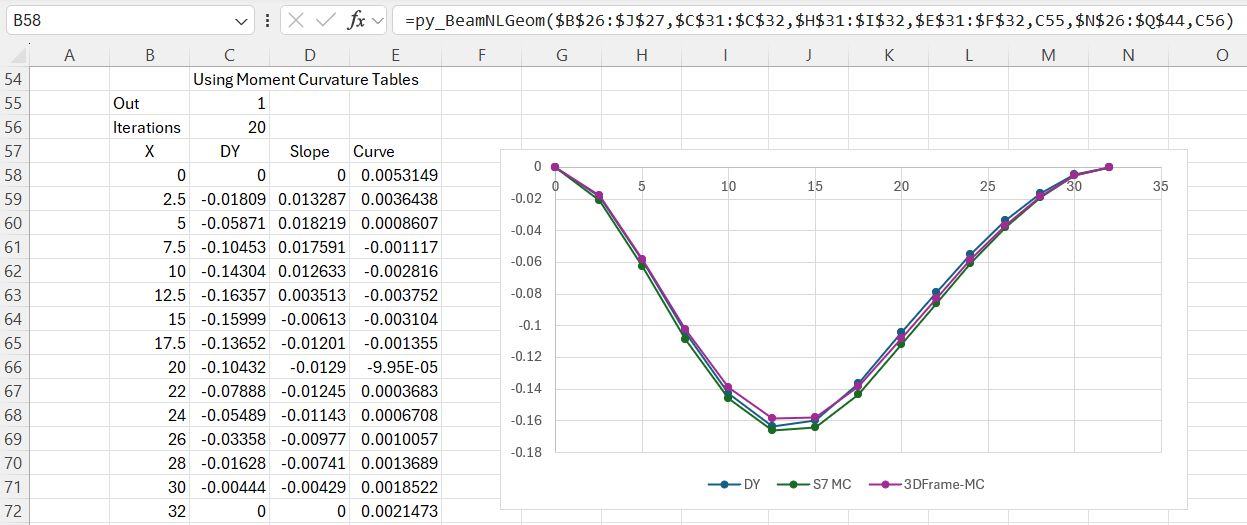
In 2018 I posted Beam geometric non-linear effects with a VBA based spreadsheet to calculate beam actions and deflections under combined transverse and axial load, allowing for geometric non-linear effects. I have now converted the code to Python, linking to Excel with pyxll, with several added features:
The beam flexural stiffness may be specified with moment-curvature tables, allowing material non-linear effects to be included.
The deflection output now includes the section curvature, as well as transverse deflection and slope.
Where moment-curvature tables are specified the flexural stiffness of each beam segment may based on either the average moment along the segment (default), or the maximum absolute moment.
Typical input and results are shown in the screenshots below. See the previous post for background on the analysis method used. The spreadsheet and required Python code can be downloaded from:
The first examples are based on a beam with two different cross sections, fixed for rotation and transverse deflection at both ends, and with an axial load close to the buckling load. The spreadsheet results are compared with results from Strand7 and from my 3DFrame spreadsheet.
Specifying moment-curvature tables, and an increased number of iterations significantly increases the deflections:
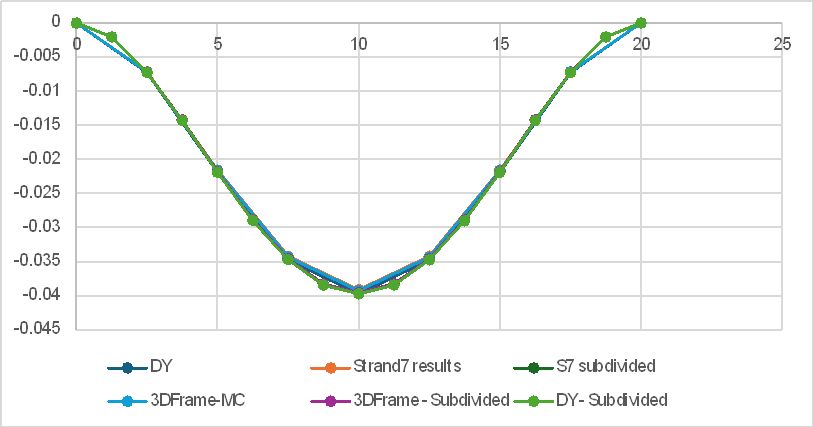
Doubling the number of beam segments improves the match between the alternative softwares used:
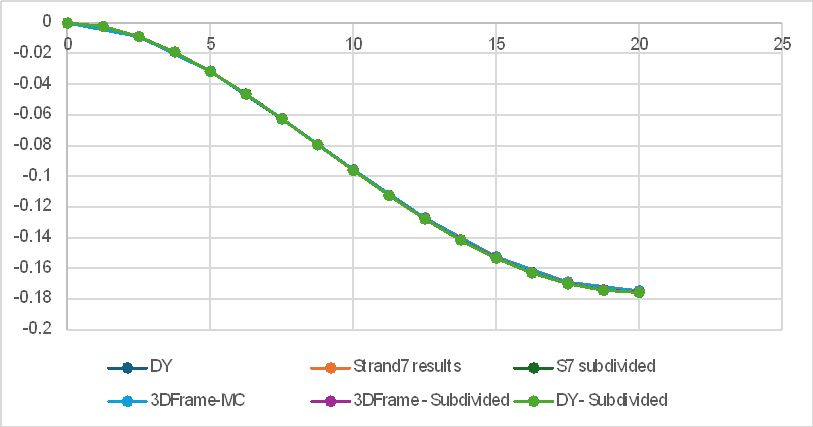
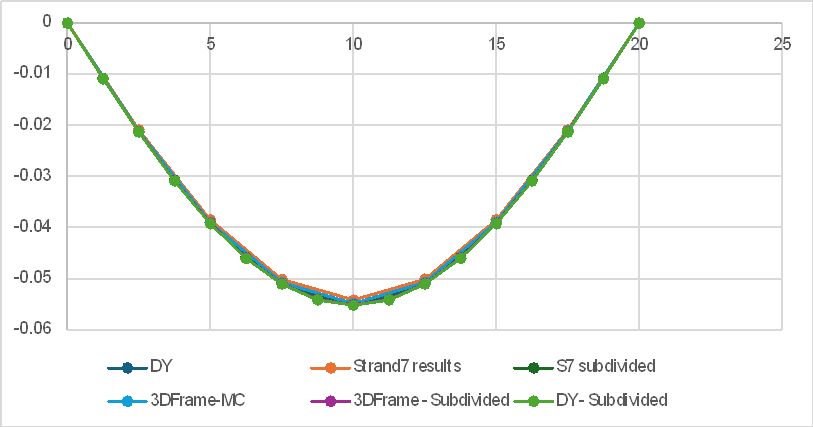
The results below are for a 20 m long beam with different end conditions:
Moment and transverse deflection fixed at both ends.
Transverse deflection restraint removed at the right hand end.
This post was prompted by an Eng-Tips question: Statically Indeterminant Beam Problem, asking for reactions due to a triangular distributed load on the middle span of a continuous beam with 3 equal simply supported spans. This could be simply solved with a frame analysis program, or continuous beam analysis (such as ConBeamU or py_ConBeamU), but it is useful to analyse this problem from first principles to get a better understanding of the procedures used.
The procedure used in my continuous beam spreadsheets is:
Remove the internal supports so the beam can be analysed as a determinate simply supported single span.
Use the slope-deflection method to find the deflections at the internal support locations.
Apply a unit load at each of the internal support locations in turn and find the deflection at all of the internal supports due to that load.
Calculate the load required at each support to reverse the deflection due to the original applied load.
Take moments about one end to find the reactions due to the applied loads and the internal support reactions.
Since the spans are equal in the given problem, the analysis can be simplified by
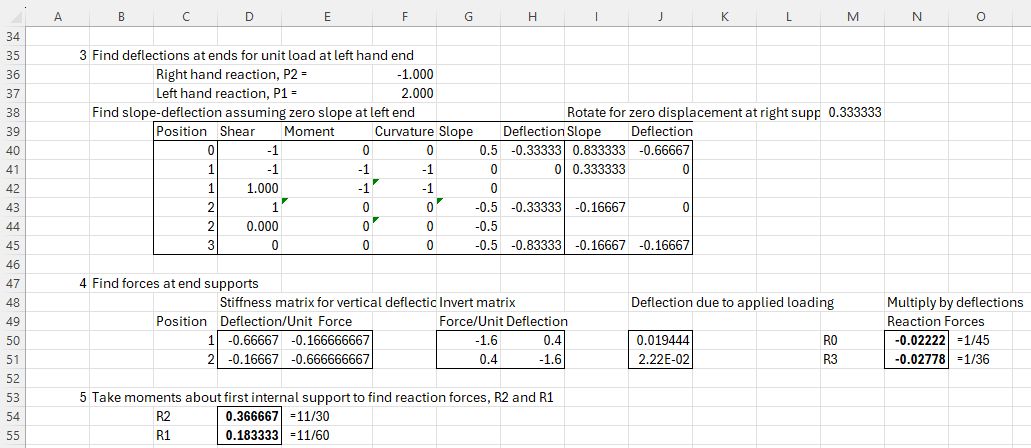
setting the spans, the bending stiffness and the maximum load to a value of 1.
Apply the triangular distributed load as a point load and moment at the two internal supports, based on the fixed end actions due to that load.
Note that:
Slopes and deflections are found by initially assuming zero slope at the left-hand end, then rotating about the left-hand end for zero deflection at the other end.
The calculated deflections due to unit load at the internal support are set up in a 2×2 stiffness matrix, which is inverted to find the force matrix for unit deflection, and this is then multiplied by the deflections due to the applied load, to find the reactions at the internal supports.
An alternative process is to remove the two end supports, and find the deflections at these locations due to the applied load on the middle span:
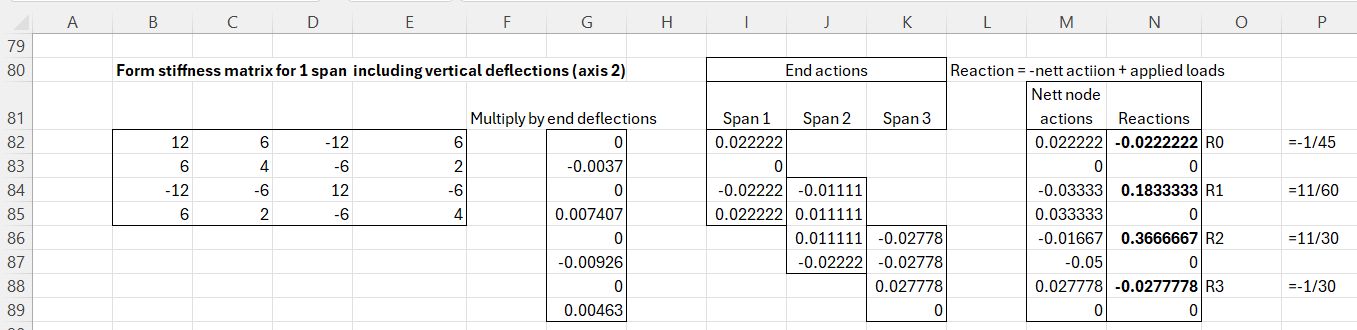
Finally a simple version of standard frame analysis procedure can be set up:
Find the global stiffness matrix for bending about the horizontal axis at each support location.
Invert this matrix and multiply by the moments at the internal supports due to the applied load, to find the slope at each support.
Find the stiffness matrix for rotations and vertical deflections for one beam, and multiply by the rotations at each support to find the nett actions (shear force and bending moment) at each support.
The reactions are then equal to: -nett action + applied load:
The calculated reactions are exactly the same from each of the three calculations. Copies of the spreadsheets used can be downloaded from: 3 Span triang load.zip
Details of the required pyxll package (including download, free trial, and full documentation) can be found at:pyxll
For those installing a new copy of pyxll, a 10% discount on the first year’s fees is available using the coupon code “NEWTONEXCELBACH10”.
The py_Stats function can be used to call any function in the Scipy.stats module. Alternatively the functions can be called with specific py_ functions. The screenshot below shows the describe function called with py_Stats and py_describe.
The examples of each function have now been extended to cover every available function:
Help on any function can be displayed as text on the spreadsheet, using the get_docs function:
The Scipy on-line help for any function can now be displayed by clicking on “Help on this function” at the bottom left of the function wizard:
The function wizard now displays a brief description of the function purpose, and the data required for each argument, as for the built-in Excel functions:
The spreadsheet also has functions to return the arguments for each function (get_args and get_argtab, and to list every available function in any Python module (get_funcs):
Finally there is a list of every Scipy.ststs function that can be called from Excel with a py_ function. This list now also includes the row number where the function example can be found:








 Newton Excel Bach, not (just) an Excel Blog