Writing Arrays to the worksheet – VBA function

Previous posts have looked at the VBA code for efficiently writing a VBA array to the spreadsheet as quickly as possible, most recently here.

I have now put this code in a function that can be conveniently called from any other VBA routine, with several optional features:

  • Optional “NumRows” and “NumCols” parameters, allowing part of the array to be written to the spreadsheet (default is write the whole array)
  • Optional “ClearRange” parameter, allowing the data in the named range to be cleared before writing the new data.  This may be useful if the range to be written is smaller than the old range, and you wish to keep the old data outside the limits of the new array.  Default is True, i.e. the old data will be cleared.
  • Optional Rowoff and Coloff parameters, allowing the data to be offset from the top-left corner of the specified range.  Default offset values are zero.

Another new feature is that the array to be written may be a worksheet range, providing a quick and convenient way of copying the data in any range as values to another location.

The code is shown below:

Function CopyToRange(VBAArray As Variant, RangeName As String, Optional NumRows As Long = 0, _
                    Optional NumCols As Long = 0, Optional ClearRange As Boolean = True, _
                    Optional RowOff As Long = 0, Optional ColOff As Long = 0) As Long
Dim DataRange As Range

    On Error GoTo RtnError
    If TypeName(VBAArray) = "Range" Then VBAArray = VBAArray.Value2
    If NumRows = 0 Then NumRows = UBound(VBAArray)
    If NumCols = 0 Then NumCols = UBound(VBAArray, 2)
    Set DataRange = Range(RangeName)
    If ClearRange = True Then DataRange.Offset(RowOff, ColOff).ClearContents
    DataRange.Resize(NumRows, NumCols).Name = RangeName
    Range(RangeName).Offset(RowOff, ColOff).Value = VBAArray
    Set DataRange = Nothing
    CopyToRange = 0
    Exit Function

RtnError:
    CopyToRange = 1
End Function

It may also be downloaded from CopyToRange.zip, which includes the code plus a short sample code that generates a 4×4 array, writes it to the spreadsheet, then copies that range to another named range on the spreadsheet, producing the output below:

CopyToRange Function

Note that this function must be called from a VBA subroutine, since functions called from the spreadsheet, as a User Defined Function, cannot write to other parts of the spreadsheet.

Finally, another short but useful function is included in the download file, which clears a named range. After clearing the named range is re-sized to 1 row, or optionally to any specified number of rows:

Function ClearRange(RangeName As String, Optional NumRows As Long = 0, _
        Optional RowOff As Long = 0, Optional ColOff As Long = 0) As Long
Dim DataRange As Range, NumCols As Long

    On Error GoTo RtnError

    Set DataRange = Range(RangeName)
    If NumRows = 0 Then NumRows = 1
    NumCols = DataRange.Columns.Count

    DataRange.Offset(RowOff, ColOff).ClearContents
    DataRange.Resize(NumRows, NumCols).Name = RangeName
    Set DataRange = Nothing
    ClearRange = 0
    Exit Function

RtnError:
    ClearRange = 1
End Function
Posted in Arrays, Excel, VBA | Tagged , , , , | 17 Comments

More from the Former Love …

… with video directed by Kerinne Jenkins

(Click on Vimeo to visit site, or click play, then full screen button:

Dancing in Silence – The Former Love from Kerinne Jenkins on Vimeo.

Posted in Bach, Films | Tagged , , , | 1 Comment

Getting the address of a selected range

The Excel Indirect() function allows other functions to use the text in a worksheet cell to define a range, rather than selecting the range, or entering it directly into the function. For instance, if cell A1 contained the text B1:B10, then the function =Sum(Indirect(A1)) would return the sum of the values in B1:B10.

It would be convenient if there was a built in Excel function that returned the address of a selected range, but there isn’t. It is possible to create the address using a combination of functions and text strings, but in my opinion a much simpler method is available through a very short piece of VBA:

Function RngAddress(Rng As Range) As String
RngAddress = Rng.Address
End Function

Pasting those three lines into a code module in the VB Editor will create a RngAddress function that will return a text string with the address of a selected range.

But having done that, wouldn’t it be nice if we could also just select the top left hand corner, and enter the number of rows and columns we wanted. Also being able to (optionally) return the worksheet name would be useful. Another few lines will do what we want:

Function RngAddress(Rng As Range, Optional NumRows As Long, Optional NumCols As Long, Optional SheetName As Boolean) As String

' If you want this function to update with every worksheet change, then un-comment the line below
' Application.Volatile

If NumRows = 0 And NumCols = 0 Then
RngAddress = Rng.Address
    Else
If NumRows = 0 Then NumRows = Rng.Rows.Count
If NumCols = 0 Then NumCols = Rng.Columns.Count
RngAddress = Rng.Cells(1, 1).Address & ":" & Rng.Cells(NumRows, NumCols).Address
    End If

If SheetName = True Then RngAddress = "'" & Rng.Worksheet.Name & "'" & "!" & RngAddress

End Function

The entire code for this function, together with some examples can be downloaded from: RngAddress.xlsb

And this is what it looks like:

RngAddress

Posted in Excel, UDFs, VBA | Tagged , , | 4 Comments

Newton Excel Shakespeare

Another excellent link from Al Vachris:

Bruce McPherson’s Site

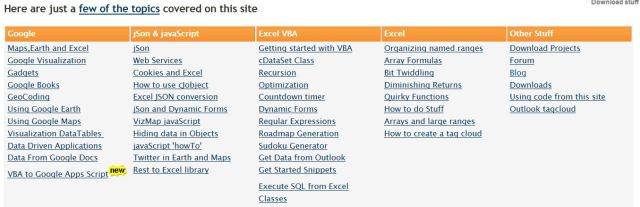
This site is all about how to free your Excel data from your desktop and take advantage of web capabilities such as Docs, Maps, Earth , Gadgets, Visualizations and a whole bunch of other services . Along the way, you’ll see a few techniques, tips and tricks as well as fully functional sample applications in Vba and javaScript. All examples are downloadable here, and the code is unprotected and free for non commercial re-use.

Click to open site in new window

A random example from the site is the code below, which will let your computer quote Hamlet to you:

Public Sub say()
Dim TextA As Variant, i As Long
Dim sTerm As String, spv As Object

TextA = Selection.Value
Set spv = CreateObject("SAPI.SpVoice")

If IsArray(TextA) = True Then
For i = 1 To UBound(TextA)
sTerm = TextA(i, 1)
            spv.Speak sTerm
Next i
    Else
        spv.Speak TextA
    End If

Set spv = Nothing

End Sub

See http://ramblings.mcpher.com/Home/excelquirks/snippets/speak for more details, and download the sample spreadsheet below from Text2Speech.xlsb

Text2Speech.xlsb, download from the link above

Posted in Computing - general, Excel, Javascript, VBA | Tagged , , , , , | 2 Comments

4 Year Report

As in previous years, I have downloaded the statistics for this blog for the previous year, and pasted them into a worksheet. The link to each post is preserved in the spreadsheet, so it makes a convenient index to what has been posted over the year. This year I have uploaded the spreadsheet to Skydrive, so you should be able to access the links in the window below, or open the file in your browser or Excel, or download it.

Of the 2011 posts, the most popular overall (by a wide margin) was Using LINEST for non-linear curve fitting. The most popular in the Newton category was Dancing Pendulums, and the most popular in the Bach category was Wonders of the Universe – Kate Rusby

From the “deserving but sadly neglected category” I have chosen:

Newton: Elegant Solutions – completing the square

Excel:   IP2 Update, ByRef and ByVal

Bach:   The Rough Island Band

Most frequent referrers to this site came from:

Referrers to Newton Excel Bach

Newcomers to the list include Yakpol.net, ColinCaprani.com, Andrewexcel.blogspot.com, and Exceltipsmonster.com.  Thanks to those and all other linkers.


Posted in Excel | Tagged | Leave a comment