Strand7 API GetNode functions

As promised in this post, I have written and documented Excel User Defined Functions (UDFs) to interface with all the Strand7 API functions that return node attributes or results.  These 22 functions allow node attributes and results to be read directly from an Excel spreadsheet.  Examples and full open source code are included in the download file: GetNode.zip.

To use the UDFs it is necessary to have a licensed copy of Strand7 and the API installed.  The spreadsheet may then be linked to up to 12 Strand7 data and results files through the Control Panel sheet:

Add files to file list
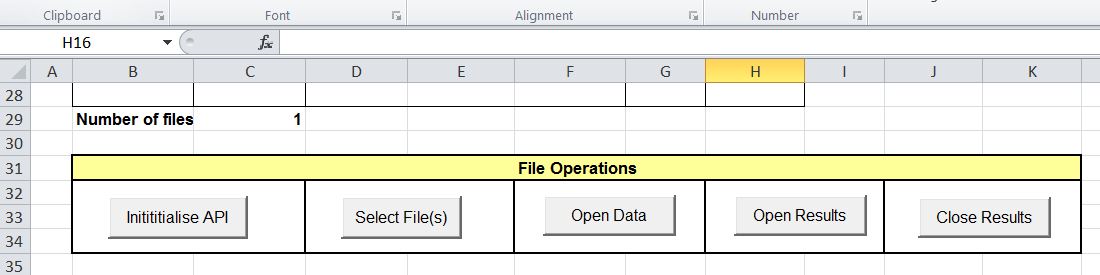
Connect to listed files with the “Open Data” button

Function input and output is documented on the “NodeFunc” sheet:
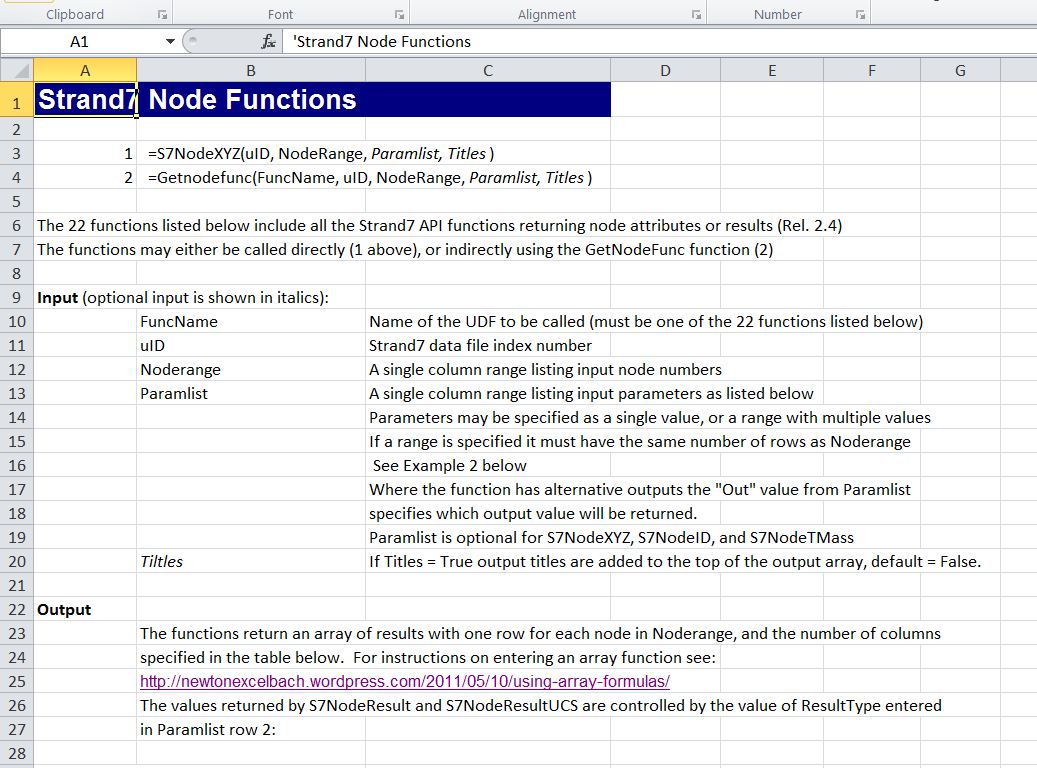
Node Function input and output (click for full size view)
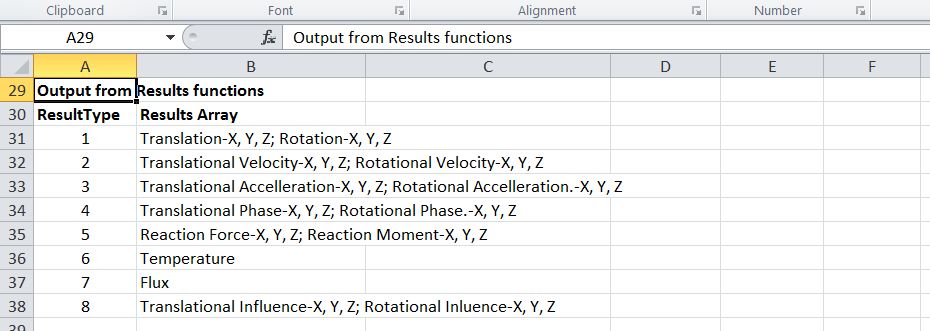
Node Results output details

Further details of the input and output for each function are given in the API Manual.  Manual page numbers are given in the UDF function list below:
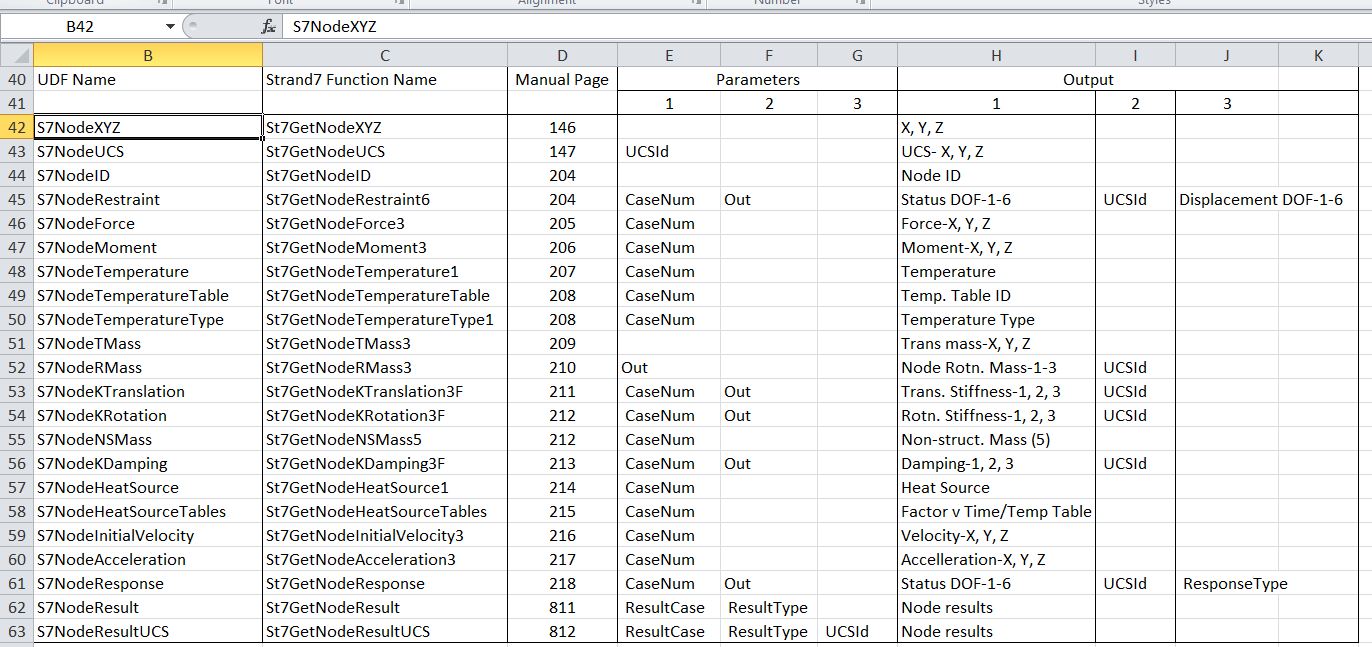
Node Function List

The functions may be used either by entering the functions directly, in the same way as built in Excel functions, or the GetNodeFunc function may be used to call a function with the name given in a separate cell.  Examples of each usage are shown in the screen shot below:

Examples of GetNodeFunc and S7NodeUCS functions

All the functions return an array of results, and must be entered as an array function. Details of the procedure for entering array functions are given here.

The function results array returns results for all the selected node numbers specified in a single column range.  Additional parameters (where required) are specified in a separate single column range (with 1-3 rows).  Each parameter may be specified as a single value, or as a range address.  Where the range method is used the range must be the same length as the node list range.  Examples of this method are shown in the screenshot below:
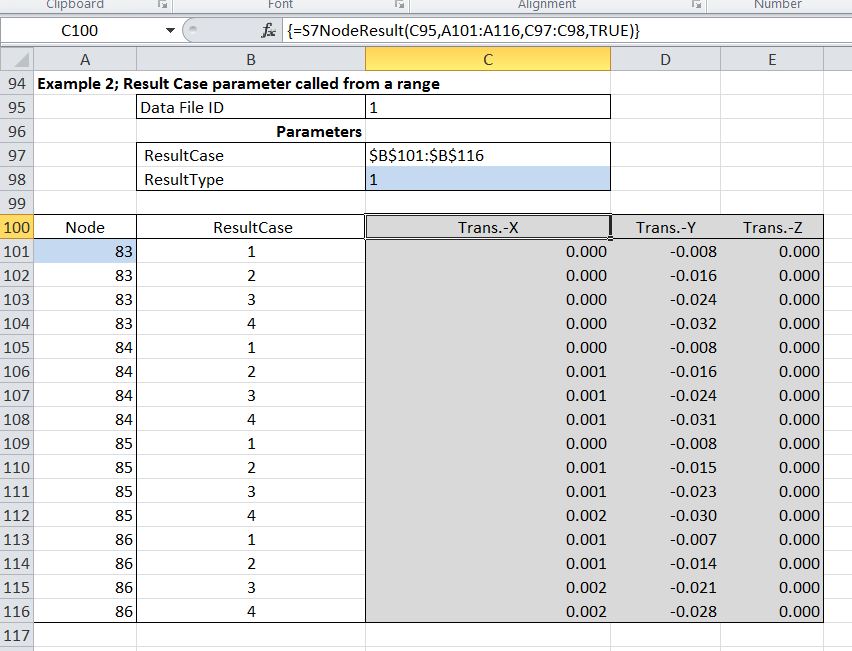
Function input parameter (ResultCase) specified as a range

For example purposes the number of node results has been kept to a small number, but the functions will return results from large files quickly and efficiently.  For example, the two screenshots below were generated from the Strand7 sample “Suspension Bridge.st7” file, which has 3528 nodes.  The first image was plotted from X,Y coordinates using the standard coordinate system.  For the second a new User Coordinate System was created, and the coordinates in this system were read from Excel using the S7NodeUCS function:
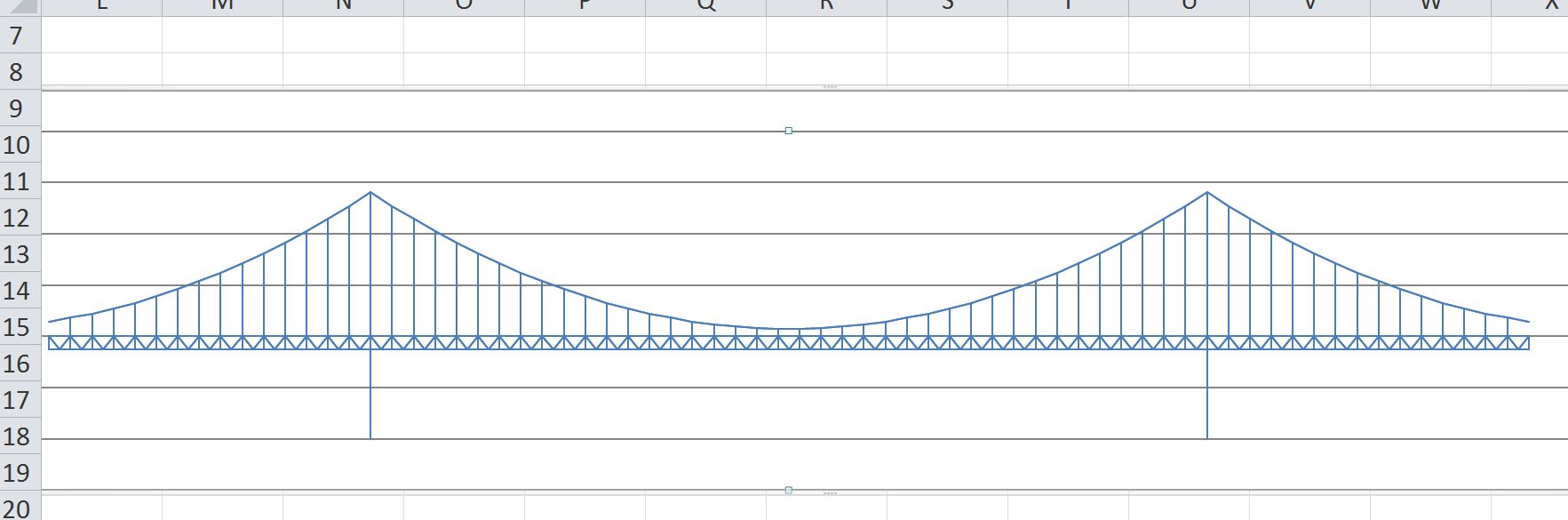
UCS1 XY coordinates

UCS2 XY coordinates

The examples in the screenshots above (other than the suspension bridge) were all generated from the file Raft1.st7 included with the download file.  Note that this file is for illustration purposes only, and many of the node attributes created for Load case 2 and Freedom case 2 are not appropriate to the non-linear static analysis actually carried out (which uses Load and Freedom cases 1 only).  The spreadsheet may be easily linked to any other file(s), for instance links to a selection of the files in the  “Tutorials/Help Topics Example Models” folder is shown below:
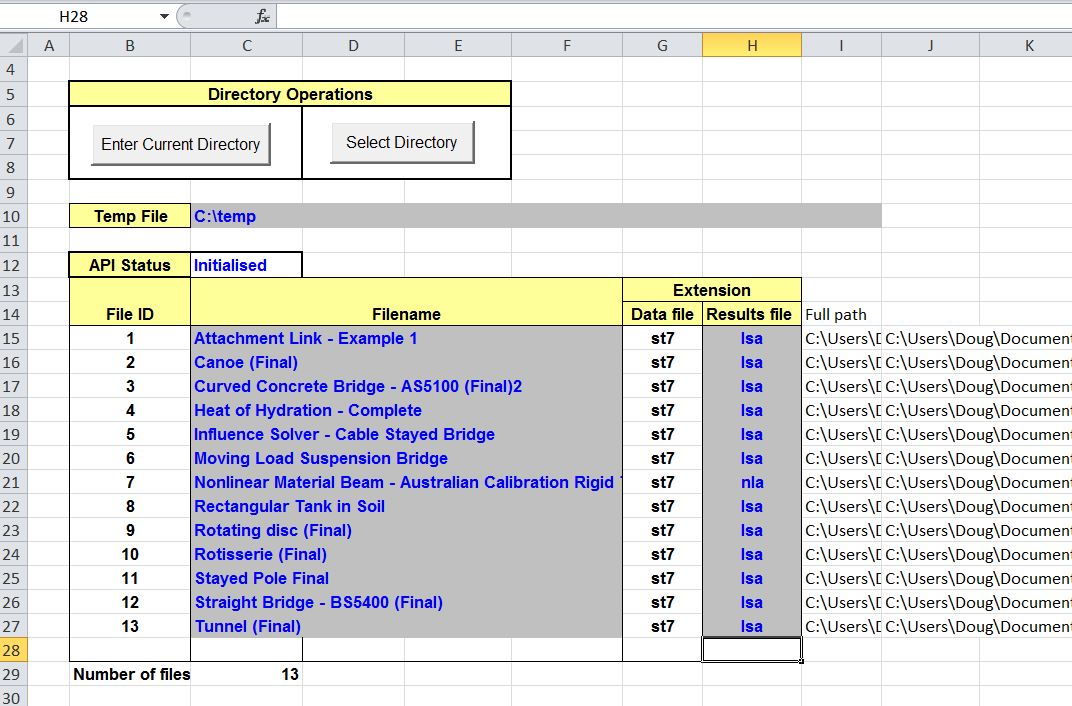
Link to Strand7 Example Model files

Posted in Excel, Finite Element Analysis, Newton, Strand7, UDFs, VBA | Tagged , , , , , | 5 Comments

Embedding Skydrive worksheets in WordPress

On the Download page of this blog I have a list of files available for download, in the form of an Excel spreadsheet stored on the Microsoft Skydrive site.  I recently discovered that this link had stopped working, and that the spreadsheet could no longer be accessed through that page.  After much searching and many dead ends I eventually found a response on the WordPress forum (from a WordPress person) suggesting that we should forget Skydrive and move to Scribd!  That wasn’t what I wanted to do, but a link in that reply eventually led me to the right part of the WordPress help system, where I found this advice:

Create or edit a page or post, and paste the embed code into the HTML editor. Important: Please make sure that the src address in the embed code begins with http — if it begins with https, simply remove the s.

So I checked my embed code, and sure enough it started with https, and removing the s made the link work!

It would be nice if Microsoft and WordPress could get their act together and make this system just work, but in the mean time, if anyone has a similar problem just remove the s from https.


Posted in Computing - general, Excel | Tagged , , , , | 9 Comments

Animated Pythagoras

Two animatations of a “wordless” proof of Pythaoras’ Theorem provided by SSSF regular PM 2Ring.

This animation is a “wordless proof” of Pythagoras’ theorem.
The basic design is an interlocking pattern of coloured squares overlaid with “shadow” squares. In most of the animation frames, we have squares of 3 different sizes – there are big squares in two colours, small squares in two colours, and the shadow squares. By construction, all squares in a given group are identical in size. In some frames, the big squares and small squares are equal in size, and in some frames the small squares “degenerate” down to zero size, making the big coloured squares identical to the shadow squares. These special frames do not detract from the general argument.
In the general case, each side of a shadow square forms the hypotenuse of a right angle triangle, with a side of a small coloured square comprising the shortest side of the triangle, and a side of a big coloured square forming the remaining side.
The proof works by dissection. Inside any shadow square we have parts of three big coloured squares and parts of two small coloured squares. By symmetry and congruence the parts must match up. To be more explicit, there’s a triangular piece of one small square which is identical to the triangular piece that’s missing from the other small square. Thus these two pieces can be combined to make a whole small square. Similarly, the two triangular offcuts from big squares can be combined with the big square that has two triangular pieces missing. Hence the area of a shadow square is equal to the area of a small square plus the area of a big square. In other words the area of the square on the hypotenuse of the right angle triangle equals the sum of the areas of the squares on the other two sides, which is exactly what Pythagoras’ theorem states.
Here’s a link to a page that illustrates this proof.
http://fac-web.spsu.edu/math/tile/pythagorean/index.htm
This dissection was devised by Thabit ibn Qurra around 900 A.D.
I first saw this proof many years ago. I got the idea of animating it in the late 1980s or early 1990s, and wrote a program on the Amiga to do so.

PM 2Ring

Also see this page for other (non-animated) versions of this tiling, including one projected onto the Riemann sphere.

Pythagoras, Penrose and Pov-Ray

And here’s a stereographic projection, reminiscent of Escher’s Circle Limit pictures.

All images are the work of PM 2Ring.

Posted in Animation, Maths, Newton | Tagged , , , | 4 Comments

Elegant solutions, 192 of them

The Edge is a place where they seek:

To arrive at the edge of the world’s knowledge, seek out the most complex and sophisticated minds, put them in a room together, and have them ask each other the questions they are asking themselves.

They ask an annual question of the assembled clever people, this year’s being:

WHAT IS YOUR FAVORITE DEEP, ELEGANT, OR BEAUTIFUL EXPLANATION?

There are 192 varied responses, from which I have selected an elegantly random sample (follow the links below for the full piece, or above for all 192):

The Principle of Least Action

Nature is lazy. Scientific paradigms and “ultimate” visions of the universe come and go, but the idea of “least action” has remained remarkably unperturbed. From Newton’s classical mechanics to Einstein’s general relativity to Schrödinger’s quantum field theory, every major theory has been reformulated with this single principle, by Euler, Hilbert, and Feynman, respectively. The reliability of this framework suggests a form for whatever the next major paradigm shift may be. …

Boscovich’s Explanation Of Atomic Forces

A great example how a great deal of amazing insight can be gained from some very simple considerations is the explanation of atomic forces by the 18th century Jesuit polymath Roger Boscovich, who was born in Dubrovnik.

One of the great philosophical arguments at the time took place between the adherents of Descartes who—following Aristotle—thought that forces can only be the result of immediate contact and those who followed Newton and believed in his concept of force acting at a distance. Newton was the revolutionary here, but his opponents argued—with some justification—that “action at a distance” brought back into physics “occult” explanations that do not follow from the “clear and distinct” understanding that Descartes demanded. (In the following I am paraphrasing reference works.) Boscovich, a forceful advocate of the Newtonian point of view, turned the question around: Let’s understand exactly what happens during the interaction that we would call immediate contact? …

Redundancy Reduction and Pattern Recognition

Deep, elegant, beautiful? Part of what makes a theory elegant is its power to explain much while assuming little. Here, Darwin’s natural selection wins hands down. The ratio of the huge amount that it explains (everything about life: its complexity, diversity and illusion of crafted design) divided by the little that it needs to postulate (non-random survival of randomly varying genes through geological time) is gigantic. Never in the field of human comprehension were so many facts explained by assuming so few. Elegant then, and deep—its depths hidden from everybody until as late as the nineteenth century. On the other hand, for some tastes natural selection is too destructive, too wasteful, too cruel to count as beautiful. In any case, coming late to the party as ever, I can count on somebody else choosing Darwin. I’ll take his great grandson instead, and come back to Darwin at the end. …

Posted in Newton | Tagged , , | Leave a comment

VBA code generation on the spreadsheet

A previous post looked at using VBA to generate more VBA code.  This post looks at automatic code generation on the spreadsheet, which may be transferred into the a VBA project using the techniques discussed in the earlier post, or simply copied and pasted.

I will use as an example generation of a number of functions for the Strand7 (finite element analysis program) API, but don’t be put off if this is not your area of interest.  The methods discussed are useful for any case where a number of similar routines are required, with differences that can be summarised in tabular form.

The Strand7 API allows external programs (including VBA) to communicate with and control the analysis routines within the Strand7 package.  This is potentially of great value, but this approach has the drawback of requiring the implementation of a large number of functions in the chosen language; over 1250 for the complete package.  Documentation for a typical function is shown in the screenshot below:

St7GetNodeResponseFunction documentation

To implement a function such as this in VBA so that it can be called as an Excel User Defined Function (UDF) the necessary steps are:

  1. Read the required input data from the spreadsheet.
  2. Convert it to the required data type for the API function.
  3. Set up variables or arrays of the correct data type (and size for arrays) for the API output.
  4. Call the API function.
  5. Check that the API return value (iErr) equals 0.
  6. If not, convert the error number to a text message, and assign this to the VBA function return value.
  7. If iErr equals 0 then extract the required API function results from the appropriate array or value and assign them to the VBA function return value.

In the case of API functions with similar output the required code can be very similar, with differences only in the number, name and data type of function parameters, size of arrays, and the name of the function to be called.  Generation of the required code can be quickly and efficiently set up on a spreadsheet, allowing a large number of API functions to be generated in much reduced time.

The first stage is to tabulate the names and data types of the required function parameters, and the size of any output arrays.  For the Strand7 API I have first converted the manual pdf file to a text file, which I have then read into a spreadsheet.  From this I have tabulated the parameters and data types in the form shown below:

API Function Table (click for full size view)

This table lists parameter names, followed by their data type.  For Code generation purposes it is more convenient to extract only those functions with a similar purpose (all functions returning node attributes for instance), and to list all the parameter names in sequential columns, followed by the data types.  This rearrangement can be conveniently achieved using the Excel Index() function, as shown in the screenshot below:

Table of selected functions with rearranged parameters

The columns in this table are read directly from the main function table except for:

  • Col C: VBA function name – shortened version of the API function name.
  • Col B: Number of parameters – count of non-blank cells in columns F to K.
  • C0l R: API function call – generated by the UDF CallS7Funcr() (see below).

Code for CallS7Funcr function:

Public Function CallS7FuncR(FuncName As Variant) As Variant
' Generate an S7 function call with data arranged in rows
Dim NumRows As Long, NumCols As Long, RtnString As String, NumParam As Long
Dim i As Long

FuncName = Range2Array(FuncName, NumRows, NumCols)

If NumRows < 1 Then
CallS7FuncR = "FuncName range must be a one row range"
Exit Function
End If
NumParam = FuncName(1, 1)
RtnString = "iErr = " & FuncName(1, 2) & "("
For i = 3 To NumParam + 2
RtnString = RtnString & FuncName(1, i)
If i < NumParam + 2 Then
RtnString = RtnString & ", "
Else
RtnString = RtnString & ")"
End If
Next i

CallS7FuncR = RtnString

End Function

The code used to generate the VBA functions is shown in the screenshots below:
An index number is entered in Cell D27, which returns the VBA function name, the number of parameters in the API function, and the number of values in the output array (or 0 if the output is a single value).  Row 30 is generated by a simple string function:
=”Function “&E27&”(uID As Long, NodeList As Variant, Optional ParamList As Variant) As Variant”
The following lines are either common to all the functions (e.g. lines 37 to 48) or use string functions to either return the required data, or a blank line if the line is not required for the current function:

Function code generator - Part 1

The UDF uses two functions to collect the data from the spreadsheet.  GetInput() (Row 47) simply reads the data from the specified range (Nodelist) and converts it into an array, returning the number of rows and number of columns in the array.  GetParam() (Row 52) reads the value at the specified position from the range specified in ParamList.  If this is a numerical value this is assigned to the function return value, but if it is a text string the function reads the data in the specified range, and returns that as a variant array.

The GetParam function is called up to 3 times, followed by a For, Next loop calling the API function for each node specified in NodeList:

Function code generator - Part 2

Function code generator - Part 3

The line calling the API function (Row 92) is simply called from the range R3:R24 using an Index function.

The code generated by the spreadsheet as presented here contains many blank lines when the function has less than the maximum number of input parameters.  This may be simply copied and pasted into a Visual Basic Editor code module, where it may be edited by hand.  Alternatively an edited code range could be set up on the spreadsheet, omitting blank lines, and this code could then be copied automatically using the techniques discussed in the earlier post, making the process entirely automatic.

The next post will look at how the code generated by this technique can be checked and then used in conjunction with the Strand7 FEA package.

Posted in Arrays, Excel, Finite Element Analysis, Newton, UDFs, VBA | Tagged , , , , , | Leave a comment