Using UDFs – Continuous Beam Example

Recently (well a month ago) a comment was left at Continuous Beams with Shear Deflections asking for a tutorial on how to use the ConBeam User Defined Function (UDF).  In this post I will give detailed instructions for the ConBeam function, but similar procedures are applicable to all the other spreadsheets using UDFs, which is nearly all of them.  The spreadsheet may be downloaded from Macaulay.zip.

Documentation for the functions is given on Sheet1 (Functions):

ConBeam documentation, click for full size view

This lists the function input parameters and describes the output results. To use the function it is simply necessary to enter the required data anywhere in the workbook, then select these ranges in a similar way to using a built-in Excel function. As an example I have used the continuous beam shown below:

Continuous beam example

Examle results; maximum values

This is taken from: http://www.soft4structures.com/Beam/st_examples.html

The required input parameters consist of 5 ranges listing:

  • Beam flexural stiffness, EI, (1 row for each segment with a different stiffness)
  • Output points, distance from the left hand end
  • Support positions and optionally support translational and rotational stiffness
  • Distributed load details
  • Point load details
  • An “Out” parameter may also be entered controlling whether the function returns beam actions, slopes, and deflections (Out = 1, default), or support reactions (Out = 2)

Input for the example problem is shown below:

Example problem input

  • The beam is of constant cross-section, and for the purposes of the example the stiffness is taken as 1, so only 1 row of input is required for the Segments range.
  • Output points are listed in cells A32:A62, at 0.1 increments.  The selected range will normally be immediately to the left of the range chosen for the output table, but this is not a requirement.
  • The supports are fixed against translation, and have no flexural stiffness, so only the position of each support is listed in the Supports range.
  • There is a single distributed load over the final cantilever segment, varying from -1 to 0, note that downward loads are negative.
  •  There is a point force of -1 at the centre of the first span, and a moment of 1 (anti-clockwise) at the second support.

Having entered the required data the function may be entered using the function wizard, in a similar way to built-in functions.  Enter “=ConBeam(” in the top-left corner of the desired output range, and then click on the function wizard icon, to the left of the edit line:

Entering the function using the Function Wizard

When the function is complete click OK:

Completed function, displaying the first output value only

The first output value only will be displayed.  To display the complete array, select the complete output range, then press the F2 (Edit) function key:

Select the entire output range and press F2

Finally enter the function as an “array function” by pressing Ctrl-Shift-Enter:

Completed function displaying Shear Force, Moment, Slope and Deflection for each selected output point

It can be seen that all values are in exact agreement with those shown in the example.

To return support reactions, rather than beam actions and deflections, enter the function in the same way as before, but terminate with the number 2 for the “Out” parameter.  In this case the output array will have one row for each support and will list support position, reaction force, and if support stiffnesses have been specified, reaction moments.

The download spreadsheet includes further examples:

  • Beams with varying cross section
  • Beams with spring supports, and a function to calculate the rotational stiffness of a pinned cantilever
  • Beam analysis including shear deflections
  • A function for analysis of single span beams (SSSpan), optionally with cantilevers at one or both ends
  • A function to calculate fixed end actions (FEA)
  • A function to calculate restrained end actions, for beams with partial end restraint (REA)
  • A function for cantilever beams (Cantilever)

Use of all these functions is similar to the Conbeam function described above.

If anything is not clear, or does not work as expected, please post a comment.

Posted in Arrays, Beam Bending, Excel, Frame Analysis, Newton, UDFs, VBA | Tagged , , , , , , | Leave a comment

Spreadsheet Link – Abbott Aerospace Consultants

Abbott Aerospace has a wide range of spreadsheets available for free download.

Many are intended for specific aerospace design applications, but some are for general purpose engineering applications, such as calculation of section properties.

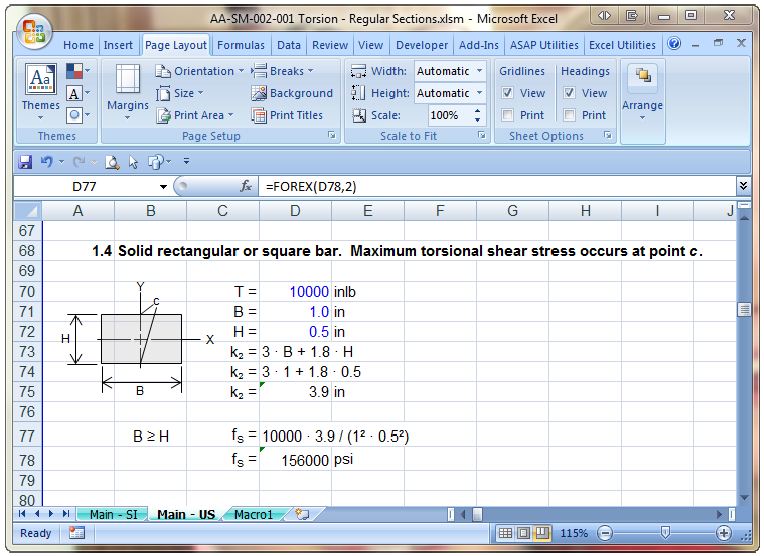
A general purpose add-in of particular interest is AA-SM-99-001 Equations.xlam, a macro for display of equations for report writing in Excel 2007.  This add-in provides two User Defined Functions (UDFs) which allow Excel equations to be displayed as text strings with cell references replaced by either numerical values or variable names.  See below for simple examples:

Forvar Function

Forex Function

Posted in Excel, Newton, UDFs, VBA | Tagged , , , , | 1 Comment

Composite Beam Spreadsheet – 2

The previous post on this topic presented a spreadsheet performing elastic analysis of composite reinforced or prestressed composite beams, available for download from: Composite Design Functions-GS.zip.  This post will look in more detail at how the spreadsheet works, and a preview of changes that will be presented in future versions.

The basis of the spreadsheet is the CompForceMom User Defined Function (UDF):

 =CompForceMom(DNACurveA, Conc, Reo)

The three inputs for this function are:

  • DNACurveA, a 2×2 range containing the calculated neutral axis depth and curvature of the Stage 1 beam under self weight and weight of the wet in-situ concrete for Stage 2 in column 1, and the estimated neutral axis depth and curvature of the composite beam under the incremental Stage 2 loading (i.e. live load plus any additional dead load applied to the composite beam after curing of the second stage concrete).
  • Conc – a six column range with details of the composite section concrete, listed from top to bottom
  • Reo – a six column range with details of the composite section reinforcement, listed from top to bottom, with the reinforcement depth of the Stage 1 beam measured from the top of the beam.

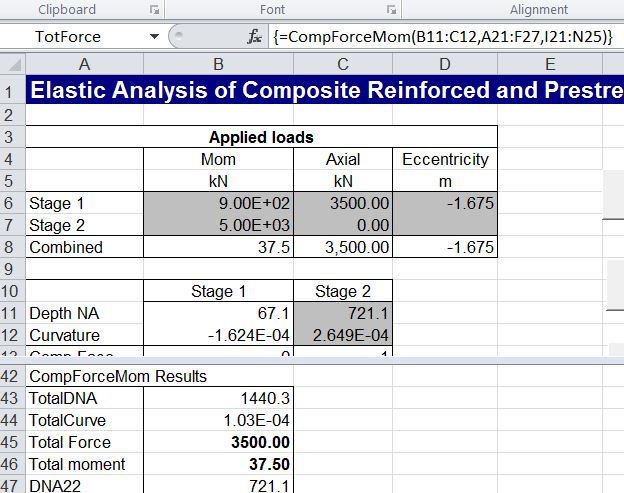
DNACurve input (B11:C12); Stage 1 values are calculated, Stage 2 are use input

Concrete data range (A21:F27); top row is Stage 2 (in-situ) concrete

Reinforcement input range (I21:N25); Top 2 rows are for Stage 2 concrete

CompForceMom Function Results

Note that:

  1. The Stage 2 concrete (shaded light grey) must be a single rectangular layer with one or two layers of reinforcement.
  2. The Stage 1 concrete (shaded darker grey) may have any number of trapezoidal layers, specified as a continuous layer or with a central trapezoidal void.
  3. The elastic modulus for the Stage 2 concrete (Ec) and reinforcement (Es) must be specified in the top row.  All other layers may be specified, or will be taken as equal to the row above.

Based on the specified neutral axis positions and section curvatures the CompForceMom function calculates the strains and stresses in each layer of concrete and steel (assuming concrete takes no tension), and hence the total axial force and bending moment for both Stage 1 and Stage 2 (composite section).

The Stage 1 neutral axis depth and curvature are calculated by the spreadsheet (using the Elastic UDF), but in general the Stage 2 values (input by the user) will not result in load values matching the specified combined loads on the section:

Calculated Force and Moment (B45, B46) do not match the specified values (B8, C8)

Note that the “combined moment” is the sum of the Stage 1 and Stage 2 applied moments, plus the moment due to the axial load about the the top face of the Stage 1 beam.

The Stage 2 neutral axis depth and curvature may now be adjusted by clicking the “Find NA and Curvature” button, which calls the SeekDNA routine.  SeekDNA simply calls the Excel GoalSeek function to adjust first the Neutral Axis depth to match the input and calculated axial loads, then the curvature to match the input and calculated bending moments.  This is repeated until both axial load and bending moment match within the specified tolerance.

After iterative solution of NA Depth and Curvature; calculated force and moments match input values

Having found the final neutral axis depth and curvature the “ElasticCompGS” UDF is used to return details of stresses, strains, forces and moments on the section:

Display results using ElasticCompGS

Proposed future developments of this spreadsheet are:

  • Replace the Goalseek routine with the QuadBrent UDF, allowing the entire analysis to be encapsulated in a single UDF, for better performance and flexibility.
  • Allow specified tension stresses in the concrete.
  • Allow for specified differential strains between Stage 1 and Stage 2 concrete, and within each beam.
  • Allow non-rectangular Stage 2 concrete slabs.

Any other requests?  Please post a comment!

Posted in Beam Bending, Concrete, Excel, Newton, UDFs, VBA | Tagged , , , , , , | 4 Comments

Girl

GIRL is the first single off March of the Real Fly’s highly anticipated first studio EP.

Directed by Kerinne Jenkins
Shot and Graded by Emma Paine
Edited by Keri and Marnie
Produced by Marnie Vaughn
2nd Camera – Marnie Vaughn
Camera Assistant – Nicky Bartos

Posted in Bach, Films | Tagged , | Leave a comment

Modifying spreadsheet data with VBA – the quick way

A question recently came up (here) asking how to speed up the process of scanning a large range of data on one sheet, and wherever a cell had a value of zero, deleting the data in the same cell address on another sheet.  A macro selecting cells one at a time was taking up to 7 minutes for this task in Excel 2007.

The secret to completing tasks of this type as quickly as possible is to transfer all the data into VBA arrays in as few operations as possible (two in this case), modify the array from the second sheet enirely in VBA, then write the modified array back to the worksheet in one operation.  In this case a 7 minute task was reduced to less than half a second, about 1000 times faster!

The “quick and dirty” code that did the job is shown below:

Sub DeleteZeros()
Dim Sheet1Vals As Variant, Sheet2Vals As Variant, i As Long, j As Long

Sheet1Vals = Sheets("Sheet1").Range("A2:UN901").Value2
Sheet2Vals = Sheets("Sheet2").Range("A2:UN901").Value2

For i = 1 To 900
For j = 1 To 560
If Sheet1Vals(i, j) = 0 Then Sheet2Vals(i, j) = ""
Next j
Next i

Sheets("Sheet2").Range("A2:UN901") = Sheet2Vals

End Sub

Note that using the “.Value2” property of the ranges, rather than “.Value”, speeds up the operation by about 50%. Not really important in this case, but in other situations it can be.

Posted in Arrays, Excel, VBA | Tagged , , , | 1 Comment