A recent post at Jon Peltier’s Blog looks at an “on-sheet” method of performing linear interpolation on a set of tabular data, and the following comments include a number of alternative ways of carrying out the same process, and also some alternatives using cubic splines. This prompted me to have a look at the various ways of performing this calculation, including VBA based User Defined Functions (UDFs) that have been presented here previously.
One reason for the interest in the large number of alternatives is that Microsoft (in their wisdom) do not provide any built-in functions to perform this task, even for linear interpolation. Interpolation of scattered data using least squares fitting has a large number of useful functions (Forecast, Trend, Linest, Slope and Intercept for instance), but if we want to interpolate between specified points we are on our own. The steps in the process for linear interpolation are (assuming we want to find the Y value for a specified X, given a table of X and Y values, with X monotonically either increasing or decreasing):
- Find the nearest X values above and below the given value, and the associated Y values.
- Find the slope of the straight line between these two points (Y2 – Y1)/(X2 – X1)
- The interpolated Y value is then: Y = Y1 + (X-X1) * Slope
I have added examples of two different examples of this procedure to the CSpline2 spreadsheet, which also includes VBA cubic spline functions, with full open source code. The screenshot below shows the output:
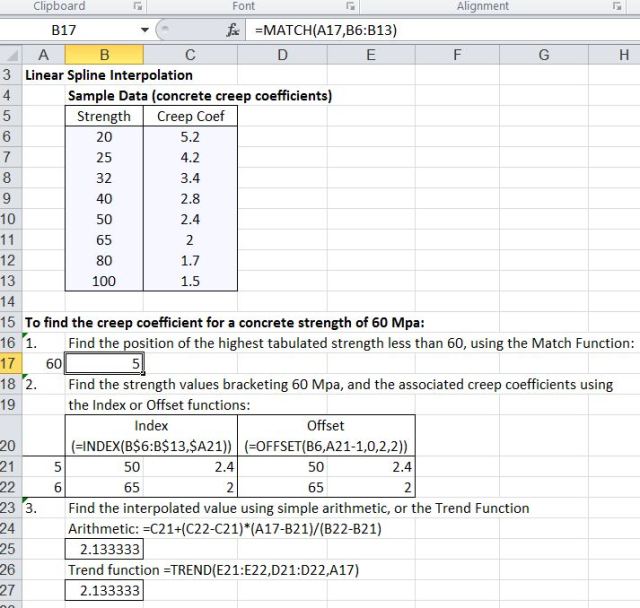
Linear Spline Interpolation; click for full size view
The position of the highest X value less than the interpolation value (60 in the example) is found using the Match function: =MATCH(A17,B6:B13). That value is then used with either the Index or Offset function to produce a 2 x 2 table of the X and Y values around the interpolation value:
- =INDEX(B$6:B$13,$A21) or
- =OFFSET(B6,A21-1,0,2,2)
Note that the Offset function must be entered as an array function; see Using Array Formulas for details.
Finally this table is used to calculate, the interpolated Y value, either using an arithmetic formula (essentially the process used in Jon Peltier’s article), or using the Trend function. The Trend function can also be combined with the offset function, to avoid the need to create a 2 x 2 table on the spreadsheet for each interpolation:
- =TREND(OFFSET($C$6,A17-1,0,2,1),OFFSET($B$6,A17-1,0,2,1),A17)
This allows the interpolation to be carried out on a single row, which is convenient if you have a column of values to interpolate, rather than a single value.
Four alternative “single cell” interpolation formulas are shown in the screen shot below (all taken from a comment by Ihem to Jon Peltier’s article at : http://peltiertech.com/WordPress/excel-interpolation-formulas/#more-3322)

Single cell interpolation formulas
UDFs carrying out the same process (other than the Lagrange Polynomial) can be found at:
Linear and quadratic interpolation: Ip2.zip
Cubic Splines: CSpline2
More cubic splines, including functions for weighted and constrained fitting: AL-Spline-Matrix03.zip or AL-Spline-Matrix07.zip
The results of the UDFs, compared with the “on-sheet” formulas are shown in the screenshot below:

Results of alternative interpolation formulas
It can be seen that the InterpA UDF and the Percentile formula give exactly the same results, as do the CardSplineA UDF and the Catmull-Rom formula. The results for all 7 methods are plotted below:

Interpolation Results, smooth function
There is very little difference between any of the interpolation functions, and for this case simple straight line interpolation would be quite satisfactory. It should be noted that the cubic polynomial least squares fit is not so good however, and even for smoothly varying data such as in this case it would not be appropriate.
With less well behaved data the differences between the alternative methods become more apparent, as can be seen in the screen shot below:
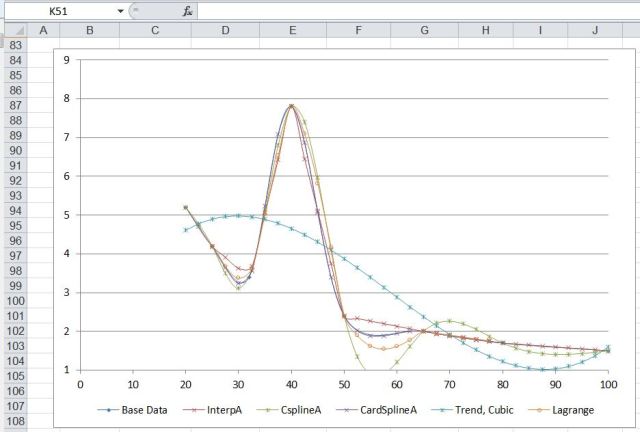
Interpolated and fitted curves with "spikey" data
In this case the fitted cubic polynomial is clearly inappropriate. The most appropriate of the spline approximations would depend on the nature of the data, and the reason for the spike.
As for whether to use a UDF or an “on-sheet” method, this is really a matter of tatse. My preference is for using a UDF, as being more convenient, easier to audit, and less likely to introduce error, but in any case checking the results by plotting togther with the original data is essential.