Fitting high order polynomials

This post is a follow up to Using LINEST for non-linear curve fitting and the following comments from Scott Rogers and Lori Miller.  Scott found that he was getting different results from Linest and the xy chart trend line for polynomials of order 5 and 6 (6th order being the highest that can be displayed with the trend line).

In order to investigate this I have looked at fitting polynomials of different degree to the function y = 1/(x – 4.99) over the range x = 5 to x = 6.  It should be emphasised that high order polynomials are completely inappropriate for interpolating a function such as this; it was chosen purely because it shows up the differences in the results from the four different methods examined.  These were:

  1. Using the LINEST function: =LINEST(YRange, XRange^{1,2, … ,n}
  2. Using the xy chart trend line for polynomials up to 6th order
  3. Using the function provided by Lori Miller in the comments: =MMULT(MMULT(TRANSPOSE(Y),X^N),MINVERSE(MMULT(TRANSPOSE(X^N),X^N)))
  4. Using the ALGLIB “PolynomialFit” fit routine.  This is specifically intended to fit a polynomial to scattered data, using a least squares method.  I have written an Excel VBA User Defined Function (UDF) to call the ALGLIB function directly from the spreadsheet.  I will post more details of this, including a download file with open source code, in a future post.

The screenshots below show the following results for polynomials fitted to the test function:

  • Plots of the base data for 101 points between x = 5 and x = 6, and the four generated polynomial curves.
  • The polynomial coefficients for the Linest curve, the chart trend line (displayed on the charts), and the matrix function.
  • Unfortunately the current VBA version of the ALGLIB routine does not return the polynomial coefficients (this feature should be available in a few months), so I have evaluated the Linest and the Alglib functions at each of the base data x values, and found the maximum absolute difference between the two.


For 4th order polynomials:

4th order polynomial, click for full size view

the Linest, chart trend line and ALGLIB results are essentially identical, but the matrix function is already showing significant differences.

For 5th order polynomials:

5th order polynomials

the Linest, chart trend line, and ALGLIB results are still in good agreement, but the matrix function results are now completely different.

For 6th order:

6th order polynomials

The Linest and chart trend line results are now completely different, with Linest having returned a coefficient of 0 for the x term.  The ALGLIB results appear visually identical to the chart trend line.

For the 7th order only the Linest and ALGLIB results are plotted:
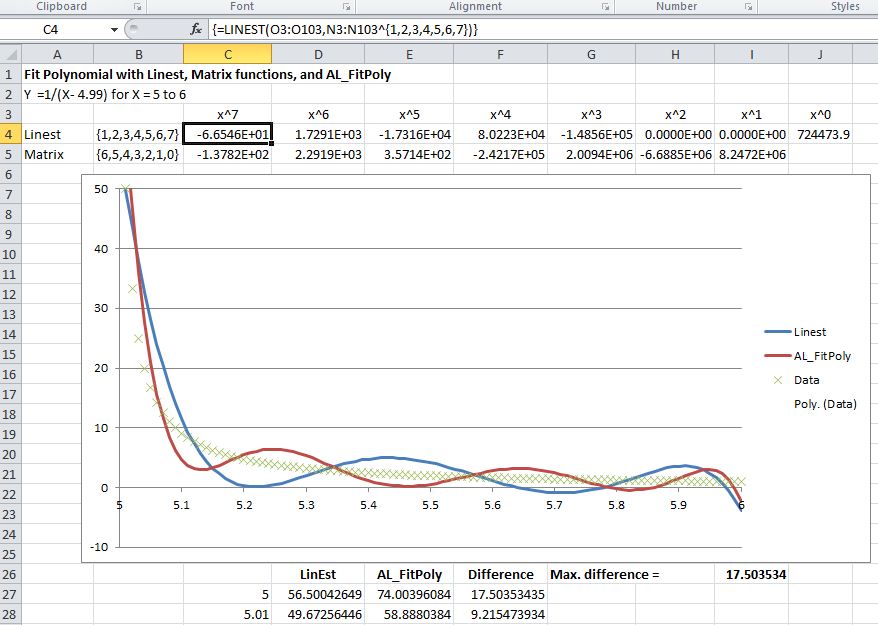
7th order polynomials

The Linest line has retained a form similar to the 5th order results (with zero coefficients for the x squared and x terms), but the ALGLIB line is consistent with a 7th order polynomial.

It can be seen that in all cases the polynomial lines oscillate above and below the data, which is a feature of fitting high order polynomials to a monotonic function.  To check if the behaviour of the Linest output was a result of fitting a polynomial function to inappropriate data the same exercise was carried out on a cyclic function:

y = =SIN((X-4)*A)/(X-4.99), with A set to 8pi, so that the resulting function had 4 complete cycles over the range from x = 5 to x = 6.

The results for fourth order to seventh order polynomials are shown in the four screen shots below:
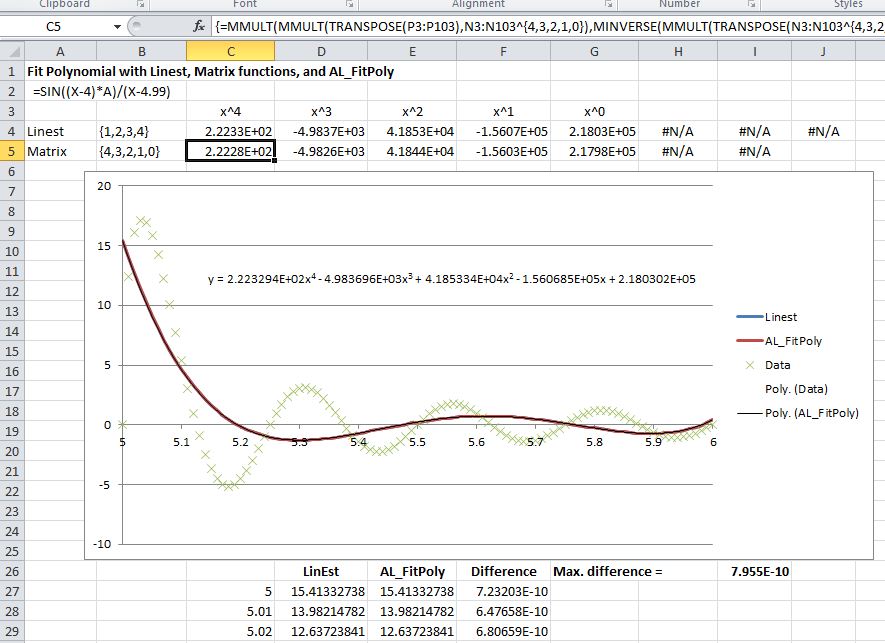
Cyclic function, fourth order polynomials
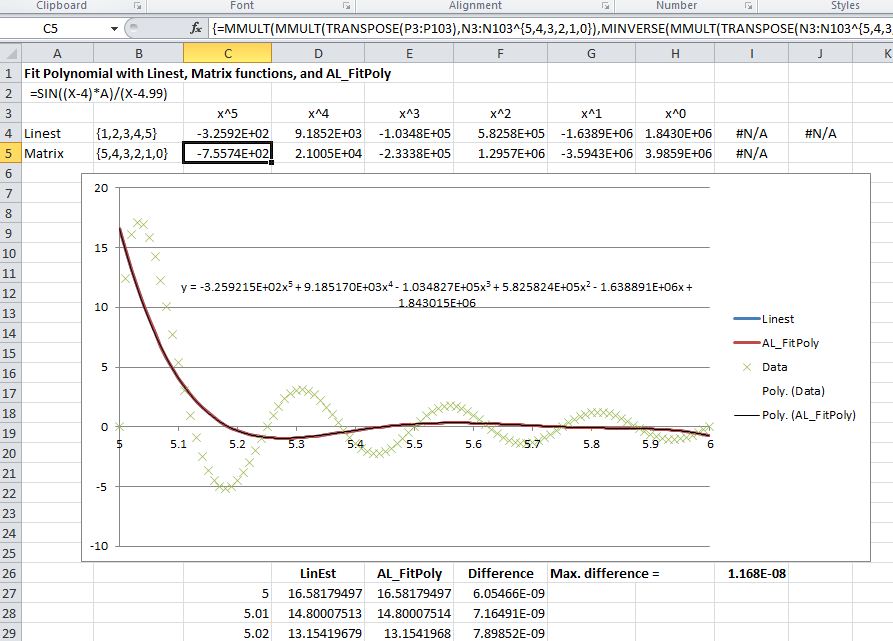
Cyclic function; fith order polynomials

Cyclic function; 6th order polynomials
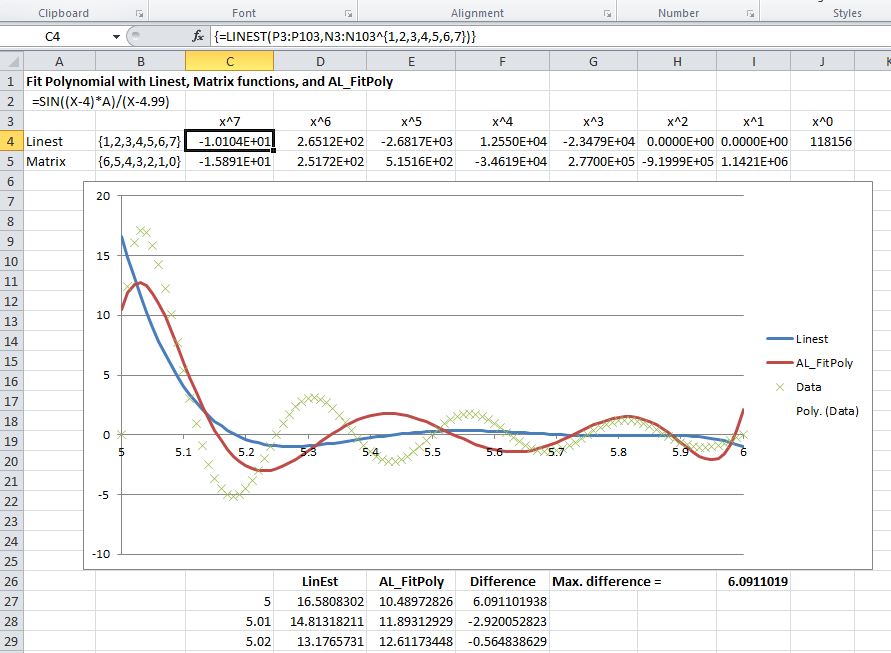
Cyclic function; 7th order polynomials

The results were very similar to those for the monotonic function, with the Linest results being different from the chart trend line at the 6th order, and with the x squared and x coefficients from Linest being zero for the 7th order line.

Two further lines were plotted with 10th order polynomials (Linest and ALGLIB) and 15th order (ALGLIB only), to check if a reasonably close fit to the data could be found:

Cyclic function, 10th order polynomials

Cyclic function, 15th order polynomial

It can be seen that the 10th order Linest line has maintained the form of the 5th order polynomial, with 5 of the 11 coefficients being set to zero.  The ALGLIB results appear to be appropriate to the order of the polynomial curve, and a good fit has been achieved to the data with a 15th order polynomial.

In conclusion:

  • The Excel Linest function and polynomial chart trendline produce different results for 6th order polynomials in the cases examined.  As noted by Lori Miller in the comments to the previous Linest post, this is probably because of changes made to the algorithm for dealing with co-linear data.
  • The matrix function (at least in this case) did not give good results beyond fourth order.
  • For most interpolation purposes use of a cubic spline will normally give better results than a high order polynomial.
  • For cases where a high order polynomial is appropriate the ALGLIB PolynomialFit routine appeared to give much better results than Linest.  In separate tests PolynomialFit was found to be stable up to at least 50th order, with the data presented here.
Posted in AlgLib, Charts, Excel, Maths, Newton, UDFs, VBA | Tagged , , , , , , , , | 31 Comments

Seeing through Mingus eyes

At the top of Bob Phillips’ Blog home page is a quote from Charles Mingus, the great jazz bassist, band leader and composer:

“Making the simple complicated is commonplace; making the complicated simple, awesomely simple, that’s creativity”

If Bob hadn’t bagged it already, that would make an excellent statement of the common theme connecting the intertwined topics of this blog, whether it be:

all share the attribute of making the complex simple.

Now all of this was probably the last thing that Richard Thompson had in mind, when he wrote his song Mingus Eyes, but since he tells his story in only 35 different words (count them):

it all fits anyway.

And finally, let’s hear from the man himself, Charles Mingus playing Haitian Fight Song (edit 4th May 2011, the Mingus link got cut, so here is the Mingus Big Band playing the same composition in 2001):

What do you think?  What are your favourite examples of making the complex simple?

Posted in Bach, Computing - general, Newton | Tagged , , , | Leave a comment

New Links

Two new Excel links on the list to the right, both with a tonne of good information on how to get more out of Excel:

Bob Phillips writes the Excel Do, Dynamic Does blog, with a focus on business information.  The quote under his header line will feature in my next post here (real soon now).

Ron de Bruin’s site is not a blog, but it is regularly updated, and is full of good stuff that you won’t find elsewhere.

Finally a new bridge link: Bill Harvey’s site is called arches, and that’s what it’s all about, specifically masonry arch bridges, and the analysis thereof, to see if they will collapse under loadings many times greater than those they were designed for.  Those interested can also sign up for Bill’s Bridge of the Month Newsletter at http://eepurl.com/ccAyL

Posted in Arch structures, Excel, Historic Bridges, Newton | Tagged , , | Leave a comment

Finding all range names in a specified range

Another useful little snippet from Eng-tips.

There was a question regarding how to list all the range names applied to a specified cell.  Forum members electricpete and MintJulep came up with a short macro to do the job, which I have adapted to suit my personal tastes, as a User Defined Function (UDF), returning a list of names and addresses as an array function.  Here is the code:

Function FindNamedRanges(mycell As Range)
Dim ThisName As Name, NameList() As String, i As Long, NumRows As Long
NumRows = Application.Caller.Rows.Count
ReDim NameList(1 To NumRows, 1 To 2)
i = 1
For Each ThisName In Names
If ThisName.RefersToRange.Parent Is mycell.Parent Then
If Not (Intersect(ThisName.RefersToRange, mycell) Is Nothing) Then
NameList(i, 1) = ThisName.Name
NameList(i, 2) = ThisName.RefersTo
i = i + 1
If i > NumRows Then Exit For
End If
End If
Next ThisName
FindNamedRanges = NameList
End Function

The function returns a two column array, with the range names in Column 1 and the addresses they apply to in Column 2.  To display the full array:

  • Enter the function.
  • Select the output range, with the function cell in the top-left corner
  • Press F2 (edit)
  • Press ctrl-shift enter

An alternative approach, avoiding the use of macros, is to simply list all the rangenames on a spreadsheet, then sort by address.  It turns out that the poster of the original question prefered this approach.  I like the UDF myself, but “disputandum non est de gustibus”, as the tortoise said to the warrior.

Posted in Excel, UDFs, VBA | Tagged , , , | 2 Comments

Using LINEST for non-linear curve fitting

Update 14 March 2020: See LinEstGap with non-linear functions for the latest version of Linest-Poly with new functions for non-linear curves allowing more convenient input and work with data with gaps errors, and/or hidden lines.

Update 28 June 2015:  Also see Using Linest for non-linear curve fitting examples, hints, and warnings for more examples of fitting exponential and polynomial curves using LinEst.

A frequent question on internet forums everywhere is how to do a least squares fit of a non-linear trend line to a set of data.  The most frequent answer is to plot the data on an XY (“scatter”) chart, and then use the “Fit Trendline” option, with the “display equation on chart” box checked.  The chart trendlines have the options of: Linear, Exponential, Logarithmic, Polynomial (up to order 6), and Power.  There is also a “Moving Average” option, but this does not provide a trendline equation.  The chart trendline solution is OK if what you want to do is display the trendline equation on a chart, but if you want to use the numbers in some further analysis, or even just display them elsewhere in the spreadsheet, or copy them to another document, it is far from convenient.  Fortunately it is straightforward to get the trendline equations (and other statistics) for each of the chart trendline types using the LINEST worksheet function.

I have created a spreadsheet with examples of each trendline type, which may be downloaded here:

Linest-poly.xls

The functions used for linear and polynomial trendlines are shown in the screenshot below (click image for full size view):

Linear and Polynomial Trendlines

Note that:

  • The functions as displayed use named ranges (X_1 to X_3 and Y_1 to Y_3)
  • The functions are entered as array functions to display all the return values; i.e. enter the function in a cell, select that cell and sufficient adjacent cells to display all the required values, press F2, press Ctrl-Shift-Enter.
  • Alternatively the INDEX function may be used to return specific values; e.g. to return the b value from the linear example use =INDEX(LINEST(Y_1, X_1),2)
  • Higher order polynomial functions may be returned by simply adding to the list of powers in the curly brackets (but note that this is often not a good idea because of “over-fitting“)

Functions for exponential, power, and logarithmic trendlines are shown below:

Exponential, Power and Logarithmic Trendlines

In this case the process is not quite so straightforward, because in most cases one or both of the values returned by the function must be modified to give the values shown in the chart trend lines.  For these lines it is possible to use either the LINEST function, or the LOGEST function, but since LOGEST simply calls LINEST internally, and provides little if any extra convenience, it does not seem to provide much value.  In these examples note that:

  • Equations are in the form: y = a.e^bx (exponential), y = a.x^b (power) or y = b.ln(x) + a (logarithmic).  In each case in the examples the power factor (b) is shown in bold, and the constant term (a) is shown in bold and italic.
  • The LOGEST function returns an equation of the form y = a.b^x
  • The LINEST function will return exactly the same values if entered as =EXP(LINEST(LN(Yrange), XRange)), and this line is equivalent to the y = a.e^bx line returned by the chart.

Update 27 Jan 2011:

Coincidentally, Chandoo at Pointy Haired Dilbert is also running a series on estimating trend lines in Excel, which is well worth a look at: Are You Trendy

Posted in Charts, Excel, Maths, Newton | Tagged , , , , , | 96 Comments