P-Y Curve function

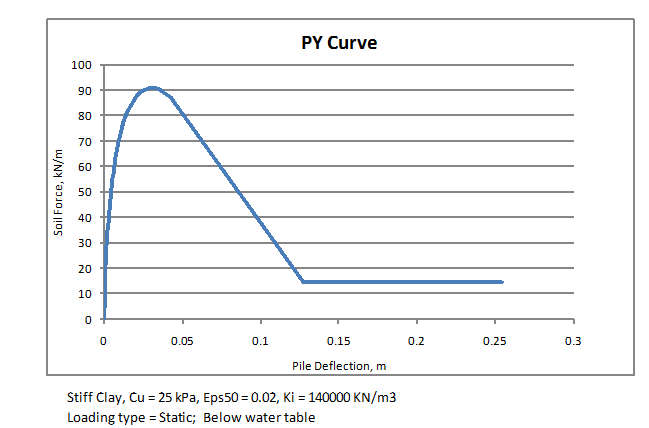
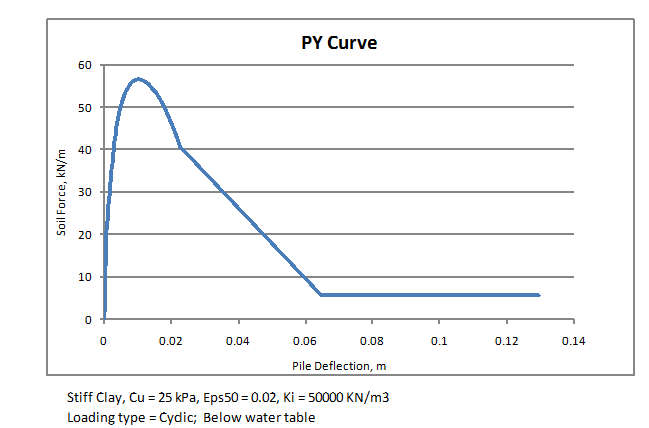
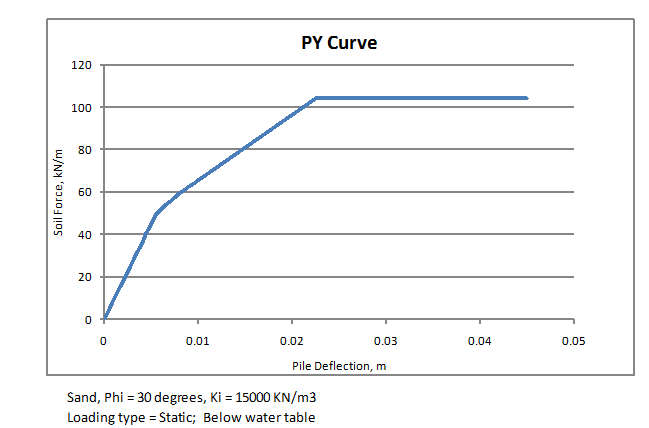
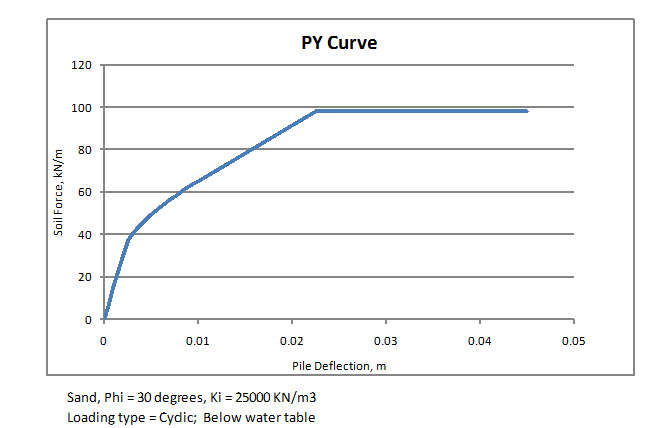
The pile lateral load analysis program presented in a previous post used linear elastic spring supports to model the restraint provided by the soil.  Soil stress/strain behaviour is of course highly non-linear, and this post presents an Excel User Defined Function (UDF) that will generate non-linear force-deflection curves (often known as P-Y curves) for a variety of soil types, above or below the water table, and under static or cyclic loading.  This function will be incorporated in the pile analysis program in a future post, together with non-linear behaviour of reinforced concrete piles.

The curves are based on those described in the manual for the COM 624 pile analysis program, which is available for free download from the US FHWA, together with many other valuable documents.  The contents of this manual, together with other aspects of pile design, are summarised in detail in the “Theoretical Manual for Pile Foundations” published by the US ArmyEngineer Research and Development Center.  The linked download site, Vulcanhammer.net, also has a wealth of other documents related to piled foundations available for free download.

A spreadsheet containing the PY624 function and examples, including full open source code, may be downloaded from PY-COM624.zip. Note that the latest version of the LatPile spreadsheet incorporates significant changes to the PY curve function, giving closer results to those in the COM624 Manual.  This may be downloaded from: LatPilePY.zip.

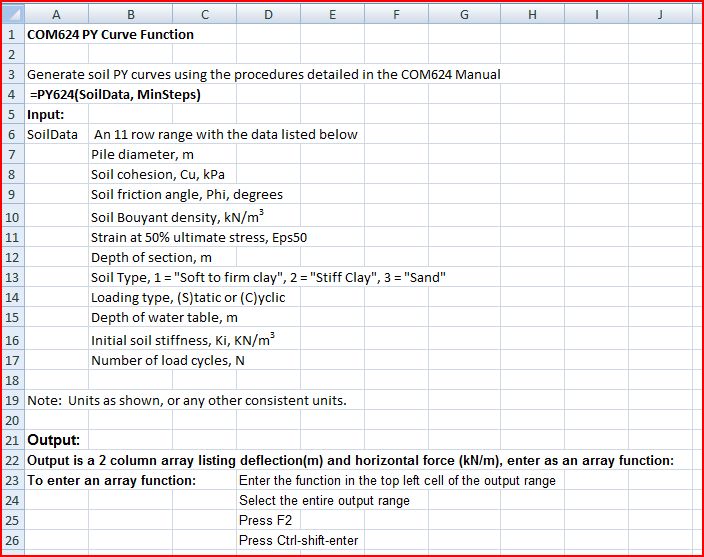
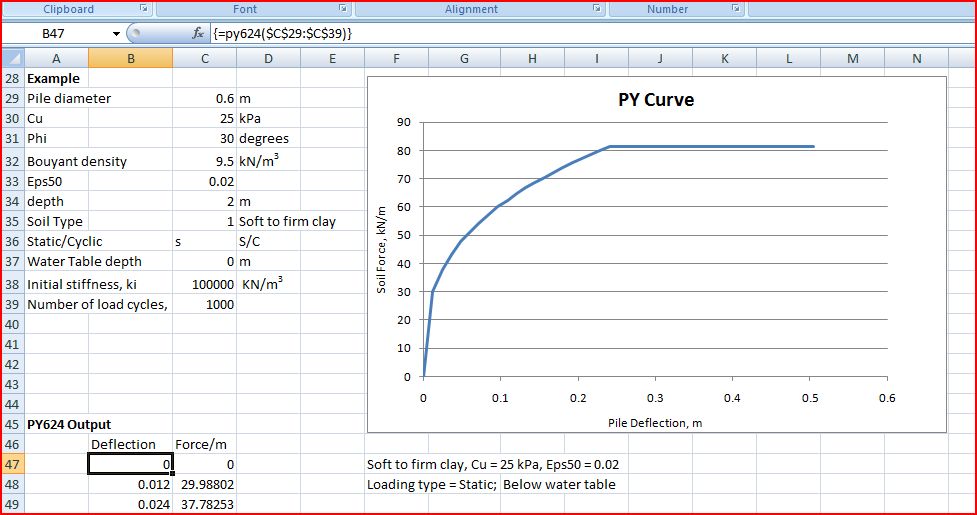
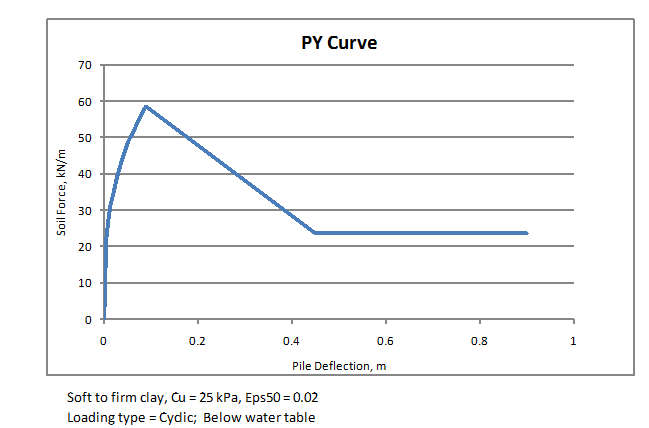
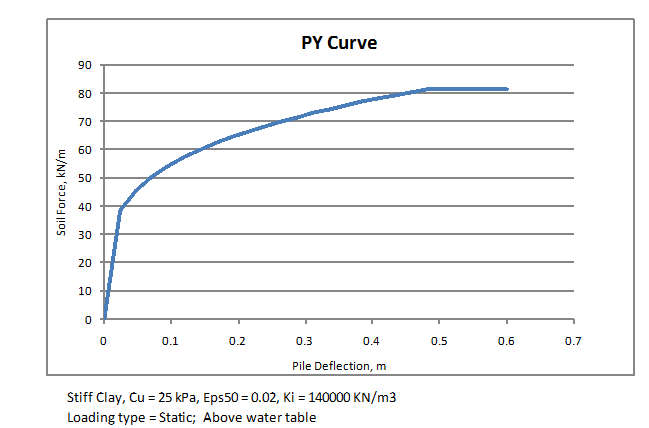
Input and output details are given in the spreadsheet, and are shown in the screenshots below, together with typical output for a variety of soil types.  As always, feedback on the spreadsheet is welcome, using the comment link at the bottom of the post.

PY624 Function input

PY624 Function Output

Soft clay below water table, static load

Soft clay below water table, cyclic load

Stiff clay above water table

Stiff clay below water table, static

Stiff clay below water table, cyclic

Sand below water table, static

Sand below water table, cyclic

Posted in Excel, Geotechnical Engineering, Newton, UDFs, VBA | Tagged , , , , , | 21 Comments

New Links

I have added some new links to Excel Blogs that are regularly updated with new and different content, plus one new maths blog.

Bacon Bits: Delicious pieces of Excel and Access training brought to you by DataPigTechnologies.com

Contextures Blog: The Contextures blog, which is focussed on Excel tips and Excel tutorials, and is published Monday, Wednesday and Friday. There will occasional posts on other topics, including Microsoft Office programs and computer productivity tips.

Excel Hero: The point of the sites is to give you the inspiration and knowledge to become and Excel Hero in your workplace. As a tool, Excel is not used anywhere near its potential by 99.999% of its users.

+plus MagazinePlus magazine opens a door to the world of maths, with all its beauty and applications, by providing articles from the top mathematicians and science writers on topics as diverse as art, medicine, cosmology and sport.

Also a link to John Walkenbach’s blog headlines page, which is a great way to keep up with the latest Excel Blog posts: Excel Blog Headlines

Posted in Excel, Maths | Tagged , , , | Leave a comment

Compiled AlgLib Matrix Functions for Excel

This post describes a series of matrix functions compiled from the AlgLib library code (covered in previous posts) as a dll that can be called from Excel VBA, and used as User Defined Functions (UDFs).  A spreadsheet containing the necessary VBA code to link to the functions, the compiled dll file, and C++ code for the interface functions can be downloaded from AL-Matrixdll2.zip.  The C++ code for the actual matrix functions is all taken from the AlgLib site.

The advantages of these functions over the built in Excel functions, or VBA code are:

  • The small limit on maximum matrix size imposed on matrix functions in Excel versions before 2007 is removed.
  • The functions operate about 10 times faster than the built in functions and 30 times faster than VBA code (comparisons based on Excel 2007).
  • The functions operate on complex numbers as well as real numbers.
  • Functions include Eigen Values and Eigen Vectors, solution of systems of linear equations, addition and subtraction, and extraction and insertion, as well as all the functions built into excel.
  • The functions are available from VBA without loss of performance.

To install the dll file:

  1. If you do not have Microsoft Visual Studio C++ installed, either install the program (Express version is a free download), or download and install the redistributable package.
  2. Copy the dll file to the Windows\System32 folder (or another folder on the system search path)
  3. The dll functions in Matrixdll2.xls(b) should now work in a similar way to built in functions or VBA UDFs.

Screen shots from the worksheet are shown below:

Matrix Functions

Inverse Functions

Eigen Values and Eigen Vectors

RMatSolvedll Function

Posted in Arrays, Excel, Link to dll, Maths, Newton, UDFs, VBA | Tagged , , , , , , | 18 Comments

Linking AlgLib C++ to Excel VBA

The previous post described how to install AlgLib VBA routines in Excel.  It is also possible to make AlgLib c++ routines (compiled as dll’s) available from Excel, either from VBA, or using User Defined Functions (UDFs) directly from the spreadsheet.  Using compiled dll routines provides the following advantages:

  • Performance is much better, especially in calculation intensive tasks such as matrix inversion or extraction of Eigen values.
  • The spreadsheet files will be much smaller.
  • Better security

This post describes the required operations to compile the C++ code to a dll file, and link to it from VBA, using matrix inversion and Eigen value routines as examples.  The Excel and necessary additional C++ files, and the compiled dll file, may be downloaded from AL-Matrixdll.zip, which includes full open source code (other than the AlgLib code).  The C++ was compiled using Visual Studio C++ Express 2010.  This is a free download (for non-commercial use), of for those not wishing to install this package the dll files may be used after installation of the C++ Redistributable Package (link corrected 27 May 2010).

The basic procedure for linking C++ routines to VBA (using Visual Studio c++ 2008) is described here: Linking Excel to C.  The procedure for the 2010 version is identical.  Useful additional information on debugging the routines linking to Excel can be found here.

The procedure to link VBA to the AlgLib routines requires the following steps:

  1. Write VBA routines to prepare the Excel data in a suitable format, and call the AlgLib interface routines (see step 2).
  2. Write C++ interface routines to convert the VBA data to AlgLib specific data types, call the AlgLib routines, and convert the resulting data back to a format suitable for transfer to VBA.
  3. Write the necessary C++ .h and .def files, to allow the export of the c++ functions to a form accessible from VBA.

Example code is shown below, and is included in the download file.

VBA Matrix Inversion Functions

Declare Function vbcmatinv Lib "..\VBA-DLL\Alglib2.dll" (ByRef A2 As Double, ByVal M As Long) As Long
Declare Function vbrmatinv Lib "..\VBA-DLL\Alglib2.dll" (ByRef A2 As Double, ByVal M As Long) As Long

Function RMatInvdll(a As Variant) As Variant
  Dim N As Long, M As Long, N2 As Long, Pivots() As Long
  Dim A2() As Double, i As Long, J As Long, K As Long, Rtn As Long

  If TypeName(a) = "Range" Then a = a.Value2
  M = UBound(a)
  N = UBound(a, 2)

  ' Copy 2D base 1 variant array to 1D base 0 double array
  ReDim A2(0 To M * N - 1)
  For i = 1 To M
        For J = 1 To N
  A2((i - 1) * M + J - 1) = a(i, J)
        Next J
  Next i

  Rtn = vbrmatinv(A2(0), M)

  ' Copy 1D base 0 array to 2D base 1 array
  For i = 1 To M
        For J = 1 To N
  a(i, J) = A2((i - 1) * M + J - 1)
        Next J
  Next i
    ' Assign array to function return value
  RMatInvdll = a
End Function

Function CMatInvdll(a As Variant) As Variant
  Dim N As Long, M As Long, N2 As Long, Pivots() As Long
  Dim A2() As Double, i As Long, J As Long, K As Long, Rtn As Long

  If TypeName(a) = "Range" Then a = a.Value2
  M = UBound(a)
  N = UBound(a, 2)

  ' Copy 2D base 1 variant array to 1D base 0 double array
  ReDim A2(0 To M * N - 1)
  For i = 1 To M
        For J = 1 To N / 2
  A2((i - 1) * N + (J - 1) * 2) = a(i, (J - 1) * 2 + 1)
  A2((i - 1) * N + (J - 1) * 2 + 1) = a(i, (J - 1) * 2 + 2)
        Next J
  Next i

  Rtn = vbcmatinv(A2(0), M)

  ' Copy 1D base 0 array to 2D base 1 array
  For i = 1 To M
        For J = 1 To N / 2
  a(i, (J - 1) * 2 + 1) = A2((i - 1) * N + (J - 1) * 2)
  a(i, (J - 1) * 2 + 2) = A2((i - 1) * N + (J - 1) * 2 + 1)
        Next J
  Next i
    ' Assign array to function return value
  CMatInvdll = a
End Function

VBA Eigen Value and Eigen Vector Functions

Declare Function vbrmatEVD Lib "..\VBA-DLL\Alglib2.dll" (ByRef A2 As Double, ByVal N As Long, ByVal Vect As Long, ByRef ResV As Double) As Long

Function EigenvRdll(a As Variant, Optional Vect As Long = 0) As Variant
    Dim N As Long, M As Long, D() As Double, Z() As Double
  Dim A2() As Double, i As Long, J As Long, K As Long, ResV() As Double, Res As Long, ResRows As Long

  If TypeName(a) = "Range" Then a = a.Value2
  N = UBound(a)
  Select Case Vect
    Case 0
  ResRows = 2
    Case 1
  ResRows = N + 2
    Case 2
  ResRows = N + 2
    Case 3
  ResRows = N * 2 + 2
    End Select

  ReDim A2(0 To N * N - 1)
  ReDim ResV(0 To N * ResRows - 1)
  ReDim ResA(1 To ResRows, 1 To N)
    K = 0
  For i = 1 To N
        For J = 1 To N

  A2((i - 1) * N + J - 1) = a(i, J)

        Next J
  Next i

  Res = vbrmatEVD(A2(0), N, Vect, ResV(0))

  For i = 1 To ResRows
        For J = 1 To N
  ResA(i, J) = ResV((i - 1) * N + J - 1)
        Next J
  Next i
  EigenvRdll = ResA

End Function

C++ Interface Functions

// vbmat.cpp -- Interface for VBA matrix functions.

#include "vbmat.h"

int vbrmatinv(double* av, int n)
{
int i,j,info;
matinvreport rep;
ap::real_2d_array a2;

a2.setcontent(0, n-1, 0, n-1, av);
rmatrixinverse(a2, n, info, rep);

for( i = 0; i < n; i++){
		for (j=0;j<n;j++) {
av[i*n+j] = a2(i,j);
		}
	}
	return 0 ;
}

int vbcmatinv(double* av, int n)
{
int i,j,k,info;
matinvreport rep;
ap::complex_2d_array a2;

a2.setlength(n, n);

for( i = 0; i < n; i++){
		for (j=0;j<n;j++) {
k = i*n*2+j*2;
a2(i,j).x = av[k];
a2(i,j).y = av[k+1];
		}
	}

cmatrixinverse(a2, n, info, rep);

for( i = 0; i < n; i++){
		for (j=0;j<n;j++) {
k = i*n*2+j*2;
av[k] = a2(i,j).x ;
av[k+1] = a2(i,j).y ;
		}
	}

	return 0 ;
}

int vbrmatEVD(double* av, int n, int vect, double* resv)
{
int i,j, res;
	ap::real_2d_array a2;
ap::real_2d_array vl;
ap::real_2d_array vr;
	ap::real_1d_array wr;
	ap::real_1d_array wi;

	a2.setcontent(0, n-1, 0, n-1, av);

res = rmatrixevd(a2, n, vect, wr, wi, vl, vr);

for( i = 0; i < n; i++){
resv[i] = wr(i);
resv[i+n] = wi(i);
	}
if (vect == 1)
	{
for( i = 0; i < n; i++){
			for( j = 0; j < n; j++){
resv[(2+i)*n+j] = vr(i,j);
			}
		}
	}
if (vect == 2)
	{
for( i = 0; i < n; i++){
			for( j = 0; j < n; j++){
resv[(2+i)*n+j] = vl(i,j);
			}
		}
	}
if (vect == 3)
	{
		for( i = 0; i < n; i++){
			for( j = 0; j < n; j++){
resv[(2+i)*n+j] = vr(i,j);
resv[(2+n+i)*n+j] = vl(i,j);
			}
		}
	}

	return res ;
}

C++ .h file

// vbmat.h
#include "ap.h"
#include "matinv.h"
#include "evd.h"

// Returns av matrix
extern __declspec(dllexport) int vbrmatinv(double* av, int n);
extern __declspec(dllexport) int vbcmatinv(double* av, int n);
extern __declspec(dllexport) int vbrmatEVD(double* av, int n, int vect, double* resv);

C++ .def file

; AlgLib2.def defines exports for AlgLib2.dll
LIBRARY Alglib2
EXPORTS
vbrmatinv @1
vbcmatinv @2
vbrmatEVD @3

The screen shots below show the Visual Studio project after compilation of the AlgLib and C++ interface files, and the output from the resulting Excel UDF functions.

C++ Project; click for full size view

Excel Matrix Inversion UDFs

Excel Eigen Value and Eigen Vector UDFs

Time for inversion of a 500 x 500 matrix was about 0.75 seconds, and time for extraction of Eigen values from the same matrix was 3.65 seconds.  Both times were better than 10 times faster than the equivalent VBA functions.

Posted in Excel, Link to dll, Maths, Newton, UDFs, VBA | Tagged , , , , , , , | 4 Comments

Installing AlgLib with Excel VBA

In a previous post I linked to the AlgLib site which has an extensive range of mathematical routines available in VBA, c/c++ and pascal.  I have recently been experimenting with these (in reponse to a thread at the Eng-Tips forum), and will be summarising some procedures to simplify the process.  This post will cover installing the VBA routines, and a future post will look at compiling the c++ routines as a dll, and linking to this from VBA.  As well as the Eng-Tips discussion there is further useful information at the AlgLib Forum.

The main problem with installing the VBA routines is the number of them (102 separate .bas files), and the fact that they are interlinked, so that installing 1 VBA routine may require 10 or more of the .bas files (which are best installed each in a separate module, since some are quite large).  For instance to install the basic routines for inversion of real or complex matrices (rmatrixinverse and cmatrixinverse) requires the following modules:

  • ap
  • reflections
  • creflections
  • hqrnd
  • matgen
  • matinv
  • ablasf
  • ablas
  • trfac
  • trlinsolve
  • safesolve
  • rcond

To get the eigen solver routines to work the following additional files are required:

  • evd
  • hblas
  • hsschur
  • mortfac
  • rotations
  • sblas

Having established which .bas files are required for the routines you want to install the procedure then is:

  • Import each .bas file into a separate module
  • Write a simple interface routine to convert your data into the form required by the AlgLib routines.

The procedure to import the .bas files is (but see the next section for a macro that automates the operation)

  • Open the Visual Basic Editor (VBE) – press Alt-F11
  • Make sure that you have the right project selected in the Project Explorer window on the left.
  • Right-click Insert-Module
  • Right-click the new module Import-File and select the appropriate .bas file
  • In the Properties window (with the new module selected) click on the name box and change the module name from Modulex to the name of the .bas file.  If the Properties window is not open then open it with View-Properties Window, or press F4

Four example interface routines are shown below:

Invert a general matrix (calls RMatrixInverse)

Function RMatInv(a As Variant) As Variant
  Dim N As Long, M As Long, N2 As Long, Pivots() As Long
  Dim A2() As Double, i As Long, J As Long, K As Long, INFO As Long, Rep As MatInvReport

  If TypeName(a) = "Range" Then a = a.Value2
  M = UBound(a)
  N = UBound(a, 2)

  ReDim A2(0 To M - 1, 0 To N - 1)

    K = 0
  For i = 1 To M
        For J = 1 To N

  A2(i - 1, J - 1) = a(i, J)

        Next J
  Next i

  Call RMatrixInverse(A2, M, INFO, Rep)

  RMatInv = A2
End Function

Note that the data in the worksheet range is converted into a 2D variant array (base 1) with the statement a = a.Value2, and this must then be copied into a base 0 2d double array for use in the AlgLib routine.

Invert a complex matrix (calls CMatrixInverse)

Function CMatInv(a As Variant) As Variant
    Dim N As Long, M As Long
  Dim A2() As Complex, i As Long, J As Long, K As Long, INFO As Long
  Dim Rep As MatInvReport, Tmpc As Complex

    a = a.Value2
  M = UBound(a)
  N = UBound(a, 2)

  ReDim A2(0 To M - 1, 0 To N / 2 - 1)

    ' Convert value pairs to Complex type and write to base zero array
    K = 0
  For i = 1 To M
        For J = 1 To N - 1 Step 2
            K = (J + 1) / 2 - 1
  Tmpc.X = a(i, J)
  Tmpc.Y = a(i, J + 1)
  A2(i - 1, K) = Tmpc
        Next J
  Next i

  Call CMatrixInverse(A2, M, INFO, Rep)

    ' Convert Complex results back to pairs of doubles
  For i = 1 To M
        For J = 1 To N / 2
  Tmpc = A2(i - 1, J - 1)
  a(i, J * 2 - 1) = Tmpc.X
  a(i, J * 2) = Tmpc.Y
        Next J
  Next i

  CMatInv = a
End Function

In this code the components of the complex numbers are stored in adjacent cells, rather than using the Excel (string based) complex numbers.

Find eigenvalues and eigenvectors of a general matrix (calls RMatrixEVD)

Function EigenvR(a As Variant, Optional Vect As Long = 0) As Variant
  Dim N As Long, M As Long, D() As Double, Z() As Double, Res As Boolean, ResA() As Double
  Dim A2() As Double, i As Long, J As Long, K As Long, wr() As Double, wi() As Double, vl() As Double, vr() As Double

  If TypeName(a) = "Range" Then a = a.Value2
  M = UBound(a)
  N = UBound(a, 2)

  ReDim A2(0 To M - 1, 0 To N - 1)

    K = 0
  For i = 1 To M
        For J = 1 To N
  A2(i - 1, J - 1) = a(i, J)
        Next J
  Next i

  Res = RMatrixEVD(A2, M, Vect, wr, wi, vl, vr)
    If Res = True Then
  If Vect = 0 Then ReDim ResA(1 To 2, 1 To M) Else ReDim ResA(1 To M * 2 + 2, 1 To M)
  For i = 0 To M - 1
  ResA(1, i + 1) = wr(i)
  ResA(2, i + 1) = wi(i)
  Next i
  If Vect = 0 Then
  EigenvR = ResA
            Exit Function
        End If

  If Vect = 1 Or Vect = 3 Then
  For i = 0 To M - 1
                For J = 0 To M - 1
  ResA(i + 3, J + 1) = vr(i, J)
                Next J
  Next i
        End If
  If Vect = 2 Or Vect = 3 Then
  For i = 0 To M - 1
                For J = 0 To M - 1
  ResA(i + M + 3, J + 1) = vl(i, J)
                Next J
  Next i
        End If
  EigenvR = ResA
    Else
  EigenvR = "Did not converge"
    End If
End Function

Find eigenvalues and eigenvectors of a symmetric matrix (calls SMatrixEVD)

Function EigenvS(a As Variant, Optional Vect As Long = 0, Optional IsUpper As Boolean = True) As Variant
  Dim N As Long, M As Long, D() As Double, D2() As Double, Z() As Double
  Dim A2() As Double, i As Long, J As Long, K As Long, Res As Boolean

  If TypeName(a) = "Range" Then a = a.Value2
  M = UBound(a)
  N = UBound(a, 2)

  ReDim A2(0 To M - 1, 0 To N - 1)

    K = 0
  For i = 1 To M
        For J = 1 To N
  A2(i - 1, J - 1) = a(i, J)
        Next J
  Next i

  Res = SMatrixEVD(A2, M, Vect, IsUpper, D, Z)
  ReDim D2(1 To M + 1, 1 To M)

  If Vect = 0 Then
  EigenvS = D
    Else
        For J = 0 To M - 1
  D2(1, J + 1) = D(J)
        Next J

  For i = 0 To UBound(Z)
            For J = 0 To M - 1
  D2(i + 2, J + 1) = Z(i, J)
            Next J
  Next i
  EigenvS = D2
    End If
End Function

These functions and the associated AlgLib code may be downloaded from AL-Matrix-xlsb.zip for the 2007 or AL-Matrix-xls.zip for the pre-2007 version.

The need to determine all the routines required for a given function may be avoided by importing all 102 of the AlgLib .bas files into separate modules in a single worksheet file. This tedious process is made easy by the code below, which will import all of the .bas files into the specified directory (copy the BatchProcess routine and the FileNameOnly function to a new code module in the file where you want to import the ALGLIB routines) :

Sub BatchProcess()
  Dim FileName As String, FileList() As String
  Dim FilePath As String, FileSpec As String
    Dim I As Integer
  Dim myfilename As String, FoundFiles As Long

    ' Specify path and file spec
  FileSpec = "d:\Users\Doug\Documents\SPREAD\AlgLib\vb6\src\" & "*.bas"
  FileName = dir(FileSpec)

    ' Exit if no files are found
    If FileName <> "" Then
  FoundFiles = 1
  ReDim Preserve FileList(1 To FoundFiles)
  FileList(FoundFiles) = FileName
    Else
        Exit Sub
    End If
    Do
        FileName = dir
        If FileName = "" Then Exit Do
  FoundFiles = FoundFiles + 1
  ReDim Preserve FileList(1 To FoundFiles)
  FileList(FoundFiles) = FileName
    Loop

    ' Loop through the files and process them
  For I = 1 To FoundFiles
        Stop
  Application.Modules.Add.InsertFile (FileList(I))
  myfilename = "z_" & FileNameOnly(FileList(I))
  myfilename = Mid(myfilename, 1, Len(myfilename) - 4)
  Modules(Modules.Count).Name = myfilename
    Next I
End Sub

FileNameOnly Function:

Public Function FileNameOnly(pname) As String
' Returns the filename from a path/filename string
    Dim I As Integer, length As Integer, Temp As String
    length = Len(pname)
    Temp = ""
    For I = length To 1 Step -1
        If Mid(pname, I, 1) = Application.PathSeparator Then
            FileNameOnly = Temp
            Exit Function
        End If
        Temp = Mid(pname, I, 1) & Temp
    Next I
    FileNameOnly = pname
End Function

The file containing these two macros should be copied to the same directory as the .bas files, before running it.

One drawback with this approach is that it produces a very large file; 5.3 MB as an xls file, or 2.3 MB as an xlsb file. In order to avoid making multiple copies of these large files they can be saved as an add-in file (xla or xlam). If this is done any UDFs in the file will automatically be available from the worksheet whenever it is loaded, but to make the functions available from VBA in other files the following procedure is necessary:

  • In the VBE properties window change the project name from VBAProject to anything else (e.g. AlgLibVBA)
  • In Tools-References select the check box opposite the new project name.
  • The VBA in the add-in file will now be available from other worksheets whenever it is loaded.
Posted in Arrays, Excel, Maths, Newton, UDFs, VBA | Tagged , , , , , , , | 13 Comments