The basic tasks involved in analysing the stresses and strains in a reinforced concrete section under combined bending and axial load are:
Assuming a horizontal beam with the top of the beam in compression and the bottom in tension
- Find the depth of the Neutral Axis below the top face, that is the depth of the line along which the strain is zero
- Find the stress in the concrete at the top face
- Find stresses at other levels by simple proportion
- Find forces and bending moments
- Confirm that the calculated total force and moment in the section are equal to the applied load
The depth of the Neutral Axis is controlled by the eccentricity of the reaction force, which must be equal to the eccentricity of the applied load:
where the bending moment is taken about any convenient axis, which for the purposes of this analysis will be taken as the top fibre of the section.
It can be shown that:
Pr= KQx
and
Mr = KIx
where Qx and Ix are the first and second moments of area about the Neutral Axis, at depth X below the top (most compressive) fibre of the section, and K = Top fibre stress / X
Hence KIx / KQx = Ix / Qx = E + X
Polynomial equations to determine the value of X are derived for any section made up of a series of trapezoidal layers in a previous article, but if we wish to apply this equation to a circular section it is more convenient to solve by iteration. The actual equation used in the analysis presented here is:
Qx(E + X) / Ix – 1 = 0
which behaves nicely as Q approaches zero.
The procedure to find X for a circular section is then:
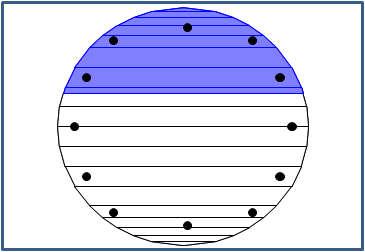
- Assuming that the reinforcement is distributed evenly around the circle, find the depth of each reinforcement layer from the top face.
- Find the transformed area of a reinforcing bar in tension and compression. That is the bar area x Steel Elastic Modulus / Concrete Elastic Modulus in tension, (since the bar displaces an equal area of concrete) bar area x (Steel Elastic Modulus / Concrete Elastic Modulus – 1) in compression.
- Find the transformed area properties (area, level of centroid, first moment of area about layer depth, of area about centroid depth) for the neutral axis at each steel layer, adjusting the transformed area for the numbers of bars in compression and tension.
- Find the composite (concrete + steel) Ix and Qx for the Neutral Axis at each reinforcement layer, and hence find which layers it lies between.
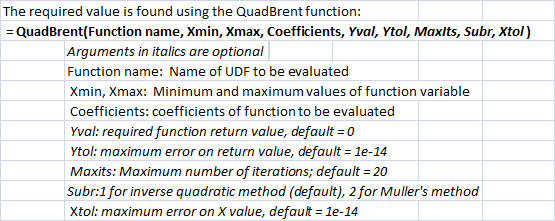
- Use Brent’s Method to find the Neutral Axis position that satisfies the governing equation given above.
- Find the composite area properties for the Neutral Axis at this layer.
- Hence find the stresses, strains, forces and bending moments in the section.
- Check that the calculated total axial force and bending moment are equal to the applied loads.
Excerpts of the VBA code are shown below. Full open source code is included in the download file: RC design functions5.zip
Composite area properties about an axis at depth X below the top fibre:
Function CircleQxoI(SectData As Variant, X As Double) As Variant
Dim R As Double, H As Double, Theta As Double, A As Double, Xcr As Double
Dim Icc As Double, Iccent As Double, Icb As Double, Qcb As Double
Dim Ast As Double, Istc As Double, Xsc As Double, Ecc As Double
Dim Qsb As Double, Isb As Double, outA(1 To 8, 1 To 1), CallFunc As Long

  If TypeName(SectData) = "Range" Then SectData = SectData.Value2
  R = SectData(1)
  Ast = SectData(2)
  Xsc = SectData(3)
  Istc = SectData(4)
  Ecc = SectData(5)
  CallFunc = SectData(6)

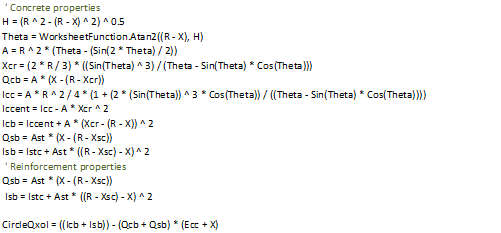
    ' Concrete properties
    If X > 0 Then
        If X < 2 * R Then
            H = (R ^ 2 - (R - X) ^ 2) ^ 0.5
            Theta = WorksheetFunction.Atan2((R - X), H)
            A = R ^ 2 * (Theta - (Sin(2 * Theta) / 2))
  Xcr = (2 * R / 3) * ((Sin(Theta) ^ 3) / (Theta - Sin(Theta) * Cos(Theta)))
  Qcb = A * (X - (R - Xcr))
  Icc = A * R ^ 2 / 4 * (1 + (2 * (Sin(Theta)) ^ 3 * Cos(Theta)) / ((Theta - Sin(Theta) * Cos(Theta))))
  Iccent = Icc - A * Xcr ^ 2
        Else
            A = Pi * R ^ 2
  Qcb = A * (X - R)
  Iccent = A * R ^ 2 / 4
        End If
  Icb = Iccent + A * (Xcr - (R - X)) ^ 2

    Else
  Qcb = 0
  Icb = 0
    End If
    ' Reinforcement properties
  Qsb = Ast * (X - (R - Xsc))
  Isb = Istc + Ast * ((R - Xsc) - X) ^ 2

  If CallFunc = 1 Then
  CircleQxoI = ((Qcb + Qsb) * (Ecc + X) / (Icb + Isb)) - 1

    Else
        outA(1, 1) = X
  outA(2, 1) = Icb
  outA(3, 1) = Isb
        outA(4, 1) = A
        outA(5, 1) = Ast
        outA(6, 1) = A + Ast
  outA(7, 1) = Qcb
  outA(8, 1) = Qsb
  CircleQxoI = outA
    End If

End Function
Use Brent’s Method to find the depth of the Neutral Axis within a specified layer
Function QuadBrent(Func As String, ByVal Ak As Double, ByVal Bk As Double, Coefficients As Variant, _
  Optional YTol As Double = 0.00000000000001, Optional MaxIts As Long = gMaxIts, _
  Optional Subr As Long = 1, Optional XTol As Double = 0.0000000001) As Variant
  Dim Ck As Double, Sk As Double, Dk As Double, XRange As Double
  Dim Yak As Double, Ybk As Double, Yck As Double, Ysk As Double, Ydk As Double
  Dim i As Long, LastStepB As Boolean, Temp As Double, ResA(1 To 3, 1 To 1) As Double, SubName As String

  If TypeName(Coefficients) = "Range" Then Coefficients = Coefficients.Value2

  Yak = Application.Run(Func, Coefficients, Ak)
  Ybk = Application.Run(Func, Coefficients, Bk)

  If (Yak < 0 And Ybk < 0) Or (Yak > 0 And Ybk > 0) Then
  QuadBrent = "Yak and Ybk must have different signs"
        Exit Function
    End If

  If Abs(Yak) < Abs(Ybk) Then
        Temp = Ak
        Ak = Bk
        Bk = Temp
        Temp = Yak
  Yak = Ybk
  Ybk = Temp
    End If

    Ck = Ak
  Yck = Yak
  LastStepB = True

  For i = 1 To MaxIts

  XRange = (Bk - Ak)

  If (Abs(Ybk) < YTol) Then Exit For

  If Yak <> Yck And Ybk <> Yck Then

  ' SolveInvQuad uses inverse quadratic interpolation, SolveQuad uses Mullers method of quadratic interpolation
  If Subr = 1 Then SubName = "solveInvQuad" Else SubName = "solveQuad"
  Sk = Application.Run(SubName, Ak, Yak, Bk, Ybk, Ck, Yck) '

        Else
  Sk = Bk - (Ybk) * (Bk - Ak) / (Ybk - Yak)
        End If

        If ((Sk - (3 * Ak + Bk) / 4) * (Sk - Bk)) > 0 Then
            Sk = (Ak + Bk) / 2
  LastStepB = True
  ElseIf LastStepB = True Then
  If Abs(Sk - Bk) >= Abs(Bk - Ck) / 2 Or (Abs(Bk - Ck) < Abs(XTol)) Then
                Sk = (Ak + Bk) / 2
  LastStepB = True
            Else
  LastStepB = False
            End If
  ElseIf Abs(Sk - Bk) >= Abs(Ck - Dk) / 2 Or Abs(Ck - Dk) < Abs(XTol) Then
            Sk = (Ak + Bk) / 2
  LastStepB = True
        Else
  LastStepB = False
        End If

  ' Use Application.run to evaluate Func for the value Sk
  Ysk = Application.Run(Func, Coefficients, Sk)
        '----------------------------------------
        Dk = Ck
  Ydk = Yck
        Ck = Bk
  Yck = Ybk

  If Yak * Ysk < 0 Then
            Bk = Sk
  Ybk = Ysk
        Else
            Ak = Sk
  Yak = Ysk
        End If
  If Abs(Yak) < Abs(Ybk) Then
            Temp = Ak
            Ak = Bk
            Bk = Temp
            Temp = Yak
  Yak = Ybk
  Ybk = Temp
        End If

  Next i

  If Abs(Ybk) < Abs(Ysk) Then
  ResA(1, 1) = Bk
  ResA(3, 1) = Ybk
    Else:
  ResA(1, 1) = Sk
  ResA(3, 1) = Ysk
    End If
  ResA(2, 1) = i - 1

  QuadBrent = ResA
End Function




 Newton Excel Bach, not (just) an Excel Blog