Two Years Old Today

Newton Excel Bach today completes its second year in the Blogosphere, and as last year I have downloaded the statistics for number of hits on each post, and pasted them into an Excel worksheet.  The link to each post is preserved in the spreadsheet, so it makes a convenient index to what has been posted over the year, which can be downloaded here.
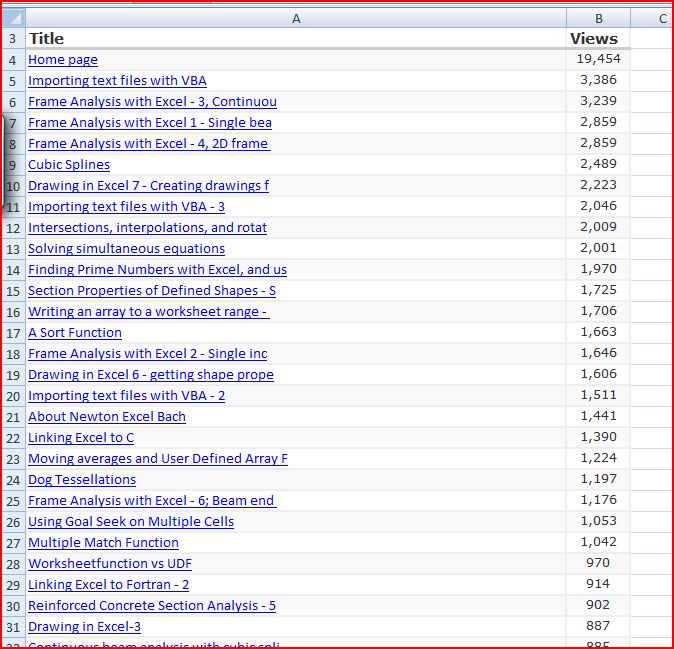
Most viewed posts - click for full size view

 Of those posts made in 2009, the Frame Analysis series were clearly the most popular in the “Newton” category, and Writing an array to a worksheet range was the most popular of the Excel related posts.  In the “Bach” category the Crab Canon on a Mobius Strip was the most popular of the non-science or Excel posts in 2009.

At the other end of the list, the most deserving but sadly neglected posts in 2009 were:

Newton: Reinforced Concrete Section Analysis – with prestress (20 hits) 

Excel: Section Properties and UDF Charting (11 hits)

Bach: I’ve got a feeling – ancient and modern (4 hits)

 Also added in this years statistics spreadsheet is a list of the most frequent referrers over the year:
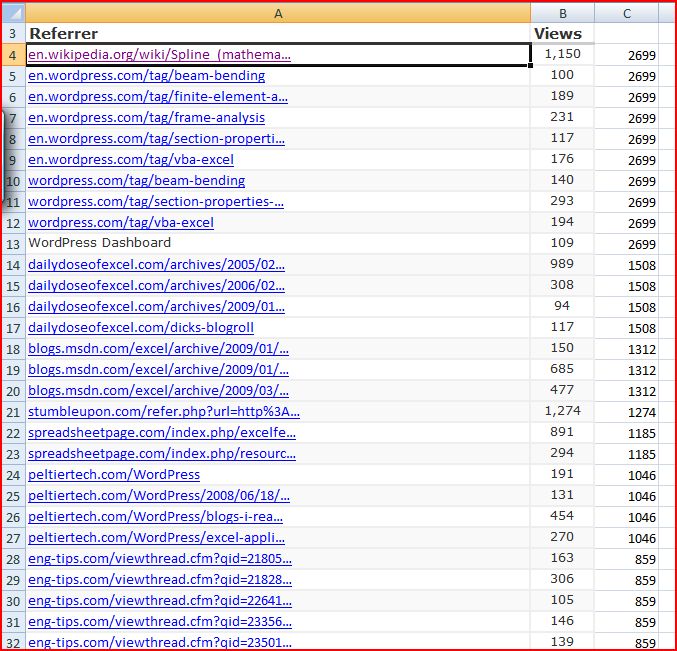
Referrers to Newton Excel Bach in 2009; click for full size

So many thanks to:

  • WordPress
  • Dick Kusleika at Daily Dose of Excel
  • Microsoft Excel Blog
  • Stumbleupon
  • John Walkenbach’s Spreadsheet Page
  • Jon Peltier
  • The Eng-Tips Forum
  • Chandoo at Pointy Haired Dilbert
  • Simon Murphy at Smurf on Spreadsheets
  • Jimmy Pena at Code for Excel and Outlook

… and everyone else who posted links but didn’t make the list.

Posted in Excel | Leave a comment

Secondary axes in Excel 2007

Sometimes rarely used features in an application are so prominently placed that we become blind to them, and can’t find them when we need them.

This happened to me recently with the procedure for assigning an Excel chart series to a secondary axis, so that series covering widely different ranges can be displayed on the same graph.  The chart below shows a plot of concrete and reinforcement stresses in a reinforced concrete section subject to increasing bending moment.

Concrete and reinforcement stresses - one Y axis

In order to make the variation in the concrete stress more readable I wanted to assign one of the ranges to a second Y axis, but I couldn’t remember the procedure for doing this, and searching through the “Chart Tools” ribbons didn’t provide anything that would do what I wanted.  In particular, the “Axes” tab on the “Layout” sub-ribbon (which would surely be the logical place to put a tool for inserting a second axis) only referred to the primary axes.

As a last resort I looked up the on-line help, which told me I should select the range I wanted on the second axis, then click the “Format Selection” button in the “Current Selection” group on the Format sub-ribbon under Chart Tools.  This provides a dialog box with the options of “Primary Axis” and “Secondary Axis”, and selecting Secondary Axis did what I wanted:

Steel Stress on Secondary Y Axis

The dialog box looked strangely familiar though.  Then I realised that this is the same dialog you get by selecting a chart series and then selecting Format Data Series… from the right-click menu, an operation I probably do hundreds of times a week.  The “secondary axis” option was something that I had become so accustomed to ignoring that I just didn’t see it any more!

Further investigation revealed that once the secondary axis has been installed it then appears under the “axes” button, and whats more you can now insert a secondary X axis by clicking on Axes – Secondary Horizontal Axis.

Whether a secondary horizontal axis is ever a good idea is another matter, but for some ideas on what you can do with secondary axes, have a look at the Jon Peltier Blog (see both the linked post and the “related posts” listed at the bottom for some useful ideas).

Posted in Charts, Excel | Tagged , , | 9 Comments

Reinforced Concrete Moment-Curvature – 4; Development of curvature over time

The previous post in this series looked at how specified shrinkage and creep strains affect the curvature of a reinforced consrete section subject to a constant load.  In this post I will present a User Defined Function (UDF) that analyses the curvature due to loading, prestress, creep and shrinkage over a series of time steps, allowing the interaction between these factors to be taken into account, and also allowing for variation in loading and the concrete stiffness over time.

The UDF has been added to RC design functions6.zip.  As usual, the spreadsheet includes full open sourec code.

The procedure used is:

  • Read the section properties, creep and shrinkage parameters for each time step, and optionally load, prestress and concrete E value for each time step.
  • For each time step:
  • Adjust the applied loads, prestress, and concrete E value, if required.
  • Adjust the concrete E value for the increase in creep from the  previous step.
  • Calculate a virtual prestress force equivalent to the total shrinkage and creep strain up the the previous step, plus the shrinkage strain for the current step.
  • Calculate the section strains and curvature for the current step.
  • Update the virtual prestress to include the creep increment from the current step.
  • Go to next time step.

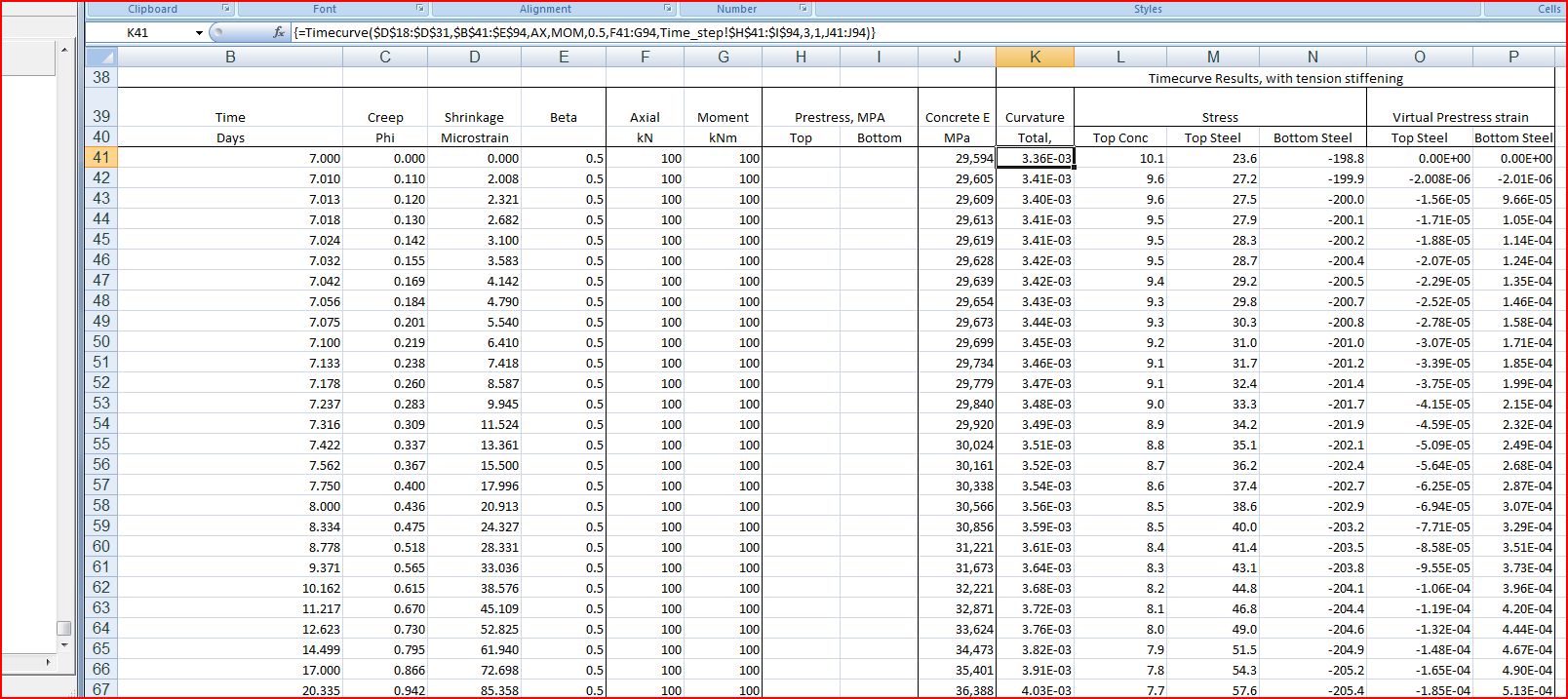
The screenshot below shows typical input data and results from the TimeCurve function compared with a time-step analysis carried out in the finite element analysis program Strand7.

Click to view full size

This screenshot shows typical time-step data and results.  Note that the UDF must be entered as an array function (press ctrl-shift-enter) to view all the results.:

Click to view full size

The spreadsheet also includes the following new functions:

  • TimeSteps – generates a series of timesteps with logarithmic spacing
  • EC2Props – generates concrete properties for a given age and strength grade, as specified in Eurocode2.
Posted in Concrete, Excel, Newton, UDFs, VBA | Tagged , , , | 6 Comments

Pie charts all the way down

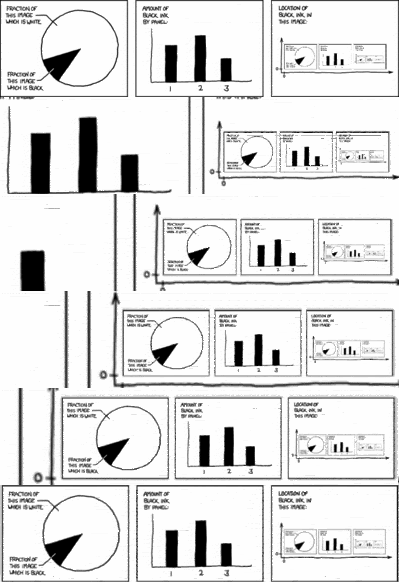
xkcd post number 688 shows charts of the proportion of black ink in the charts in xkcd post number 688, and it has in the chart on the right a plans of the locations of the charts in xkcd post number 688, which  has in the chart on the right a plans of the locations of the charts in xkcd post number 688, and so on …

Self description (click to visit xkcd)

And for the benefit of those without infinite resolution monitors:

Pie charts all the way down (click for full size)

 Resources for those who don’t get xkcd:

http://xkcdexplained.com/

and

http://xkcdexplainedexplained.com/

and

http://xkcdexplainedexplainedexplained.tumblr.com/

and so on …

Posted in Maths, Newton | Tagged , , | 1 Comment

Hello World (again)

Over at Daily Dose of Excel Dick has been asking for suggestions for excellent training, to which Jan Karel Pietersen replied that training should be relevant to the task at hand, and that “hello world” examples are useless.

John Walkenbach responded with the mysterious code below:

Sub Test()
Dim x As Long, y As Long
Dim x1 As String, x2 As String
For x = 0 To 5
x1 = x1 & Chr(x * (x * (x * (x * (-0.75 * x + 7.2917) - 22.5) + 16.708) + 28.25) + 72)
Next x
For x = 0 To 6
x2 = x2 & Chr(x * (x * (x * (x * (x * (0.425 * x - 6.8667) + 40.833) - 109.58) + 122.24) - 23.05) + 87)
Next x
MsgBox x1 & x2
End Sub

Paste it into the Visual Basic Editor and run it, and all will be revealed.

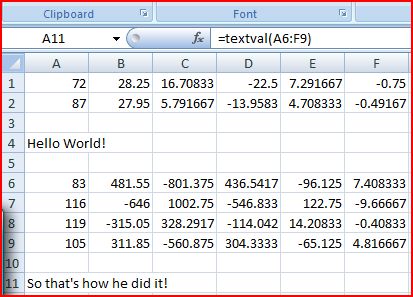
I have modified this valuable routine to work as a function that will accept a spreadsheet range of six columns by any number of rows as input, with the results shown below:

Messages from numbers

The code for the function is:
Function TextVal(CharVals As Variant) As String
Dim i As Long, x As Long, NumRows As Long
CharVals = CharVals.Value2
NumRows = UBound(CharVals)
For i = 1 To NumRows
For x = 0 To 5
TextVal = TextVal & Chr(x * (x * (x * (x * (CharVals(i, 6) * x + CharVals(i, 5)) + CharVals(i, 4)) + CharVals(i, 3)) + CharVals(i, 2)) + CharVals(i, 1))
Next x
Next i
End Function

The spreadsheet can be downloaded from Hworld-JW.xls

Those interested in how the numbers are derived, have a look at the second page of the spreadsheet (warning; some mathematics required).  The hint was given by JKP in this comment:

“John:
Yes nice one, isn’t it.
Proves you can fit a 5th order polynomial through six points exactly.”

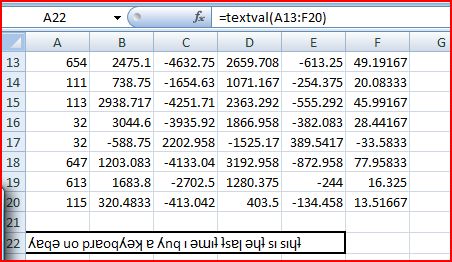
And just in case fitting a 5th order polynomial to a string of Ascii text is not enough for you, I have now modified the code so it will handle the extended character set, so we can get:

The download spreadsheet now also includes this short UDF:

Function Charw(CVal As Long)
Charw = ChrW(CVal)
End Function

which gives access to the VBA Chrw function from a worksheet.

That could conceivably be of some practical use to someone 🙂

Posted in Excel, Maths, UDFs, VBA | Tagged , , , , | 2 Comments