Some New Links

A couple of return links to sites that have been sending traffic my way, and are well worth a look:

AJP Excel Information (Andy Pope’s site):

“The intention of this site is to be a useful resource of alternative solutions to the problems and limitations user encounter when using Microsoft® Excel.”

The Math Less Traveled

“Math? Beautiful? Yeah, right.

No fair, that’s not a question. But anyway, if you can’t understand how anyone could use the words “math” and “beautiful” in the same sentence, then I dare you to stick around a bit and see if you don’t change your mind. Math is about much more than figuring out when two trains will meet or calculating compound interest. Mathematics — like the hard sciences, but even more so — seeks to discover and understand the deep, elegant structure built into the very fabric of the universe. And it’s no surprise, really, that the deep mathematical structure of a universe featuring such things as clouds, crystal lattices, rainbows, galaxies, and atoms turns out to be beautiful. Personally, I see mathematics — and all beautiful structure in the universe — as evidence of a Creator at its source, but of course you can still appreciate it without sharing that belief.”

And finally a link to what is undoubtedly the most useful and comprehensive collection of Excel resources on the entire Internet (including the site run by Microsoft):

Pearson Software Consulting

Posted in Excel, Maths | Tagged , , | Leave a comment

Chart Trend Lines and the Linest Function

At the Mr Excel discussion forum the output of the worksheet function Linest(), compared with chart trend lines raised a question, where it is said that in Excel 2007 the trend line gives different (and incorrect) coefficients for a polynomial curve constrained to pass through the origin, and that the R^2 values reported by the two methods are different.

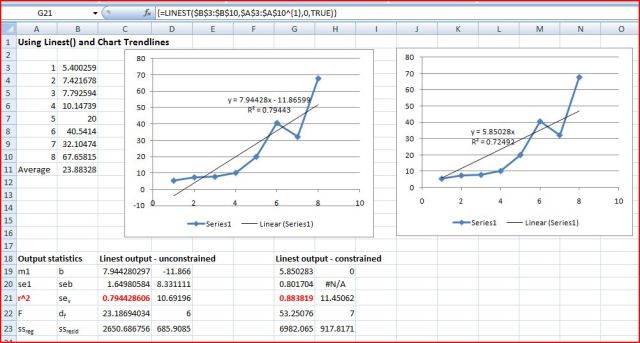
I haven’t been able to reproduce the problem of different output from the trend line and Linest for the regression coefficients, but it is true that if the regression line is constrained to pass through the origin then the R^2 value (The coefficient of determination) is different in the trend line results and Linest (see screen shot below).  This is true both for polynomial results, as reported in the Mr Excel post, and for linear regression.
LinEst1

Chart Trend Line and Linest Output, Click to view full size

The Excel help is unhelpful in explaining this difference. More detail is given at the MSDN developer center, where the basis of the calculation of the R^2 value in Linest is described, but there is no explanation as to why the chart trend line gives different results, and I could find no other relevent discussion on the matter.

The clearest explanation I found was at the Curvefit.com site, where they had this to say, in relation to their own software:

“Why Prism doesn’t report r2 in constrained linear regression

Prism does not report r2 when you force the line through the origin (or any other point), because the calculations would be ambiguous. There are two ways to compute r2 when the regression line is constrained. As you saw in the previous section, r2 is computed by comparing the sum-of-squares from the regression line with the sum-of-squares from a model defined by the null hypothesis. With constrained regression, there are two possible null hypotheses. One is a horizontal line through the mean of all Y values. But this line doesn’t follow the constraint — it does not go through the origin. The other null hypothesis would be a horizontal line through the origin, far from most of the data.

Because r2 is ambiguous in constrained linear regression, Prism doesn’t report it. If you really want to know a value for r2, use nonlinear regression to fit your data to the equation Y=slope*X. Prism will report r2 defined the first way (comparing regression sum-of-squares to the sum-of-squares from a horizontal line at the mean Y value).”

Now it seems that the Excel Linest() function uses the second hypothesis for a constrained regression line, resulting in a higher R^2 value, compared with the unconstrained line. The chart trend line function on the other hand seems to use the first hypothesis.

This is confirmed in the calculation below:

Check Linest and Trend Line R^2 results

It would have been nice if Microsoft could have explained that.

The examples shown above can be downloaded from: Linest Check.zip

Posted in Excel, Maths | Tagged , , , , | 1 Comment

Reinforced Concrete Section Analysis – with prestress

The simplified reinforced concrete section analysis spreadsheet presented here has been revised to allow the input of a pre-tension stress to either or both layers of reinforcement.  The spreadsheet (including full open source code) can be downloaded from RC Design Functions5.

Note that this spreadsheet is intended for the analysis of rectangular beams or slabs with two layers of reinforcement.  For more complex sections refer to Reinforced Concrete Section Analysis – 5; Ultimate Limit State and Reinforced Concrete Section Analysis – 3.

In addition to the provision for prestressed reinforcement the revision also provides additional output data on section curvature, including analysis of tension stiffening effects and shrinkage according to the Eurocode EC2, and analysis of shrinkage curvature using a fictitious pre-compression stress applied to the reinforcement.  More details on these revisions will be given in a later post.

Typical Input and Output:

Estress input, including pre-stress

Estress input, including pre-stress


EStress Output

EStress Output

Posted in Beam Bending, Concrete, Excel, Newton, UDFs, VBA | Tagged , , , , , , , , , | 3 Comments

Copy and Paste as Picture

If in Excel 2007 you copy a range to the clipboard and paste into Word as a picture you get the worksheet gridlines displayed, which may well not be what you want.

This issue was raised at Smurf on Spreadsheets and has a fairly simple solution.

In their efforts to make all the Excel functionality intuitive and easy to access, Microsoft have placed a “Copy as Picture” command three levels down under the “Paste” button on the Home Tab.  The “Copy as Picture” command brings up a dialog box, which has the options “as shown on screen” and “as shown whan printed”, and an image copied as “as shown when printed” does not have the grid-lines.

Home - Paste - As Picture - Copy as Picture !

Home - Paste - As Picture - Copy as Picture !


If you want to save the image as a separate file the easiest way to get a high quality emf (extended meta-file) image, without loss of image quality, seems to be to paste it into Powerpoint, and save it to a file from there.

Does anyone know a better way?

24th Oct 09:   See comments below for a link to a “Classic Menu” addin, available for trial or purchase.

Posted in Excel | Tagged , , | 10 Comments

Bend-it Like Euler

I just found the Bend-it blog, which looks like it should be worth a good look:

Note 13 Oct 09:  See comment below.  This blog is temporarily closed whilst being reorganised, but contact the authors if interested.

Bend-it

Posted in Newton | Tagged | 3 Comments