The multi-talented Fred Watson paid for his studies by playing folk music alongside the likes of Billy Connolly, and now makes a living looking at stars.
Here he is talking about Life, The Universe and Everything:

The multi-talented Fred Watson paid for his studies by playing folk music alongside the likes of Billy Connolly, and now makes a living looking at stars.
Here he is talking about Life, The Universe and Everything:
Following on from the previous post, this post presents a number of methods of solving polynomial equations using approximate iterative methods in Excel. Similar methods can be used to find solutions to any other equation that can be evaluated numerically.
The problem is to find the value of x for which:
a + b*x + c*x^2 + d*x^3 … = 0
The examples and functions presented in this post are all included in the spreadsheet: Newtons Method.xls
The example used is the evaluation of a quartic polynomial, for which exact analytical solutions are available, but the functions in the spreadsheet may be used directly for polynomials of any degree, and may be easily adapted for other forms of equation. The spreadsheet also includes User Defined Functions (UDFs) to solve Quartic, Cubic and Quadratic equations.
The basis of the Newton-Raphson (and related) methods is shown in the chart below.
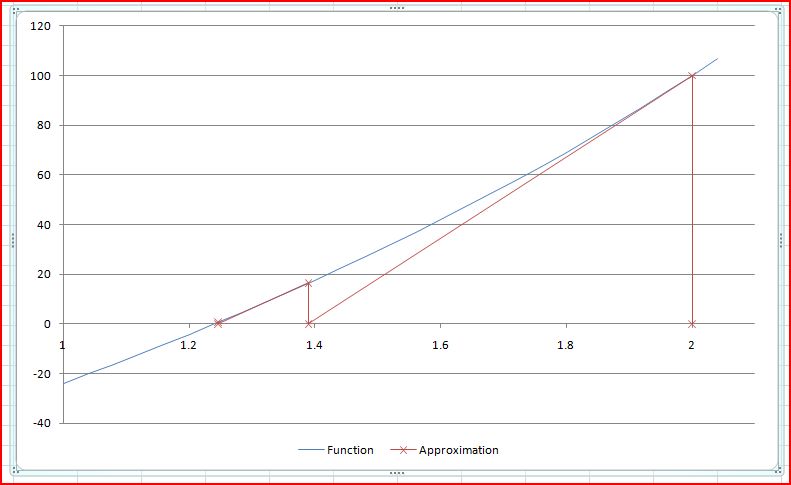
Basis of the Newton-Raphson method
Click on any image to view full-size.
The value of the function, f(x), and its slope, f'(x), are evaluated at some estimated approximate solution value, x1. A better approximation, x2, is then given by x2 = x1 – f(x)/f'(x).
The spreadsheet contains several alternative solutions to the equation:
-100 + 60x + 16x^2 + -2x^3 + 2x^4 = 0

Exact solutions and spreadsheet solution using SumProduct
The solution to the equation is given by the UDF quartic(). The solution to a polynomial equation (of any degree) may also be found by adapting the Excel IRR() function:
=1/(1+IRR(B7:F7,-0.2))
Where the function coefficients are listed in ascending powers of x in the range B7:F7, and -0.2 is an initial guess of the IRR. Note that in this case an IRR value of -0.2 is equivalent to a solution value of 1/(1 – 0.2) = 1.25.
As discussed in the comments to the previous post, the function Sumproduct can be used to evaluate a polynomial function, and its derivatives. For a list of coefficients in B7:F7, powers of x in B8:F8, and x value in B16:
The next approximation to the solution of the equation is then: =+B16-C16/D16
These formulas may be simply copied down to give the required level of precision.
The same approach may be followed using the UDF EvalPoly1, which returns the values of f(x) and f'(x) in a two cell array:

Solution using EvalPoly1 on the spreadsheet, and the UDF SolvePoly1
This approach is incorporated in the UDF SolvePoly1(), which returns the solution to the equation, and the required number of iterations.
When the equation to be solved cannot be differentiated analytically a numerical differentiation may be used, as illustrated below. Note that in SolvePoly2 there is no check on the intermediate solutions, but in SolvePoly3 the intermediate solutions are constrained to fall between the specified lower and upper bounds, or lower and upper bounds found in previous stages of the analysis:

Solutions using numerical differentiation
The functions described above will only solve polynomial equations. The SolveNR() UDF illustrated below will solve any equation including functions that can be solved with the VBA Evaluate function:
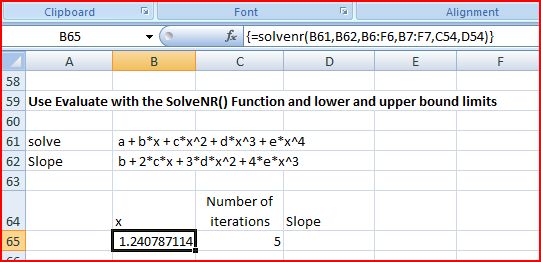
Solve equations with the SolveNR() UDF
Finally the screenshot below shows a spreadsheet solution and UDFs using the secant method. In the secant method the slope of the function is evaluated using the two previous solutions:

Solutions using the secant method
The relative speed of the UDF solutions presented in this post are shown below:

Relative speed of functions
It can be seen that:
A polynomial function is a function of the form:
a + b*x + c*x^2 + d*x^3 …
and the derivative (the slope of the line at point x) of this function is given by:
b + 2c*x + 3d*x^2 …
The User Defined Function (UDF) =EvalPoly1() will evaluate any polynomial and its derivatives, and may be downloaded from: EvalPoly.zip
The UDF input is:
=evalpoly1(x,Coefficient range, No of derivatives)
Where x is the value the function is to be evaluated for, and Coefficient range is a single row range containing the function coefficients, in increasing powers of x. If “no of derivatives” is zero the UDF returns a single value; otherwise it returns a single row array containing the specified data. To view the array, select the number of cells required, with the UDF in the left hand cell, then press F2 followed by ctrl-shift-enter.
The download file now also includes a 2D array version of the function, which is much faster for large data sets:
=EvalPoly1A(xa, Coefficient range, No of derivatives)
Where xa is a single column range of x values.
Typical output for a quartic polynomial is shown in the screen-shot below:

Output of EvalPoly1 Function (click to view full size)
… and an alternative.
In this discussion at Eng-Tips I recommended the use of the DMAX() function to extract maximum values from data grouped with different text labels. In the process I needed to adjust the selection criterion to generate the correct results. DMAX requires a criteria range of at least two rows and one or more columns. In the simplest case the criterion consists of a column header with the criterion underneath; for instance:
=DMAX(datarange, 2, criteria)
Where criteria is a two row range containing:
First Name
Fred
Will return the maximum value from Column 2 from any row with the text “Fred” in the column headed “First Name”.
Unfortunatly this will not always work as expected, and in the example in the Eng-Tips discussion a criterion of M1 was also returning values from rows with labels M11, M12 etc.
The correct way to specify the criterion is to enter:
=”=M1″
which will appear as:
=M1
An alternative is to replace the DMAX function with an array function that will do the same job:
=MAX(IF(EXACT($C$7:$C$12928,U7),$E$7:$E$12928,-1000000))
In this case the labels are in Column C, the criteria are in Column U, and the data from which the maximum values are required are in column E. The final negative number must be less than the most negative value in the datarange.
This formula must be entered as an array function (by pressing ctrl-shift-enter). The screenshot below shows an example.

Array Formula as an alternative to DMax(), click to see full size
Eng-Tips members may download an example spreadsheet from the link.
A list can be sorted into random order by inserting a list of random numbers in an adjacent column and sorting both columns on the random number column.
A similar procedure can be carried out through a VBA subroutine, avoiding the need to insert a column of random numbers on the spreadsheet. A spreadsheet incorporating this routine can be downloaded from: randomise list.zip
Features of this procedure are:
The range selection dialog is shown in the screen-shot below:
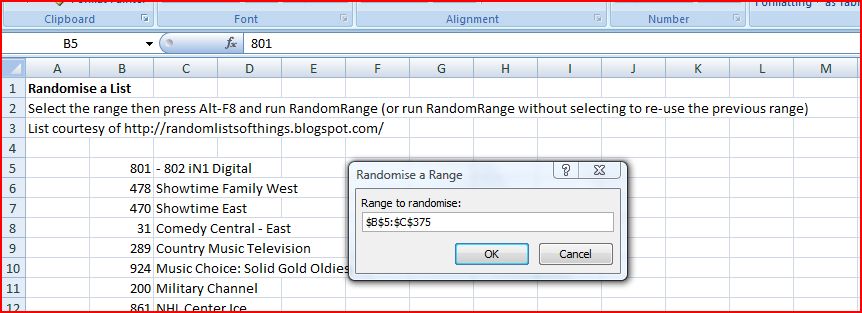
Randomise a List


 Newton Excel Bach, not (just) an Excel Blog