Drawing in Excel 8 – scaling and trimming

Previous Post – Drawing in Excel 7

Download PlotXY-xls.zip (XL 2003 and earlier)

Download PlotXY-xlsb.zip (XL 2007)

The previous post presented VBA routines to plot drawings in Excel from a series of coordinates, a list of connected points, and a table of formatting information. The drawings were scaled to fit the selected plot area.

This post covers a modification of these routines that allows the scale and centre of the plot to be changed, with lines and polylines being trimmed where necessary to fit inside the plot area.  This is not as straightforward as it might seem because trimming polylines will often change the number of line segments; for instance in the plot of a triangle shown below increasing the scale factor to 1.6 increases the number of sides of the plot shape from 3 to 7.

Triangle with scale factor = 1

Triangle with scale factor = 1


Trimmed triangle with scale factor = 1.6

Trimmed triangle with scale factor = 1.6

The trimming of lines and polylines is carried out by the function IPBox(Line1, Box), where Line1 is a list of XY coordinates and Box is a 2 x 2 array listing the bottom left and top right coordinates of the plot area, to the same scale as the shape to be trimmed.

The procedure is as follows:

  1. For each node find the sector containing the node.
  2. For each line find any intersection points with the limits of the plot box
  3. Step through the nodes until the first inside the plot box
  4. For this and each subsequent line segment:
  5. If both ends are inside the plot box then save the start coordinates
  6. If the line crosses the plot box limits then save the intersection point coordinates
  7. For line ends outside the plot box, project to the nearest line, or nearest corner
  8. For the last line segment close the shape with the first node or intersection point
  9. Delete duplicate points  from the list of saved coordinates
  10. Plot the resulting shape.

Examples of the output from this routine are shown below.

Super-T Bridge Beam Cross Section

Super-T Bridge Beam Cross Section


Scaled and Trimmed Super-T

Scaled and Trimmed Super-T


Part of a large finitge element mesh

Part of a large finitge element mesh


Finite element mesh at 20 x magnification
Finite element mesh at 20 x magnification
Posted in Drawing, Excel, VBA | Tagged , , , , | 3 Comments

Significant Figures

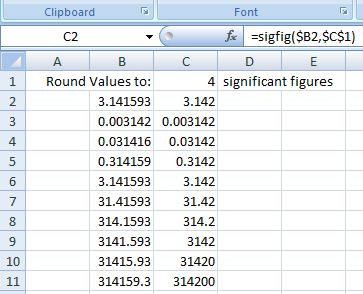
Excel does not provide any built in functions to round values to a specified number of significant figures.  The UDF below, recently posted at the Eng-Tips forum, will do the job:


Public Function sigfig(my_num, digits) As Double
Dim num_places As Integer
' Note that VBA log function returns natural logarithm.
' Dividing VBA log / log (10) converts to the base 10 logarithm.
' Screen out zero values to prevent error in logarithm calculation.
If my_num = 0 Then
sigfig = 0
Else
num_places = -Int((Log(Abs(my_num)) / Log(10) + 1) - digits)
If num_places > 0 Then
sigfig = Round(my_num, num_places)
Else
sigfig = Round(my_num / 10 ^ (-num_places)) * 10 ^ (-num_places)
End If
End If
End Function

Source: Eng-Tips; Engineering Spreadsheets

Screen shot

Screen shot

 To create the UDF:

  • Open the Visual Basic Editor (Alt-F11)
  • Create a new code module, if necessary (Insert-Module)
  • Copy and paste the code above into the module
  • Change all the characters to apostrophes (comment lines will change from red to green), or delete all the comments

Alternatively go to the Eng-Tips site and copy and paste from there, and there will be no need to correct the comment lines.


Update:

The John Walkenbach site gives the formula below:

=ROUND(A1,A2-1-INT(LOG10(ABS(A1))))

 which works well when inserted as a formula, but doesn’t work inall cases as a UDF because the VBA Round function does not accept a negative number of decimal places, whereas the Excel Round function does.

Posted in Excel, Maths, UDFs, VBA | Tagged , , | 5 Comments

Anniversaries

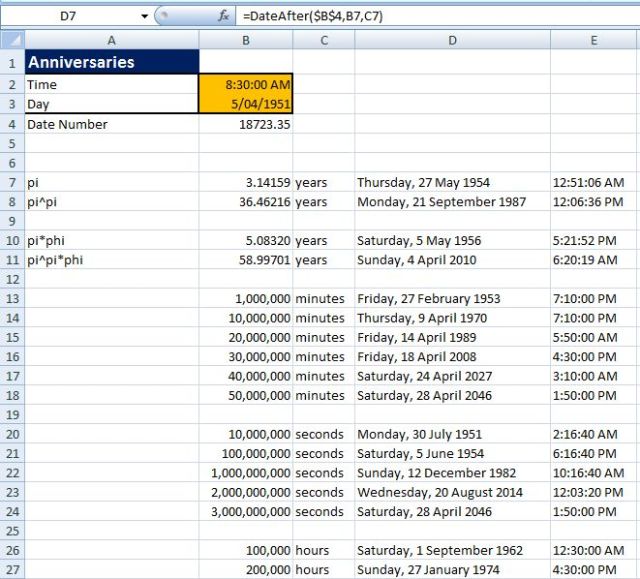
It has just come to my notice that this year I missed my half millionth Birthhour, which was also my 30 millionth Birthminute. Luckily I still have plenty of time to prepare for my 2 billionth Birthsecond.

To avoid missing these significant occasions download Anniversaries.zip and calculate to the second the exact anniversary from any specified date and time.

Anniversaries - Screen shot

Anniversaries - Screen shot

Posted in Excel, UDFs, VBA | Tagged , , , , | 3 Comments

Solving simultaneous equations – Fortran dll

The file simultaneous.zip has been modified to allow access to a Fortran simultaneous equation routine, compiled as a dll.  The original file was posted in solving simultaneous equations.  The advantages of a compiled routine include:

  • Much better performance
  • Greater precision through use of Fortran 80 bit variables
  • Better security

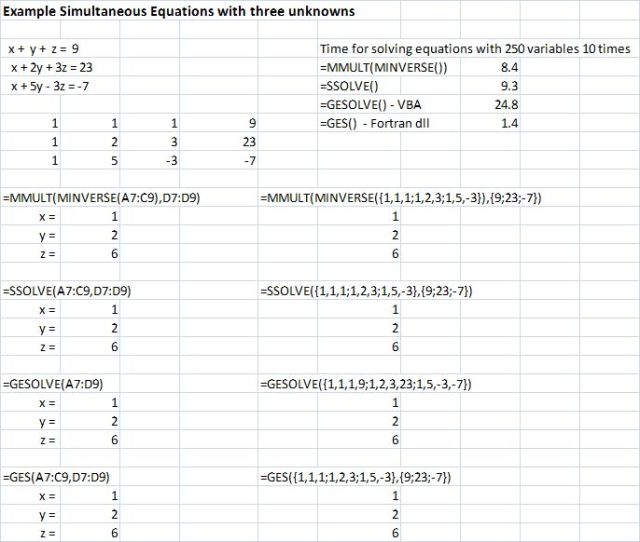
Performance for solving a set of simultaneous equations with 250 unknowns 10 times is shown in the screen shot below.  The Fortran dll is over 18 times faster than the VBA routine.

Fortran Gaussian Elimination routine

Fortran Gaussian Elimination routine


To install GES() either:
Create a Folder “Spread” under Windows\System32
Copy the file GE5.dll to the new Spread folder
or:
Copy the file GE5.dll to the Windows\System32 folder
Open the Visual Basic Editor and change:
Declare Function GE Lib “..\Spread\GE5.dll”
to:
Declare Function GE Lib “GE5.dll”

The download zip file includes spreadsheet Simultaneous.xls, the dll file GE5.dll, and the Fortran source code GE5.f95

The Fortran routine is based on a program published by CR Bond

Posted in Arrays, Fortran, Link to dll, Maths, UDFs, VBA | Tagged , , , , , | 3 Comments

Physics Puzzle

The question below was set in a VCE (high school exam) physics exam in Victoria Australia.  After the exam the question was discussed by a number of physics experts who failed to reach a concensus on what the correct answer was!

What do you think?

It's all relative

It's all relative

Posted in Newton | Tagged , , , | 11 Comments