Linking Excel to C – 3; Avoiding bottlenecks

The previous post in this series included a C dll to solve cubic polynomial equations that could be called from VBA.  The performance of this routine is compared with a VBA routine using a similar algorithm in the sceenshot below (rows 6 and 8):

Benchmark of cubic solution routines

Benchmark of cubic solution routines

Both of these routines spend most of their time passing data from the spreadsheet to VBA and back again, as can be seen by comparing with row 7, where the routine VBAcubica is over 2 times faster than the original VBA routine. In VBAcubica all 1000 lines of data are passed to VBA as an array in one operation; the equations are then solved and the results passed back in one operation. This spreadsheet and the VBA and C code can be downloaded here:

This process has been replicated using the C dll in three different ways:

  • In Cubica the data is passed to VBA as an array, then passed to the dll one row at a time as three doubles, passed by value.
  • In Cubica2 the 1000×3 array of variants is converted to a single dimension, base 0, array of doubles, which is passed to the dll by reference.
  • in Cubica3 the VBA array of variants is converted to a 3×1000, base 1, array of doubles which is again passed to the dll by reference.

It can be seen that the the three dll routines that use an array to pass the data from the spreadsheet to VBA are much faster than the other routines, and that there is no significant difference between them.

The VBA declare statements, and the VBA statements calling the dll functions are shown below:

' Amend paths in the declare statements below as necessary
Declare Function gsl_poly_solve_cubic Lib "D:\Users\Doug\Documents\Visual Studio Projects\Cubic\Release\Cubic" (ByVal a As Double, ByVal b As Double, ByVal c As Double, ByRef xa As Double) As Long
Declare Function gsl_cubica Lib "D:\Users\Doug\Documents\Visual Studio Projects\Cubic\Release\Cubic" (ByVal numrows As Long, ByRef abc As Double, ByRef xa2 As Double) As Long

Function Cubica(CubicData As Variant) As Variant
..
For i = 1 To numrows
a = CubicData(i, 1)
b = CubicData(i, 2)
c = CubicData(i, 3)

Retn = gsl_poly_solve_cubic(a, b, c, xa(0))
..

Function Cubica2(CubicData As Variant) As Variant
.. For i = 0 To numrows - 1
For j = 0 To 2
abc(i * 3 + j) = CubicData(i + 1, j + 1)
Next j
Next i
Retn = gsl_cubica(numrows, abc(0), xa_2(0))
..

Function Cubica3(CubicData As Variant) As Variant
..
For i = 0 To numrows - 1
For j = 0 To 2
abc(j, i) = CubicData(i + 1, j + 1)
Next j
Next i
Retn = gsl_cubica(numrows, abc(1, 1), xa_2(0))
..

Note that cubica2 and cubica3 call the same function in cubic.dll, even though they are passing arrays of different dimensions, with a different base.

Full VBA and C code for all the functions is included in the download file.

Posted in Arrays, Excel, Link to dll, UDFs, VBA | Tagged , , , | 2 Comments

LHC Rap

The Large Hadron Collider explained:

Posted in Bach, Newton | Tagged , , | 1 Comment

Linking Excel to C – 2

In the previous post I decribed how to create four simple functions in Visual C++, and how to link them to an Excel spreadsheet or a VBA User Defined Function (UDF).

This post will cover:

  • Accessing arrays created in C++ functions from VBA.
  • Write and compile a simple C function to solve quadratic equations, and link to it from Excel.
  • Compile a GNU Scientific Library (GSL) function to solve cubic equations, and link from Excel. 

To pass an array from a C function back to a VBA routine:

Declare the array in the function and header file as shown below:
int Quad(double a, double b, double c, double* resa)
extern __declspec(dllexport) int Quad(double a, double b, double c, double* resa); 

Add data to the array:
resa[0] = (-b-disc )/(2*a);
resa[1] = (-b+disc )/(2*a);

Modify the VBA declare statement to pass the array by reference:

Declare Function Quad Lib “D:\Users\Doug\Documents\Visual Studio Projects\MSDN-wt2\Debug\MSDN-wt2” (ByVal a As Double, ByVal b As Double, ByVal c As Double, ByRef Res As Double) As Long

In the VBA function caling the C function, dimension the array, and pass the first item in the array in the function call:

Dim Res(0 To 1) As Double
..
Retn = Quad(a, b, c, Res(0))

The contents of the array Res() will now be available to the VBA function.  The full code is shown below, and has been added to WalkThrough2.zip

Header file:
// MSDN-wt2.h
// Function returns number of real roots
// resa contains roots
extern __declspec(dllexport) int Quad(double a, double b, double c, double* resa);

.cpp file
// MSDN-wt2.cpp
#include "MSDN-wt2.h"
#include
#include
using namespace std;
double disc, discsq;
int Quad(double a, double b, double c, double* resa)
{
discsq = ( b*b - 4*a*c);
if (discsq < 0)
{
return 0;
}
disc = sqrt(discsq);
if (discsq = 0)
{
resa[0] = (-b )/(2*a);
resa[1] = resa[0];
return 1;
}
resa[0] = (-b-disc )/(2*a);
resa[1] = (-b+disc )/(2*a);
return 2;
}

VBA code:
Declare Function Quad Lib "D:\Users\Doug\Documents\Visual Studio Projects\MSDN-wt2\Debug\MSDN-wt2" (ByVal a As Double, ByVal b As Double, ByVal c As Double, ByRef Res As Double) As Long
'
Function XLQuad(a As Double, b As Double, c As Double) As Variant
Dim Res(0 To 1) As Double
Dim Retn As Long
Retn = Quad(a, b, c, Res(0))
XLQuad = Res
End Function

The next example illustrates use of code from The GNU Scientific Library:

In order to use the GSL code:

Set up a new project as before.

Create .h and .def files

Create a blank .cpp file, paste in the GSL code from poly/solve_cubic.c, and modify it as follows:
Replace the line:
#include
with
#include "Cubic.h"

modify the function declaration to:
int gsl_poly_solve_cubic (double a, double b, double c, double* xa)

Replace all instances of x0, x1, and x2 with xa[0], xa[1] and xa[2]

Create a folder named gsl under your Visual Studio include folder, and copy over all the applicable .h files from the GSL download. These are scattered over several folders, but if you miss any the compiler will raise an error with the missing file name(s), so you can copy and try again.

The dll file can now be created, and declared in a VBA module as before:
Declare Function gsl_poly_solve_cubic Lib "D:\Users\Doug\Documents\Visual Studio Projects\Cubic\release\Cubic" (ByVal a As Double, ByVal b As Double, ByVal c As Double, ByRef xa As Double) As Long

All the C and VBA code for the functions described above has been added to WalkThrough2.zip . Download and use the code from the zip file, rather than copying and pasting from this post, as the html tends to mangle the computer code.

Posted in Excel, Link to dll, UDFs, VBA | Tagged , , , | 22 Comments

Linking Excel to C

One of the reasons often given for preferring programs like Matlab to Excel for scientific and engineering uses is the large body of specialist mathematical and scientific applications available to these programs.  In this and following posts I will describe how to compile programs written in C or C++ so that their functionality can be accessed from any Excel spreadsheet.  This will allow VBA programs in Excel to access such resources as:

As well as these resources the use of compiled code offers much better security, and (under some circumstances) much better performance.

All the examples given in this and following posts have been compiled with Microsoft Visual C++ 2008 Express Edition, which is available for free download.  I have tried to keep the code as simple as possible, but the instructions will be easiest to follow and replicate if the same software package is used.

This post will cover:

  • Compilation of C (or C++) code as a Windows API Dll, that can be accessed using other C programs.  This will follow a Microsoft tutorial at: Walkthrough: Creating and Using a Dynamic Link Library 
  • Exporting the functions so that they are available from Excel.
  • Declaring dll functions in VBA.

Later posts will describe:

  • Accessing arrays created in C++ functions from VBA.
  • Write and compile a simple C function to solve quadratic equations, and link to it from Excel.
  • Compile a GNU Scientific Library (GSL) function to solve cubic equations, and link from Excel.
  • How to avoid the bottle-necks, and dramtically improve performance.

Walkthrough: Creating and Using a Dynamic Link Library 

Following this walkthrough should produce code looking like this; a header file:

// MathFuncsDll.h
namespace MathFuncs
{
class MyMathFuncs
{
public:
// Returns a + b
static __declspec(dllexport) double Add(double a, double b);
// Returns a - b
static __declspec(dllexport) double Subtract(double a, double b);
// Returns a * b
static __declspec(dllexport) double Multiply(double a, double b);
// Returns a / b
// Throws DivideByZeroException if b is 0
static __declspec(dllexport) double Divide(double a, double b);
};
}

and a .cpp file:

// MathFuncsDll.cpp
// compile with: /EHsc /LD
#include "MathFuncsDll.h"
#include
using namespace std;
namespace MathFuncs
{
double MyMathFuncs::Add(double a, double b)
{
return a + b;
}
double MyMathFuncs::Subtract(double a, double b)
{
return a - b;
}
double MyMathFuncs::Multiply(double a, double b)
{
return a * b;
}
double MyMathFuncs::Divide(double a, double b)
{
if (b == 0)
{
throw new invalid_argument("b cannot be zero!");
}
return a / b;
}
}

Exporting the functions so that they are available from Excel.

The code produced by the MSDN walkthrough can be accessed from another C++ program, but will raise an error if access is attempted from Excel.  To make the functions available to Excel they must be “exported”, and we must also take care to ensure that the argument data types are compatible, and that parameters are passed consistantly (i.e. either by value or by reference) in both programs.  In addition there are some changes required to the project properties to allow the code to be de-bugged, and the code will be simplified, to focus on the main topics of this post.  The following steps describe the process, starting from scratch:

Open Visual C++ and select New-Project from the file menu.  Select Win32-Win32 Console Application from the New Project dialogue box, and enter a name for the Solution, such as WalkThrough2.  Click OK:

New Project 1

New Project 1

The Win32 Application Wizard will open, click Next>

New Project 2

New Project 2

Select Dll and Empty project, and click Finish.

New Project 3
New Project 3

At this stage the program will create a new folder for the project, with the name WalkThrough2 (or whatever name you have chosen), and open a “tree view” of the project files in the Solution Explorer window, with three blank sub-folders.

Right-click on the “Header Files” folder and select Add-New Item-Code-Header File, enter a name (MathFuncs2.h) and click add.

Right-click on the “Source Files” folder and select Add-New Item-Code-C++ file, enter a name (MathFuncs2.cpp) and click add.

Repeat to create a .def file, MathFuncs2.def

In these three files, copy or enter the code below:

// MathFuncs2.h
// Returns a + b
extern __declspec(dllexport) double Add(double a, double b);
// Returns a - b
extern __declspec(dllexport) double Subtract(double a, double b);
// Returns a * b
extern __declspec(dllexport) double Multiply(double a, double b);
// Returns a / b
// Throws DivideByZeroException if b is 0
extern __declspec(dllexport) double Divide(double a, double b);
// MathFuncs2.cpp
// compile with: /EHsc /LD
#include "MathFuncs2.h"
#include <stdexcept>
using namespace std;
double Add(double a, double b)
{
return a + b;
}
double Subtract(double a, double b)
{
return a - b;
}
double Multiply(double a, double b)
{
return a * b;
}
double Divide(double a, double b)
{
if (b == 0)
{
throw new invalid_argument("b cannot be zero!");
}
return a / b;
}
; MathFuncs2.def - defines the exports for MathFuncs2.dll
LIBRARY MathFuncs2
EXPORTS
Add
Subtract
Multiply
Divide

At this stage the code entry is complete, and the project should look as shown below:

New Project 4

New Project 4

We now need to set the compilation options:
Click Project-WalkThrough2 Properties, and select the Configuration Properties-Debugging dialogue box. Enter or browse to the path to your Excel.exe file:

Properties 1
Properties 1

Select Configuration Properties-C/C++-Advanced. Select the __stdcall(/GZ) calling convention:

Properties 2

Properties 2

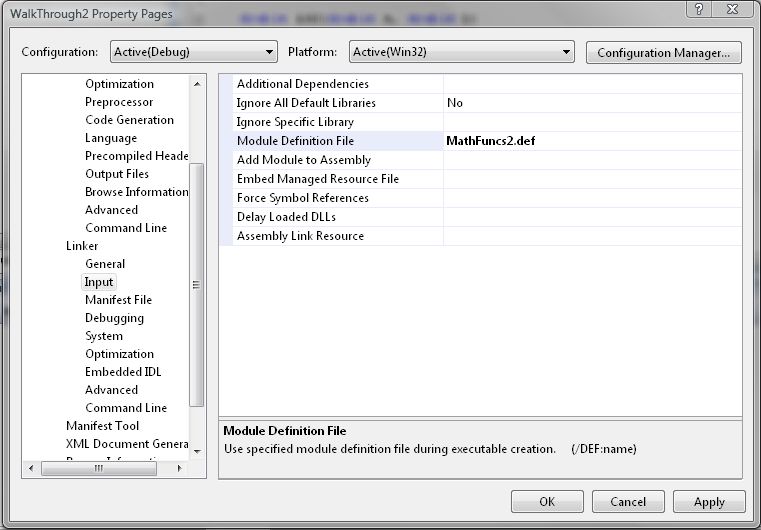
Select Configuration Properties-Linker-Input. Enter thename of the .def file under Module Definition File:

Properties 3

Properties 3

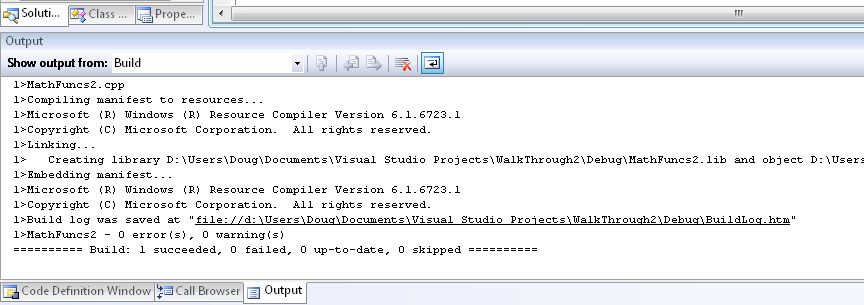
Setting the properties is now complete; click OK and select Build – Build Solution.  If everything has been enetered corectly the result should be:

….

========== Build: 1 succeeded, 0 failed, 0 up-to-date, 0 skipped ==========

Compilation output

Compilation output

A new file MathFuncs2.dll wil have been created in a Debug folder under the solution folder (assuming the compiler has been left in the default debug mode).  To use these functions in Excel, in a standard code module in the Visual Basic Enter:

Declare Function Add Lib "D:\Users\Doug\Documents\Visual Studio Projects\WalkThrough2\Debug\MathFuncs2" _
(ByVal a As Double, ByVal b As Double) As Double
Declare Function Subtract Lib "D:\Users\Doug\Documents\Visual Studio Projects\WalkThrough2\Debug\MathFuncs2" _
(ByVal a As Double, ByVal b As Double) As Double
Declare Function Multiply Lib "D:\Users\Doug\Documents\Visual Studio Projects\WalkThrough2\Debug\MathFuncs2" _
(ByVal a As Double, ByVal b As Double) As Double
Declare Function Divide Lib "D:\Users\Doug\Documents\Visual Studio Projects\WalkThrough2\Debug\MathFuncs2" _
(ByVal a As Double, ByVal b As Double) As Double

It will now be possible to enter the functions add(), subtract(), multiply() and divide() directly in the worksheet, or in any VBA routine.

The end result

The end result

The data files, dll file and spreadsheet may be downloaded from WalkThrough2.zip

Posted in Excel, Link to dll, UDFs, VBA | Tagged , , , | 28 Comments

Dog Tessellations

An intruiging tessellation from a dog with a way with words

Tilings and Patterns

Cover image on Grünbaum/Shephard book: Tilings and Patterns

Also a variety of tessellations from MC Escher.

And while we are on tessellations, here is an animated tadpole tessellation posted by the dog’s father (who, strangely, does not seem to be a dog).

Posted in Maths | Tagged , | Leave a comment