Following the previous post the Scipy statistics functions have been updated to include all the distributions, including the discrete distributions. The input to the distribution functions has also been updated to allow arrays to be transferred either as Excel ranges or pyxll cache objects. The updated code and spreadsheets can be downloaded from:
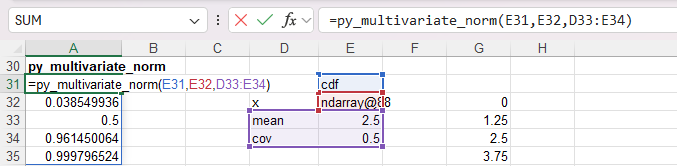
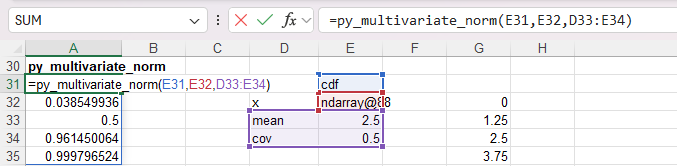
The screenshot below shows the py_multivariate_norm function with the x array input as a cache object:
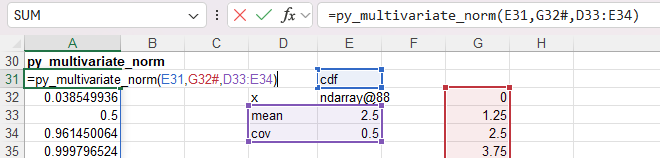
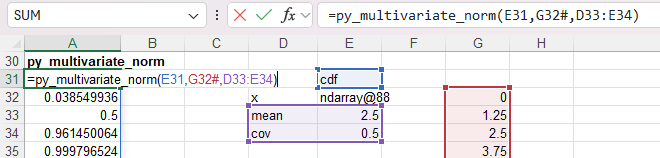
Changing x to the range G32:G36 returns exactly the same results:
There have also been changes to the py_linspace function, in the pyNumpy.py file, to allow the results array to be returned either as a range or a pyxll cache.
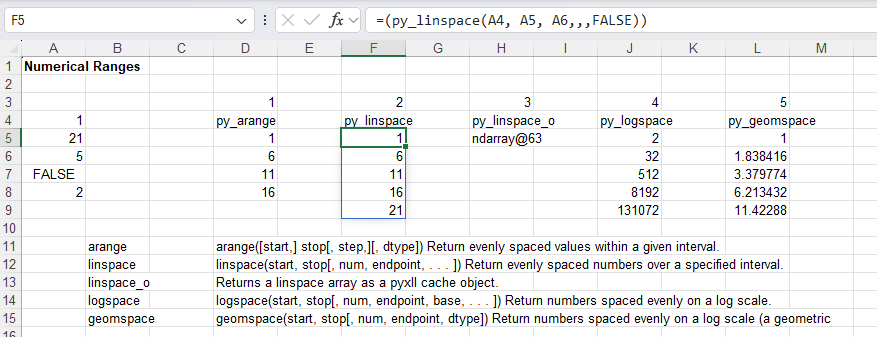
If the optional Rtn_Cache input is set to False (default) the results are returned as a range:
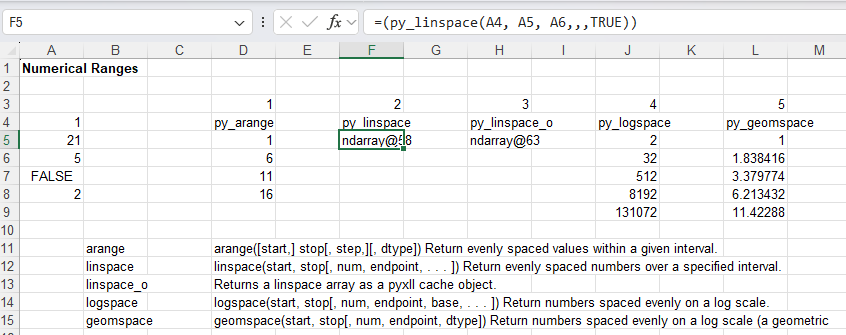
If Rtn_Cache is set to True the array is returned as a pyxll cache, as for py_linspace_o, which is still available:
The updated pyNumpy.py file comes in two versions, pyNumpy-jit.py and pyNumpy-noJIT.py, with the jit version including calls to the Numba just-in-time compiler. The chosen version should be copied to pyNumpy.py.
When a user defined function (UDF) is created in Excel with Python and pyxll the data type of each argument can be specified, either in the @xl_func decorator, or with a separate @xl_arg decorator for each argument. I prefer the latter, which I find more readable and easier to check.
A problem arises if the argument may have different data types; for instance, in my recent additions to the Scipy Stats functions, one of the inputs is often an array of x values, which can easily be created on the spreadsheet for small arrays, but for very large arrays it is may be better to generate a pyxll cache object, which displays as a single cell on the spreadsheet. I had been creating separate functions for these two cases, but I recently discovered, with the help of Tony Roberts from pyxll, that it is now possible to specify alternative data types for any argument, using Union Types
The code below illustrates this approach, with the ‘x’ argument being specified either as a ‘numpy_array’ or an ‘object’.
@xl_func(category = "Scipy-Stats", help_topic="https://docs.scipy.org/doc/scipy/reference/generated/scipy.stats.multivariate_normal.html!0")
@xl_arg('method', 'str')
@xl_arg('x', 'union<numpy_array, object>')
@xl_arg('kwargs', 'dict')
@xl_return('numpy_array')
def py_multivariate_norm(method, x = [], kwargs = None):
    """
A multivariate normal random variable.
The mean keyword specifies the mean. The cov keyword specifies the covariance matrix.
See on-line help for full list of methods and arguments
    """
    newmethod = getattr(stats.multivariate_normal, method)
    if type(x) == list:
        res = newmethod(**kwargs)
    else:
        res = newmethod(x, **kwargs)
    if isinstance(res, np.ndarray) == False: res = np.array(res)
    return res
In this case the x argument is optional, and defaults to an empty list if omitted, but if included it may be specified either as a cache object:
or a selected range which will be converted to a NumPy array.
The results are the same in both cases.
The same approach may be used to return the function results either as a numpy array, displaying all the results, or a pyxll cache object, which displays as a single cell, but contains all the data, which can either be passed back to Python, or the data can be extracted, all or in part, for display in the spreadsheet.
In this case the Python data must be prepared before being transferred, as described in this pyxll FAQ:
This approach has been used in the py_linspace function:
@xl_func(category="py-Maths", help_topic="https://numpy.org/doc/stable/reference/generated/numpy.linspace")
@xl_arg('startnum', 'float')
@xl_arg('stopnum', 'float')
@xl_arg('num', 'int')
@xl_arg('endpoint', 'bool')
@xl_arg('retstep', 'bool')
@xl_arg('rtn_cache', 'bool')
@xl_arg('dtype', 'str')
@xl_arg('axis', 'int')
@xl_return('union<var, object>')
def py_linspace(startnum, stopnum, num = None, endpoint = None, retstep = None, rtn_cache = False, dtype = None, axis = 0):

    try:
        axis = int(axis)
    except:
        pass
    kwargs = {'num': num, 'endpoint': endpoint, 'retstep': retstep, 'dtype': dtype, 'axis': axis}
    kwargs = {k:v for k,v in kwargs.items() if v is not None}

    res = np.linspace(startnum, stopnum, **kwargs)
    if rtn_cache:
        return res
    else:
        to_var = get_type_converter('numpy_array', 'var')
        res = to_var(res)
        return res
The Python code generates a numpy array, which will be displayed in Excel as a cache object. To display as an Excel range of values the pyxll get_type_converter is used to generate a to_var function that converts the array to an Excel variant array.
The updated Scipy and Numpy code will be included for download in the next post.
The Scipy statistics functions last presented here have now been updated with the addition of links to the numerous distribution functions.
The py_Stats spreadsheet, with associated Python code in PythonStatsFuncs3.py and pyScipy3.py, and also minor updates to the pyNumpy.py code, are included in the download file:
Details of the required pyxll package (including download, free trial, and full documentation) can be found at:pyxll
For those installing a new copy of pyxll, a 10% discount on the first year’s fees is available using the coupon code “NEWTONEXCELBACH10”.
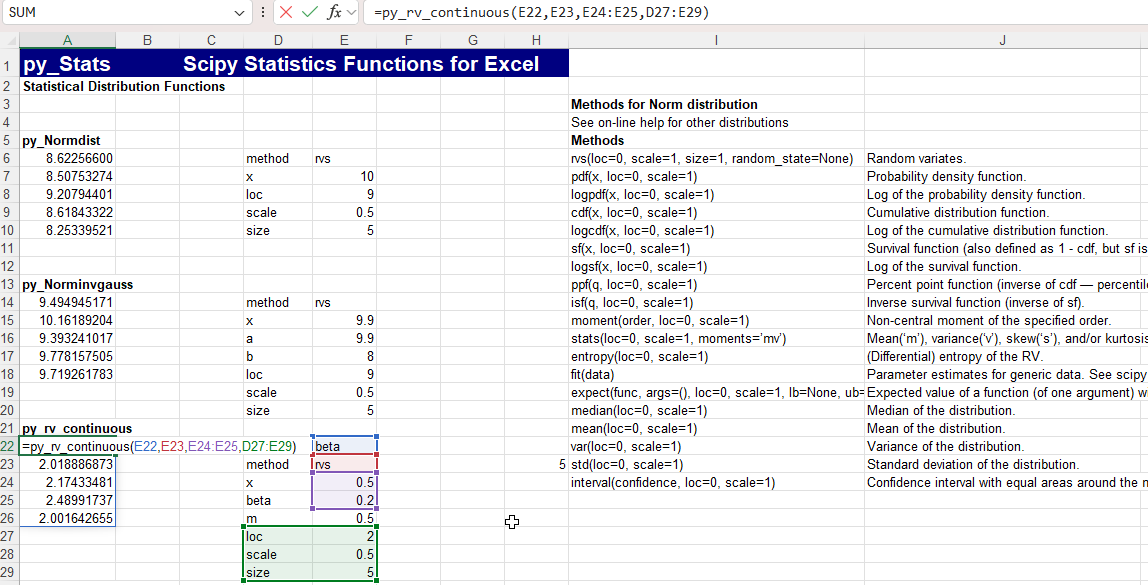
The Scipy distribution functions are divided into Continuous, Multivariate, and Discrete. There are 114 continuous functions, each with a large number of different methods. All of these functions can be called from Excel with the py_rv_continuous function, specifying the required distribution and associated method, followed by required arguments, then any optional arguments, listed in dictionary format. There are also specific functions calling the Normdist and Norminvgauss functions, as shown below:
The spreadsheet lists all the available methods of the Normdist function, with required and optional arguments. Help on the methods of the other distributions can be found at the linked on-line help.
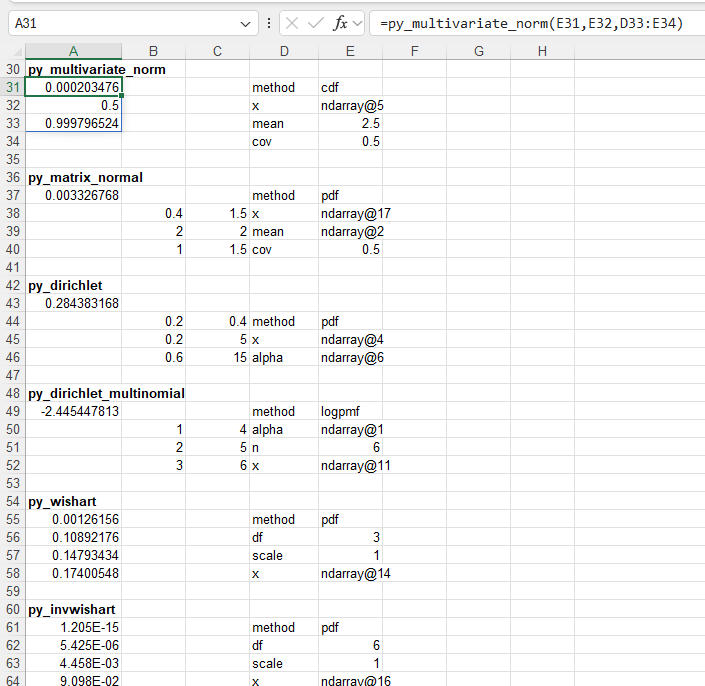
For the multivariate functions there is more variation in the function arguments, so each function has an associated Excel function, with an example on the spreadsheet:
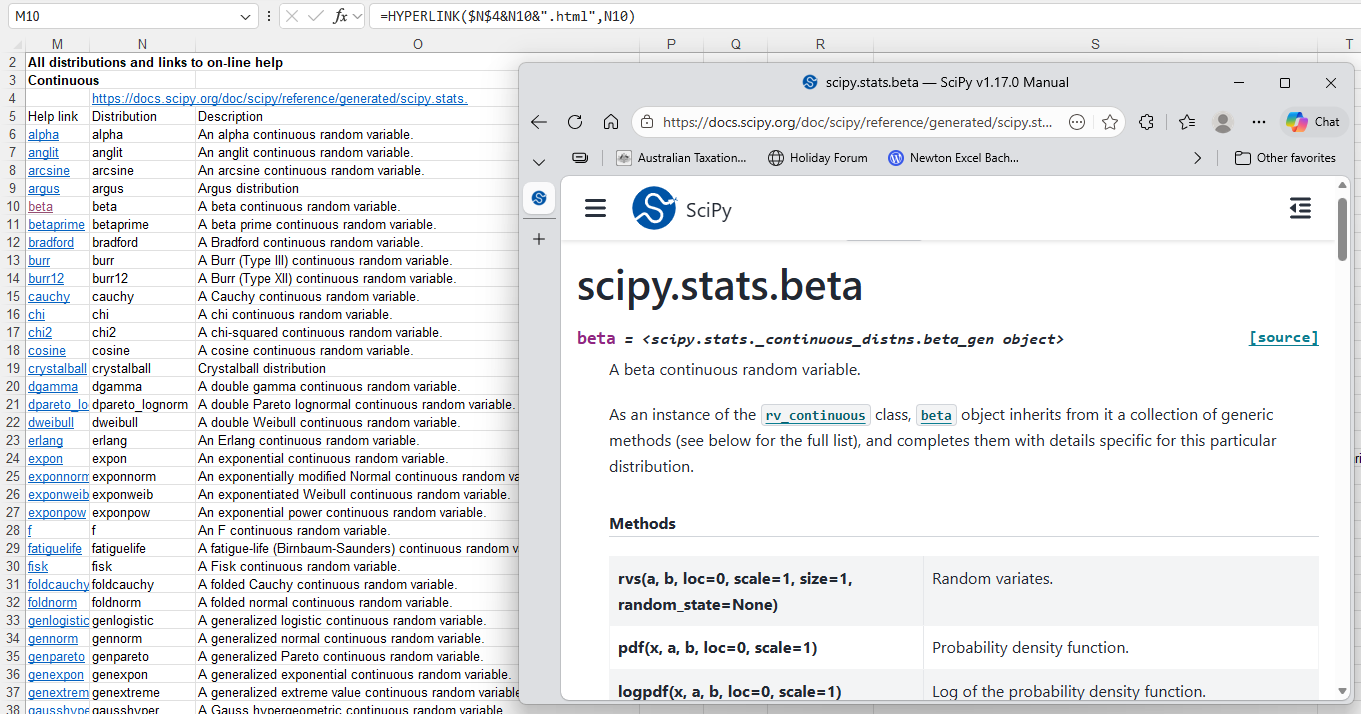
All the functions are listed on the spreadsheet with a short description and a link to the associated on-line help:
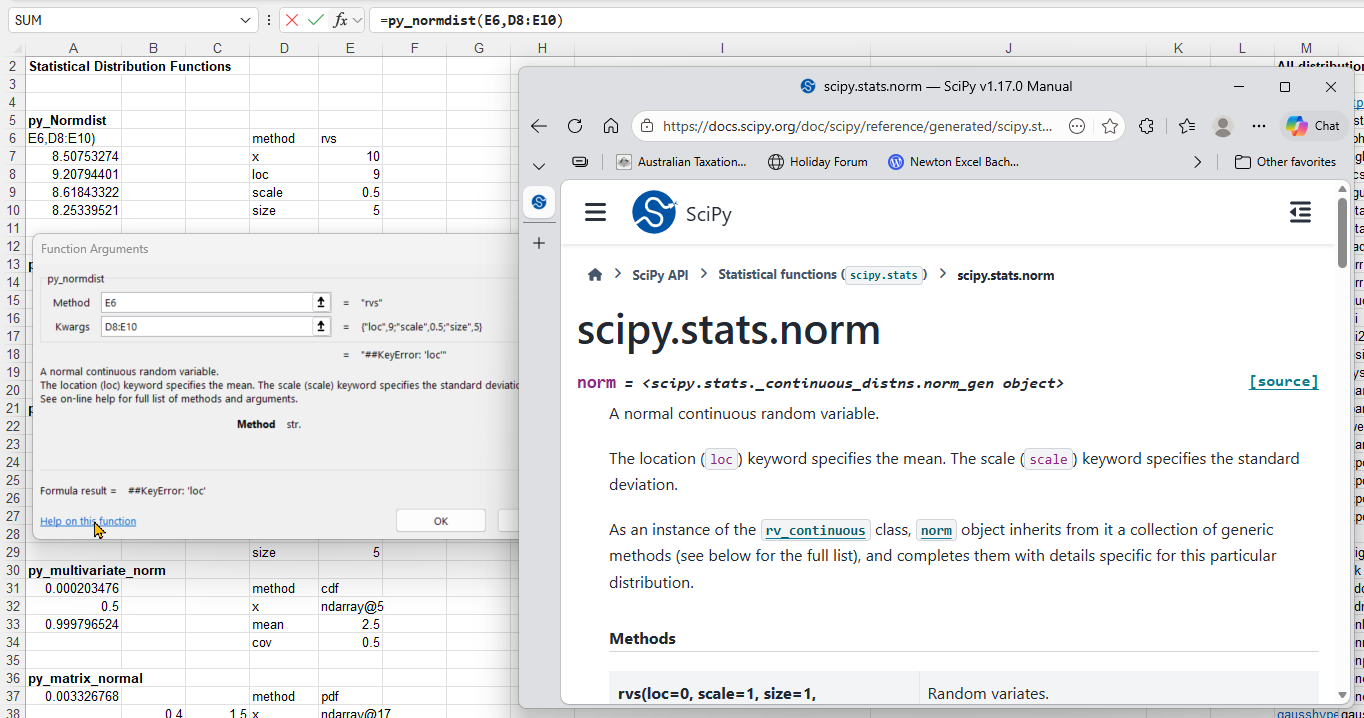
The on-line help may also be accessed when entering the function in the spreadsheet, using the “help on this function” link at the bottom-left of the function dialog:
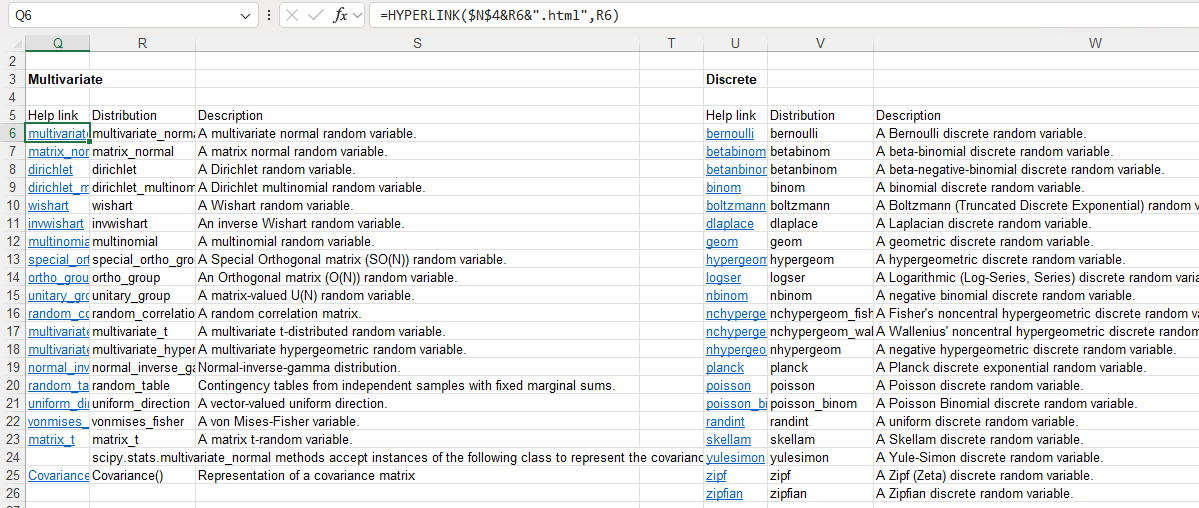
The Multivariate and Discrete functions are also listed on the spreadsheet, with a link to the on-line help for each:
Note that this is a work in progress, and that Excel functions have not yet been created for the Discrete list.
Raise your hand if Excel’s default settings have ever driven you just a little bit crazy.
Maybe your invoice numbers lose their leading zeros… Maybe you’re tired of Excel shoving GETPIVOTDATA into your formulas… Maybe the new Copilot icon is following your every move!
You’re not alone. Excel’s defaults are made for average users. But you? You’re here to level up. So let’s fix those annoyances and make Excel work for you.
Here are 15 simple but game-changing Excel settings you’ll wish you’d changed sooner
The link includes links to a YouTube video and a text version, plus links to a cheat-sheet and other resources from the site. Warning: the site has plenty of ads, and links to external downloads of commercial products, so be careful where you click!
I recently discovered “The Ultimate Python Guide for VBA Developers” which is a free book available from the pyxll site at https://www.pyxll.com/learn-python.html.
The pyxll site says:
This book has been written specifically for VBA and Excel users like you. Fast track your Python journey and take your productivity to a whole new level.
Here are just some of the topics you will learn about in this book
Getting started with Python Key differences between VBA and Python Choosing a Python IDE All about functions, modules and packages Python datatypes and collections Scientific computing with NumPy, Pandas and SciPy IPython and Jupyter Notebooks Excel integration and writing Excel add-ins
I found it to be an excellent introduction to (and reminder of) the basics of getting started with Python.
The link above also has many other resources, including:
The VBA to Python Cheat Sheet Use our free Python to VBA Cheat Sheet to accelerate learning Python. Keep it as a handy reference and you’ll be proficient with Python in no time!